Iris Rules: Quickstart
Last updated: November 11, 2026
Rules tells Iris what to do when an answer is approved (reuse it word for word, draw on it, or keep it on file only) and who should answer each new question. You write a rule as one sentence, check how Iris reads it, dry-run it, and turn it on. Nothing changes until you turn a rule on.
Before you start
Rules must be enabled for your organization by Iris. If you do not see Rules in the sidebar, ask your Iris contact.
You need to be an organization admin, or have the permission to manage rules.
Add your first rule
Open Rules in the sidebar and select Add Rule.
Choose Sentence and type the rule the way you would explain it to a new hire, for example "Security answers approved by the Security team are Golden." Select Read it back. If you prefer to pick from options, use Guided instead.
Check How Iris reads it. Confirm the people and groups Iris matched, and read anything listed under Before you turn it on.
Select Start Dry Run. Iris shows what the rule would change in your current library, without changing anything.
If the numbers look right, select Turn It On. For a rule about approved answers, choose whether it applies to existing and new approvals, or new approvals only.
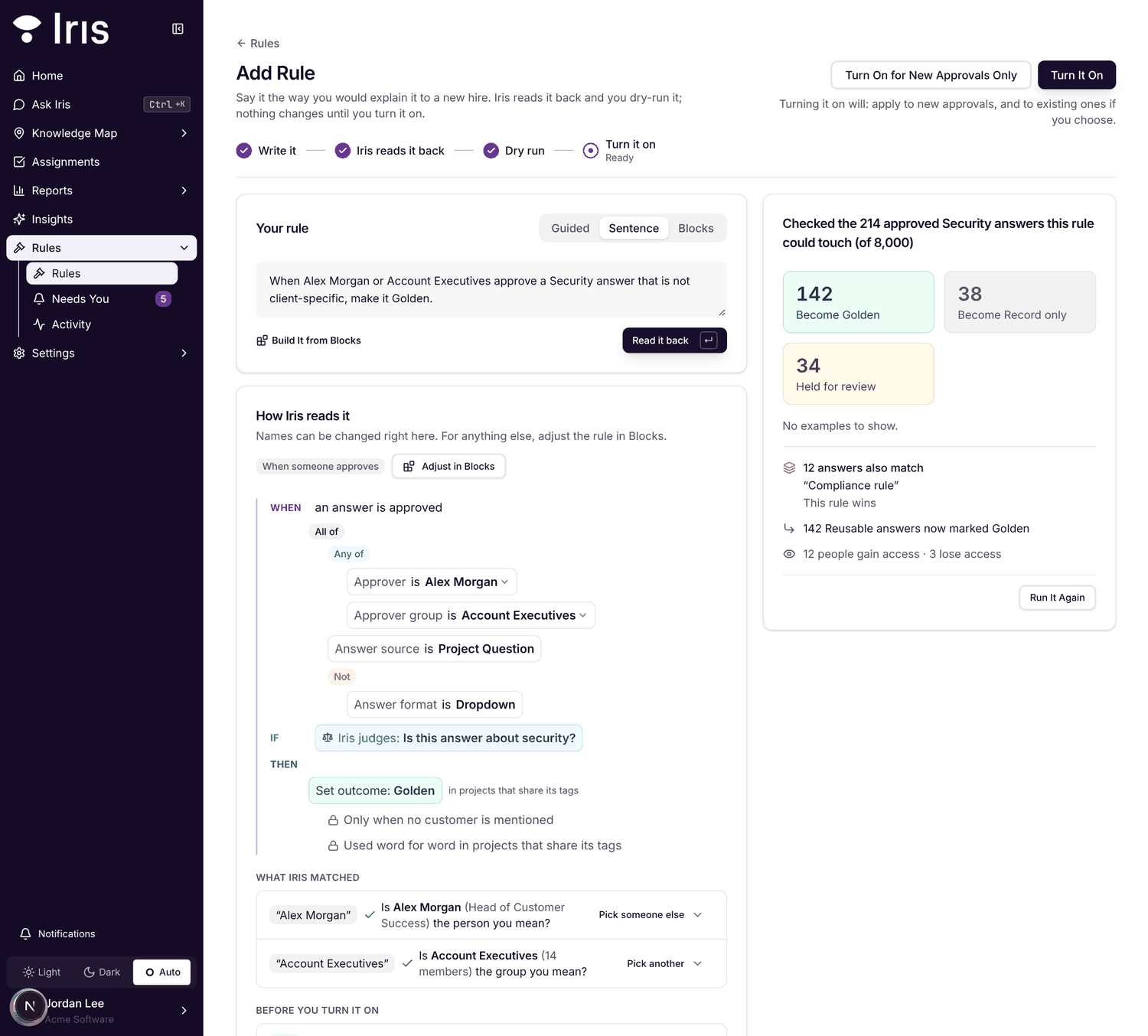
A rule after its dry run: how Iris reads it on the left, what it would change on the right. Screenshots use sample data.
What a rule can do
Outcome | What it means |
|---|---|
Golden | Iris uses the answer word for word. |
Reusable | Iris can draw on the answer when it writes. This is the default. |
Record only | The answer is kept on file and never reused. |
A rule about approved answers can also hold the answer for someone's sign-off, tag it, set its owner, or put it on a review cadence. A rule about new questions can send them to a person or group, or put them through a workflow.
Five rules to start with
Replace the teams and names with your own.
Security answers approved by the Security team are Golden.
Pricing answers are Record only.
Answers that are specific to one customer are Record only.
Hold Security answers approved by anyone outside the Security team for the Security team to review.
Integration questions go to [name].
After you turn rules on
Check Needs You. It lists what rules could not settle on their own, such as two rules that disagree or an answer Iris was not sure about. Each card offers the choices available.
Check Activity. Choose a project or a rule to see every decision and the rule behind it. Select Undo on a row to reverse one.
Pause a rule from the Rules page if it is not doing what you expected. What it already decided stays as it is.
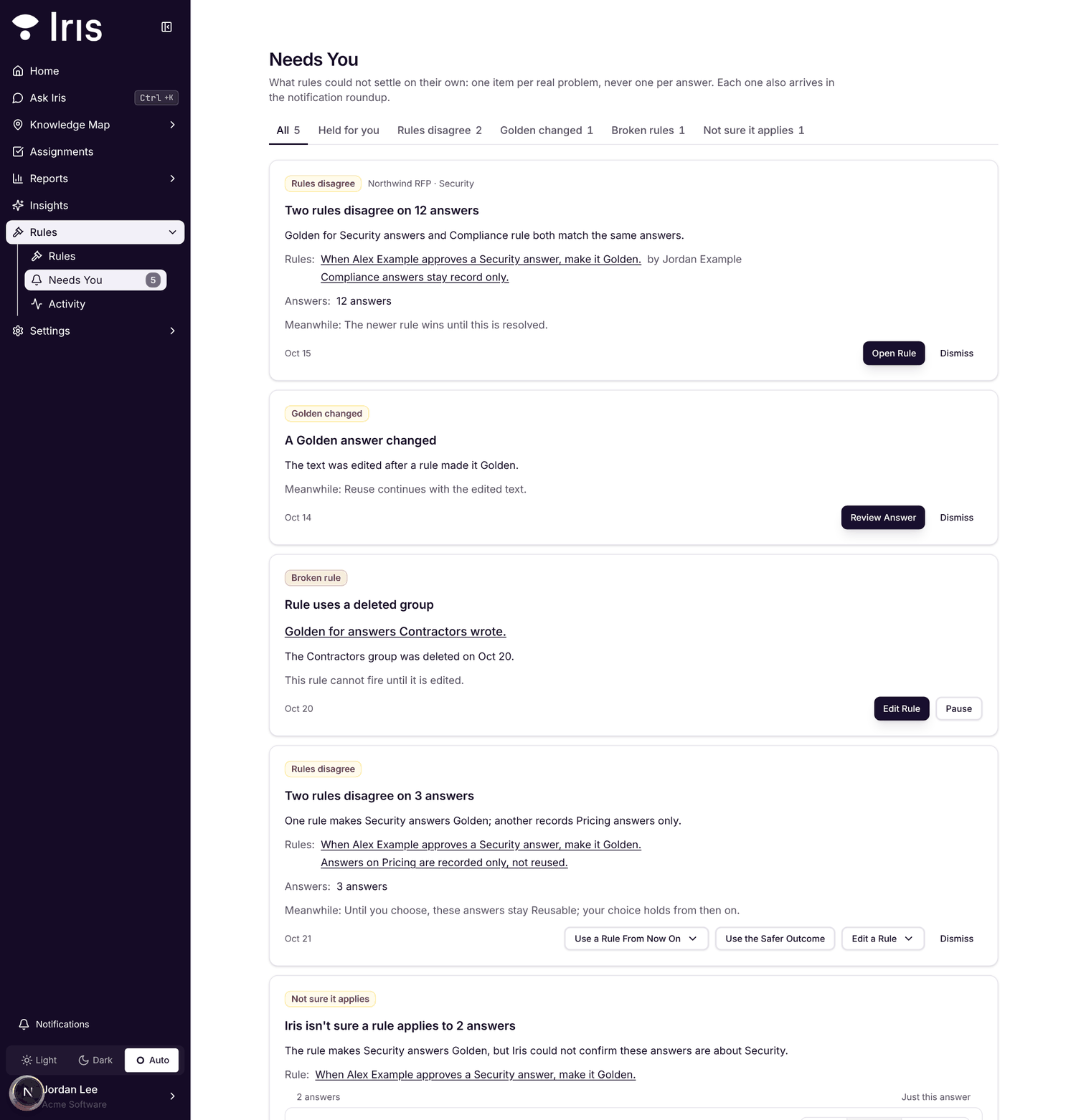
Needs You: one card per problem, with what Iris is doing in the meantime.
Good to know
A person's decision always outranks a rule.
Write one rule per sentence. Iris does not accept "otherwise".
When two rules disagree on an answer, it stays Reusable until someone chooses in Needs You.
An answer that mentions a customer is never made Golden.
Golden applies in projects that share the answer's tags, unless the rule says "company-wide".
Rules that route questions only apply to questions created after the rule is turned on.
For every option, condition and screen, see the full guide, Iris Rules: User Guide.