Logging into Iris
Last updated: May 28, 2026
Welcome to Iris, your intelligent platform for efficiently managing RFPs, Security questionnaires, Sales Enablement, and your knowledge base.
Logging in with Username and Password
Ask your Iris admin to add you as a user
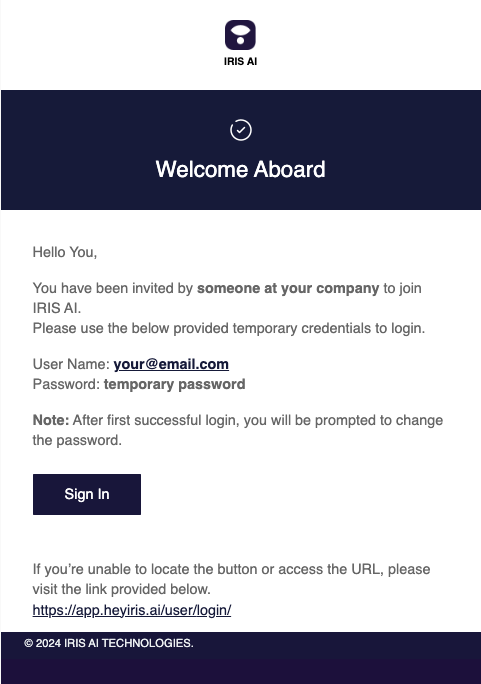
Find an email from no-reply@heyiris.ai:
Go to studio.heyiris.ai and sign in with the provided email and temporary password
You’ll be prompted to reset your password to something unique.
After setting your new password, login again to access the dashboard.
Logging in with SSO (Google, Okta, or Microsoft)
If your organization has Single Sign-On (SSO) enabled:
Go to studio.heyiris.ai.
Select Login using SSO at the bottom of the sign-in page.
Enter your email address to connect with your SSO provider.
Follow your provider’s authentication process to complete the login.
Note: The first time you log with this method, you will come in with the Collaborator role. See below for more information.
Why Can I Only See the "Projects" or "Projects" and "My Assignments"?
If you log in and only have access to the Projects tab, it’s because you have been assigned the Collaborator role (or a custom role).
If this was intended: Collaborators are restricted to accessing projects they've been added to or questions they've been tagged in.
If this wasn’t intended: You might be expecting upgraded permissions (the ability to create a project, upload files to the knowledge map, etc.). Contact your organization’s Iris administrator to review and update your role.
Need Help?
Didn’t receive an email?
Check your spam folder.
Confirm your access with your organization’s Iris representative.
Having trouble with SSO?
Contact your IT department for assistance.