Notification Settings
Last updated: September 21, 2026
A guide for administrators and everyone on your team
Iris notifies you about the work that needs you: questions assigned to you, mentions, workflow steps, project milestones and expiring Knowledge Map files. Notification Settings decide how those reach you — by email, in Slack, and in the in-app notification bell.
This guide covers what an administrator sets for the whole organization, what each person can change for themselves, and the controls that live on an individual project.
How settings stack up
Notification settings resolve in layers. Each layer only overrides what it explicitly sets, so anything you leave alone keeps inheriting from the layer above:
Iris defaults — sensible settings for a new organization.
Organization defaults — what your admin sets in Settings → Notifications. These apply to everyone in your organization.
Personal preferences — what each person sets on their own profile, if their role has the "Manage own notifications" permission.
Per-project — muting a single project for yourself, and extra recipients an admin adds on a specific project.
Good to know: Anywhere you see a "System default" or "Org default" badge next to a setting, that setting is still inherited. Change it and the badge disappears; use Reset to hand it back to the layer above. |
Where each setting lives
What you want to change | Where to go | Who can do it |
Defaults for everyone in the organization | Settings → Notifications | Administrators |
Your own email and Slack preferences | Your profile → Notifications | Anyone whose role has "Manage own notifications" |
Mute one project for yourself | Open the project → Notifications tab | Anyone who can open the project |
Send a project's events to extra people or a Slack channel | Open the project → Notifications tab | Anyone who can edit the project |
Read and clear your notifications | The Notifications bell in the left sidebar | Everyone |
For administrators: organization defaults
Go to Settings → Notifications. Everything on this page applies to every person in your organization who has not set their own preferences, and every change saves immediately — there is no Save button to remember.
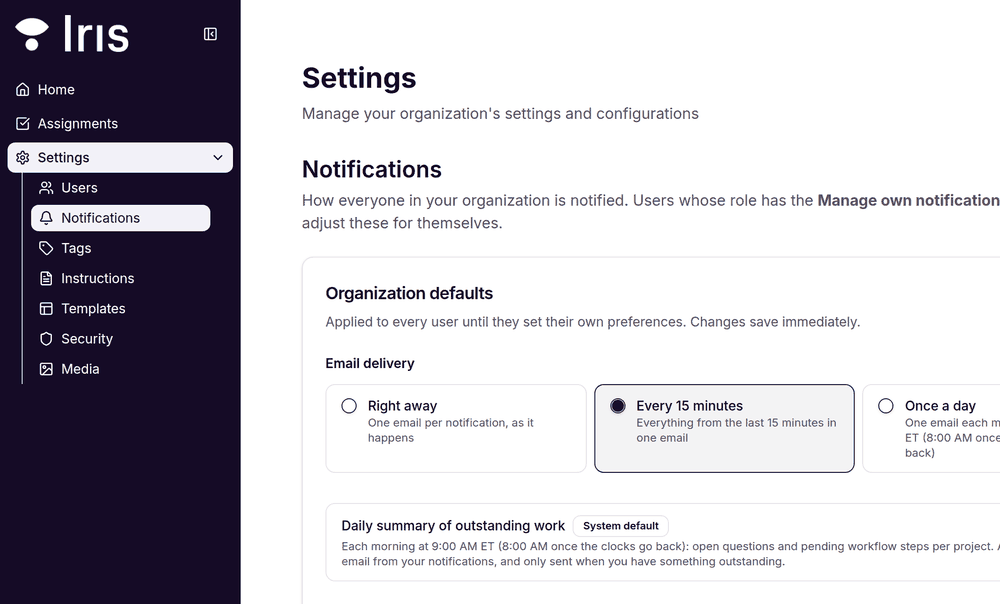
Settings → Notifications in the left sidebar.
Email delivery
Choose how often Iris sends notification emails:
Right away — one email per notification, as it happens.
Every 15 minutes — everything from the last 15 minutes arrives in a single email. A good middle ground for busy teams.
Once a day — one email each morning at 9:00 AM ET (8:00 AM once the clocks go back).
This choice affects email only. Slack messages and the in-app bell are always immediate.
Daily summary of outstanding work
A separate morning email listing open questions and pending workflow steps, grouped by project. It is sent only when someone actually has outstanding work, so a clear plate means no email.
Notification types
The grid turns each kind of notification on or off per channel. Email and Slack each have their own switch, so you can, for example, send mentions to Slack and keep assignments in email.
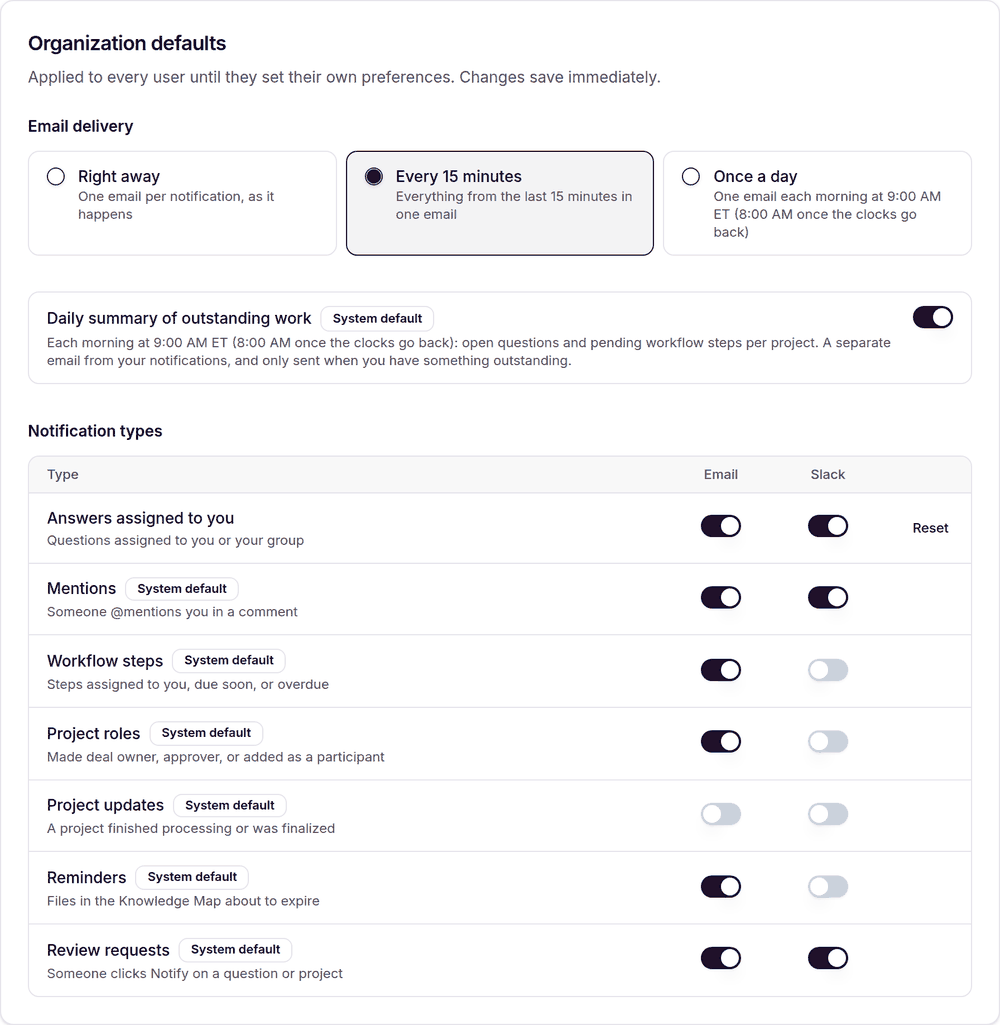
Organization defaults: delivery cadence, the daily summary, and the notification-type grid.
Notification type | Sent when |
Answers assigned to you | A question is assigned to you or to your group |
Mentions | Someone @mentions you in a comment |
Workflow steps | A step is assigned to you, is due soon, or is overdue |
Project roles | You are made deal owner or approver, or added as a participant |
Project updates | A project finishes processing or is finalized |
Reminders | Files in your Knowledge Map are about to expire |
Review requests | Someone clicks Notify on a question or a project |
The bell always stays on. These switches control email and Slack. Notifications always appear in the in-app bell, so nothing is ever lost because a channel was switched off. |
For administrators: where Slack notifications go
This one choice decides where every Slack notification lands. It does not touch email or the in-app bell.
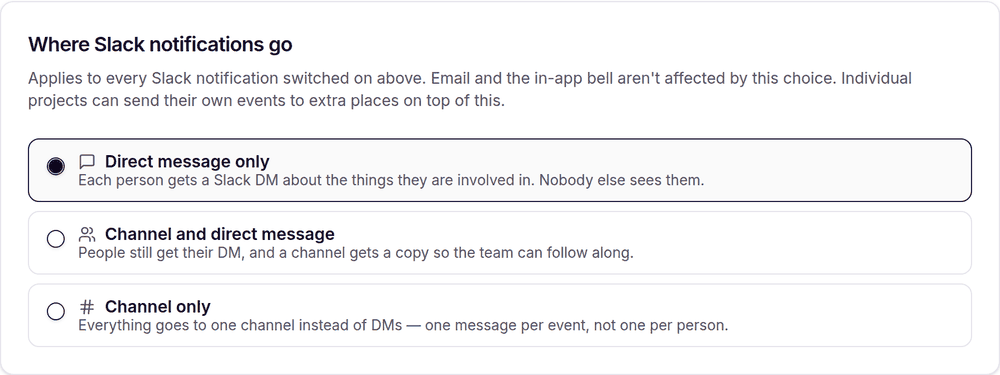
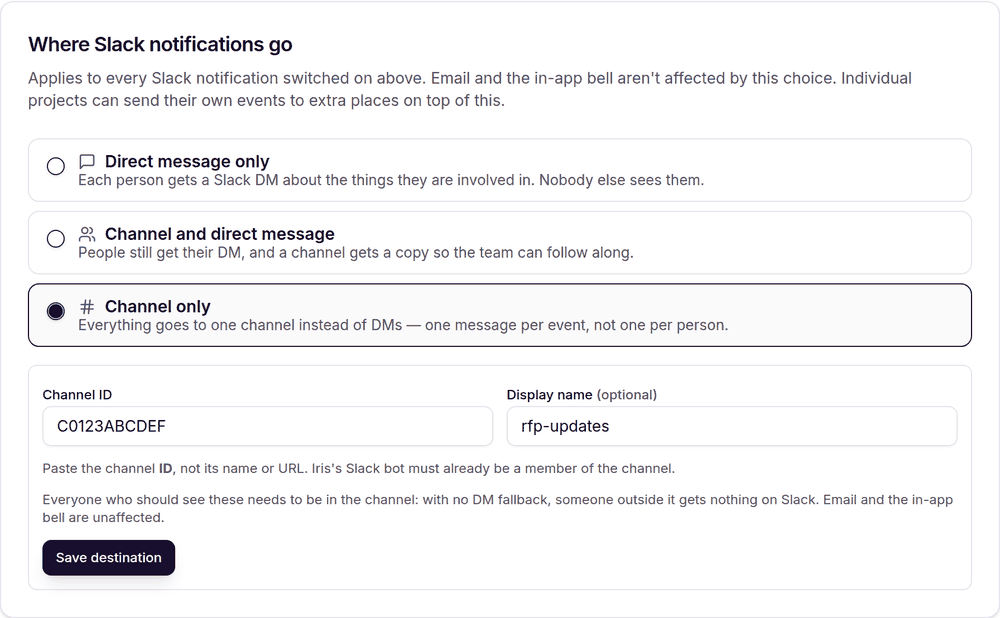
The three Slack delivery options. "Direct message only" is the default.
Direct message only — each person gets a Slack DM about the things they are involved in. Nobody else sees them.
Channel and direct message — people still get their DM, and a channel gets a copy so the team can follow along.
Channel only — everything goes to one channel instead of DMs: one message per event rather than one per person.
Both channel options ask for a Slack channel ID — the ID such as C0123ABCDEF, not the channel name or its URL. The Iris Slack bot must already be a member of that channel. The display name is optional and is only used to label the channel inside Iris.
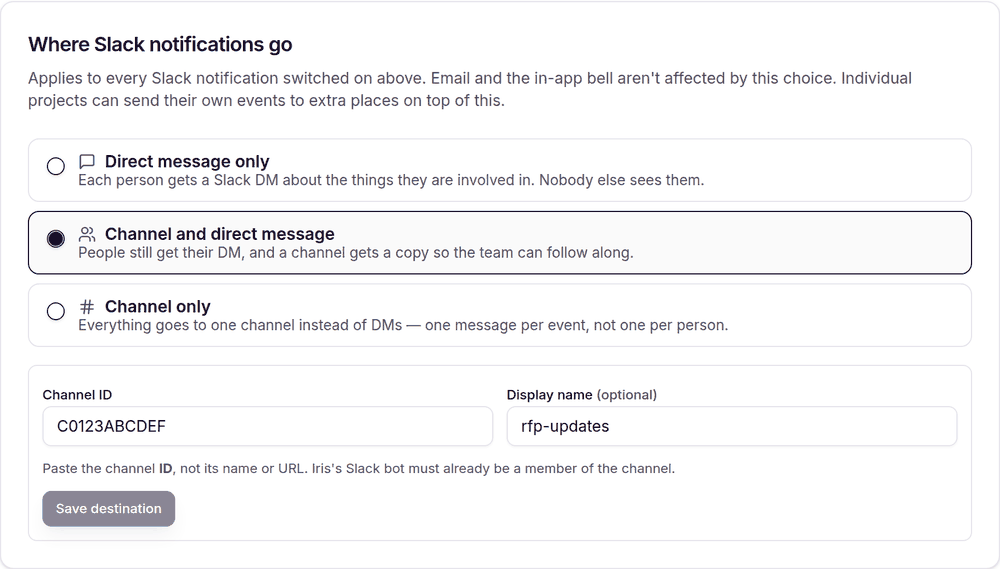
Choosing a channel option reveals the channel ID field. Click Save destination to apply it.
Before you pick "Channel only": There is no DM fallback. Anyone who is not in that channel gets nothing on Slack — make sure everyone who needs these is a member. Email and the in-app bell are unaffected. |
"Channel only" spells out the trade-off before you save.
If your organization has custom per-event routing set up through the API, this panel says so and stays read-only rather than flattening a configuration someone built deliberately.
If Slack is not connected yet, you can still make your choice — messages simply start flowing once the Slack integration is connected.
For administrators: invites and permissions
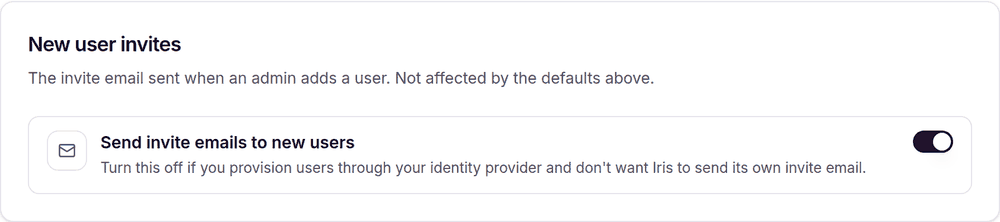
New user invites
The invite email Iris sends when an admin adds a user. It is separate from the notification defaults above. Turn it off if you provision users through your identity provider and do not want Iris sending its own invite.
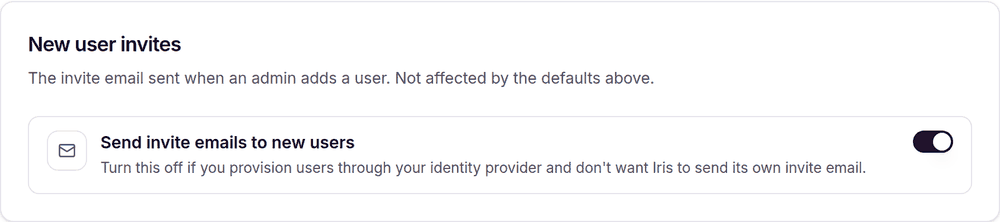
The new user invite switch.
Who can change their own settings
This is controlled per role by the "Manage own notifications" permission, managed under Settings → Users. Roles without it always receive the organization defaults and see a read-only view on their profile.

A shortcut through to roles and permissions.
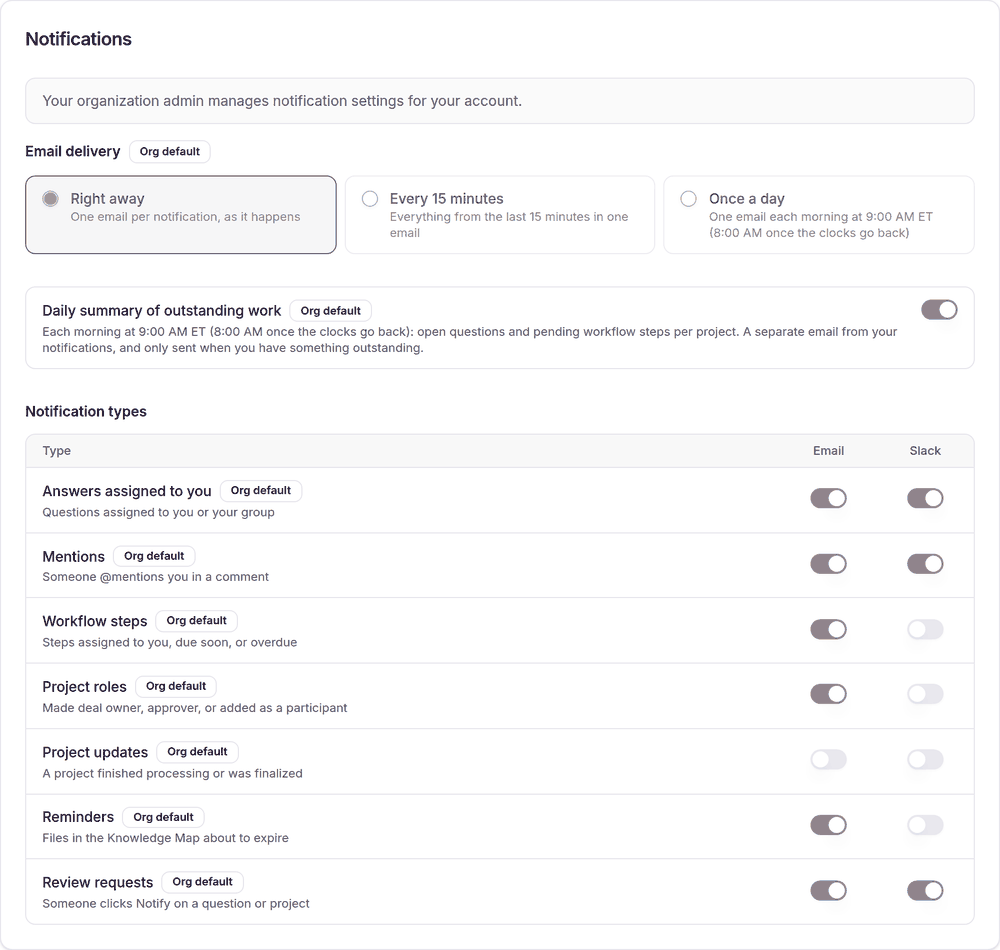
What someone without the permission sees on their profile: the settings that apply to them, clearly marked as inherited and not editable.
For everyone: your own notification preferences
Open your profile and find the Notifications card. The controls are the same ones your admin uses, applied only to you.
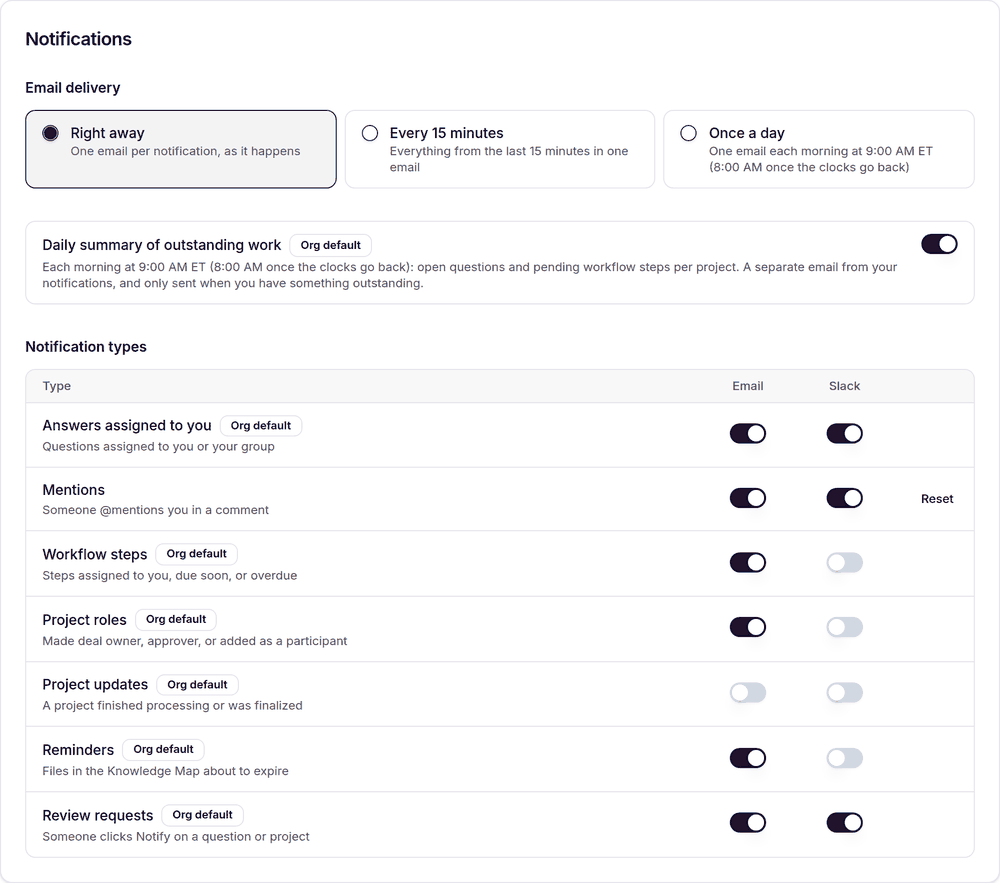
Your own preferences. "Org default" marks every setting still inherited from your organization; the Reset link returns a row you have changed back to the default.
Pick your own email cadence — for example, keep the organization on a 15-minute digest while you take everything right away.
Turn the daily summary on or off for yourself.
Switch individual notification types on or off per channel.
Changes save as you make them, and Reset gives a setting back to your organization default.
The notification bell
The Notifications row at the bottom of the left sidebar shows how many unread notifications you have and opens your recent feed.

The sidebar row, with the unread count.
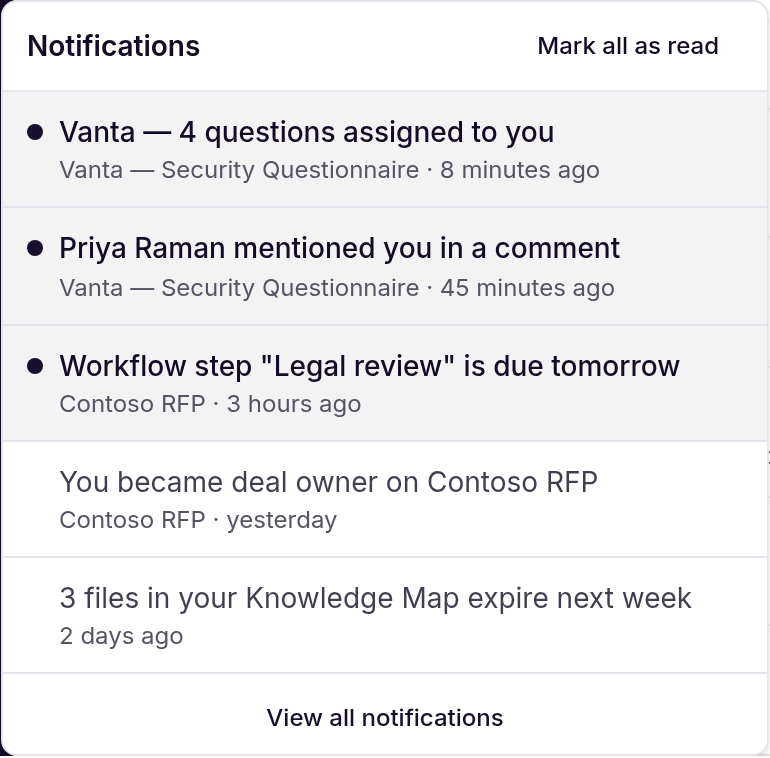
Unread notifications are highlighted. Click one to jump straight to the question, step or project it is about.
Unread items are highlighted and marked with a dot; opening one marks it read and takes you to the work it refers to.
Mark all as read clears the badge in one click.
View all notifications opens the full inbox on your Assignments page.
Common questions
Question | Answer |
I changed a setting — do I need to save? | No. Every control on these pages saves as soon as you change it. |
Why can't I edit my notification settings? | Your role does not have the "Manage own notifications" permission. Your admin can grant it under Settings → Users. |
I turned everything off. Will I miss work assigned to me? | It will still be in your notification bell and on your Assignments page — those are never switched off. |
Why is the Slack column missing? | Slack is not connected for your organization, so there is nothing to switch on yet. |
I set a Slack channel but nothing arrives. | Check that you used the channel ID (such as C0123ABCDEF) rather than its name, and that the Iris Slack bot is a member of the channel. |
What is the difference between the daily summary and the once-a-day email? | The once-a-day setting batches your notifications. The daily summary is a separate email about outstanding work — open questions and pending workflow steps — and arrives only when you have some. |
Does muting a project affect my colleagues? | No. "Mute this project for me" is personal and only ever applies to you. |
Need a hand? Contact your Iris administrator or reach out to the Iris support team.