Iris Rules: User Guide
Last updated: November 11, 2026
How to set up, test and manage Rules in Iris, with a starter set of recommended rules.
What Rules does
Rules lets you tell Iris, in one sentence per rule, what should happen in two situations:
When someone approves an answer. A rule decides whether Iris reuses the answer word for word (Golden), draws on it when writing (Reusable), or keeps it on file without reusing it (Record only). It can also hold the answer for a sign-off, tag it, give it an owner, or put it on a review cadence.
When a new question comes in. A rule decides who answers and reviews it, either by sending it to a person or group or by putting it through a workflow.
You write the rule, Iris reads it back so you can confirm it understood, you run a dry run to see what it would change, and then you turn it on. Nothing changes until you turn a rule on. Every action Iris takes names the rule behind it and can be undone, and a person's decision always outranks a rule.
Before you start
Rules has to be enabled for your organization by Iris. Until then there is no Rules entry in the sidebar. Ask your Iris contact to switch it on.
Your organization may start in testing mode. In testing mode you can add rules and dry-run them, and rules that are on only record what they would do. Rules start acting once Iris switches your organization fully on.
You need the permission to manage rules. Organization admins have it, and it is granted to the Admins role by default. Other roles can be given it in the role editor.
You also need permission for what the rule does. Rules about approved answers need Approved Answers > Full Access. Rules that route questions need Projects > Edit Projects.
People without the manage-rules permission still see why Iris treated an answer the way it did (in the Approved Answers library and on project pages), and anyone an answer is held for can accept it.
How a rule is built
Each rule is one sentence. Iris reads it into four parts:
Part | What it is | Example |
|---|---|---|
When | The event: an answer is approved, or a new question comes in. A saved rule keeps its event. | an answer is approved |
Conditions | Facts Iris checks exactly: who approved it, where it came from, its tags, project, preset, customer, section and so on. | Approver group is Security team |
Iris judges | An optional yes/no question Iris answers by reading the answer or question in its project's context. Use it for topics. | Is this answer about security? |
Then | What Iris does. | Set outcome: Golden |
If Iris is not sure whether the judged question applies, the rule does nothing for that answer and an item appears in Needs You for a person to decide.
What a rule can do
When | Action | What it means |
|---|---|---|
An answer is approved | Make it Golden | Iris uses the answer word for word. You choose where: in projects that share the answer's tags (the default) or company-wide. |
An answer is approved | Keep it Reusable | Iris can draw on the answer when it writes. This is the default when no rule matches. |
An answer is approved | Make it Record only | The answer is kept on file and Iris never reuses it. It moves to Archived in the library. |
An answer is approved | Hold it for review | Nobody reuses the answer until the person or group you name signs off. |
An answer is approved | Tag it | Adds tags, for finding and scoping the answer. |
An answer is approved | Set its owner | One person keeps the answer up to date. |
An answer is approved | Put it on a review cadence | The answer comes up for review on a schedule. |
A new question comes in | Send it to a person or group | They answer it, instead of the project's usual flow. |
A new question comes in | Use a workflow | The question goes through a review process you have set up. |
An approval rule takes one outcome (Golden, Reusable or Record only) and any of the four extras. A question rule can send the question to someone, use a workflow, or both.
The Rules page
Open Rules in the sidebar. The section has three pages: Rules, Needs You and Activity.
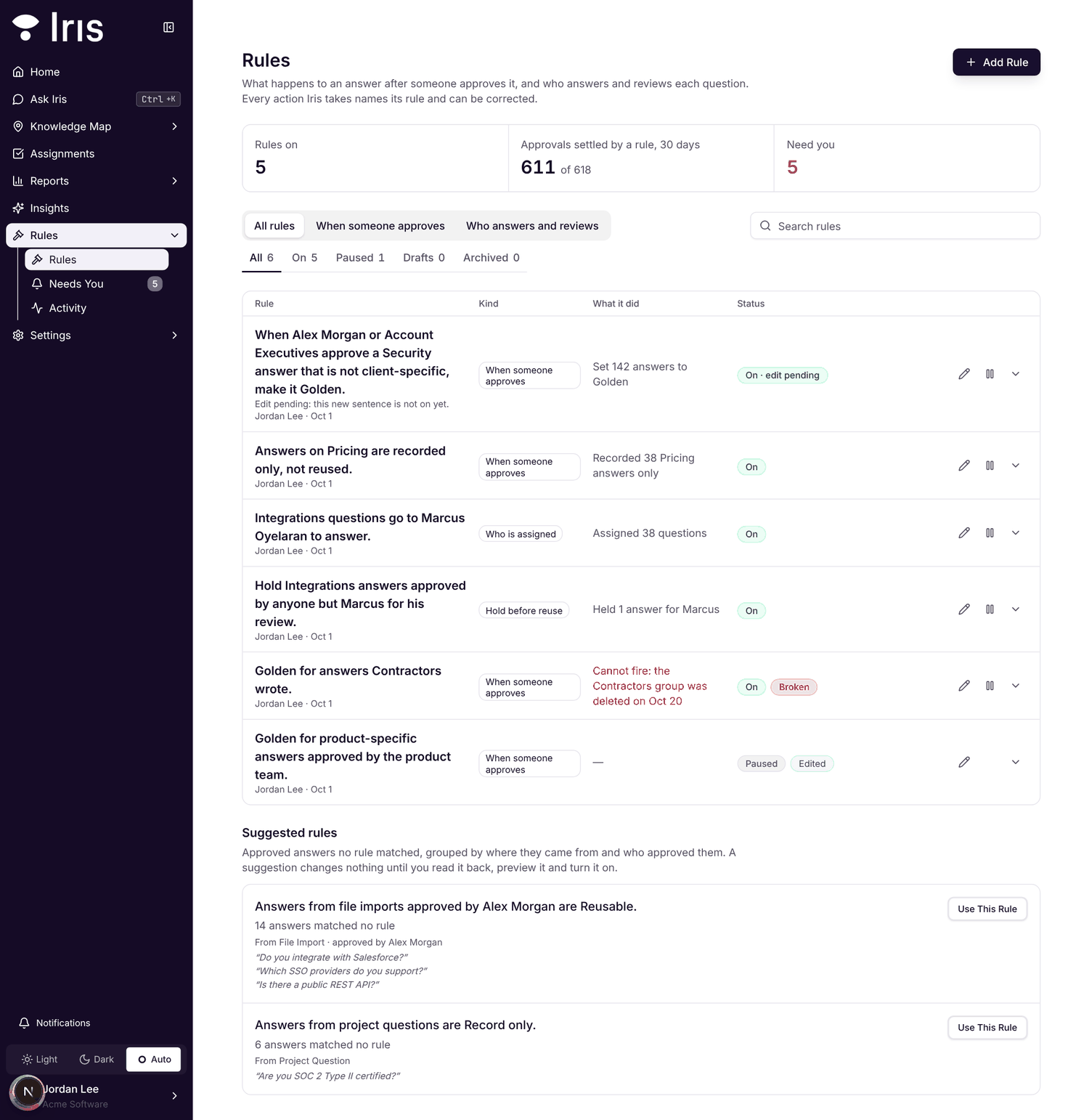
The Rules page: summary tiles, filters, the list of rules, and Suggested rules underneath.
Tiles show how many rules are on, how many approvals a rule settled in the last 30 days, and how many items need you.
Filters narrow the list by kind (When someone approves, Who answers and reviews) and by status (On, Paused, Drafts, Archived). You can also search.
Each row shows the rule's sentence, its kind, what it has done so far and its status. Use the row's icons to edit or pause it, and the arrow to expand it and see how Iris reads it and its recent decisions.
Suggested rules are generated from approved answers that no rule matched, grouped by where they came from and who approved them. Select Use This Rule to start from one. A suggestion changes nothing until you read it back, dry-run it and turn it on.
How to add a rule
Adding a rule has four steps, shown across the top of the Add Rule page: Write it, Iris reads it back, Dry run, Turn it on.
Step 1: Write it
On the Rules page select Add Rule. The Your rule card offers three ways to write the same rule:
Guided asks two questions. First pick what Iris should do, then pick which answers or questions it applies to using the chips (about a topic, approved by, from, tagged, in project, and more under More). The sentence at the top fills in as you go.
Sentence lets you type the rule the way you would explain it to a new hire, then select Read it back.
Blocks builds the rule from parts: an event, conditions, an optional question for Iris to judge, and actions. Use it when you need groups such as "any of" or "not".
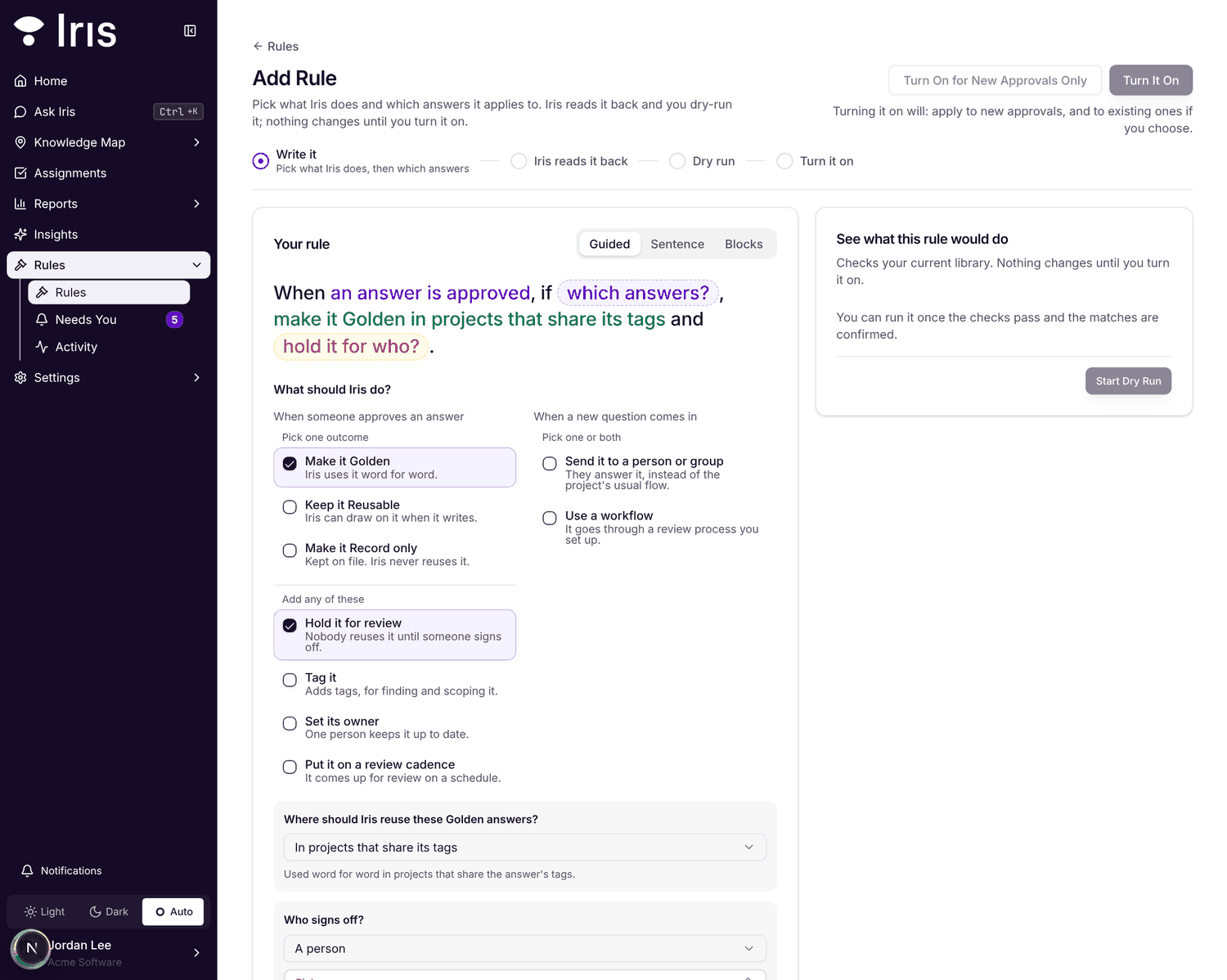
Guided: pick the outcome and any extras, then answer the follow-up questions.
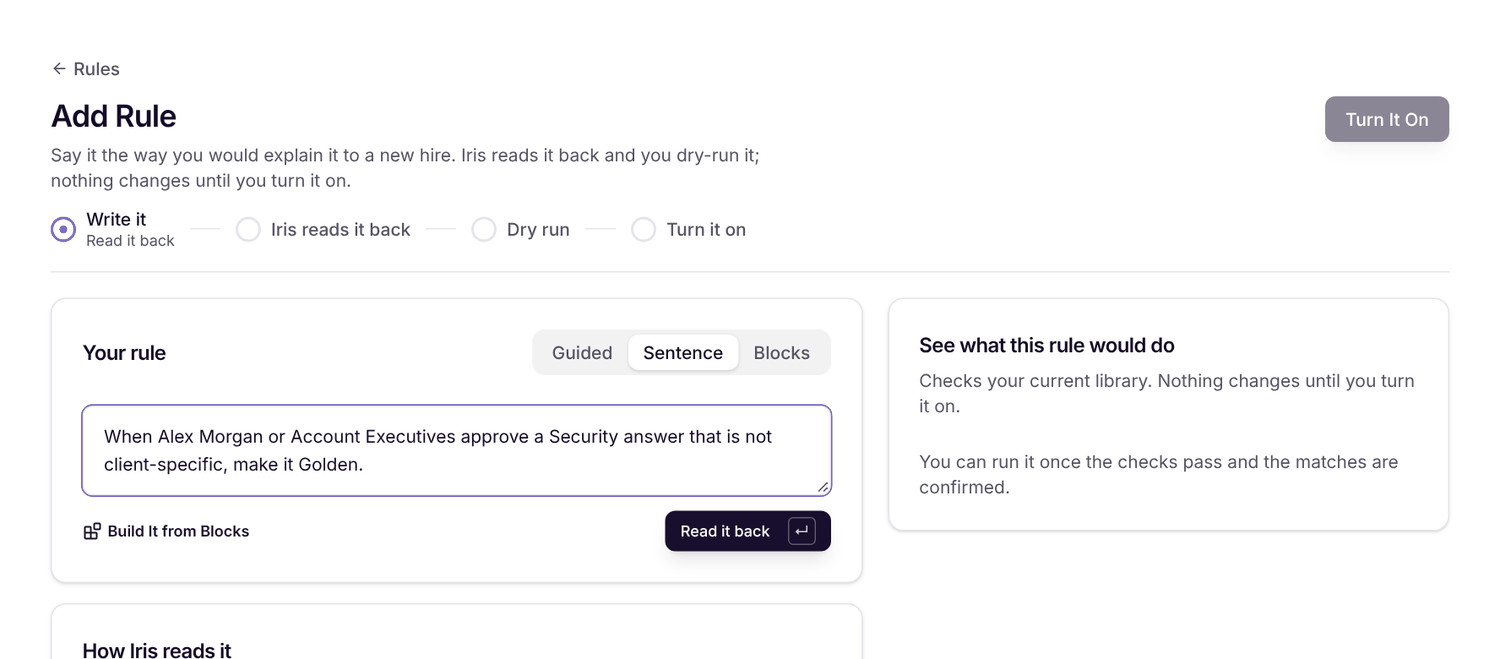
Sentence: write the rule in plain language and select Read it back.
Step 2: Check how Iris reads it
Iris shows the rule as When, conditions, the question it will judge, and Then. Check each line against what you meant.
Under Names Iris matched, confirm each person, group or tag. Select Yes, or pick someone else if Iris matched the wrong one.
Read Before you turn it on. Items marked OK need nothing. Heads up items are warnings. Confirm items need a tick from you, for example when a rule has no conditions and would apply to every answer. Blocked items must be fixed first, for example a duplicate of a rule you already have.
If something is wrong, edit the sentence and read it back again, or select Adjust in Blocks.
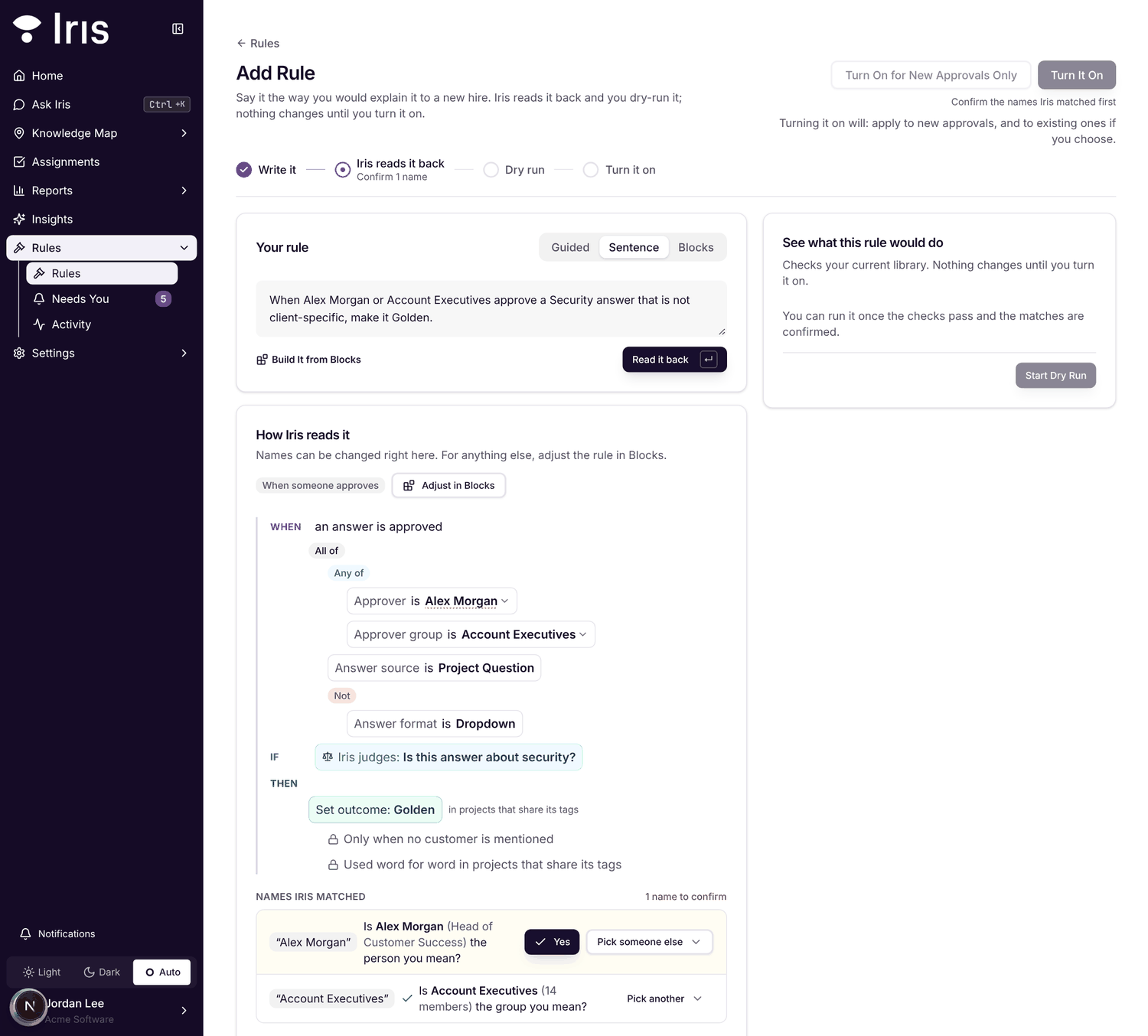
Iris reads the rule back. Here it asks you to confirm one name before the dry run.
Step 3: Run the dry run
Select Start Dry Run. A dry run is required for every rule.
For approval rules, Iris checks your current library and shows how many answers would become Golden, Reusable or Record only, or be held.
For routing rules, Iris replays questions from your recent completed projects and shows who they would have gone to.
The results also show overlaps with other rules and side effects, such as how many Reusable answers would become Golden.
The dry run runs in the background. You can leave the page: the rule waits in Drafts with its results. If another rule changes after your dry run, Iris asks you to run it again before turning the rule on.
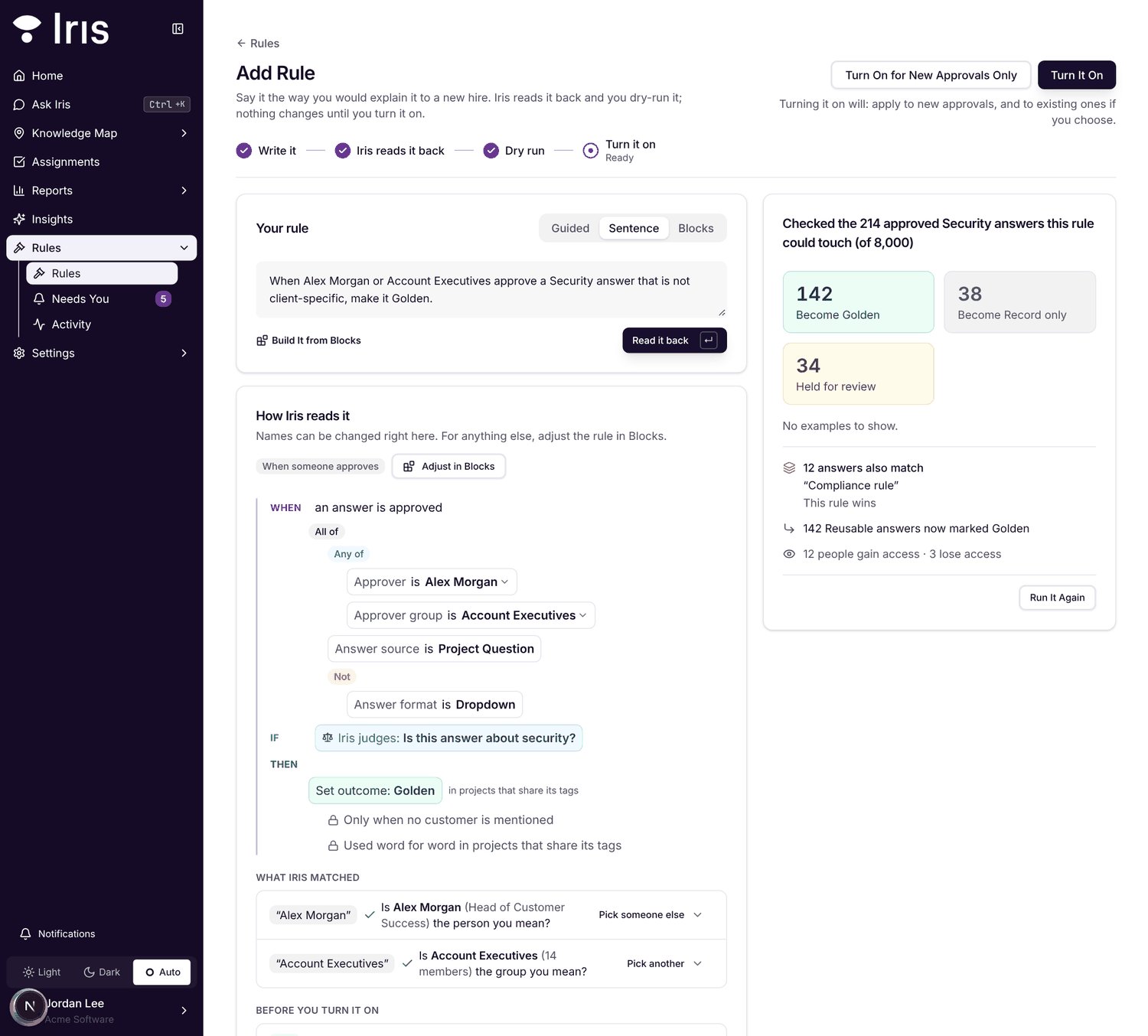
Dry run results on the right: what would change, and which other rule overlaps.
Step 4: Turn it on
Select Turn It On.
For an approval rule, choose Existing and new approvals to apply it to your current library as well, or New approvals only. Applying to existing approvals runs in the background and shows its progress on the rule's page.
Confirm. The rule appears under On.
Routing rules only route questions created after they are turned on. Questions already in projects keep the people they have.
How to change, pause or archive a rule
Select a rule's sentence on the Rules page to open its page.
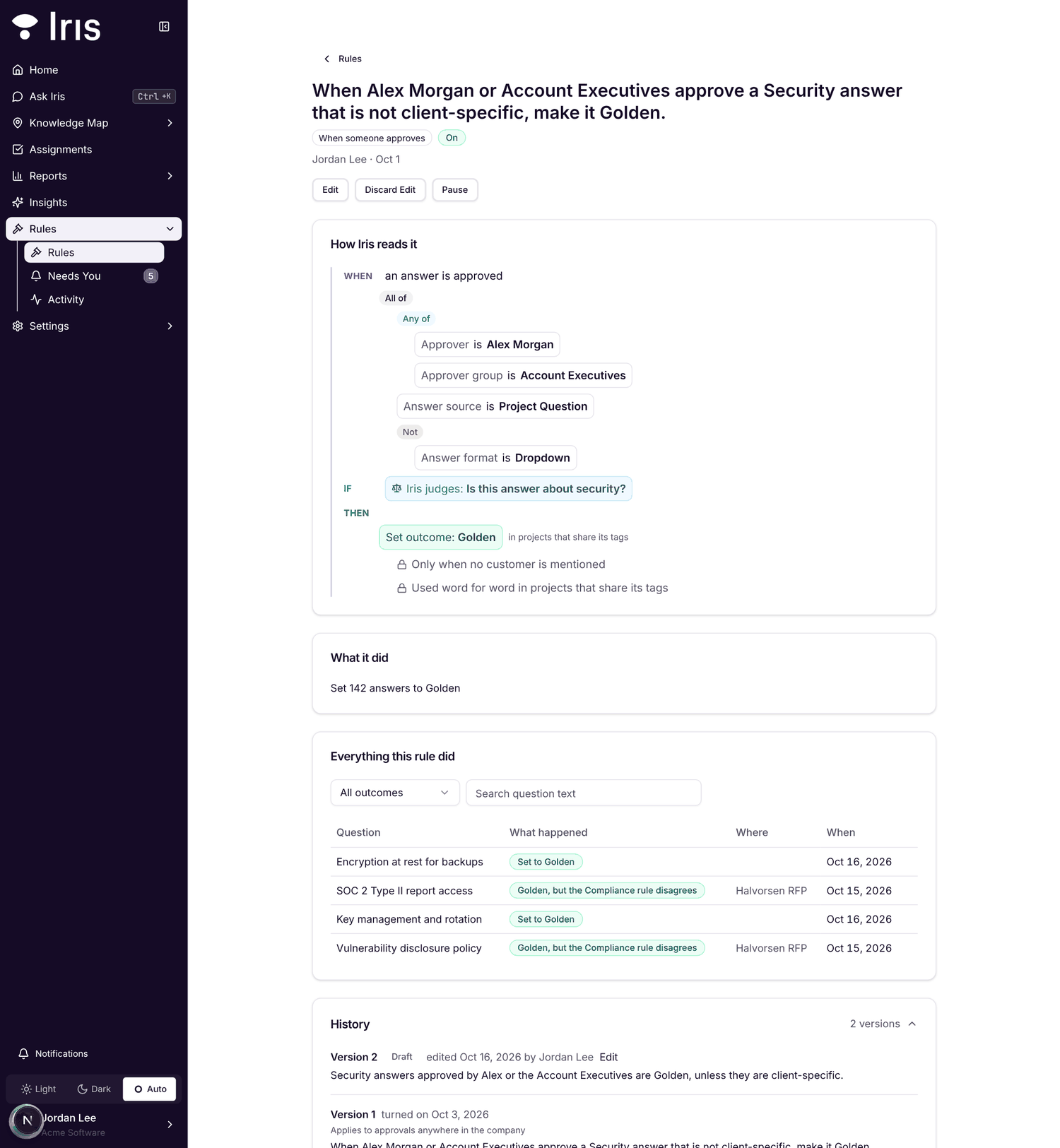
A rule's page: how Iris reads it, what it did, every decision, and its version history.
To do this | Do this | What happens |
|---|---|---|
Edit a rule | Select Edit, change it, read it back, dry-run it, then turn on the changes. | The version that is on keeps running until you turn the new version on. History lists each version and who turned it on. |
Drop an edit | Select Discard Edit. | The rule keeps the version it has now. |
Pause a rule | Select Pause. | Iris stops applying it to new approvals or questions. Everything it already decided stays as it is. |
Resume a rule | Open the paused rule and select Resume. | Iris re-checks the rule first, then turns it back on. |
Archive a rule | Pause it, then select Archive. | It leaves the list and never acts. Its decisions and history are kept, and you can unarchive it from the Archived tab. |
How to handle Needs You
Needs You lists what rules could not settle on their own. You get one item per problem, not one per answer, and the sidebar shows how many are open.
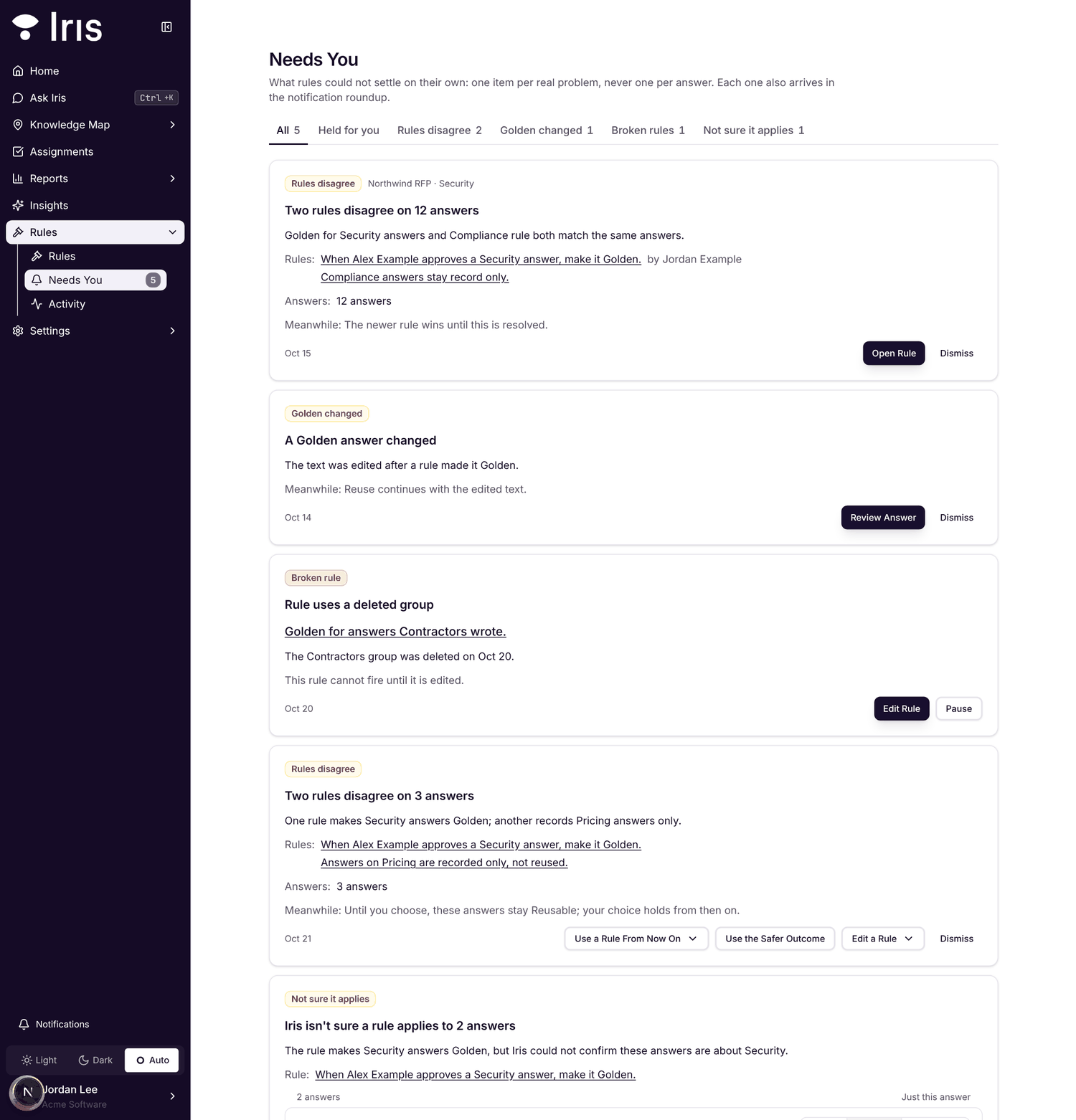
Needs You: each card explains the problem, what Iris is doing in the meantime, and your options.
Item | What it means | What you can do |
|---|---|---|
Held for you | A rule held an answer for your sign-off. | Accept it, or open it in the library to edit it first. |
Rules disagree | Two rules match the same answers and want different results. Until you choose, the answers stay Reusable. | Use one rule from now on (Iris remembers the choice), use the safer outcome, or edit a rule. |
Golden changed | A Golden answer's text was edited after a rule made it Golden. | Review the answer. |
Broken rules | A rule names a person, group or tag that was deleted, so it cannot act on it. | Edit the rule, or pause it. |
Could not evaluate | Iris could not check a rule for some answers. | Try again. |
Unclear scope | Iris could not tell where a Golden answer should apply. | Decide for the answers listed. |
Not sure it applies | Iris could not confirm the judged question for some answers, for example whether they are about Security. | Set each answer to Golden, Reusable or Record only, or apply the rule to all of them. |
Select Dismiss on a card when no action is needed.
How to see what rules did, and undo it
Open Activity and choose a project or a rule. The tiles count the outcomes, and the table lists each decision with the rule and version behind it.
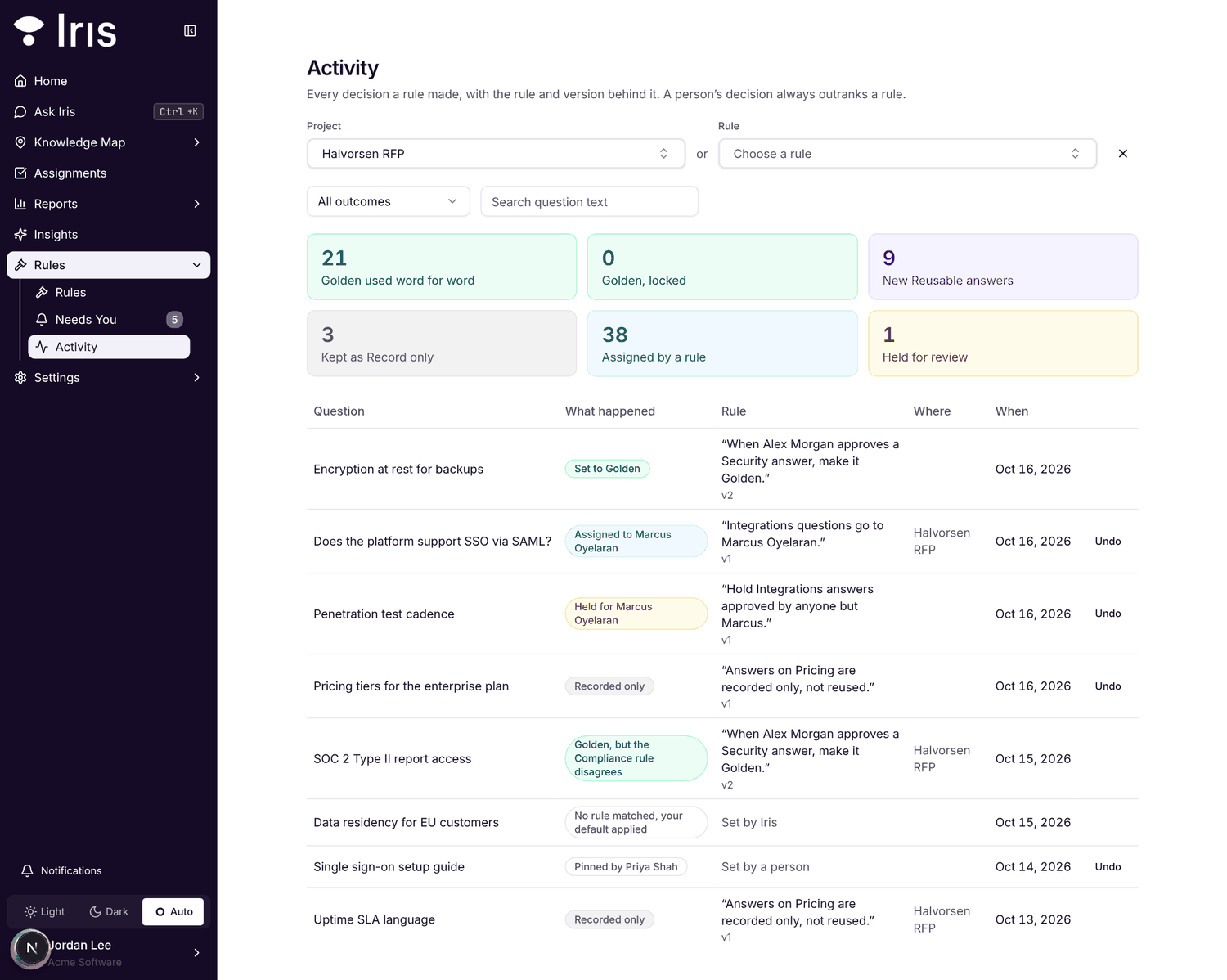
Activity for one project: outcome counts, then every decision with its rule.
To undo a decision, select Undo on its row. Iris then leaves that answer or question alone: no rule changes it again.
To set an answer yourself, open it in the Approved Answers library. The Rules row on the answer explains the current outcome and lets you make it Golden, Reusable or Record only.
To see rules on one project, select Rules on the project page. The panel shows what needs you in that project and what each rule did there.
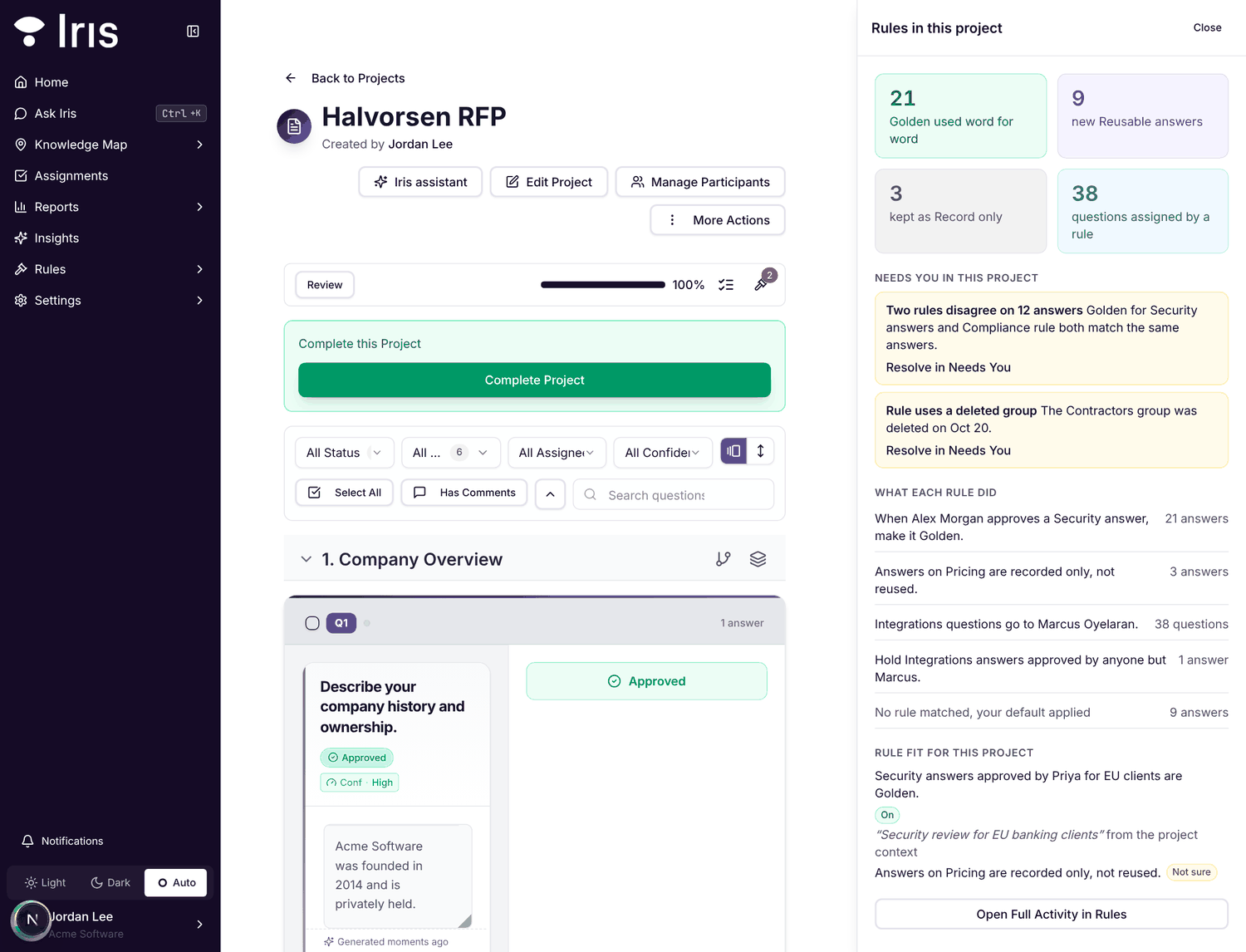
The Rules panel on a project page: outcome counts, open items, and what each rule did in this project.
How routing rules work when you start a project
When at least one routing rule is on, starting a project shows a Before You Start step that lists who reviews each section according to your rules.
Check the reviewer proposed for each section. Select Why this rule to see the rule behind a proposal.
To change one, select Change, pick who reviews instead, then choose Just This Project or Make It a Rule.
Select Confirm All, then Start Project.
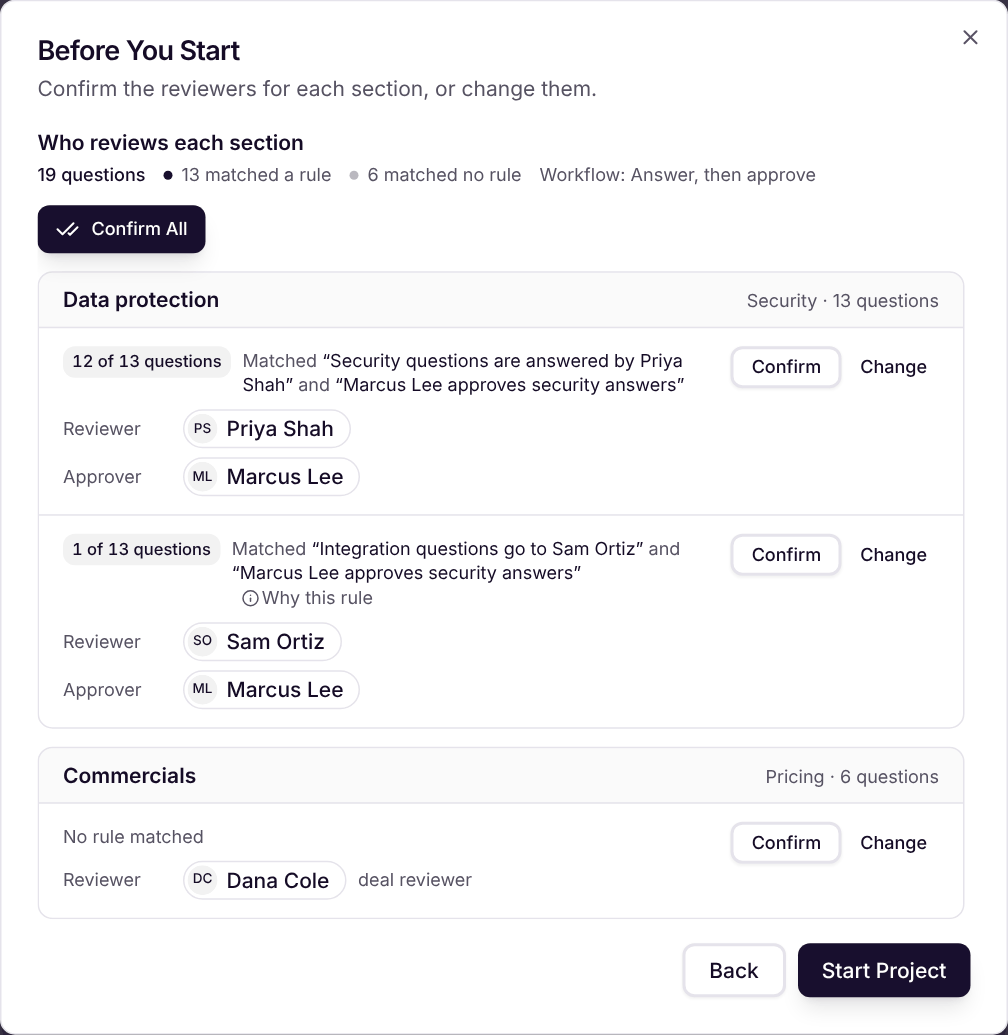
Before You Start: the reviewers your rules propose for each section, with the rule that matched.
Everyone a rule assigns to a question shares one step and all of them approve. If you need review in a set order, set up a workflow and have the rule use it.
Recommended rules
These are starting points. Replace the names, teams, tags and workflows with your own, and judge each one by its dry run before turning it on. Start with two or three rules, watch Needs You and Activity for a week, then add more.
For approved answers
Rule to write | Why |
|---|---|
Security answers approved by the Security team are Golden. | Answers your subject experts have signed off should be reused exactly, not reworded. |
Legal answers approved by the Legal team are Golden. | The same reason, for wording that has been through legal review. |
Pricing answers are Record only. | Pricing is specific to each deal. Keeping it on file but out of reuse stops old numbers appearing in new responses. |
Answers that are specific to one customer are Record only. | Keeps customer-specific commitments out of other customers' responses. |
Dropdown answers are Record only. | A Yes/No or picklist choice depends on how that one question was worded. |
Answers approved through the AI assistant stay Reusable. | Stops answers approved through an AI assistant being promoted to Golden by a broader rule without a closer look. |
Hold Security answers approved by anyone outside the Security team for the Security team to review. | Lets anyone approve an answer to finish a project while keeping it out of reuse until an expert has checked it. |
Put Security answers on the Quarterly review cadence. | Certifications, sub-processors and policies change. A cadence brings these answers back for review. |
Compliance answers are owned by [name]. | Gives each topic one person who keeps its answers current. |
Tag answers about SOC 2 with Compliance. | Consistent tags make answers easier to find and control where tag-scoped Golden answers apply. |
For new questions
Rule to write | Why |
|---|---|
Integration questions go to [name]. | Sends technical questions straight to the person who can answer them. |
Questions in the Security section go to the Security team. | Routes by section title when your questionnaires are organized by topic. |
Questions in projects that use the Security Questionnaire preset use the Security review workflow. | Applies a full review process, in order, to a whole type of project. |
Legal questions in narrative RFPs go to the Legal team. | Combines a topic with a project type, so the team is only pulled in where it matters. |
Writing rules that read back cleanly
Write one rule per sentence. Iris does not accept "otherwise" or two rules joined together; write the second one as its own rule.
Name people, groups, tags and workflows as they appear in Iris, so Iris can match them.
Say "company-wide" in the sentence if a Golden answer should apply everywhere. Without it, Golden applies in projects that share the answer's tags.
Give Golden rules a topic or an approver. A Golden rule with no conditions asks you to confirm that it applies to every answer.
Leave out timing, counts and ordering ("after 90 days", "the first three"). Iris cannot act on those yet. Use a review cadence or a workflow instead.
Things to know
A person always outranks a rule. If someone sets an outcome or undoes a rule's decision, no rule changes it again.
Rules are not ordered. When two rules disagree on an answer's outcome, the answer stays Reusable until someone chooses in Needs You. If you choose "use this rule from now on", the choice is listed under Remembered choices on the rule's page, where you can forget it.
Golden has built-in safeguards. An answer only becomes Golden when it mentions no customer. If a Golden answer's text is edited, it is treated as Reusable until someone re-approves it.
Tag-scoped Golden needs project tags. If a project has no tags, only company-wide Golden answers apply to it.
Rules are company-wide. To limit a rule to certain work, use the project, preset, customer or section conditions.
Pausing does not reverse anything. Answers a paused rule already decided keep their outcome, and questions keep their people.
A manual assignment beats a routing rule. So does an assignee set on a section or file.
A broken rule stays on. If a person, group or tag it names is deleted, the rule cannot act on that part and shows as Broken until you edit it.
Reference: what a rule can check
When someone approves an answer
Chip | Checks |
|---|---|
about a topic | A question Iris judges, such as "Is this answer about security?" |
approved by | The approver: a person, a group or a role |
from | Where the answer came from: Project Question, Ask Iris, File Import or AI Assistant (MCP) |
tagged | The answer's own tags |
in project, in preset, for customer, in section | The project the answer was approved in, its preset, its customer, or the section title |
written by | The author: a person or a group |
approved through, approved at step | The review process, or the kind of step: Review, Approve or Final sign-off |
approved before, approved on or after | The date of the latest approval |
with format | Text or Dropdown |
with library status | Approved, Needs Review, Pending, Draft, Archived or Rejected |
every answer | No condition: the rule applies to all approvals |
When a new question comes in
Chip | Checks |
|---|---|
about a topic | A question Iris judges, such as "Is this question about integrations?" |
in section, in preset, for customer | The question's section title, or its project's preset or customer |
in projects of type | Questionnaire or Narrative RFP |
from source | How the project was created: File upload, Chrome extension, Spreadsheet, GovSpend or Salesforce |
from CRM | Salesforce, Microsoft Dynamics or HubSpot |
with project tag | The project's tags |
whose deal owner is, created by | The project's deal owner or creator |
every question | No condition: the rule applies to all new questions |
Within one chip, several values mean "any of these". Chips combine with "and". For "any of" or "not" across chips, build the rule in Blocks.
Screenshots use sample data.