Attach Evidence
Last updated: October 29, 2025
Easily attach supporting files to your responses.
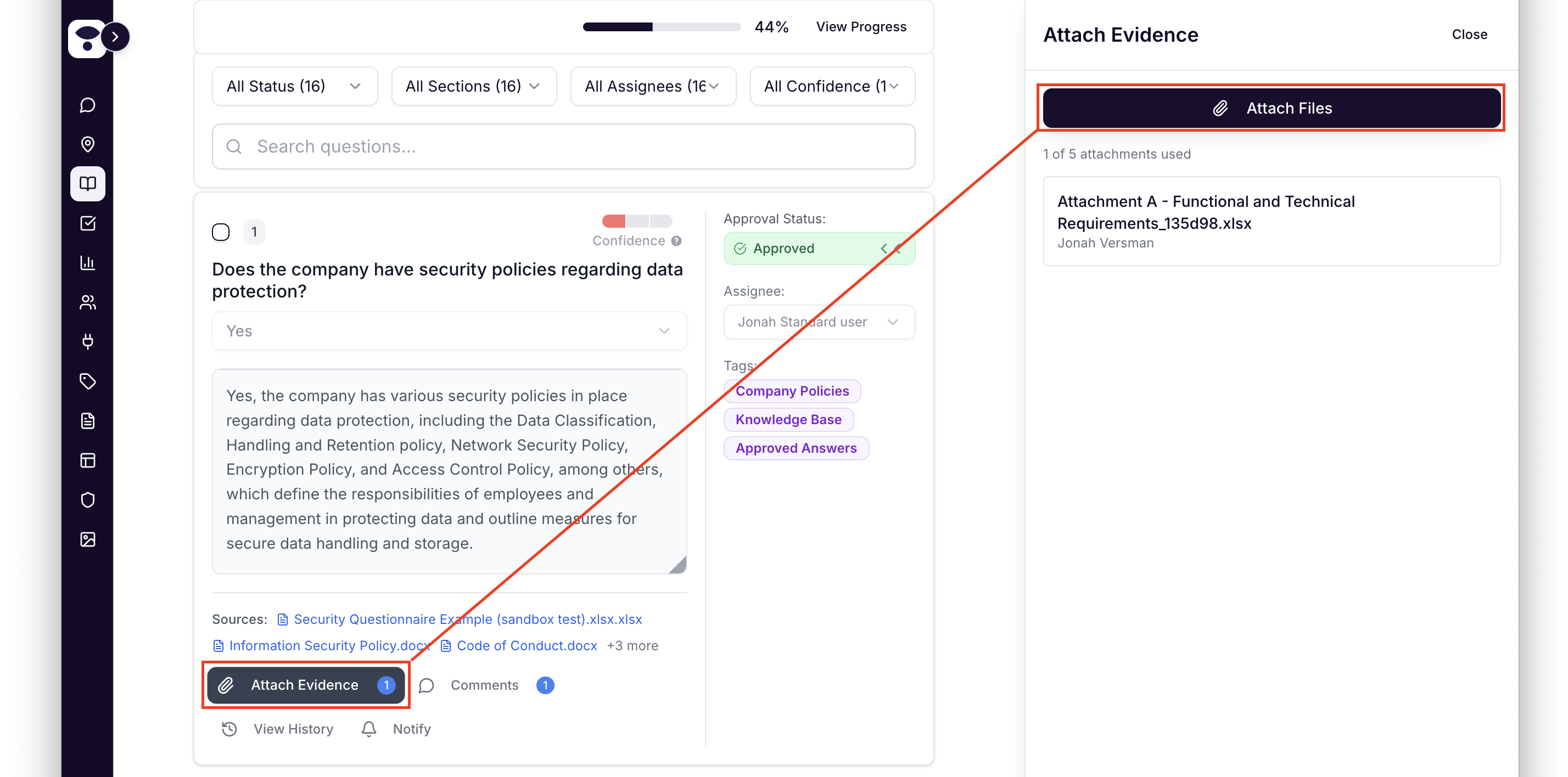
How to Add an Attachment
Below any answer, select Attach Evidence
Choose the file from your computer that you want to attach.
How to Export Attachments
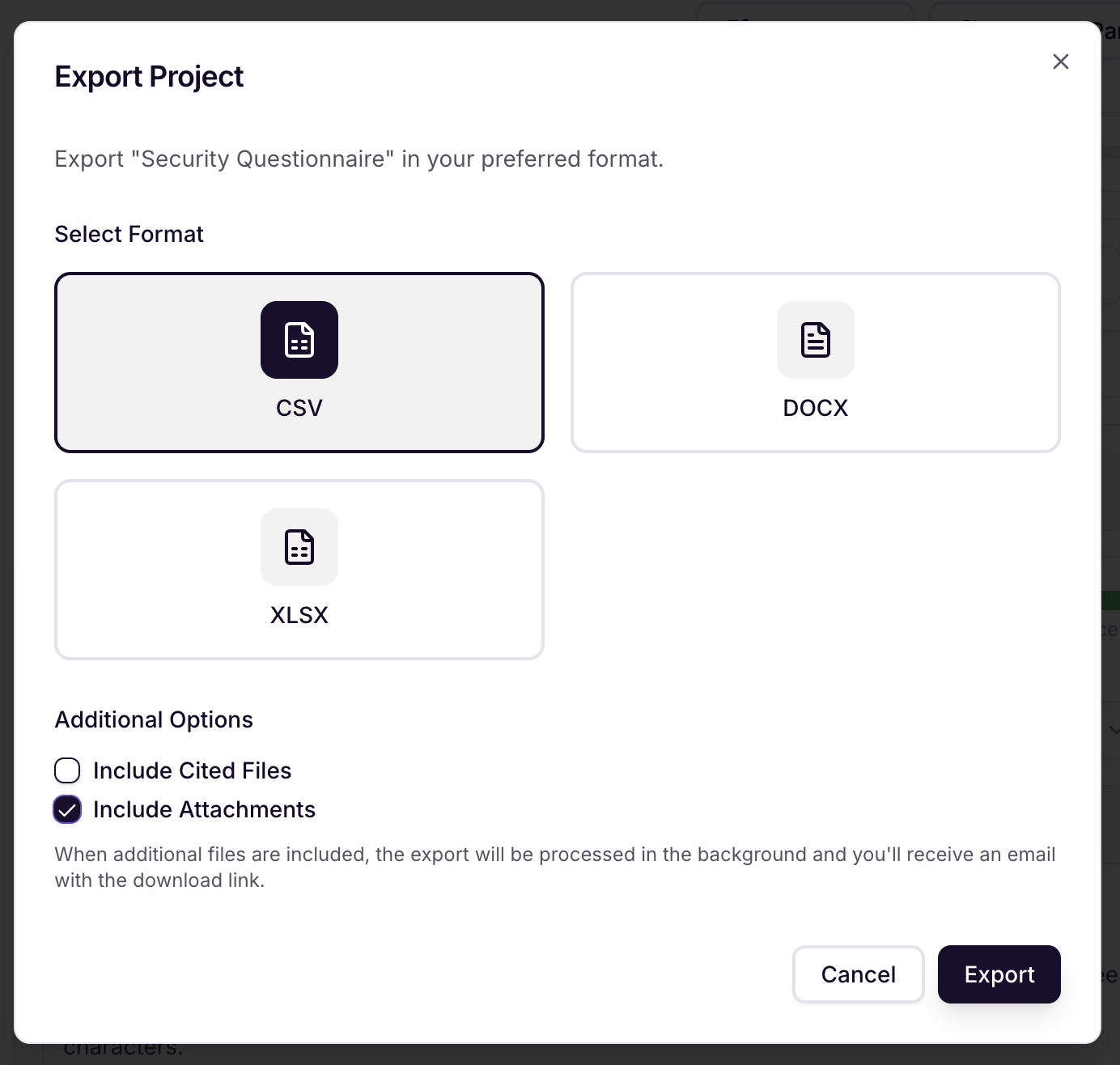
At the top of a project, select More Actions, then Export Project
Specify a document type for your export
Toggle on Include Attachments
Click Export to finalize.
NOTE‼: The File will not download immediately. Iris will package the project and attachments into a Zip File and email you a download link.
After exporting a project with attachments, wait to receive an email from Iris with a download link. The download will include:
A document containing your questions and answers.
A folder containing all attached files.
A CSV file that maps each attachment to the corresponding question.
Note: You can always see the history of exports, and easily download prior versions of the document the next time you click Export.
FAQ
What is the maximum number of files I can attach to a question?
5 Files
What is the maximum number of files I can attach to a project?
Every question can have up to 5 attachments
Why didn't the file export when I clicked "Export"?
Wait to receive an email from Iris with a download link. You can click More Options > Export to re-download at any time.