Approved Answers Library
Last updated: April 7, 2026
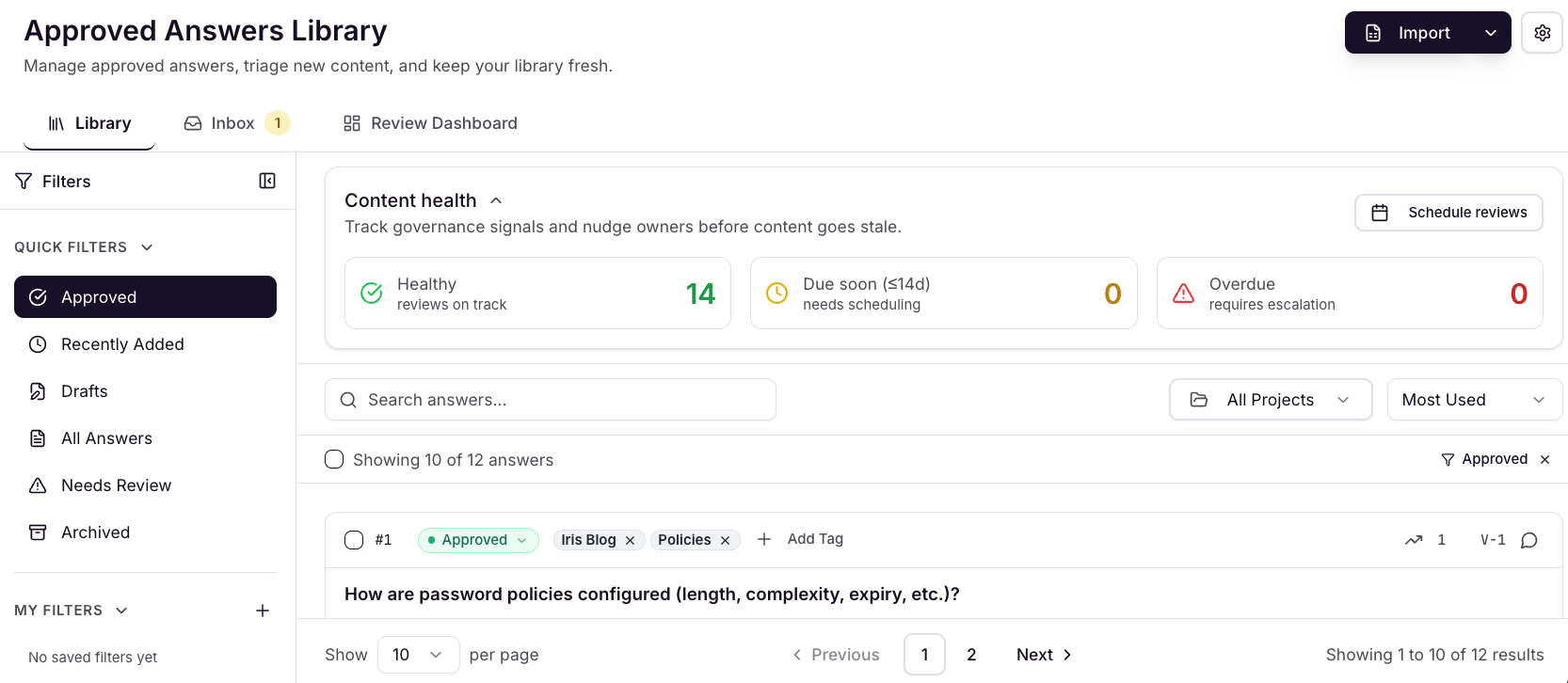
Iris has overhauled the way you manage approved answers, giving you complete control over your knowledge library with powerful review workflows, ownership assignment, and lifecycle management. This ensures your approved content stays accurate, up-to-date, and properly maintained across your organization.
How It Works
Every time you approve an answer within a project, even before completing the project, it's automatically captured for review. This creates a quality control checkpoint before answers become part of your searchable knowledge library. You have three options for review:

Send to Inbox -- Designate people in your organization to review newly approved questions. Only after they weigh in, do they get added to the Knowledge Map. Use the "Inbox" permission to control who gets the inbox.
Skip Inbox -- New answers get added to the library as a draft. Anyone with library access can approve them so they can used in response generation.
Auto-Approve -- Newly approved answers are added to the library fully ready to be used. Anyone with library access can change their status after the fact.
Send to Inbox
Stage 1: Inbox (Pending Review)
New approved answers land in your Approved Answers inbox—your review queue for content that hasn't yet been added to your knowledge map. Think of this as your "to-do" list for knowledge management.
Stage 2: Library (Active Knowledge)
Once reviewed and approved from your inbox, answers move into the Library——your live, searchable knowledge map that Iris uses to generate responses in future projects.
Working in the Inbox (Pending Answers)
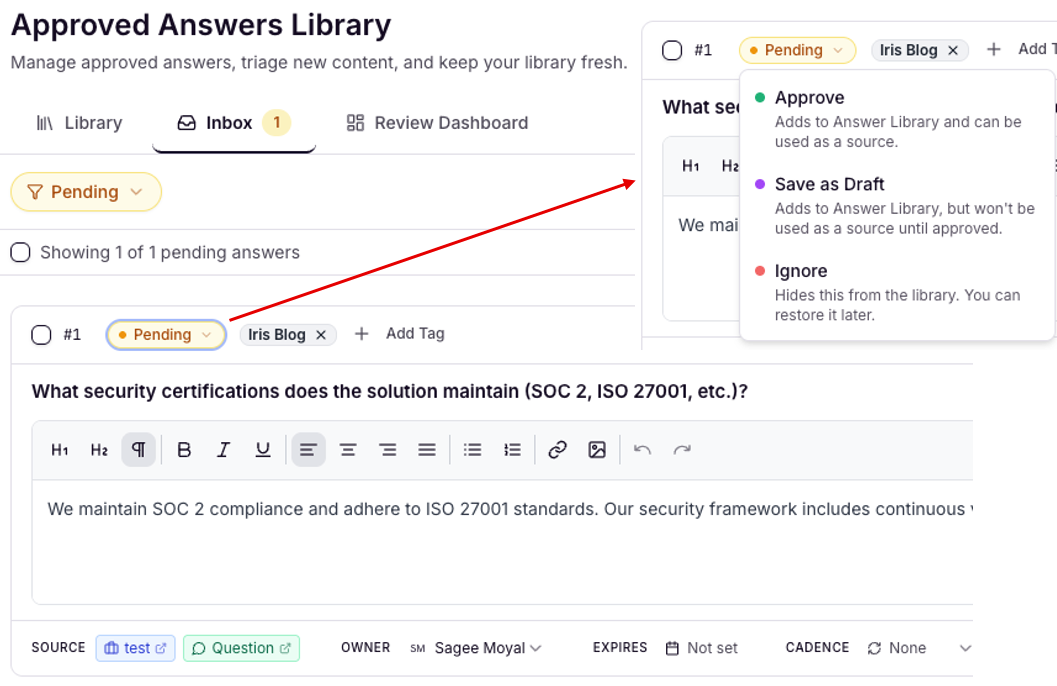
Your inbox shows all approved answers awaiting final review. For each answer, you can:
Make Your Decision
Approve: Moves to your Library and becomes searchable for future projects
Ignore: Excludes from your knowledge map entirely
Save as Draft: Route to a subject matter expert for their review
Assign Ownership: Designate who's responsible for maintaining the answer
Example: Route security questions to your Head of Security
Set Lifecycle Parameters:
Expiration Dates: Flag when content needs updating
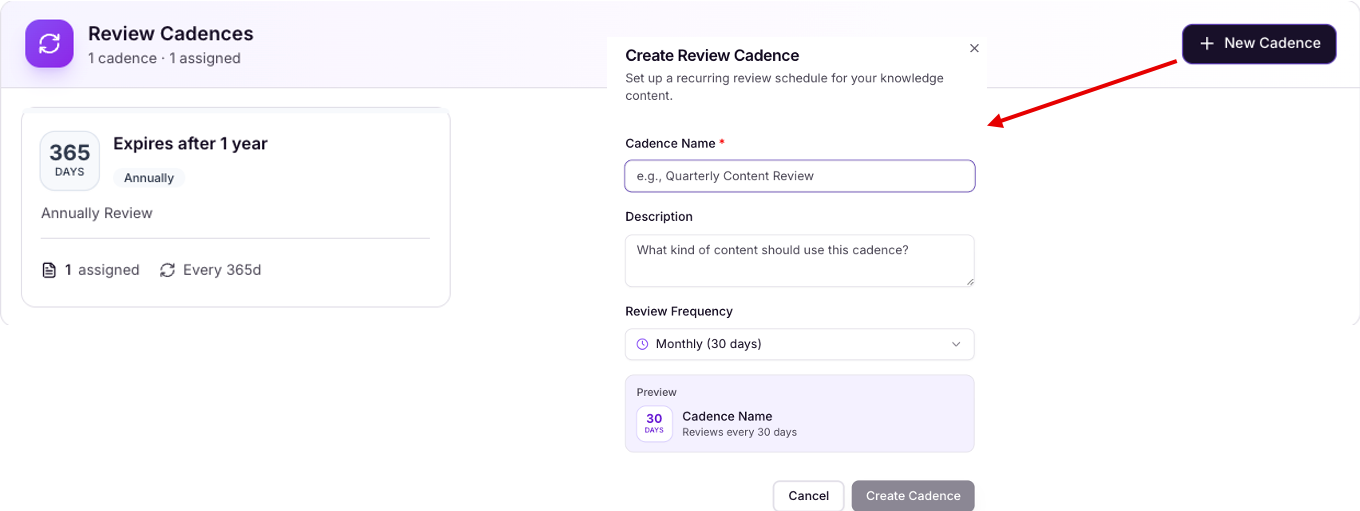
Review Cadences: Schedule recurring reviews (quarterly, annually, etc.)
Using the Approved Answers Library
The Approved Answers Library is where you manage and maintain all approved content.
Key Capabilities
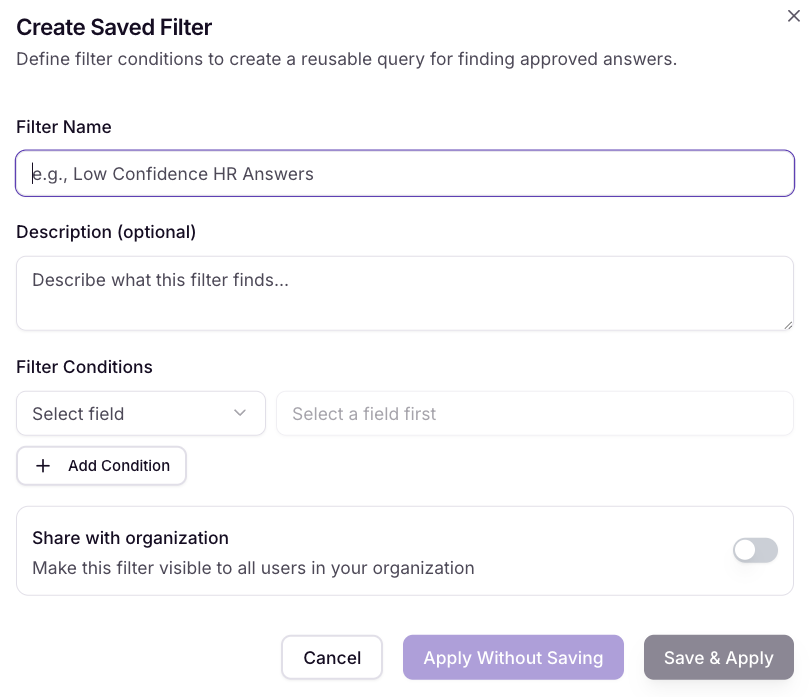
Search & Filter Create custom views to find specific content:
Filter by author, keywords, or review status, and much more
Save frequently used filter combinations
Quickly locate answers that need attention
Track Usage
See which projects have referenced each answer
Identify your most valuable content
Spot answers that may be outdated or unused

Ongoing Maintenance
Edit answers as your capabilities evolve
Make changes in bulk with Find & Replace functionality
Update ownership assignments
Adjust review schedules as needs change
The Review Dashboard
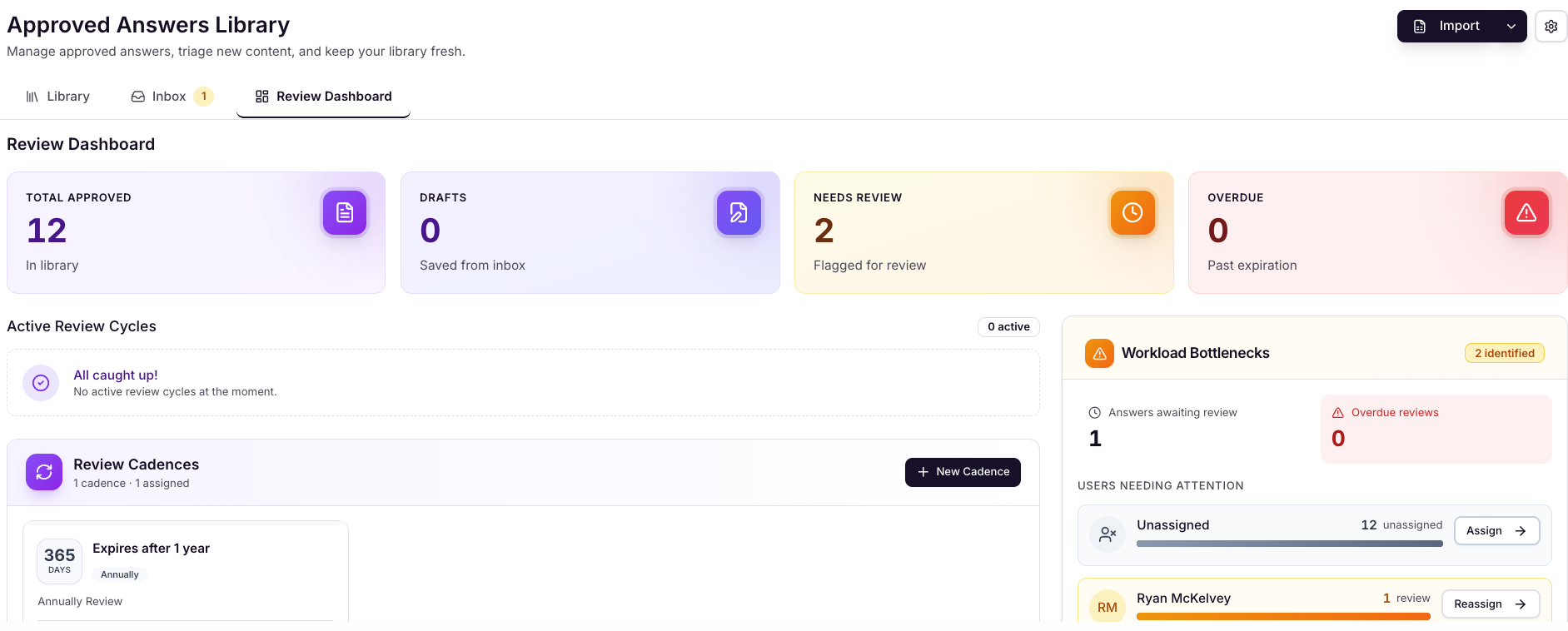
Get a complete view of your knowledge map health and what needs attention.
What You'll See
Pending Reviews
New answers waiting in your inbox
Scheduled reviews that are due
Overdue items requiring immediate action
Bottlenecks
Content waiting on specific reviewers
Create and review cadences your team hasn't completed
Workflow delays that need resolution
Quick Actions
Nudge team members with pending reviews
Send reminders for overdue items
Keep your knowledge current without manual tracking
Uploading Approved Answers
Go to Knowledge Map > Approved Answers
At the top, click Import
One or a few at a time
Select Next
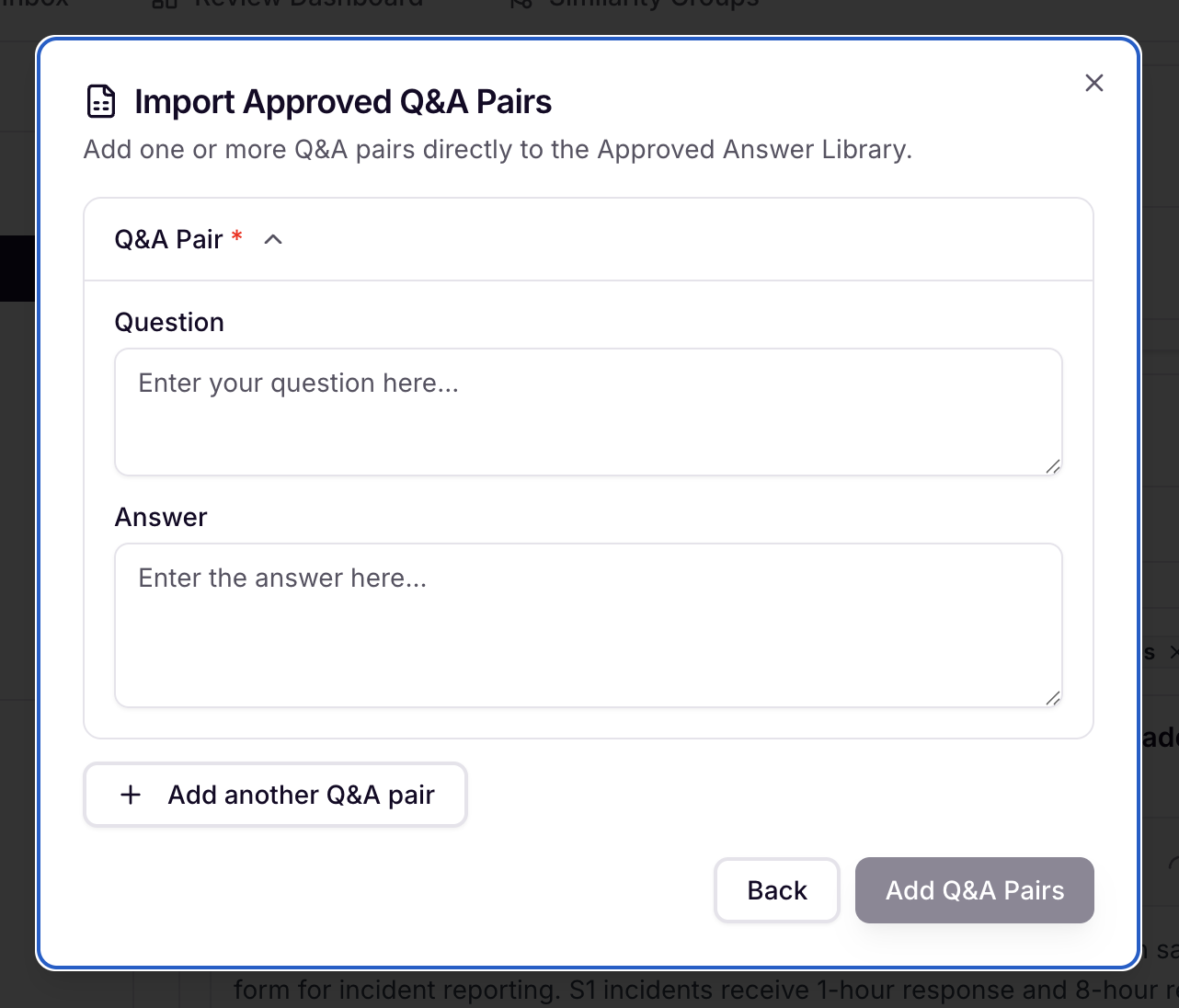
Select Add Q&A Pairs Manually
Enter Question and Answer Text
Add Q&A Pairs to finalize
The Q&A Pair(s) will now be visible within the Approved Answer Library
Bulk adding many via a template
Select Download template
Paste your Questions in the following Columns " Tags | Question | Answer "
Select Next
Drag and Drop the file in and select Import
The Q&A Pairs will now be visible within the Approved Answer Library
Best Practices
Review Cadences by Content Type
Some examples:
Technical specs: Quarterly (fast-changing)
Compliance info: Annually or when regulations change
Product features: After each release
Company info: Annually or after major changes
Need Help?
We'd love your feedback on the Approved Answers system. Contact your Customer Success Manager or support@heyiris.ai with questions or suggestions