Bulk Actions
Last updated: May 19, 2026
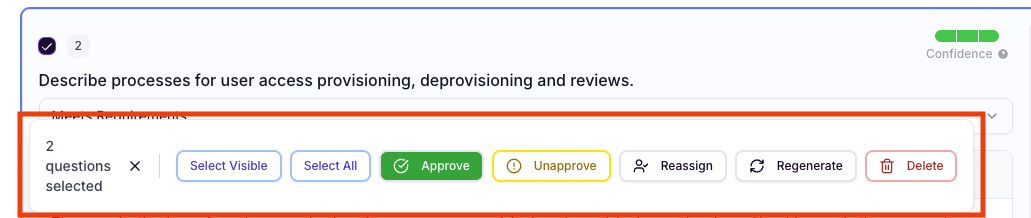
Efficiently manage multiple responses at once using the Bulk Actions:
Within a project, click the checkbox next to any question. The following menu options will appear at the bottom. To select multiple questions, use:
Select All (no filters) will select every question in the project
Select All Filtered will select every question you currently have filtered
Select Visible will select all currently loaded questions
Click the X to deselect all questions and start over
Select specific questions by clicking more checkboxes next to additional questions
Available Actions:
Approve: Confirm multiple responses simultaneously.
Unaprove: Send selected responses back to the "Needs Approval" state for further editing.
Reassign: Delegate multiple questions to different team members.
Regenerate: Use Iris to generate new responses for the selected questions.
After regeneration, you will see Iris working to regenerate and then the old answer is replaced with the new answer, along with an updated Confidence score.
Delete: Remove irrelevant or outdated responses from the project.
Regenerate All Unapproved

To quickly regenerate all unapproved answers:
Click Edit Project at the top of any project
Scroll to the bottom of the pop up window
Select Regenerate All Unapproved
Adjust your configuration (new tags, different instructions, etc)
Select Regenerate
Pro-tip: Work smarter, not harder! Use bulk actions to do things like:
Reassign all questions in the Pricing Section to the Sales Team
Regenerate all Low Confidence Answers with a broader set of tags
Delete all questions you wrote "Ignore" in the text box using Search
Find more examples below ⬇⬇⬇
Use Filters then Bulk Actions
Delete Low Confidence or Missing Questions (to only export the best answers or quickly approve a project
All Confidence = Low ➡ Checkbox next to any question ➡ Select All Filtered ➡ Delete
Answer Confidence = Missing Info ➡ Checkbox next to any question ➡ Select All Filtered ➡ Delete
... More Actions ➡ Export Project
Assign your questions to the next person to review
All Assignees = You ➡ Checkbox next to any question ➡ Select All Filtered ➡ Reassign ➡ Pick the next reviewer ➡ Reassign