Iris Release Notes — March 2026
Last updated: April 9, 2026
We've been busy. This release brings some of our most-requested features to life — including multi-step approval workflows, a brand new Win/Loss reporting view, and a much easier way to create custom instructions — alongside a round of polish and bug fixes that make the day-to-day experience smoother across the board.
Here's everything that's new.
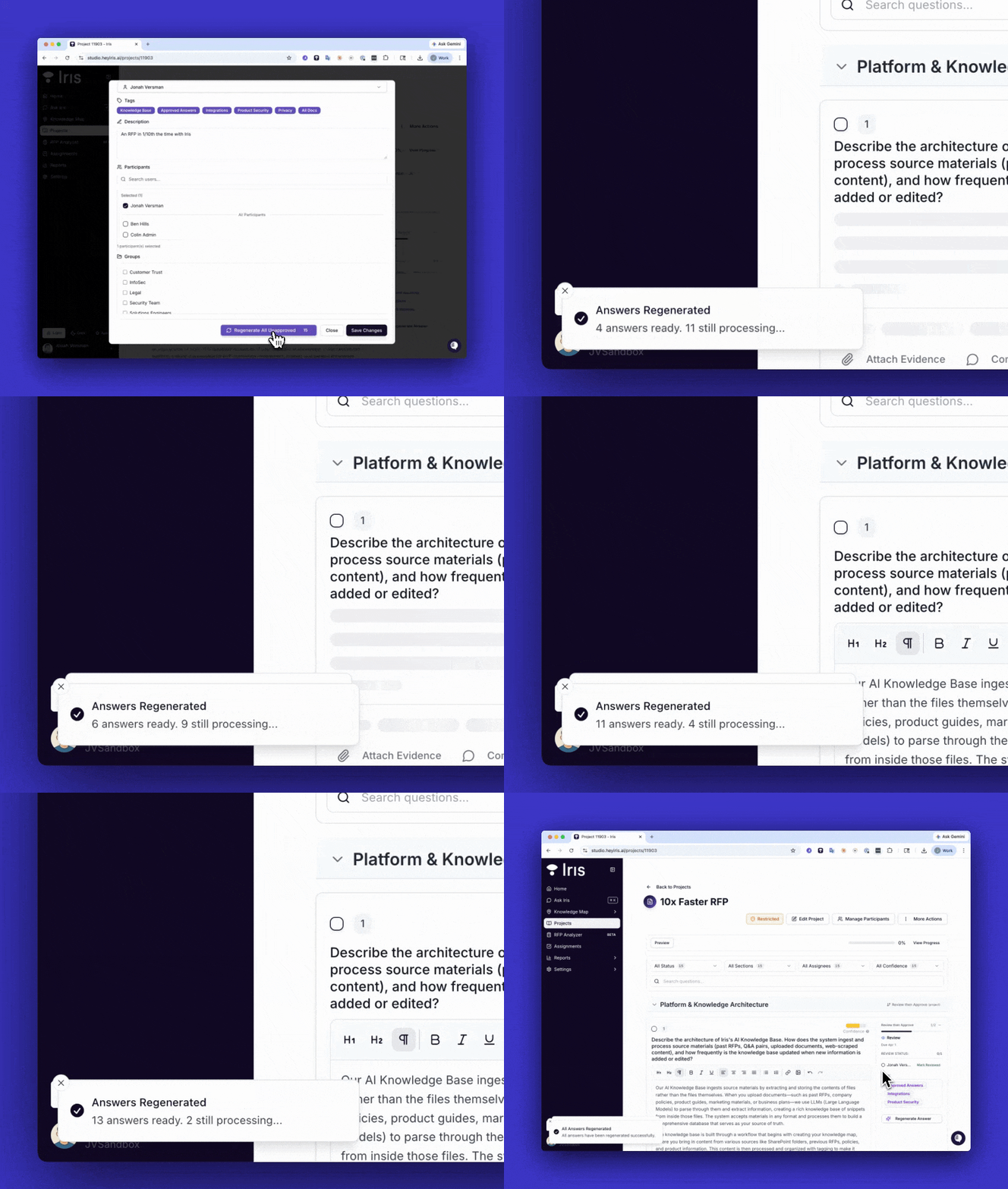
Iris is now 10 times faster
Sick of waiting for answers to generate? We got you. Iris can now handle 20 questions at the same time. We'll blast through a project in seconds, not minutes, so you can get projects turned around more quickly.
Watch Iris answer 15 questions in 15 seconds
Multi-Step Approval Workflows
What it does: You can now build structured, multi-phase approval workflows directly inside Iris. Assign specific reviewers to each step, and the system automatically moves projects through your review pipeline as approvals are completed.
Why it matters: For teams with compliance requirements or multi-stakeholder reviews, a single "approved/not approved" toggle wasn't cutting it. Now you can mirror your real-world review process inside Iris — no more tracking approval status in spreadsheets or Slack threads.
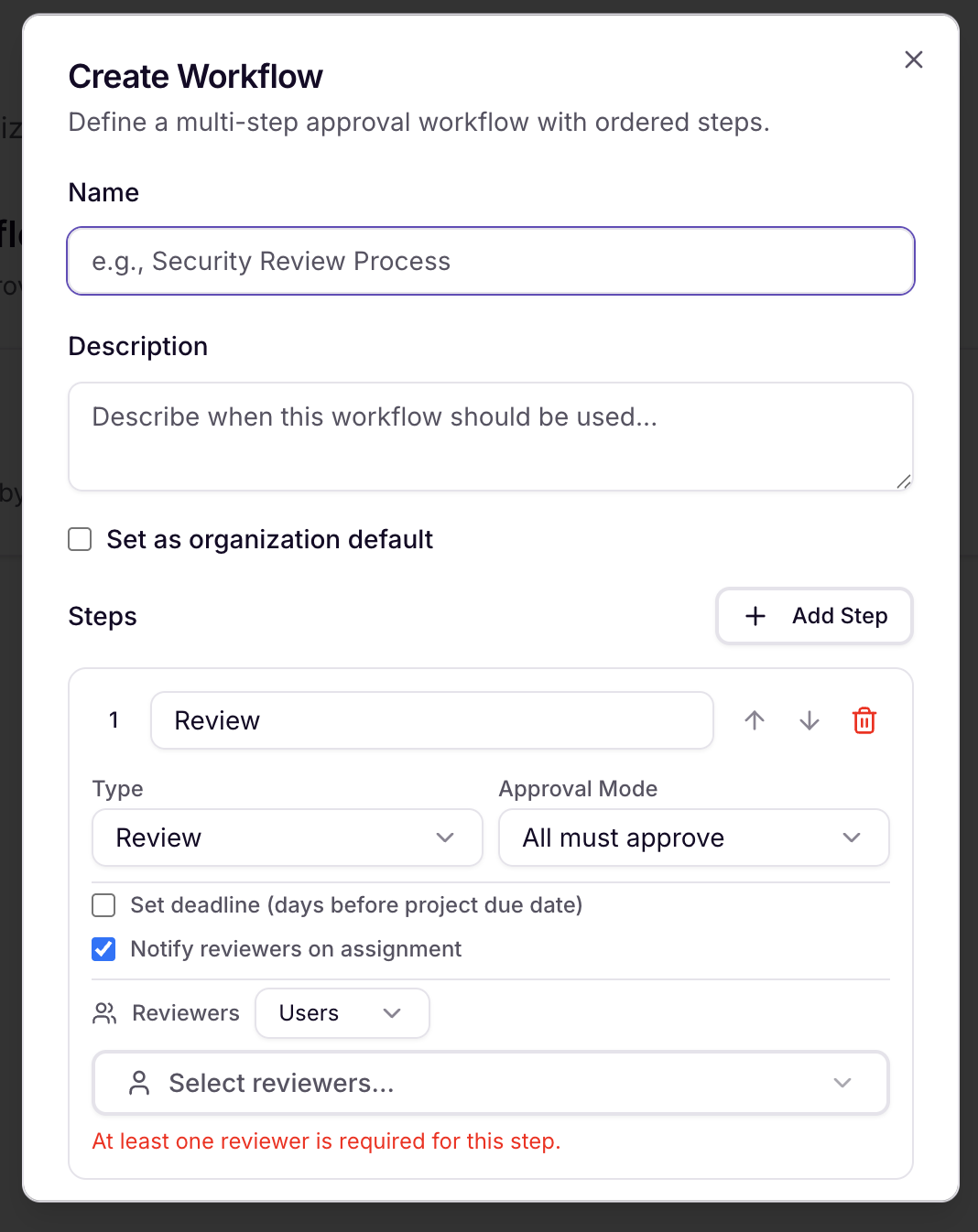
How to use it:
Navigate to Settings > Workflows to create a new workflow
Add as many steps as needed, assigning one or more reviewers per phase
Attach a default workflow to any Project Preset so new projects automatically inherit your process
Admins can use workflow feature flags to roll out workflows to specific teams before a full org-wide launch
Custom Instruction Wizard
What it does: A new guided wizard walks you through creating and managing custom instructions that control how Iris processes and interprets your documents.
Why it matters: Every organization has different terminology, priorities, and document formats. The wizard makes it easy to tailor Iris's behavior without needing to understand the underlying configuration — just answer a few prompts and Iris adapts.
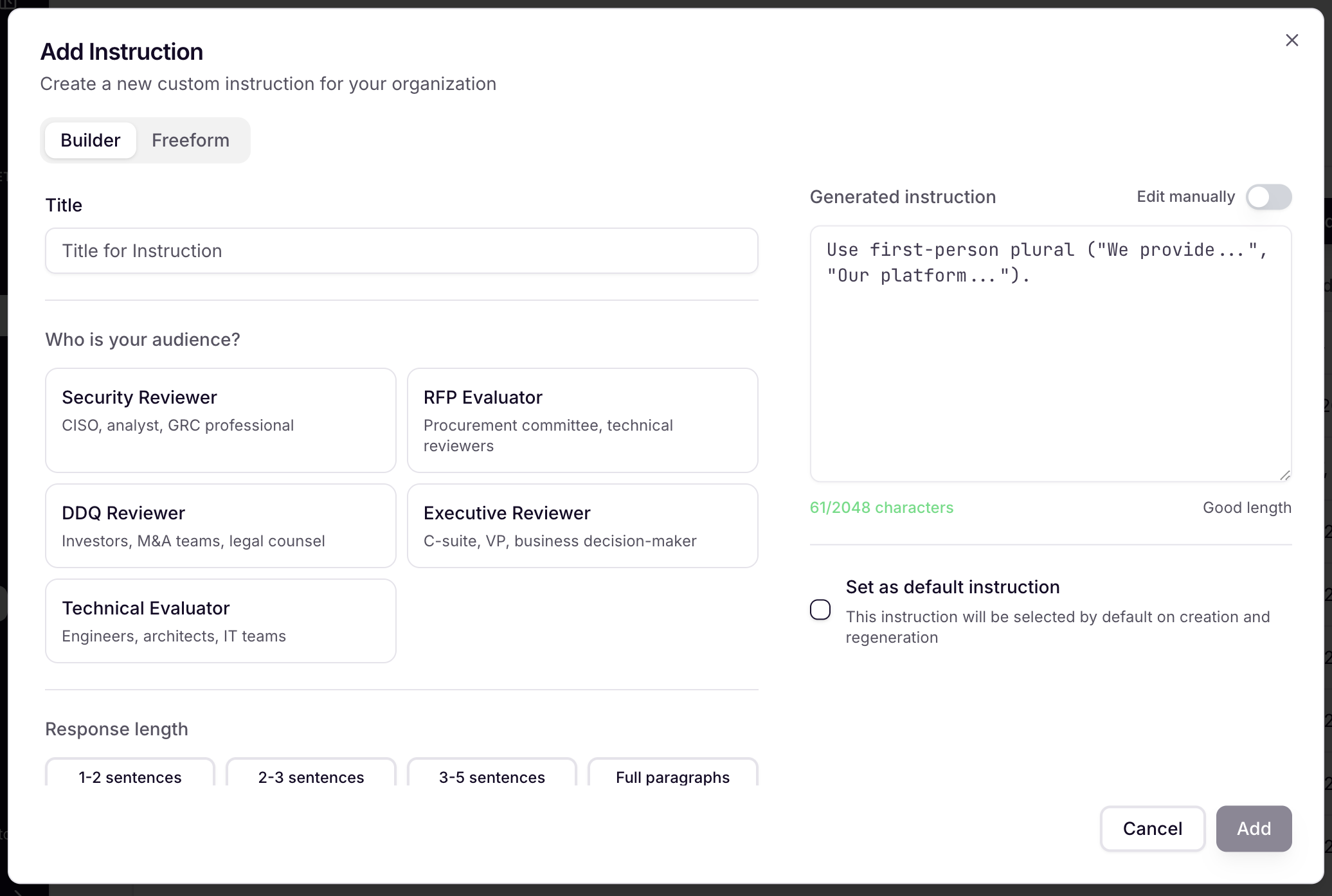
How to use it:
Go to Settings > Instructions
Select + Add New Instruction to launch the wizard
Follow the step-by-step prompts to define how Iris should handle your content
Win/Loss Reporting
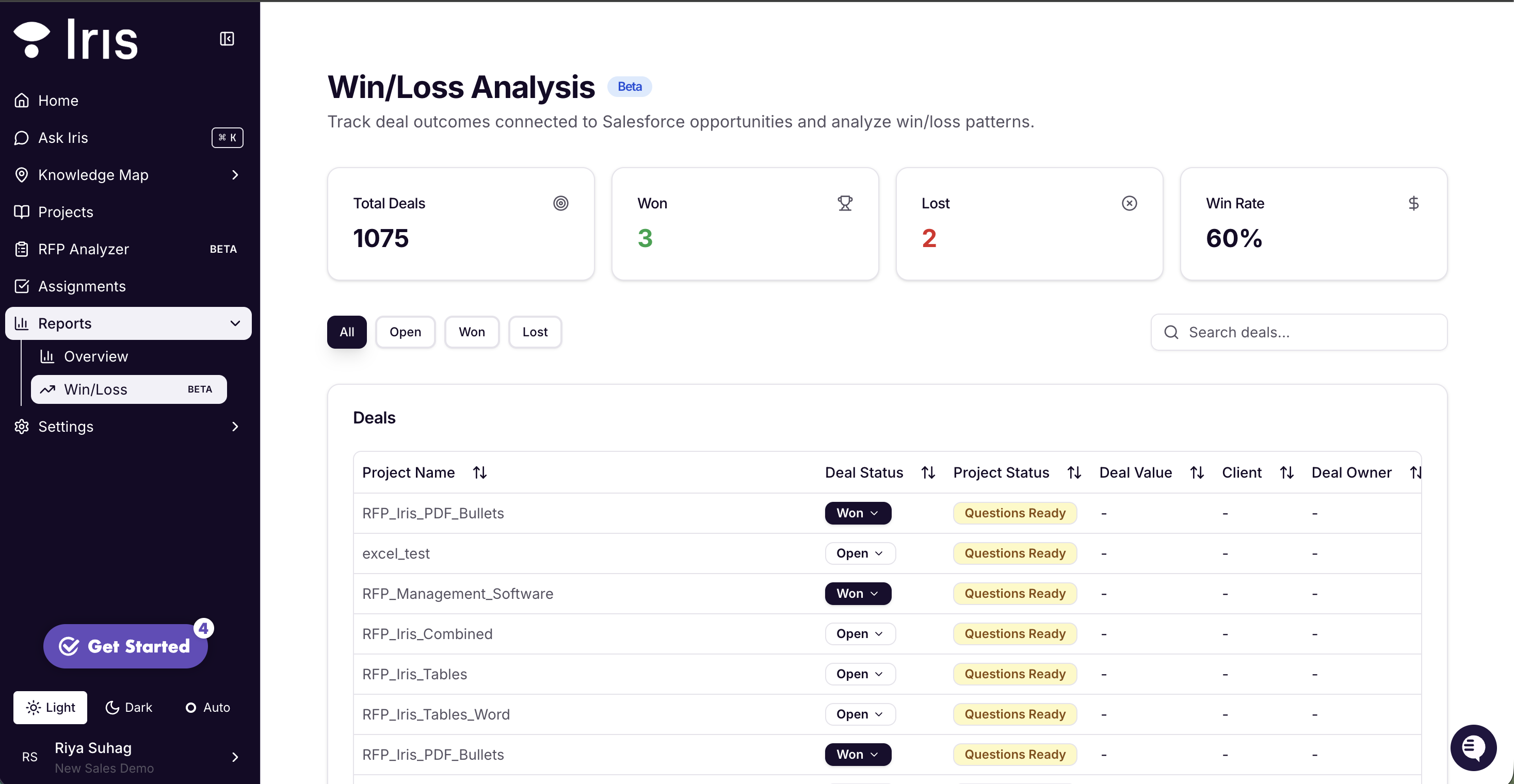
What it does: A dedicated Win/Loss Reporting page gives you a clear view of deal outcomes across all projects in your organization. Filter by status, search by project name, and sort to surface the insights you care about.
Why it matters: Understanding where deals are won or lost — and why — is foundational to improving your RFP process. This page brings that visibility into Iris so you're not stitching together data from your CRM and email threads after the fact.
How to use it:
Navigate to Reports > Win/Loss from the main sidebar
Use the search bar and status filters to narrow down results
Sort by date, outcome, or project name to identify patterns
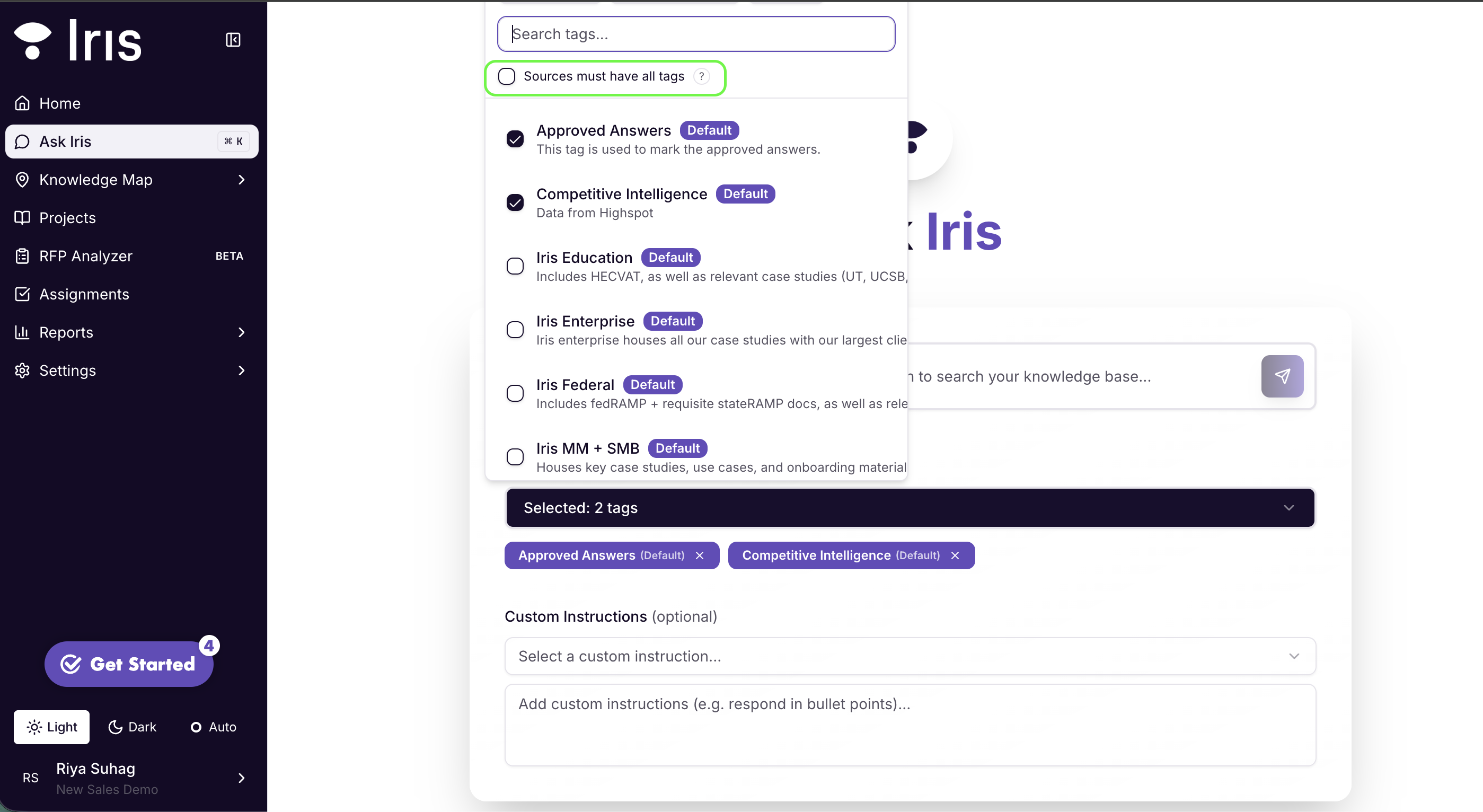
"Match All Tags" Filter
What it does: A new toggle in Knowledge Map and project views lets you switch between OR logic (show results matching any selected tag) and AND logic (show results matching all selected tags).
Why it matters: If you're managing a large Knowledge Map with overlapping tags, finding content that sits at the intersection of multiple categories used to require workarounds. This toggle makes precise filtering a one-click operation.
Best use-cases for this:
I only want Iris to search files with ProductLineA AND IndustryB AND 2026
How to use it:
In Ask Iris or any project filter panel, select two or more tags
Toggle Match All Tags to switch from OR to AND logic
Results will update instantly to reflect only content that carries every selected tag
Block Protected Tags from Knowledge Map
What it does: System tags like Approved Answers — and other protected tags — are now hidden from the Knowledge Map file tag selectors.
Why it matters: These tags carry specific meaning inside Iris and applying them manually to files could cause unexpected behavior in answer generation and workflows. Hiding them from the selector prevents accidental misuse without removing them from the system.
No action needed — this is automatic for all organizations.
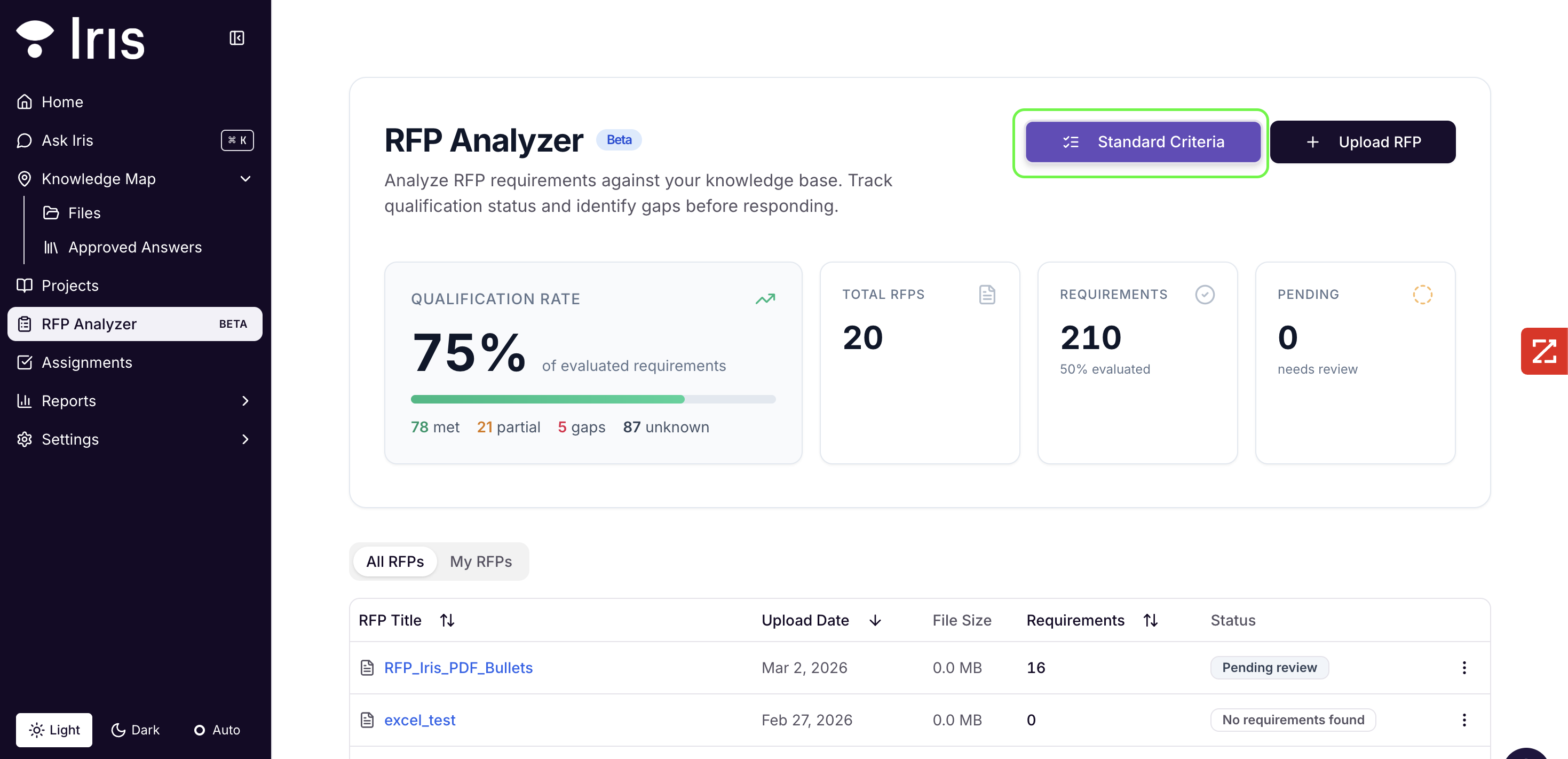
Standard Criteria & Sync Rules Quick Access
What it does: Edit Standard Criteria and Edit Sync Rules buttons are now surfaced directly within the RFP Analyzer and Integrations pages, respectively.
Why it matters: Previously, updating these settings required leaving your current workflow and navigating to Settings. Now you can make adjustments without losing your place.
Dark Mode Fix
We corrected a background color issue that was causing display breakage across several pages in dark mode. Everything should now render cleanly — if you spot anything that still looks off, let us know via the in-app chat.
Bug Fixes
A number of reliability and UX issues have been resolved in this release:
Deleted tags breaking answer generation — Removing a tag no longer leaves stale references in Project Presets that caused answers to fail
Security settings visible to standard users — The Security settings section is now restricted to admins and users with explicit security permissions
Infinite polling on failed auto-annotation — Large or failed XLSX annotation tasks now surface a proper error instead of looping indefinitely
Logged-in users redirected to login page — Authenticated users are no longer incorrectly bounced back to login
Inbox project filter missing search — The Inbox project filter now includes search and infinite scroll for organizations with many projects
Dropdowns missing after auto-annotate — Dropdown mappings created during auto-annotation now correctly appear when viewing the project
Can't resize columns in export preview — You can now resize rows and columns in the staging area modal to read truncated answer text
Dark mode upload link invisible — The "Browse to upload" link in RFP Analyzer is now visible in dark mode
RFP Detail crashing on date parsing — The RFP Detail view no longer crashes on certain date formats
Questions or Feedback?
Email us at support@heyiris.ai
Or use the in-app chat icon in the bottom-right corner to start a live conversation