Using the Media Library and Adding Images to Answers
Last updated: October 29, 2026
Some answers need a picture: a network diagram, a support escalation chart, an implementation timeline. Iris lets you keep these images in one shared Media Library, add them to answers, and reuse them automatically. When an approved answer includes an image, Iris can bring that image into new answers it writes on the same topic.
This article covers:
Managing your Media Library
Adding an image to an answer
How images are saved
How images are reused in new answers
FAQ
Managing your Media Library
The Media Library is your organization's shared collection of images. Everyone in your organization who can edit answers can use the images in it.
Opening the Media Library
Go to Settings → Media in the left sidebar.
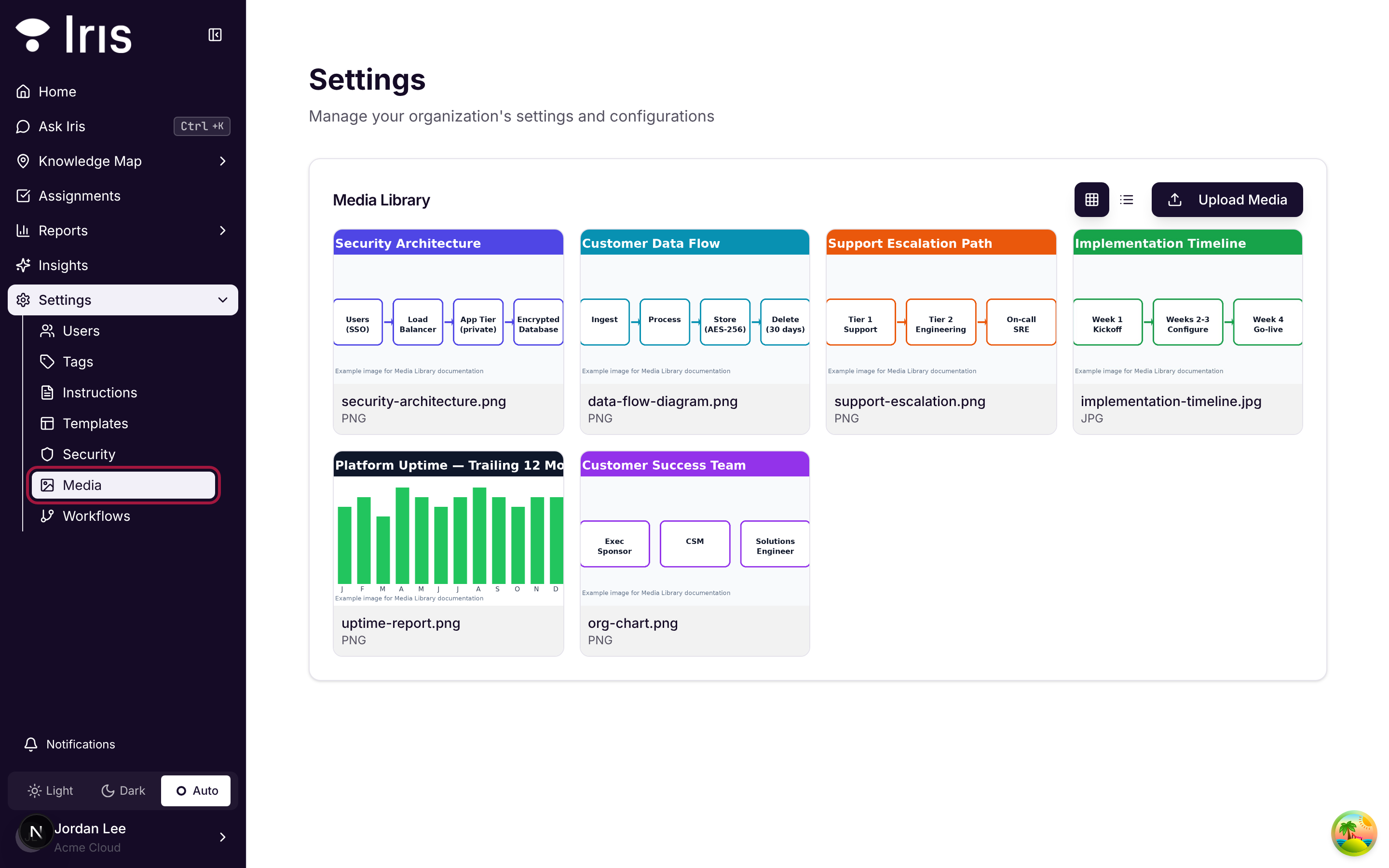
Who can see this page? Your role needs the Media Library permission under Settings. Admins can grant it in Settings → Users → Roles. That permission also lets people upload and delete images.
Uploading images
Click Upload Media.
Drag your images into the window, or click click to select files to browse. You can select several files at once.
Check the list of selected files. Click Remove next to any file you don't want.
Click Upload.
The Upload Media Files dialog with two images selected
Supported files: PNG, JPG, and JPEG images up to 10 MB each. Other file types are rejected when you select them.
Tip: Name files clearly before you upload them (for example security-architecture.png instead of IMG_4821.png). The file name is what you'll search for when picking an image for an answer.
Viewing and managing images
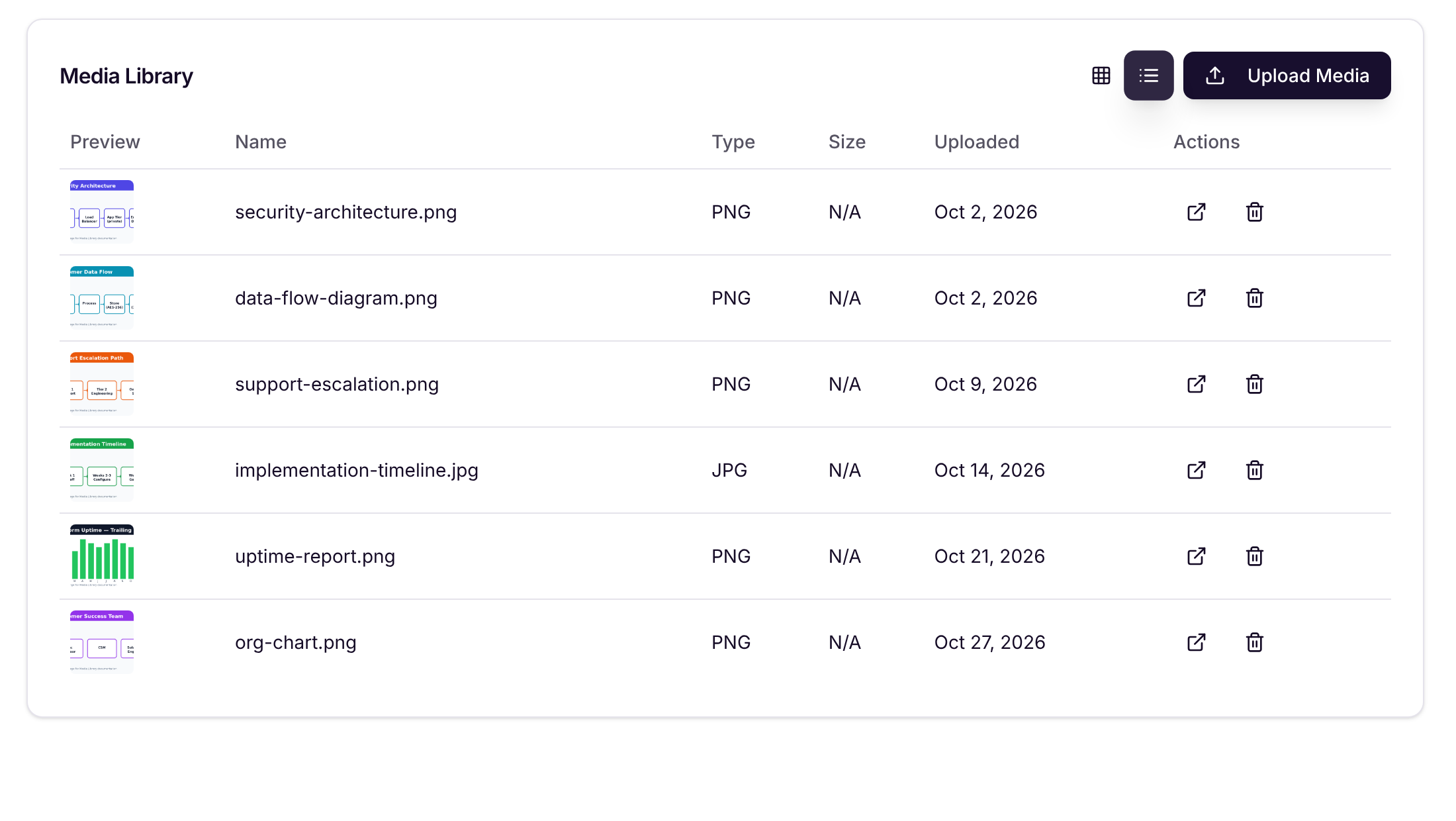
Use the icons next to Upload Media to switch between grid view (large thumbnails) and list view (name, type and upload date).
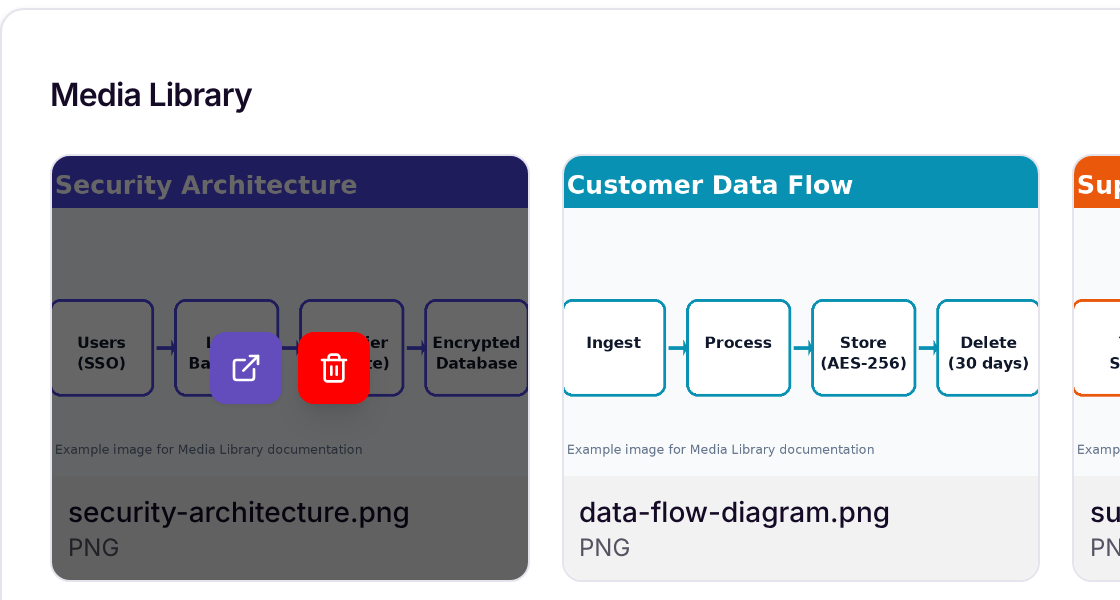
In grid view, hover over an image to see its actions. In list view, they're in the Actions column:
Open (arrow icon): opens the full-size image in a new tab.
Delete (trash icon): removes the image from the library.
Hovering over an image shows the Open and Delete actions
⚠ Delete with care. Deleting happens straight away, with no confirmation step. If an answer already uses the image, that answer will stop showing it, and it won't be included when you export that answer. Before deleting a diagram, check whether any answers still use it.
Adding an image to an answer
You can add images wherever you edit an answer with the full answer editor. That includes questions in a project, Focus mode, the document review panel, your Assignments, and the Approved Answers Library.
Click in the answer where you want the image to go.
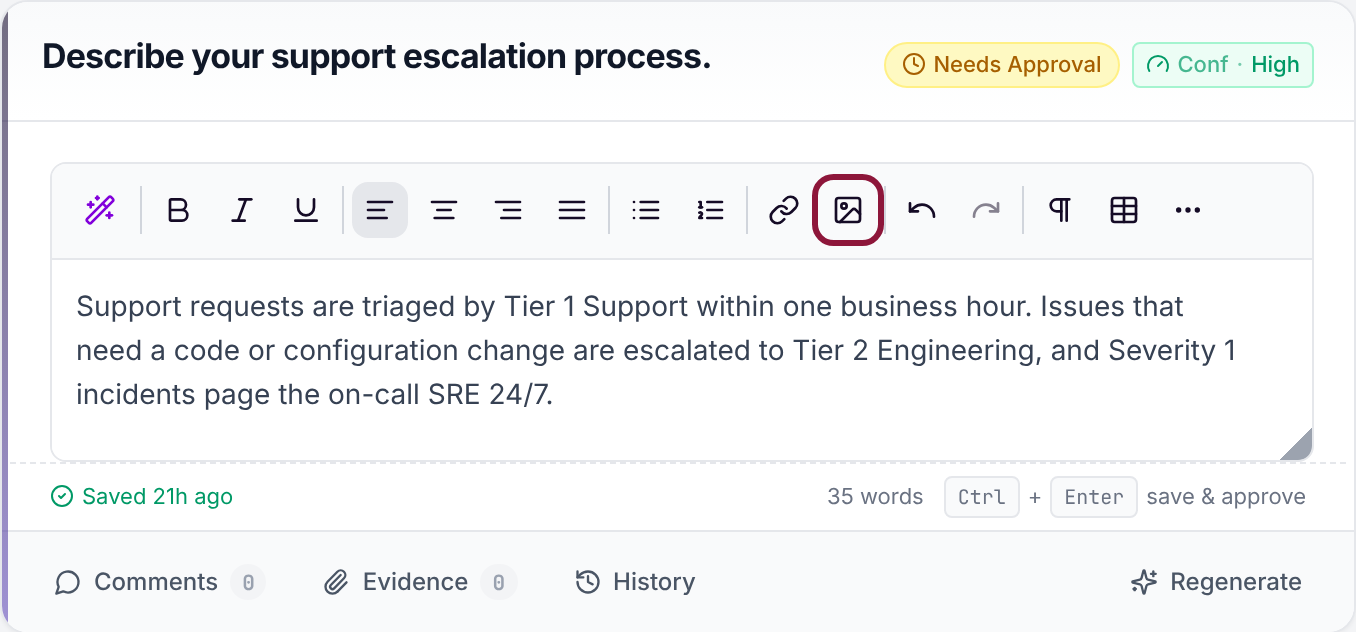
In the editor toolbar, click the Add Image button (the picture icon).
The Add Image button in the answer editor toolbar
The Select or Upload Image window opens with your Media Library. Click an image to select it.
If the image isn't in the library yet, drag it into the box at the bottom or click click to upload. It gets added to the Media Library, so you and your team can reuse it later.
Click Insert Image.
The image appears in the answer where your cursor was:
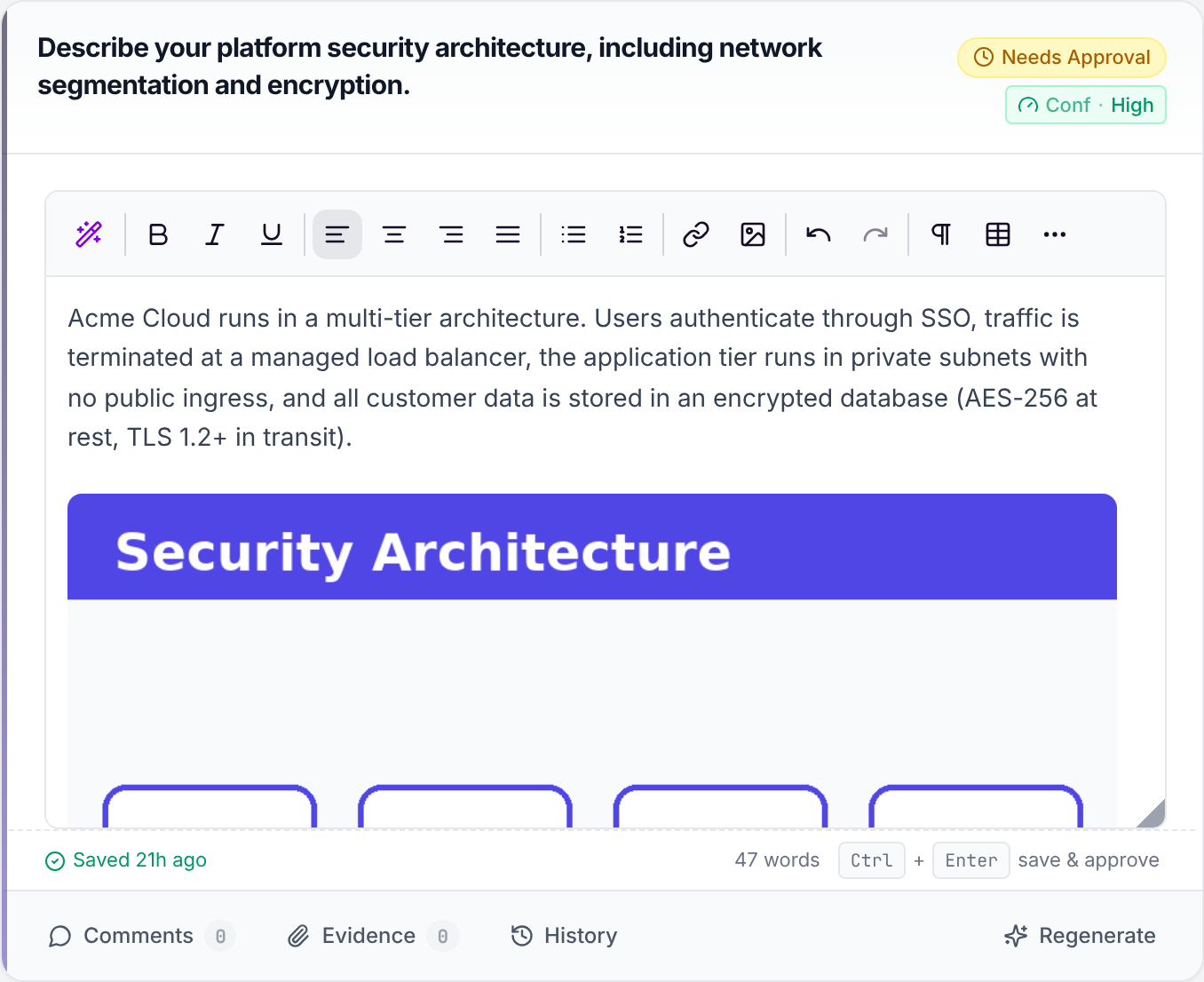
To remove an image from an answer, click it and press Backspace or Delete, like any other content.
How images are saved
Images save with the answer. Adding an image changes the answer just like typing does, and it's saved the same way. The Saved indicator below the editor shows it's done. Ctrl + Enter saves and approves the answer in one step.
The answer points to the Media Library image; it doesn't make a copy. Every answer that uses the same image shows the same file from your library. That's why deleting an image from the library also removes it from answers that use it.
Images stay private to your organization. Embedded images load through Iris, and only signed-in users in your organization can see them. They're never public links, and the link in an answer won't work for anyone outside your organization.
Images are included in exports. When you export a project to Word (DOCX) or Excel (XLSX), images in your answers are embedded in the exported file.
How images are reused in new answers
This is where the Media Library saves you the most time. You add a diagram to a good answer once, and Iris can include it in future answers on the same topic.
Step 1: Approve an answer that contains an image
When you approve a project answer, it's sent to your Approved Answers Library with its images. Depending on your library settings, it either goes straight into the library as approved, or waits in the library Inbox until a reviewer approves it.
Images are reused only from answers that are approved in the library. Answers still in the Inbox, in draft, or archived aren't used.
Step 2: Iris includes the image when it's relevant
When Iris writes answers for a project, it looks through your Approved Answers Library for relevant content. This happens when a project is first processed, when you add a question, and when you click Regenerate. If one of the approved answers it uses has an image, Iris decides whether that image fits the new answer:
If the image is relevant, Iris adds it to the end of the new answer, on its own line.
If the image isn't relevant to the new question, Iris leaves it out, even when it uses text from the same approved answer.
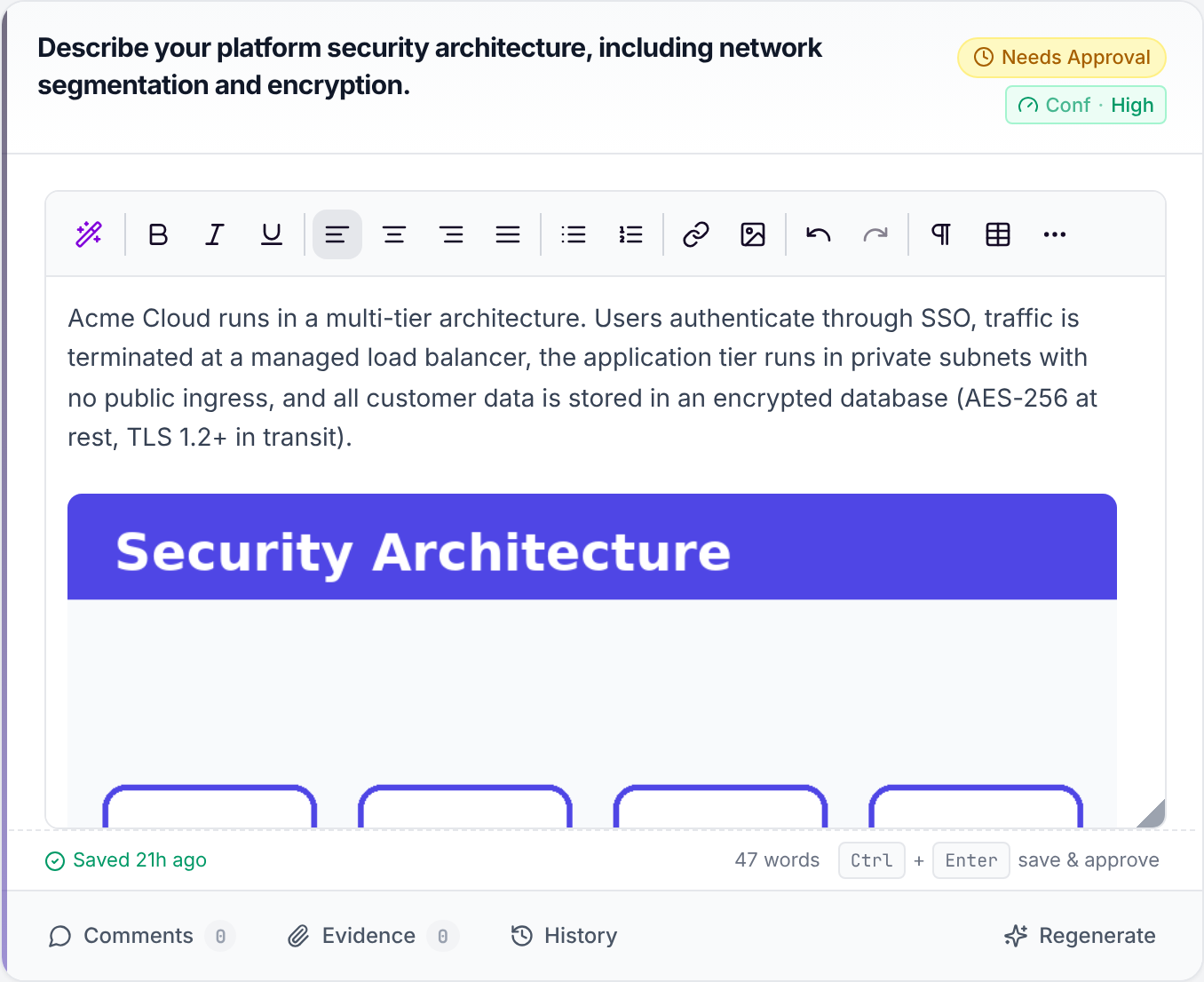
A few details:
A generated answer can include up to 8 reused images. If two sources use the same image, it's only added once.
Images are only added to written (free-text) answers. They aren't added to dropdown answers, or to answers where Iris says it didn't have enough information.
Image reuse applies to project answers. It isn't currently available in Ask Iris.
Step 3: Review the answer as normal
A reused image is ordinary answer content. Reviewers can keep it, delete it, move it, or add more images with the Add Image button before approving.
Keeping reused images up to date
Iris always takes the image from the current version of the approved answer:
To replace a diagram everywhere in the future: edit the approved answer in the Approved Answers Library, remove the old image, insert the new one, and save. New answers will use the new image.
To stop an image being reused: remove it from the approved answer in the library.
Answers that were already written aren't changed. They keep whatever image they had. Update those by hand, or click Regenerate.
FAQ
Can I paste an image straight into an answer? Use the Add Image button. That puts the image in your Media Library, where it's stored securely and can be reused.
Why does an answer show a missing image? The image was most likely deleted from the Media Library. Upload it again and insert it back into the answer.
Can I upload SVG, GIF, or PDF files as images? No. The Media Library accepts PNG, JPG, and JPEG images only. Export diagrams as PNG for the best quality.
I approved an answer with an image, but new answers don't include it. Why? Check that:
The answer is approved in the Approved Answers Library (not still in the Inbox).
The new question is closely related to the approved answer. Iris only adds an image when its answer is based on that approved answer and the image fits.
The new answer is a written answer, not a dropdown, and not an "insufficient information" answer.
Does anyone outside my organization see these images? No. Images only load for signed-in users in your organization, and in the files you export yourself.