Seismic
Last updated: September 15, 2026
Integrating Seismic and Iris
The Iris Seismic Integration allows you to upload documents from Seismic into your Knowledge Map in Iris
What types of documents can we pull in from Seismic?
Iris supports PDF, Word, Excel, CSV, and MD files from Teamsites and nesting folders within those Teamsites.
To set up the integration, you need
Administrator-level access to Iris
Administrator-level access to your Seismic account
Your Seismic Tenant Name
A Seismic OAuth app with a Client ID and Client Secret (see Step 1 below)
The Iris callback URL to add to your OAuth app: https://studio.heyiris.ai/api/integrations/seismic/callback/
Integration Steps
Step 1: Create a Seismic OAuth App
Each organization needs to create their own OAuth app inside their Seismic tenant to connect with Iris.
Log in to your Seismic account and navigate to the Seismic Developer portal (https://apps.seismic.com/apps).
Go to My Apps and create a new app.
Select Authentication tab and select Yes within "Do you need authentication for your app"
Keep the default Oauth2 selected
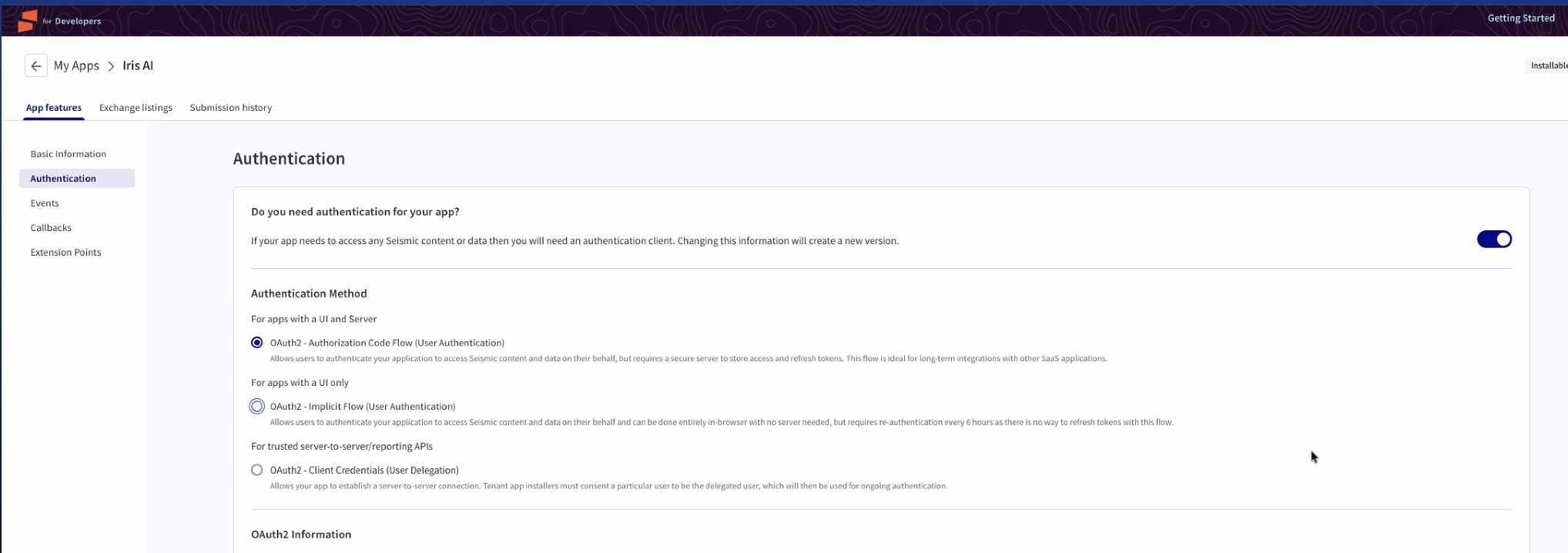
In the Authentication tab, ensure the following scopes are checked:
seismic.library.viewseismic.library.manageseismic.workspace.viewseismic.searchoffline_access(if not visible, you can try setting it up without this, or you may need to contact your Seismic rep)
Save the app.
In your OAuth app settings, add the following Callback/Redirect URL: https://studio.heyiris.ai/api/integrations/seismic/callback/
Note: Make sure there is no trailing space at the end of this URL — this is a common cause of connection failures.
Once the app is configured, you'll also need to enable it from within your main Seismic portal (not just the developer portal). Navigate to your Seismic admin settings and activate the app for your organization.
Generate a Client ID and Client Secret — you'll need these in Step 4.
Step 2: Obtain Your Seismic Tenant Name
Log in to your Seismic account.
Locate your tenant name in the URL, typically formatted as:
https://<tenantname>.seismic.com
Step 3: Access Iris Integration Settings
Log in to studio.heyiris.ai
Select Settings from the left-hand menu, then go to the Integrations tab (https://studio.heyiris.ai/settings/integrations)
Step 4: Add Seismic Integration
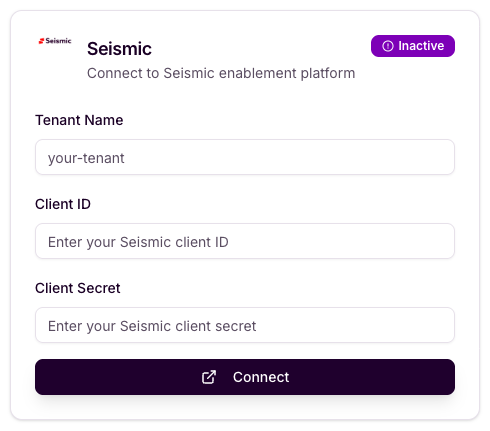
Click Connect within the Seismic Integration.
Enter your Seismic Tenant Name in the designated field
Enter your Client ID and Client Secret generated from your Seismic OAuth app.
Save the configuration. You should see a green circle next to Seismic's name to confirm the connection.
Step 5: Test the Integration
Navigate to the Knowledge Map.
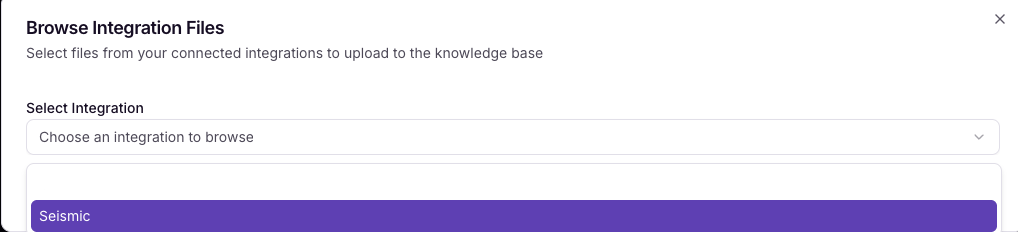
Click on Add from Integrations
Verify that Seismic is available to pull from
Click on the Seismic logo
You should see your files and can add them to your knowledge map from here.
Make a change to scopes? Every time you change the scopes, Seismic will update your client ID -- to test in Iris, you'll need to swap out the client ID in the Integration area.
Note: You can upload up to 10 files at a time.
Troubleshooting
Incorrect Tenant Name: Double-check your Seismic tenant name in the URL if content fails to appear.
Note: for "https://tenantname.seismic.com", only input "tenantname"
Missing Scopes: If you connect successfully but no content loads, check that both seismic.configuration.view and seismic.configuration.manage scopes are enabled in your Seismic OAuth app. After adding them, disconnect and reconnect the integration in Iris with a newly generated Client ID and Secret.
Make a change to scopes? Every time you change the scopes, you will need to do the following before reconnecting:
Within Iris:
New Client ID -- to test in Iris, you'll need to swap out the client ID in the Integration area.
New Secret
Within Seismic:
Go back to seismic tenant, go My Apps, open Iris AI (where it says Update Available), and click the "..." and select Upgrade
Permission Errors: Ensure you have the proper permissions in both Seismic and Iris
Invalid Client ID / Secret: Client credentials are tied to your specific Seismic tenant. Make sure you're using credentials generated from your own organization's Seismic app, not one from another organization.
App Not Enabled: Creating the OAuth app in the Seismic Developer portal is not enough — you must also enable it from your Seismic admin portal. If the integration connects but content fails to load, this is likely the cause.
Callback URL Error / Invalid Redirect URI: Make sure the callback URL (https://studio.heyiris.ai/api/integrations/seismic/callback/) is entered exactly as shown in your OAuth app, with no trailing spaces.
Still need help? Contact an Iris rep or support@heyiris.ai with questions
"Unknown Client or client not enabled"