Teams
Last updated: July 22, 2026
Overview
Adding Iris to a Team or Channel:
Have your Teams admin set up the integration
Go to your desired Team or Channel
Click the "..." More button in the top right corner
Within Participants, select Add agents and bots
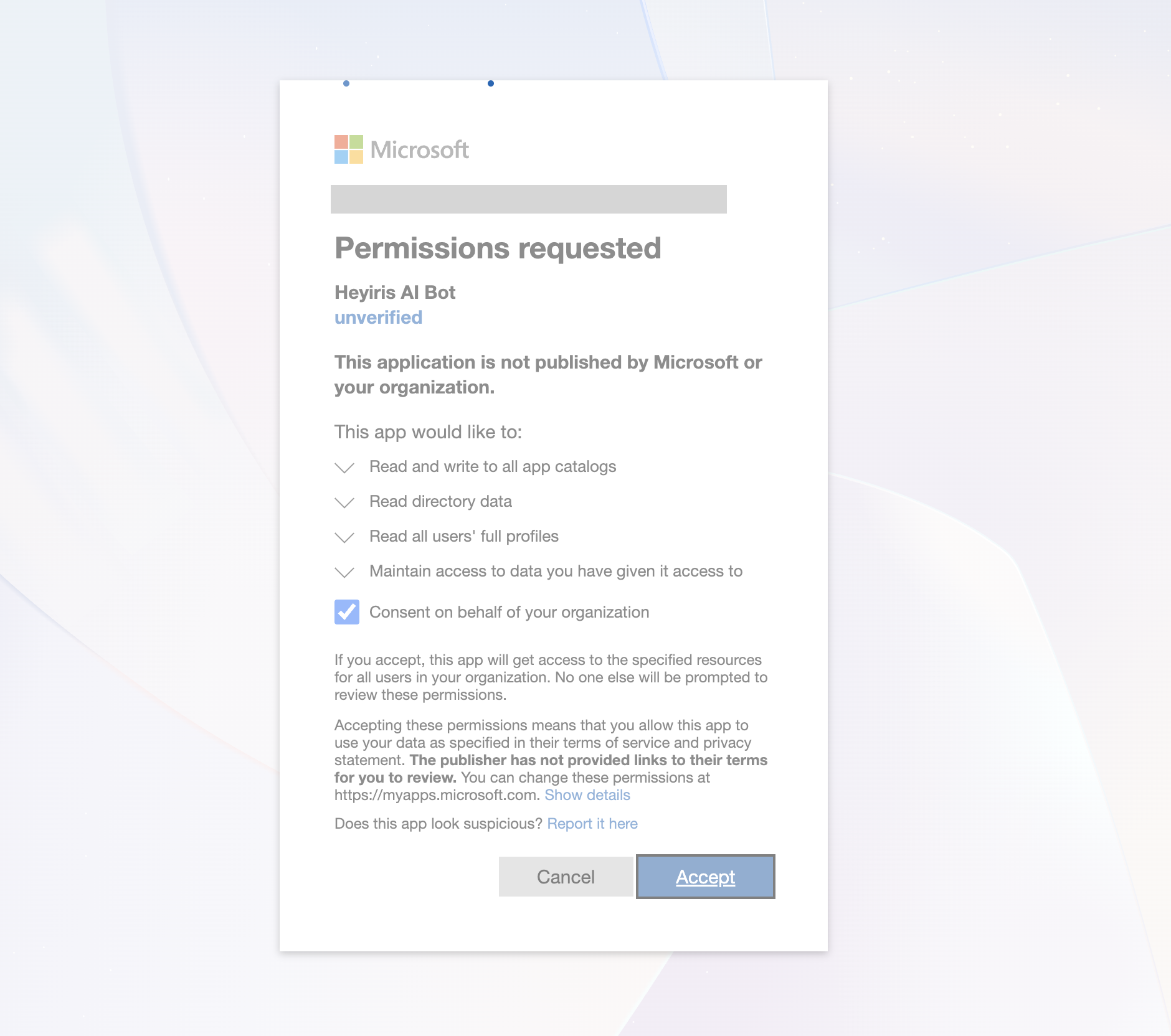
Search and select the HeyIris bot
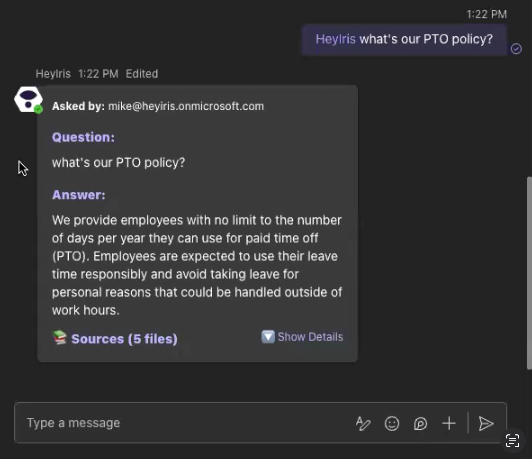
Ask Iris within a Team or Channel:
Type @Heyiris [your question]
Example: @Heyiris Does our solution support in-memory computing?
FAQ:
Why did I get this error?
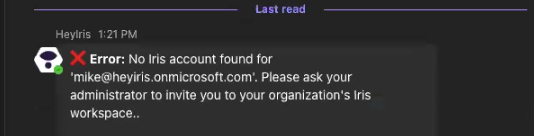
Error: No Iris account found for
*rfpzrule@yourcompany.com'. Please ask your administrator to invite you to your organization's Iris workspace..
This error means your email in Teams is not associated with an Iris account. Make sure you Teams email matches with a licenses user in Iris.
Which Tags are used in this search?
All tags are used when prompting Iris within Teams
Here's how to set it up
Prerequisites
- Microsoft Teams administrator access
- Access to the Iris integration page
- User accounts must exist in the Iris organization to use the bot
Phase 1: Initial Integration Setup
Step 1: Connect Teams Integration in Iris
1. Navigate to the Iris integration page
2. Locate the Teams integration (it should show as "Inactive" for first-time setup)
3. Click "Connect"
4. This should automatically handle the initial connection setup
Expected Result: Teams integration should now show as connected in the Iris interface.
Phase 2: Microsoft Teams Administrator Setup
Step 2: Access Teams Admin Center
1. Go to admin.teams.microsoft.com
2. Navigate to Teams apps → Manage apps
Step 3: Upload the Iris Bot App
1. Click the Actions button
2. Select Upload new app
3. Upload this zip file:
Important: This is a required step that cannot be skipped.
Step 4: Configure App Availability
1. After upload, search for "HeyIris" in the app list
2. You should see the "HeyIris" app (or similar naming)
3. Click on the HeyIris app to open its settings
4. Look for the "Available to users and groups" parameter
5. Configure who can access the app:
- Everyone (organization-wide access)
- Specific groups (targeted access)
Phase 3: End-User Setup (One-time setup)
Step 5: Add the App to Teams
1. Open Microsoft Teams
2. Click on Apps in the left sidebar
3. Look for the Iris app under:
- Built for your org (top option)
- Added by your org (second option)
4. Click Add on the "Hey Iris" app
Important: Only the first user (typically the Teams admin) needs to add the app. Once added, it becomes available to all authorized users.
Step 6: Add Bot to Group Chats
1. Open any existing group chat
2. Click the three dots (...) menu
3. Select Participants and agents (or similar option)
4. Add the Iris bot to the conversation
Phase 4: User Account Verification
Step 7: Ensure User Access
Critical Requirement: Users must exist in the Iris organization to use the bot.
1. Verify that all intended users have accounts in the Iris portal
2. If a user doesn't exist in Iris, they cannot use the bot
3. Add missing users to the Iris organization before they attempt to use the bot
Common Issue: If users encounter access errors, check that their email address exists as an account in the Iris system.
Using the Iris Bot
Basic Usage
- In group chats: Simply mention the bot and ask questions
- Direct messaging: You can also chat directly with the bot one-on-one
- The bot uses all available tags and shows sources in responses
- Click "Show details" to see source information
Advanced Usage: Custom Instructions
For more sophisticated queries with custom instructions:
In group chats:
1. Mention the bot: @Iris ask
2. This opens a modal window
3. Enter your question
4. Add custom instructions (e.g., "sound like a pilot")
In direct messages:
1. Type: ask
2. Follow the same modal process
Common Issues and Solutions
Issue 1: Bot Not Appearing in Apps
Solution: Ensure the Teams admin has properly uploaded the zip file and configured availability settings.
Issue 2: Access Denied Errors
Solution: Verify the user exists in the Iris organization. Add them if missing.
Issue 3: Upload Errors During App Installation
Solution: Teams may show errors during the upload process, but the app usually installs successfully. Proceed with the setup even if error messages appear.
Issue 4: Bot Not Responding
Solution:
- Check that the initial Iris integration is connected
- Verify user permissions in the Iris organization
- Ensure the bot was properly added to the chat
Issue 5: Missing App in "Built for your org"
Solution: The app may appear under "Added by your org" instead. Check both sections.
Important Notes
1. Zip File Distribution: Iris must provide the Teams bot zip file to each customer organization
2. User Management: Maintain user accounts in both Teams and Iris organizations
3. Permissions: The bot respects Iris organization permissions and knowledge base access
4. Documentation: Consider creating internal documentation for your organization's specific setup and usage guidelines
Support and Troubleshooting
If you encounter issues not covered in this guide:
1. Verify all prerequisites are met
2. Check user permissions in both Teams and Iris
3. Ensure the integration connection is active
4. Contact Iris support with specific error messages