Importing GovSpend Bids into Iris
Last updated: September 4, 2026
If your team uses both GovSpend and Iris, you can send a bid and its documents straight from GovSpend into Iris. No downloading and re-uploading required.

What the integration does
Inside GovSpend, bids you're tracking include an Add to Iris button. Clicking it sends the bid's documents into your Iris workspace, where they land as a new project under Projects. From there you can run RFP Analyzer, generate responses, and work with the documents exactly as you would with anything you'd uploaded yourself.
Before you start
The integration is enabled on the GovSpend side, not in Iris. When GovSpend activates an account that's also an Iris customer, they switch the connection on for you. There's nothing to configure in your Iris settings.
If you're an Iris customer with a GovSpend subscription and you're not seeing the option, let us know and we'll confirm the connection with the GovSpend team.
How to import a bid
In GovSpend, open the bid you want to work on and go to its detail page. The Add to Iris option lives on the individual bid, not on the results or list view.
Review the documents attached to the bid.
Click Add to Iris.
Open Iris and go to Projects. The bid will appear as a new project with the documents attached.
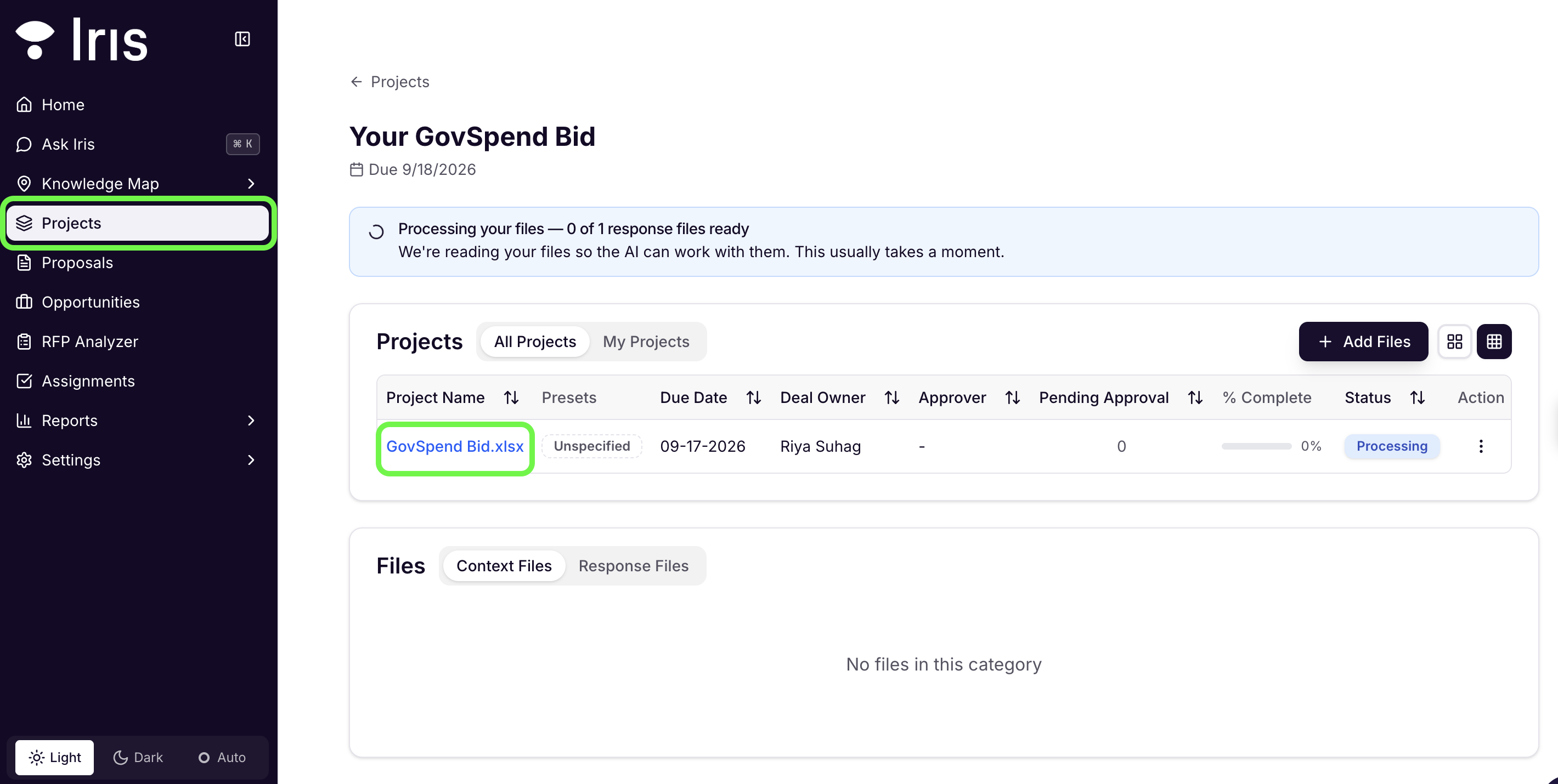
Tip: Give the import a moment to finish before refreshing Projects. Larger document sets take slightly longer to come across.
File types
Iris accepts the standard document formats you'd normally upload to a project, for example PDF, .DOCX, MD, TXT, and XLXS files.
ZIP files are not supported. Many agencies bundle their solicitation documents into a single .zip archive. Iris can't currently unpack these, so a bid whose documents are packaged that way will not import.
Working around a ZIP bid
Download the ZIP file from GovSpend to your computer.
Unzip it locally.
In Iris, create a project (or open the one you're working in) and upload the individual files.
Everything works normally from that point on. ZIP support is something we're evaluating for a future release.
Troubleshooting
I don't see the Add to Iris button. Make sure you're on the bid's detail page rather than a search or list view. If it's still missing, the connection between your GovSpend account and your Iris workspace may not be switched on yet. Contact Iris support and we'll get it confirmed with GovSpend.
I clicked the button and got an error in GovSpend. This almost always comes down to the documents attached to the bid. The two most common causes:
The documents are in a ZIP file. Follow the workaround above.
The bid has no documents attached. Some listings are notice-only, with nothing to import. In that case there's nothing for Iris to pull in.
An error here doesn't mean the integration is broken or that anything is wrong with your account. It means that particular bid's files aren't in a format Iris can take directly.
Something else is happening. Send us the bid you were trying to import and a screenshot of what you're seeing. We can troubleshoot live and bring in the GovSpend team if needed.
Need help?
Reach out to your Iris CSM or contact support, and we'll walk through it with you.