Iris Extension
Last updated: June 16, 2026
Install the Extension
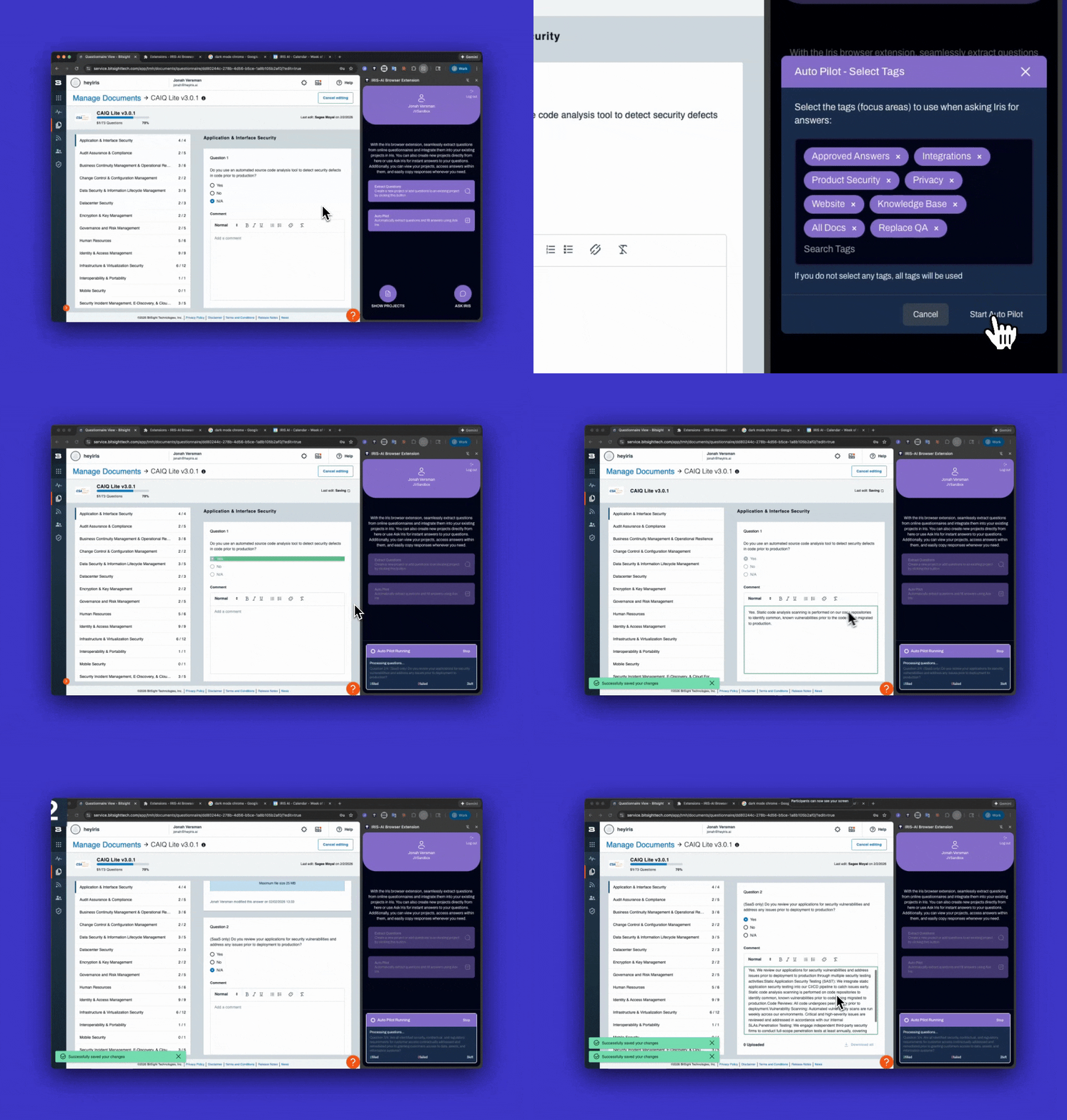
Using the Iris Browser Extension
Use the Iris Browser Extension for quick access to queries and extractions without switching platforms.
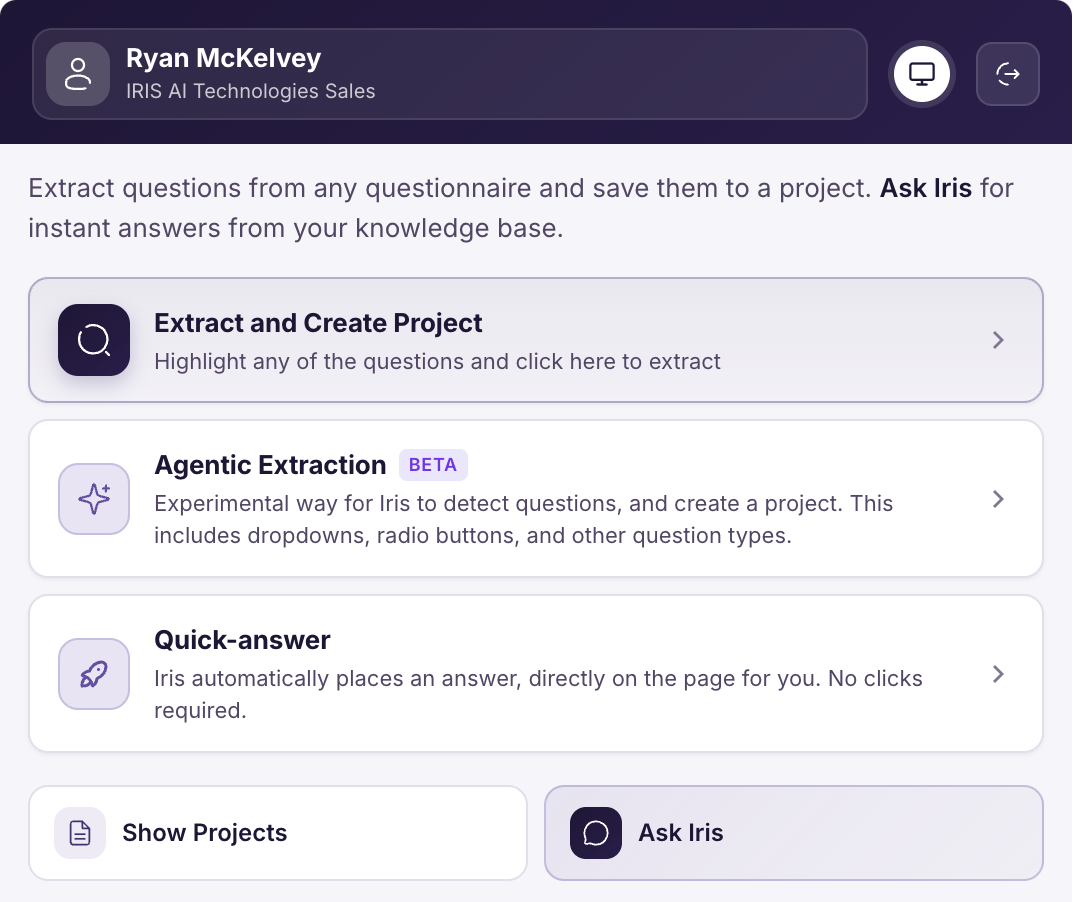
Logging in to the Extension
Open the Extension
Click Sign In
If not already signed into the web portal, you'll be taken to Iris sign in page. Log into to finish.
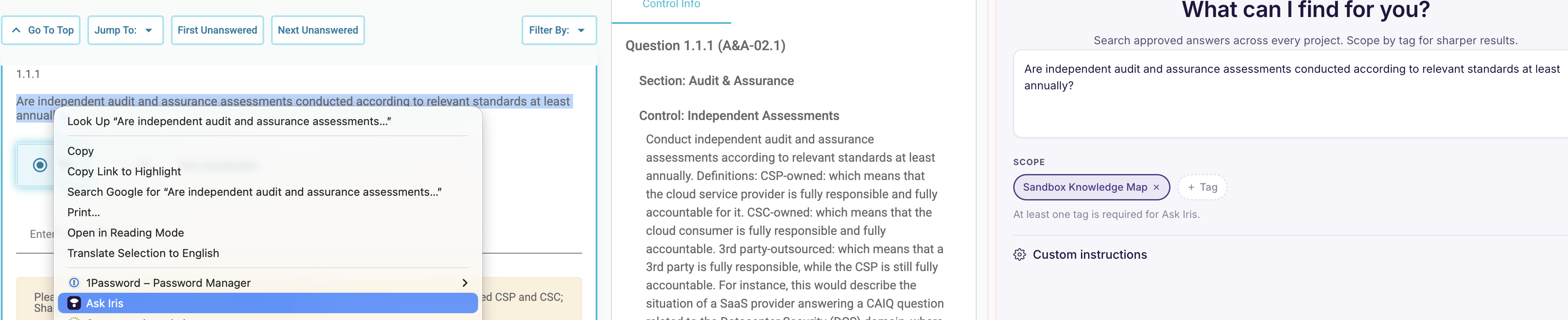
🙋Right Click -> Ask Iris
Right-click highlighted text and select Ask Iris.
Your default tags are preselected. Click Select Tags to adjust.
No Custom Instructions are selected by default. Click Custom Instructions to select a pre-saved custom instruction to style the response.
🤖 Quick-Answer Mode
Quick Answer automatically reads your questionnaire, generates answers from your knowledge base, and fills the form all in one run. It works on any web portal without any per-portal setup. The extension will scan the page and detect all answerable fields — radio buttons, dropdowns, checkboxes, free-text fields, and custom widgets. Detected questions will appear in the panel in real time as the page is read.
Navigate to the portal or web page you want to extract information from
Click the Quick-answer button
Iris will notify you how many questions it found
Iris automatically selects dropdowns and fills in free-text questions
Iris pauses when it completes its task

Reviewing and applying answers
As answers stream in, Iris fills each field automatically and verifies that the portal accepted the value.
High-confidence answers are filled and confirmed without any action needed from you.
Low-confidence answers — or any fill that could not be confirmed — are held back and shown as review cards. Each review card includes:
The drafted answer
The model's reasoning
The source it was drawn from
Four actions: Apply, Copy, Locate, or Skip
You remain in control of what gets submitted. Nothing below your confidence threshold is filled without your approval.
Multi-page questionnaires and interruptions
Quick Answer handles questionnaires that span multiple pages or reveal new fields based on earlier answers. As new fields appear, they are appended to the same run and answered without starting over.
If you switch tabs, navigate away, or close the browser entirely, your run keeps generating on the server. When you return to the page and reopen the extension, the panel resumes exactly where it left off — nothing already answered is repeated.
Reporting an issue
If an answer fills incorrectly or a field is not detected, you can report it directly from the panel.
From the result screen, click Report an issue.
Add a short description of what went wrong — your email is pre-filled.
Click Submit.
Iris automatically captures the portal URL, the detected form fields, and a sanitized snapshot of the page structure. All values you have entered into the form are redacted before anything leaves your browser. The report is sent to the Iris support team with full context attached, so no follow-up questions about which portal or question was affected are needed.
Reports are internal to Iris and are never shared with third parties or back to the portal vendor.
🌌 Turn a Portal into an Iris Project with Agentic Extraction
Use this option to assign questions out to other users and add the portal questions to your Knowledge Map
Navigate to a Portal or web page you want to extract information from
Open the IRIS browser extension
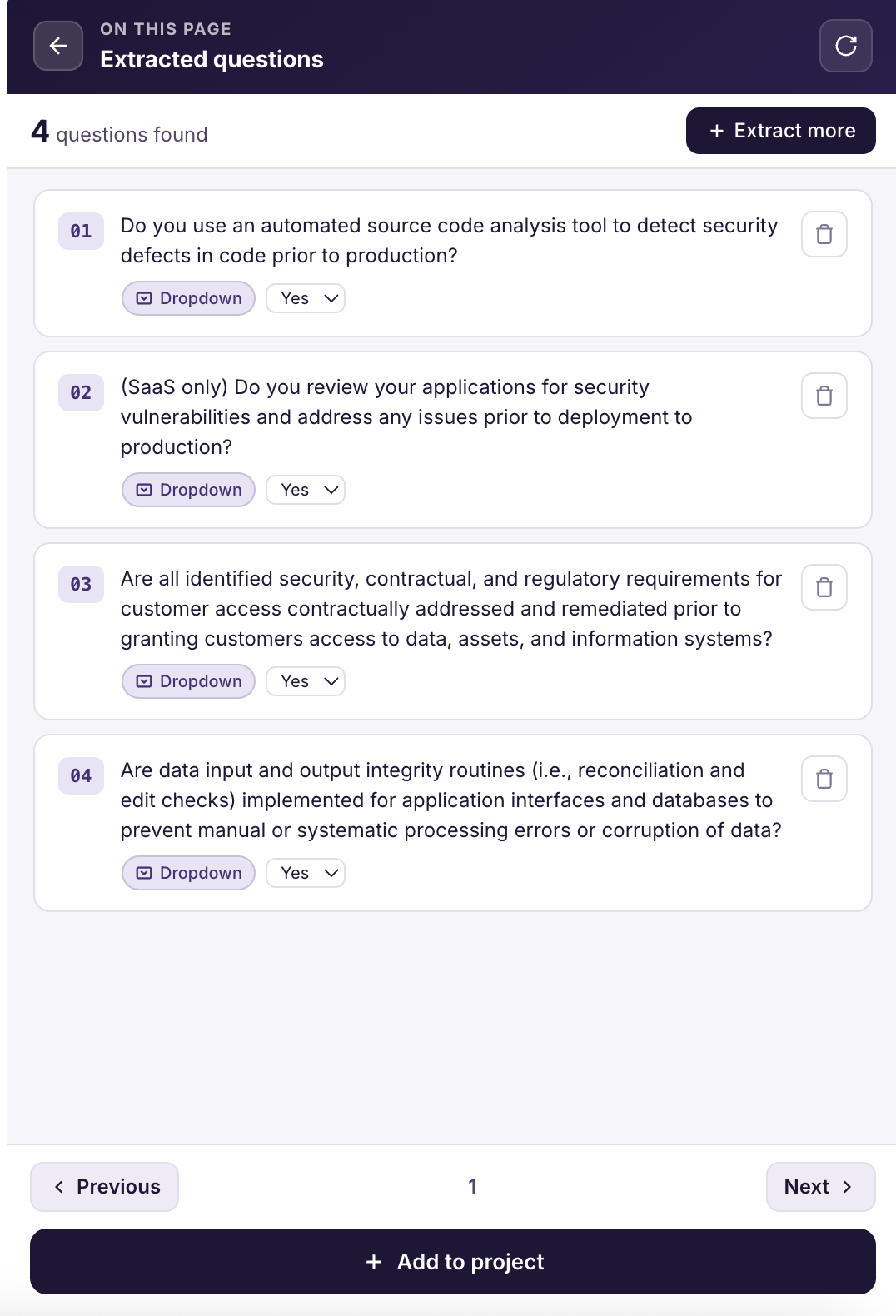
Select Agentic Extraction
Click Extract to capture the page content
Extract multiple pages in one session by going to the next page, highlighting the first question, and clicking "Extract More."
Once extracted, you either turn that question set into a New Project or add questions to an Existing Project.
When your done, click Show Projects to easily view and copy questions and answers into portals.
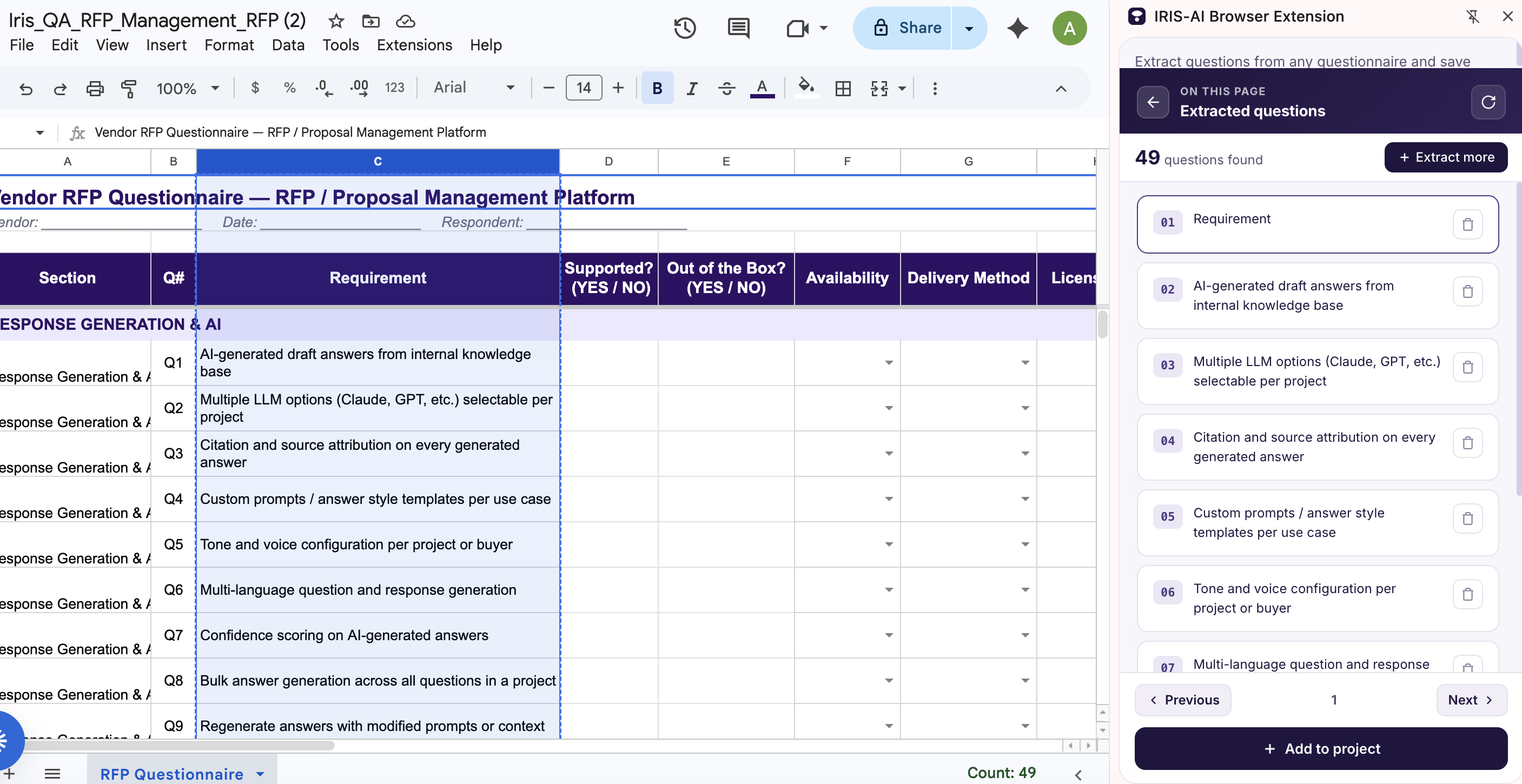
NEW: Extraction and Auto Pilot now supports Google Sheets, Microsoft Forms, Prevalent TPRM, and custom instructions.
Open a Google Sheet with your questionnaire
Highlight the column or cells containing your questions
Click Extract Questions or click Quick-Answer for Iris to answer directly into the columns! Supports up to 2 answer columns. Iris auto-detects dropdown validation and handles free-text columns in a single Iris call.
Troubleshooting
If you encounter any issues with the extension:
Make sure you're using the latest version (v2.0.4 or newer)
Try logging out and logging back in through studio.heyiris.ai
If problems persist, contact support at support@heyiris.ai