Iris MCP
Last updated: August 28, 2026
MCP Integration Guide
Overview
Iris MCP is a hosted Model Context Protocol server that gives AI assistants direct access to your organization's RFP and proposal intelligence. Once connected, your AI can answer questions about projects, assignments, win/loss data, knowledge base health, and more, all in natural language. Connected assistants can also add new content to your Knowledge Map.
A note on write access: Adding content to your Knowledge Map uses a separate permission from the existing read access. If you connected an AI assistant before this update, you'll need to remove and re-add the connector (or re-authorize it) to grant write access. Your existing connection keeps working as read-only until you do.
Section 1: Prerequisites
Before you can connect:
Requirement | Detail |
|---|---|
Active Iris Account | Must have an account on heyiris.ai |
MCP Enabled by Admin | An Org Admin must enable it in Settings → Security |
Supported AI Client | Claude, ChatGPT, Copilot Studio, GitHub Copilot, Cursor |
Network Access | HTTPS access to |
Section 2: Admin Step — Enable MCP for Your Org
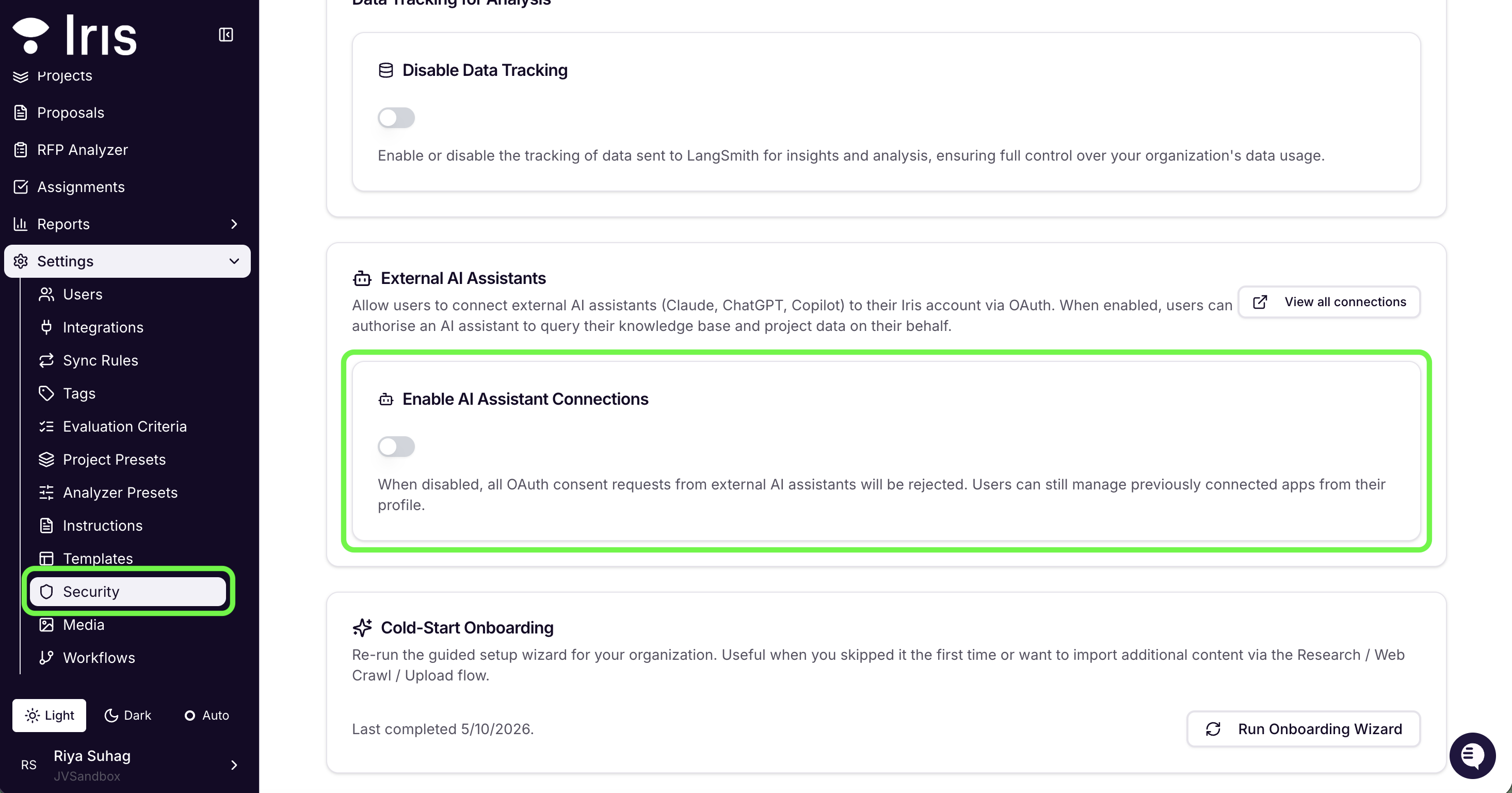
Log in to Iris → go to Settings → Security
Scroll to External AI Assistants
Toggle "Enable AI Assistant Connections" → ON
Select "Save" at top of the page
Changes take effect on next login or new OAuth flow
If this is disabled, all OAuth consent requests from AI assistants will be rejected.
Section 3: Setup Guides (Claude / ChatGPT / Copilot / Github / Cursor)
Claude Web (claude.ai) — Beginner
Go to claude.ai → Profile icon → Settings → Integrations
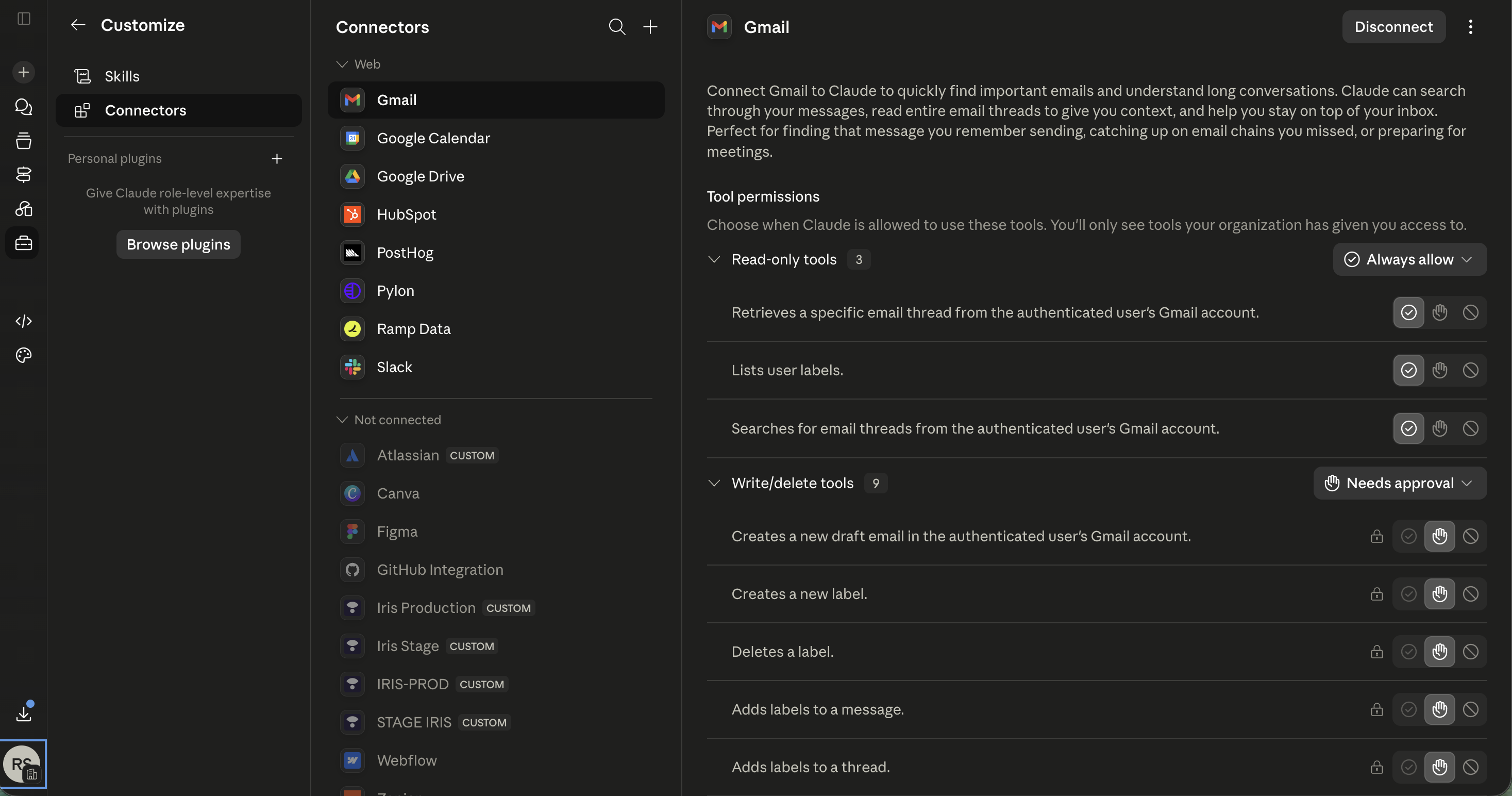
Click Add MCP Server
Enter:
https://mcp.heyiris.ai/mcp/http| Name:IrisClick Add → complete the Iris OAuth consent → Approve
Test: "How many projects are in review in Iris?"
Claude Desktop — Beginner
Individual/Pro users:
Settings → Customize → Connectors
Click Add Connector → enter
https://mcp.heyiris.ai/mcp/httpClick Add → authorize in browser → Approve (one time only)
Team/Enterprise (Owner only):
Go to Organization Settings → Organization Connectors tab
Click Add custom connector
Enter
https://mcp.heyiris.ai/mcp/http→ click AddEach team member then individually connects to enable it
Note: Only Owners or Primary Owners can add org-wide connectors
Test: "Show me my open assignments in Iris."
ChatGPT (Pro / Plus / Business / Enterprise) — Beginner
chatgpt.com → Profile → Settings → Apps & Connectors
Click Add new connector → MCP
Server URL:
https://mcp.heyiris.ai/mcp/http| Name:IrisClick Connect → complete OAuth → Approve
Test: "What is our win rate in Iris?"
⚠ "Copilot" means two different products. Choose the section that matches what you're using:
Microsoft Copilot Studio — the low-code agent builder at copilotstudio.microsoft.com. Setup is a UI form.
GitHub Copilot — the coding assistant in VS Code / your IDE. Setup is a JSON config file.
Microsoft Copilot Studio — Intermediate
Open Copilot Studio → create/open agent → Tools → + Add tool
Select Model Context Protocol
Fill in the connector form:
Server name:
IrisServer description: any short description (this field is required) — e.g. "Access to Iris RFP and proposal intelligence."
Server URL:
https://mcp.heyiris.ai/mcp/httpAuthentication: select OAuth 2.0
Type: select Dynamic discovery (Iris supports OAuth Dynamic Client Registration, so you can safely ignore the DCR warning shown on this panel)
Click Create, then complete the Iris OAuth consent in your browser → Approve
Test: "How many RFPs are in our pipeline?"
GitHub Copilot — Intermediate
Create .vscode/mcp.json in your project:
{

"servers": {

"iris": {

"type": "http",

"url": "https://mcp.heyiris.ai/mcp/http"

}

}

}
On first use, complete the OAuth consent in browser.
Test: "What projects are due soon in Iris?"
Cursor — Beginner
Settings → MCP → Add new MCP server
Type: HTTP | URL:
https://mcp.heyiris.ai/mcp/httpFirst use triggers OAuth → Approve
What can the MCP do?
Tool | What It Does |
|---|---|
| Ask natural language questions against your knowledge base. Returns answer + confidence score (High/Medium/Low) + cited sources |
| List/search projects by name, status, ownership |
| Project counts by status, overdue count, due-today count |
| All questions assigned to you, grouped by project |
| Full detail on one project — status, owner, due date, question counts |
| Org-wide pipeline: total projects, deal value, AI accuracy, completion time (requires reporting access) |
| Win rate, deal values, recent deals (requires reporting access) |
| Health of approved answers library — pending reviews, overdue cycles (requires approved_answers_full_access) |
| Total RFPs, requirements extracted, evaluation breakdown (requires projects_feature permission) |
| All KB tags in org — useful before calling ask_iris |
| Returns org's AI response style instructions |
| Check if a project links to a Salesforce or Dynamics opportunity |
| Adds a webpage to your Knowledge Map. Can optionally crawl linked pages. |
| Adds a file to your Knowledge Map. |
Managing Connections
View active connections: Profile (bottom-left) → Security → Connected Applications → Manage
Revoke a connection: Same page → click Revoke next to any connection (takes effect immediately)
Token lifecycle:
Access tokens expire after 1 hour (auto-refreshed — no action needed)
If an admin resets your API key, all MCP connections are automatically revoked — reconnect via OAuth flow
Troubleshooting
Issue | Fix |
|---|---|
Microsoft Copilot Studio: "authentication may fail / DCR not supported" warning, or auth fails on the Dynamic discovery panel | Iris does support Dynamic Client Registration — make sure Type is set to Dynamic discovery and Authentication to OAuth 2.0. Do not switch to "Manual." Confirm the URL is exactly |
Connection not appearing after consent | Confirm "Enable AI Assistant Connections" is ON; confirm you clicked Approve, not Deny; re-add server to trigger fresh OAuth |
"Your MCP connection has been revoked" | Revoked from Connected Applications or API key was reset — re-add server and re-authorize |
"No authentication token present" | OAuth flow didn't complete — remove and re-add MCP server |
403 Permission Denied on specific tools |
|
Empty results from ask_iris | Check if KB tags are configured; try |
429 Rate Limit Exceeded | Limit is 300 tool calls/minute per connected app — reduce frequency or batch queries |
Quick Reference Box
Item | Value |
|---|---|
Production Endpoint |
|
SSE Endpoint |
|
Auth | OAuth 2.1 + PKCE (no API key needed) |
Token Lifetime | 1 hour (auto-refreshed) |
Rate Limit | 300 calls/min per application |
Available Tools | 14 (12 read-only, 2 write) |
Enable MCP (Admin) | Settings → Security → External AI Assistants |
View Connections | Profile → Security → Connected Applications |
Support |
FAQ
I see "External AI assistant access is not enabled for your organisation" on the consent screen. What do I do?
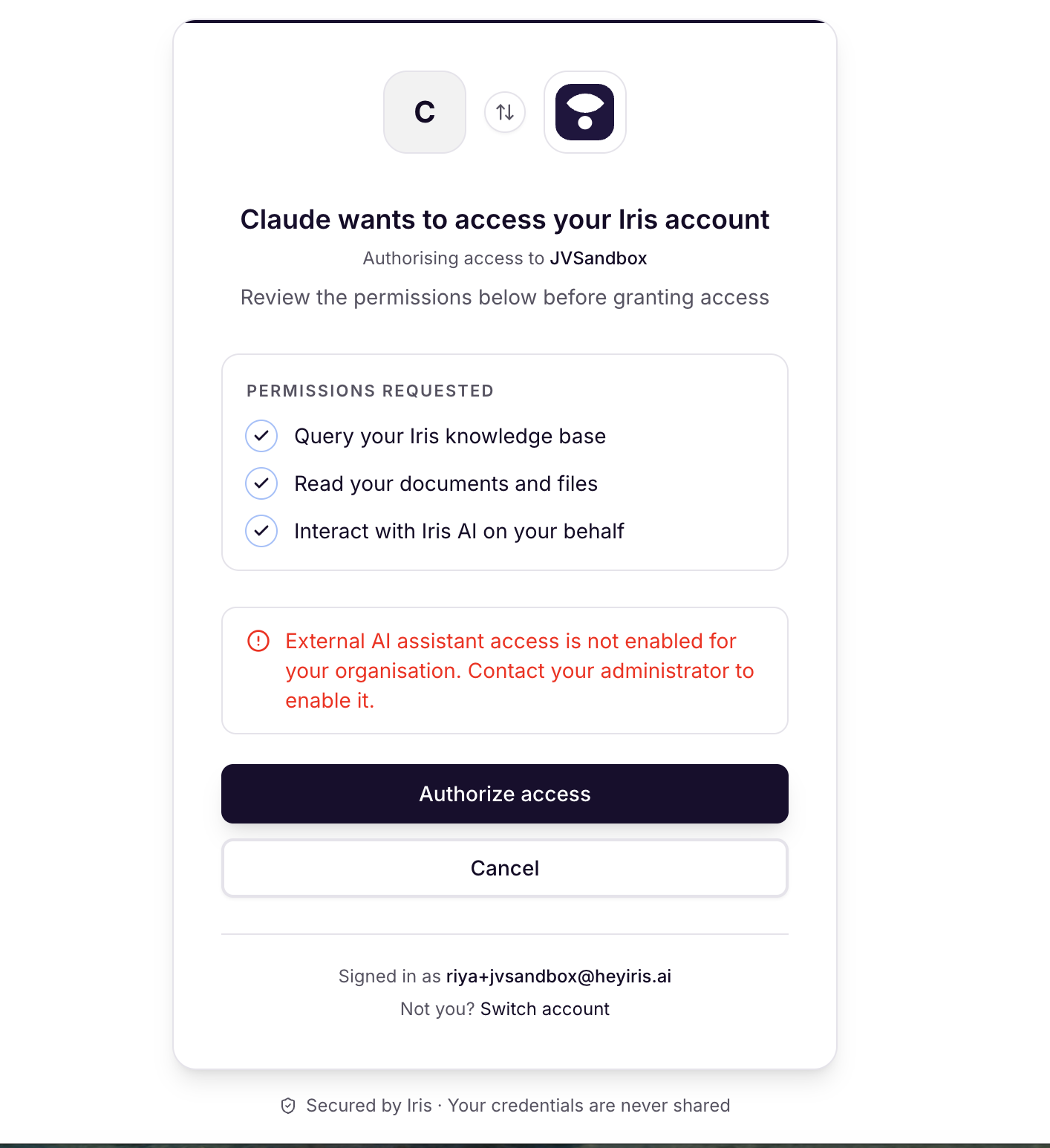
This means your Iris admin hasn't enabled MCP access yet. You cannot proceed until this is turned on.
Fix: Contact your Iris Organization Admin.
Once enabled, go back to your AI assistant, remove the Iris connector, re-add it, and try authorizing again.
I clicked "Authorize access" but nothing happened / I got sent back to the start.
This usually means the OAuth flow didn't complete properly.
Fix:
Remove the Iris connector from your AI assistant
Re-add it using the URL
https://mcp.heyiris.ai/mcp/httpTry the authorization flow again in a fresh browser tab
I connected successfully before but now I'm getting "Your MCP connection has been revoked."
This happens when either:
Your connection was manually revoked from the Iris Connected Applications page
Your Iris admin reset your API key (this auto-revokes all connections)
Fix: Re-add the Iris connector in your AI assistant and complete the OAuth flow again.
I'm getting a 403 Permission Denied error on certain questions.
Some tools require additional permissions in Iris:
Tool | Permission Required |
|---|---|
Win/loss stats, executive summary | Reporting access |
Knowledge base health |
|
RFP pipeline |
|
Fix: Contact your Iris Organisation Admin to request the necessary permissions.
How do I know if content in my Knowledge Map came from an AI assistant?
Any content added by a connected AI assistant is labeled "AI Assistant" in the Knowledge Map, so you can always tell how it got there.