Security Settings Guide
Last updated: October 21, 2025
Check out a video showing how to use the Settings Dashboard in Iris 👇
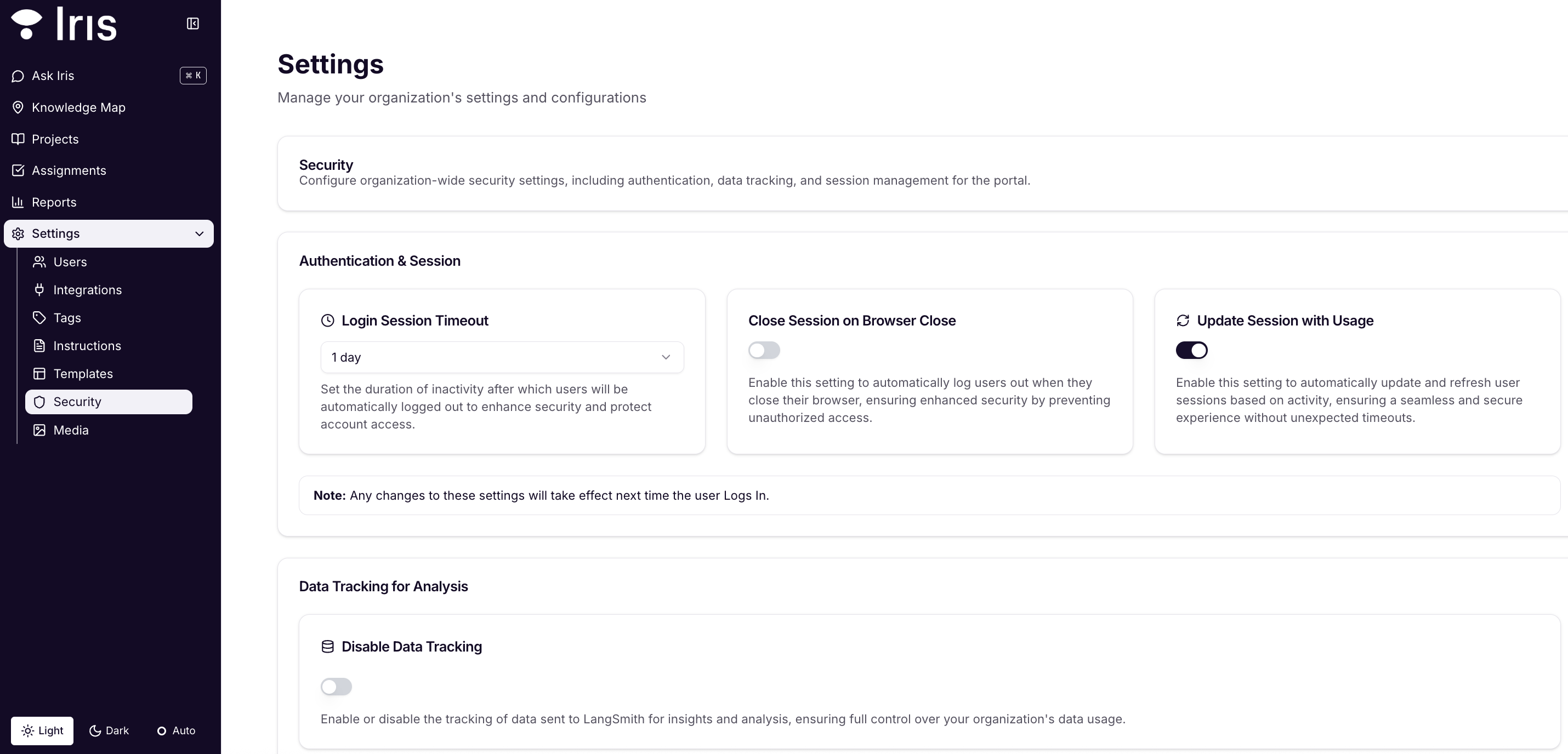
To access these settings, navigate to Settings > Security in your Iris platform.
Enforce SSO Login
This setting requires all users to log in using Single Sign-On (SSO) credentials. Enabling this ensures tighter control over user authentication by linking it to your organization's SSO provider.
Toggle Enforce SSO Login to the "On" position.
Note: Ensure your organization has SSO configured before enabling this option. Without proper configuration, users will be unable to log in.
Login Session Timeout
This setting determines how long a user can stay logged in without activity before being automatically logged out.
Locate the Login Session Timeout field.
Enter the desired timeout duration.
Select** Submit** to finalize.
Close Session on Browser Close
This feature ensures that a user's session ends when they close their browser, adding an extra layer of security.
Toggle Close Session on Browser Close to the "On" position.
Update Session with Usage
Enable this setting to automatically update and refresh user sessions based on activity, ensuring a seamless and secure experience without unexpected timeouts.
Toggle on Update Session with Usage.
Disable Data Tracking
Enable or disable the tracking of data sent to LangSmith for insights and analysis. This is useful for organizations prioritizing user privacy.
Toggle Disable Data Tracking to the "On" position.
Note: Disabling data tracking will make it more difficult for the Iris team to assist and troubleshoot Support requests. It may also limit certain analytics and insights provided by the platform.