Tags
Last updated: March 10, 2026
Check out a video showing how to use tags in Iris 👇
Create proper tags for your organization before uploading documents to your knowledge map. Tags in Iris provide context, improving organization and searchability. Additionally, Tags allow users to isolate data sources based on geography, product line, etc.
Creating Tags:
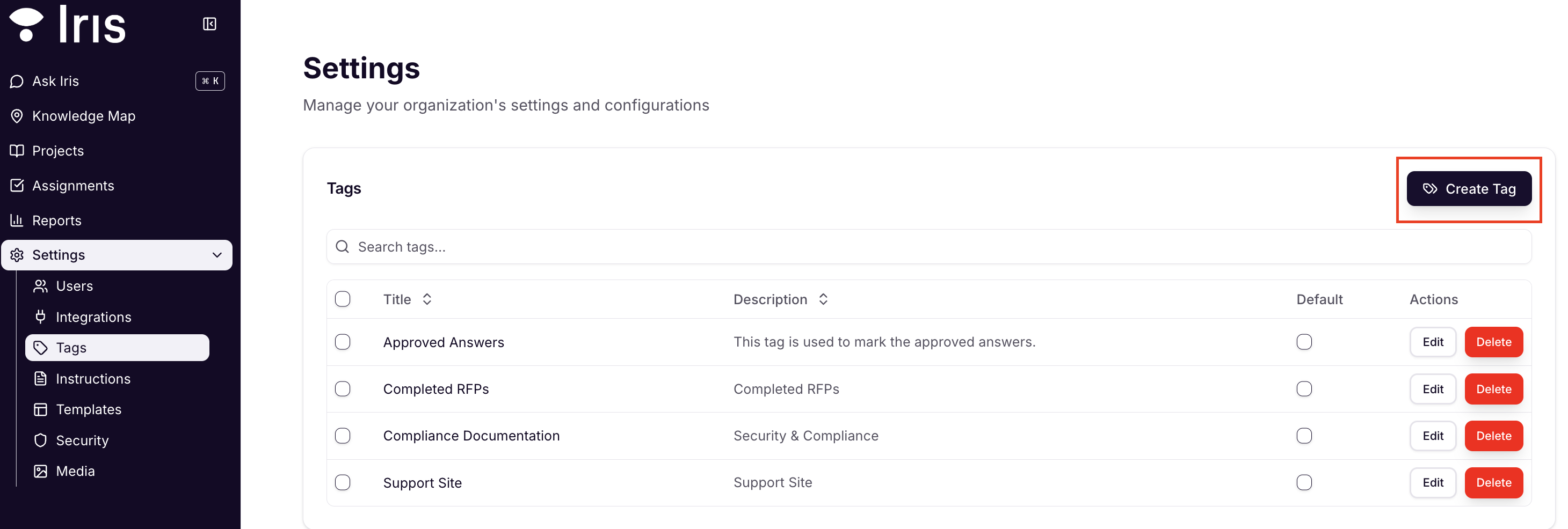
Navigate to
Settings > Tagsin the right-hand dashboard.Click
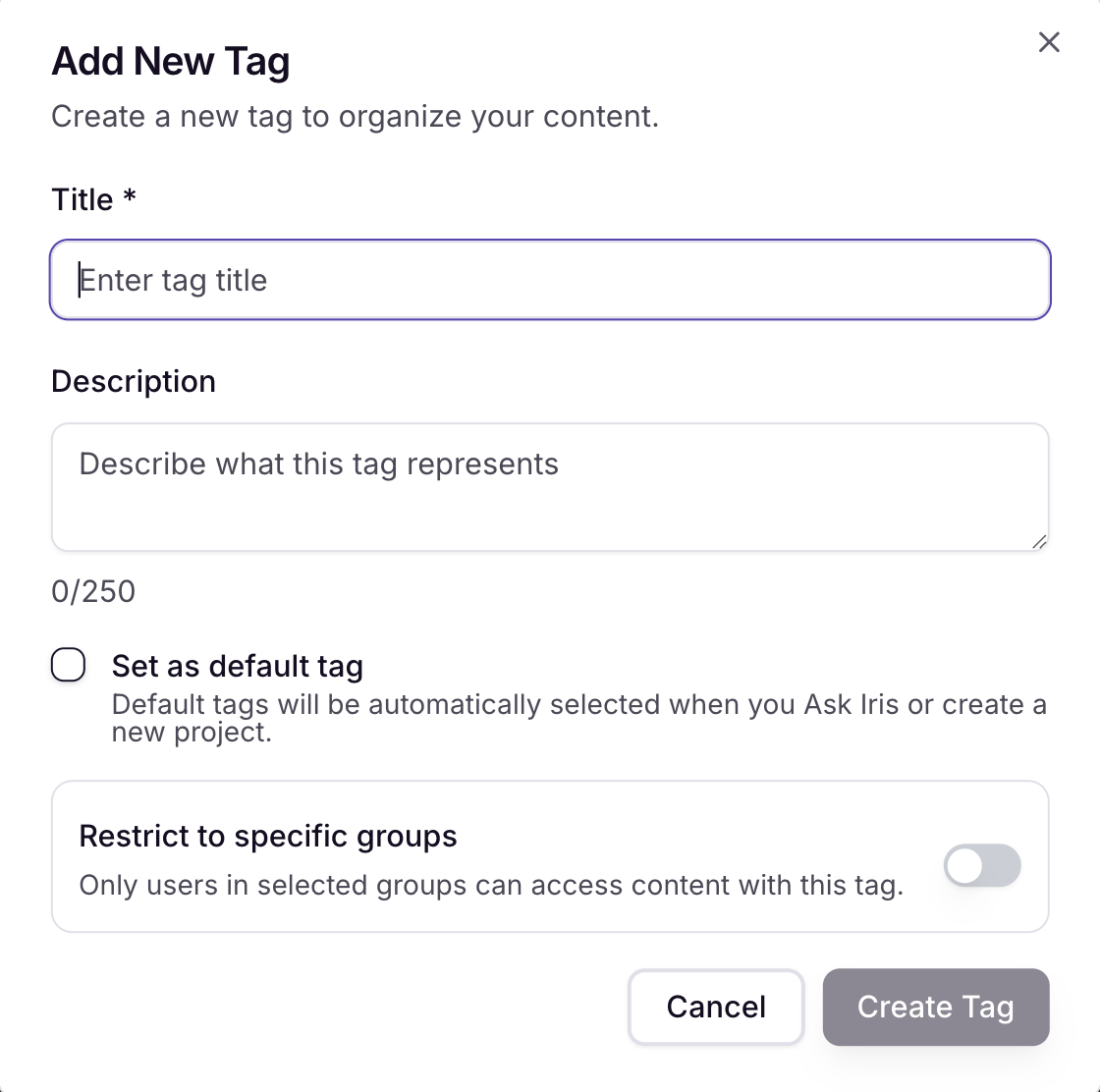
Add Tag.Enter a name for the tag (e.g., "Security Documents" or "RFP Responses").
Add a description.
Click
Create Tag.
Best Practices:
Tailor tags to organize documents by region, client type, or document category. Assigning accurate tags ensures Iris can deliver context-specific answers.
Default Tags:
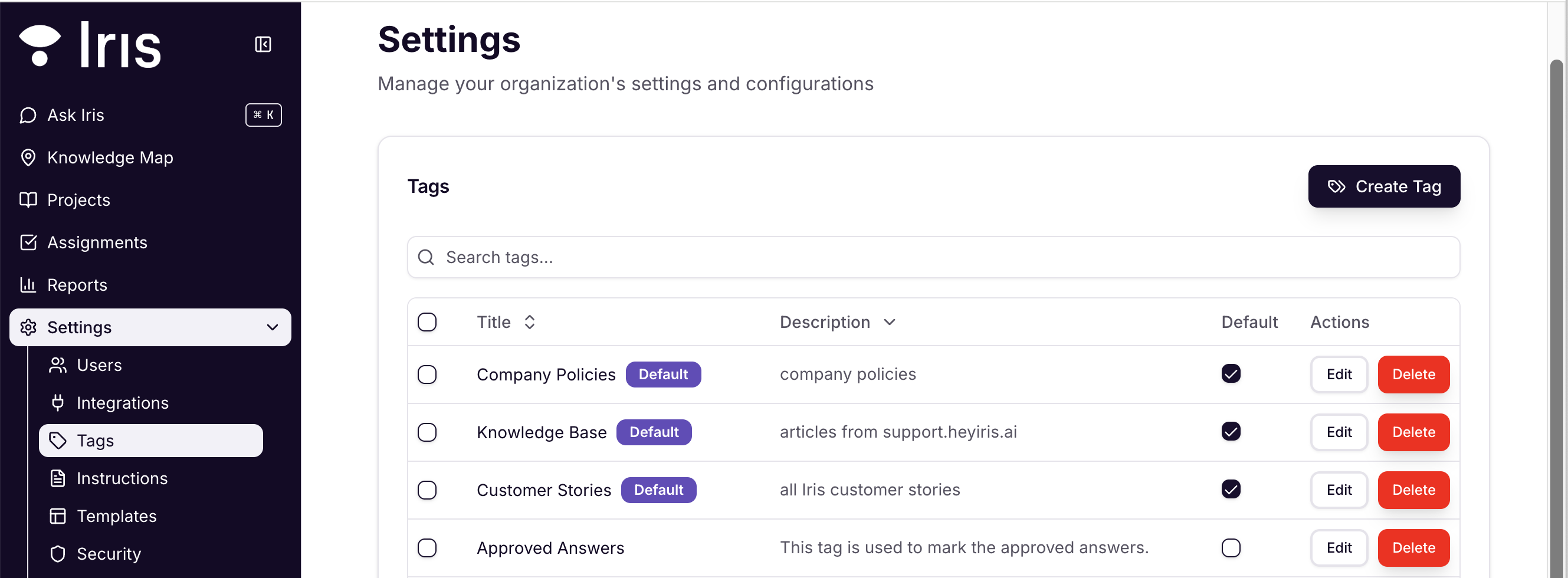
You can set tags as defaults within
Settings > Tags-- just check the box in the Default column.Default Tags are selected by default when you Ask Iris or create a new project
Only Organizational Admins can adjust default tags.
Want to use different tags? No problem. Default tags will just serve as your starting point.
Best Practices:
Avoid Tag Overload
More tags aren't always better! Focus on meaningful, relevant tags that help users find what they need without adding clutter.
Consistency is Key
Stick to a standardized approach for tag naming and usage across all your content. Too many tags can overwhelm both users and creators, so aim for a manageable number that keeps things organized and easy to navigate.
Tailor Your Tags
Use tags to organize documents by region, client type, or document category. Assigning accurate tags ensures that Iris can deliver context-specific answers to users, making searches faster and more effective.
Regularly Review Your Tags
Tag systems aren’t set-it-and-forget-it. Schedule periodic reviews to make sure your tags are still relevant and incorporate employee feedback.
Restricted Tags
By utilizing Groups + Restricted Tags toggle, Administrators have the ability to hide certain areas of the Knowledge Map from being used or even viewed by other users in the Organization
When a tag is restricted to a certain group(s), only users within that group, as well as all Admin-level users, will have the ability to access the Tag.
For users outside of the group, they will not be able to see the Tag or any of the content applied to the tag within the Iris platform