Roles in Iris
Last updated: March 3, 2026
User Roles
Use roles to give users different permissions within the platform
Default Roles (Admin, Standard User, Collaborator)
Iris has three default user roles that determine what actions team members can take. These roles cannot be deleted or changed. If you want a set of users with different permissions, create a Custom Role.
Note: Default roles cannot be altered or deleted.
Admin
Full access to all features and settings
Can add and manage users, create new roles and groups.
Can adjust organization security settings
Can configure and set up integrations
Best for team leaders who need to manage the entire organization's Iris implementation
Standard User
Full access to most features and settings, but:
Cannot add and manage users, roles, or groups
Cannot adjust organization security settings
Ideal for regular team members who create, assist on, or captain RFPs and security questionnaires
To limit additional permissions, see Custom Roles below.
Collaborator
Can view and answer questions assigned to them
Cannot access files in the Knowledge Map
Cannot create new projects or manage users
Perfect for subject matter experts who only need to answer specific questions
Custom Roles
To Create a New Role:
Navigate to Settings > Users > Manage Roles > + Create Role
Enter a Name and Description, select the permissions you want the role to have, then Create Role to finalize.
You can select the ... Three Dots next to any role to edit these permissions at any time.
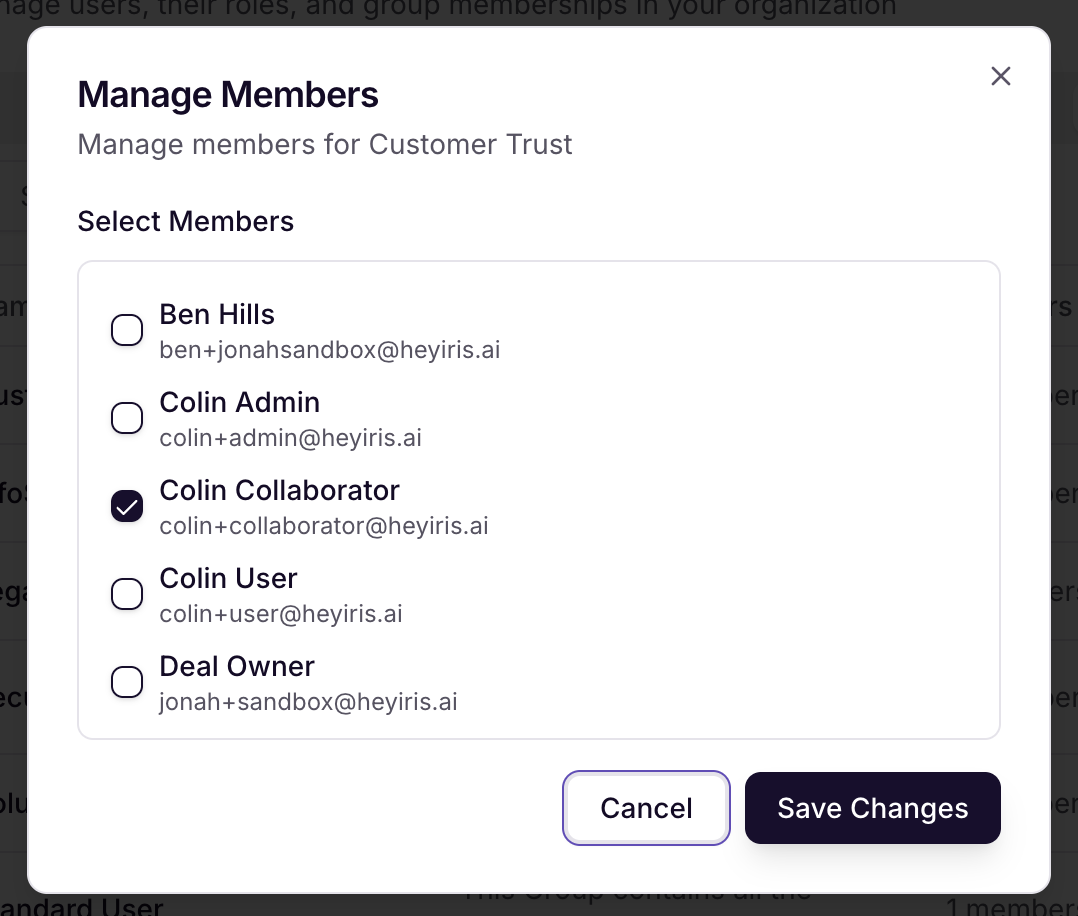
To assign users to the role, select the ... Three Dots next to any role and then Manage Members
Select the users you want to add to the role and Save Changes
To Edit an existing Role:
From Settings > User Roles and Groups > Manage Roles > Actions (three dots) > Edit
Adjust Permissions in the Role Permissions tab
Adjust Members in the Role Members Tab
Here's a list of all the Permissions you can assign to a role:
Permission | Description |
Approved Answers | Ability to access the Approved Answers library |
Full Access | Ability to access to all library management tools including Inbox, Review Cadence, Import, and Settings. When not enabled, these features are hidden and the user is limited to the Library tab only. |
Library Edit | Ability to edit, update, and manage any answer in the library regardless of assignment. Grants full editing capabilities across all approved answers. |
Library View | Ability to Allows browse and view all answers in the library. Users can only edit Answers that are specifically assigned to them. |
Ask Iris | Ability to use Ask-Iris |
Add to Knowledge Map | Ability to add content to knowledge map from Ask Iris |
See Cited Sources | Ability to view cited sources in Ask Iris |
Knowledge Management | Ability to access knowledge map |
Delete Files | Ability to delete files |
Download Files | Ability to download files from the knowledge map |
Edit Files | Ability to edit source files i.e Update Tags |
Refresh Files | Ability to refresh files from the source |
Upload Files | Including web URLs |
Projects | Ability to access Projects Feature |
Create Projects | Ability to create new projects |
Delete Projects | Ability to delete existing projects |
Edit Projects | Ability to edit existing projects |
RFP Analyzer | Ability to access the RFP Analyzer |
Export Project | Ability to export projects |
View All Projects | Allows the user to view all projects in the organization. |
View Cited Files & Sources | Ability to view cited files and sources used in answers generated by Iris |
View Projects | Allows the user to view projects where they are assigned as an owner, reviewer, or participant. |
Reports | Ability to view and analyze reports |
Access Reporting Feature | Access Reporting Feature |
Settings | Access to system settings |
Custom Instructions | Custom instructions management |
| Create new custom instruction |
| Delete custom instruction |
| Edit existing custom instruction |
Integration | Integration management |
| Ability to connect or disconnect integrations |
Project Presets | Ability to create, edit, and delete Project Presets |
Standard Criteria | Ability to access, create, and review Standard Criteria for the RFP Analyzer |
Media Library | Media library management |
| Delete media |
| Create new media |
Security | Organization-wide security settings, including login, session management and data tracking |
Tags | Tag Management |
| Create a new tag |
| Delete tags |
| Edit an existing tag |
Templates | Template management |
| Ability to Remove Templates |
| Ability to Upload Templates |
Project Roles
Each project in Iris has three key roles that help manage your projects:
Deal Owner
Typically the person responsible for the overall business opportunity
Can view project progress and status
Receives notifications about project updates
Usually the main point of contact for the customer
Project Reviewer
Oversees the entire project's completion
Can assign questions to team members
Can approve or revise any answer in the project
Responsible for final project approval
Can export the completed project
Assignee (per question)
Assigned to answer a specific question or questions within a project
Can edit and approve their assigned questions
Receives notifications about their assigned questions
Can add comments and request clarification