Workflows
Last updated: March 31, 2026
Skip to:
How To Configure Custom Multi-Step Approval Workflows
Workflows let you create custom multi-step approval processes for projects. This guide will walk you through configuring these workflows in the Iris settings.
Creating a New Workflow
Go to Settings > Workflows (or click here)
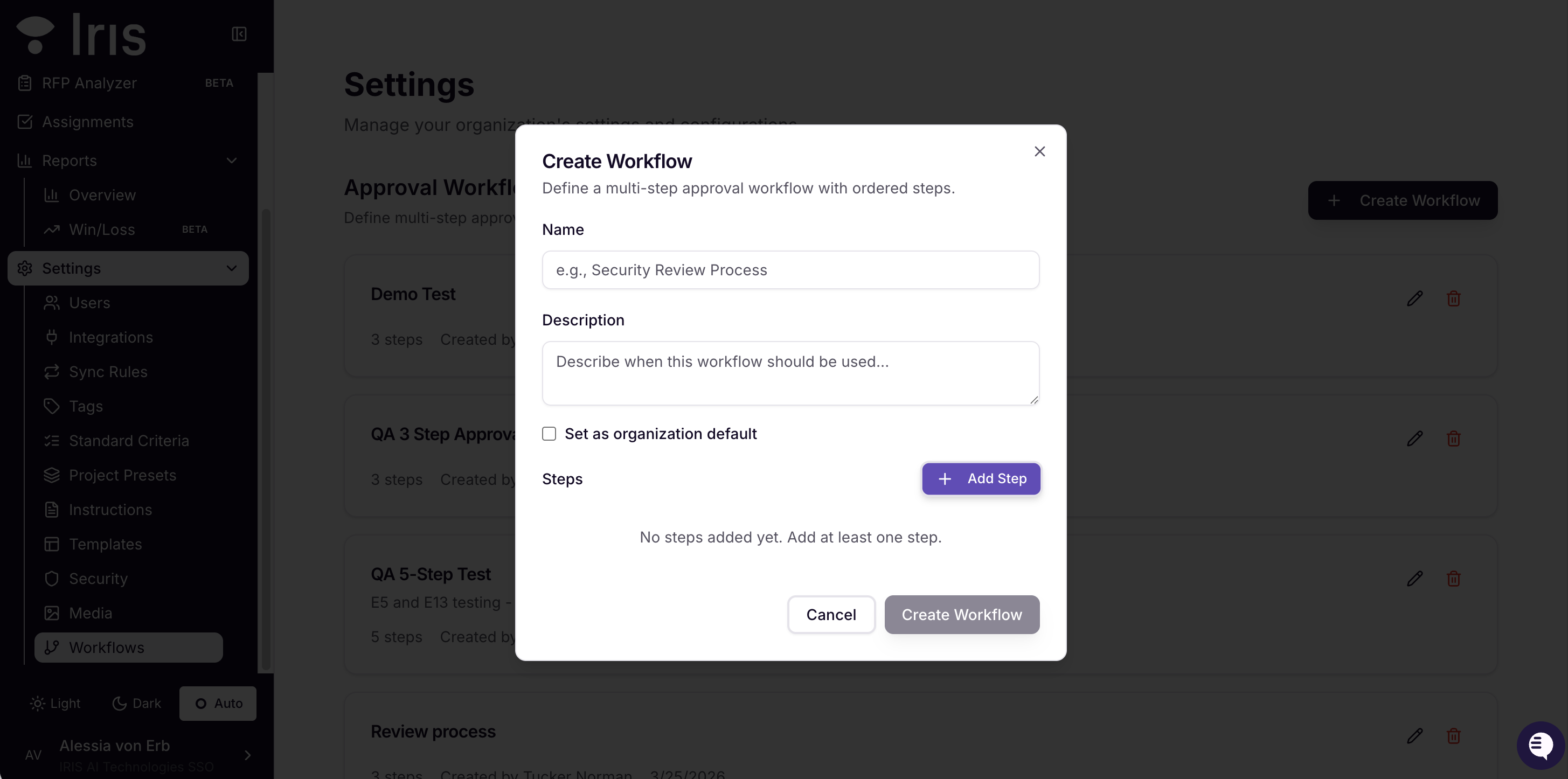
Select Create New Workflow
Enter a name and (optionally) a description
Check Set as Organization Default if you want the workflow to be picked automatically anytime a new user creates a project (you can only have 1 organization default at a time).
Adding Steps to the Workflow
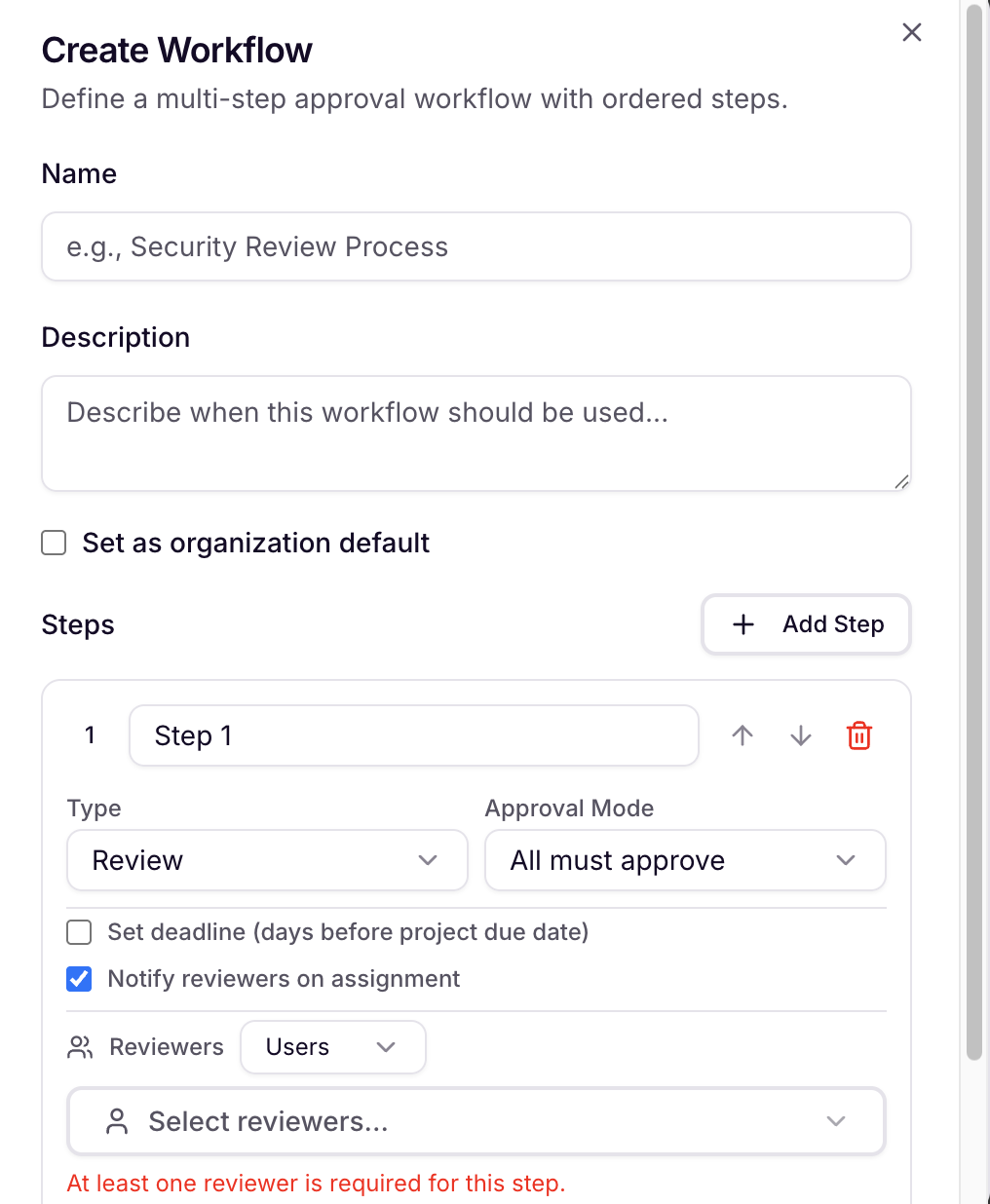
Click "Add Step" to create a new step in the workflow.
Choose the step type:
Review: All assigned users must complete this step before moving to the next.
Approve: Only one assigned user needs to approve to advance.
Sign Off: Final confirmation step, requiring a confirmation modal.
Assign users or groups to each step:
Select individual users or groups who must complete the step.
For groups, configure whether one or all members must complete the step.
Select Create Workflow to finalize.
Step 5: Applying Workflows to Projects
Navigate to a project where you want to apply the workflow.
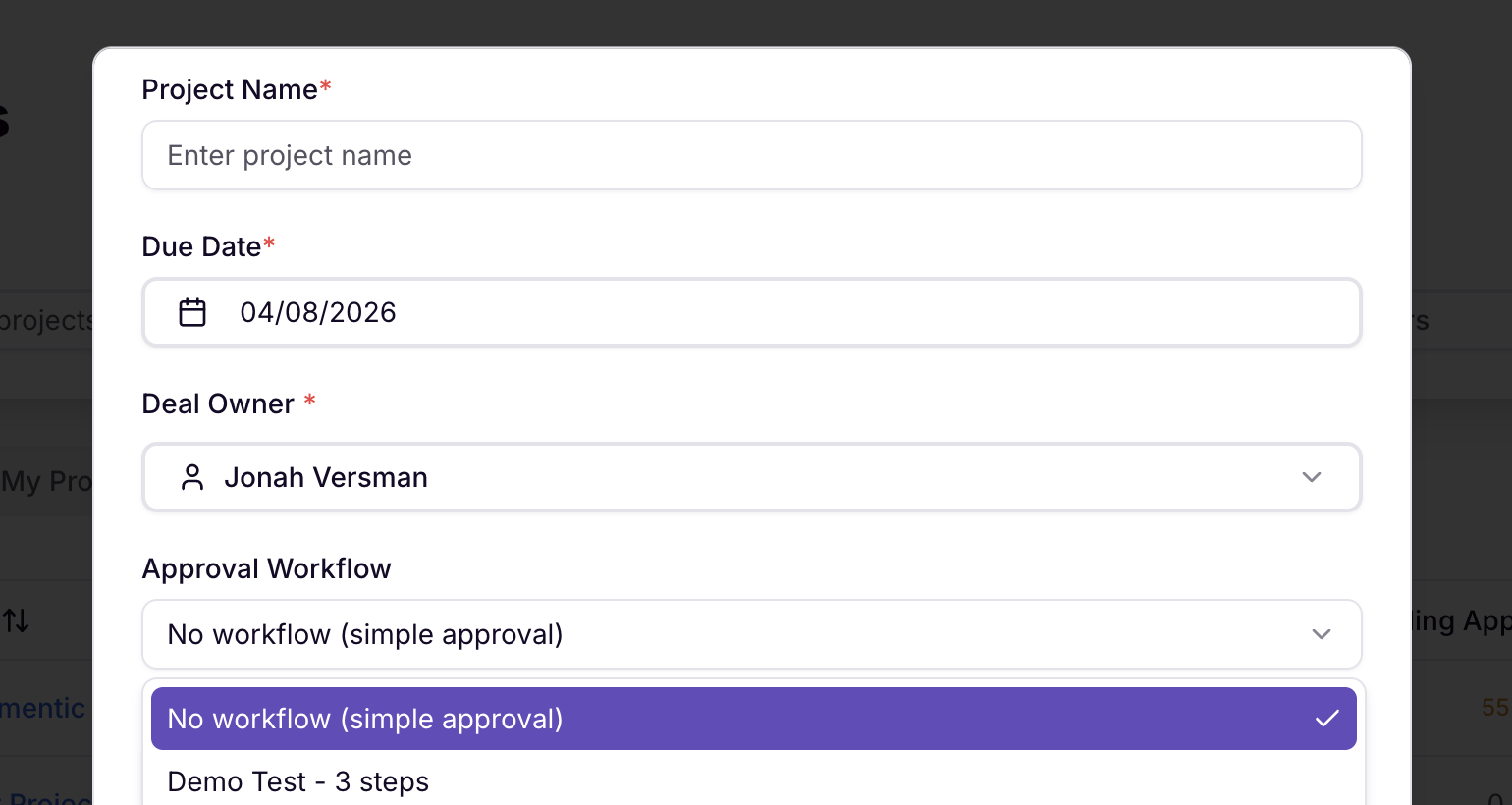
Select the workflow from the list of available workflows.
The project will now follow the configured multi-step approval process.
By following these steps, you can configure and apply custom multi-step approval workflows in Iris, streamlining your project management and ensuring thorough review and approval processes.
Attaching Workflows to Projects, Sections, or Questions
Navigate to the Desired Location:
Go to the specific project, section, or question where you want to attach a workflow.
Attach a Workflow:
To attach a Workflow to a project, go to Projects > Create Project > and select a Workflow within Approval Workflow
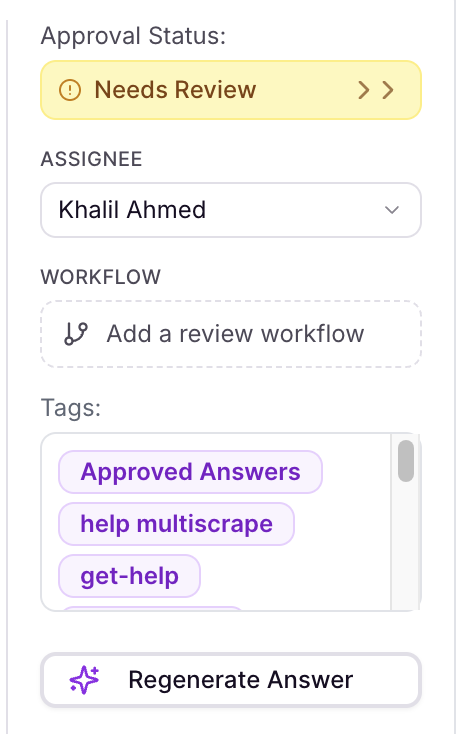
To attach a Workflow to a question, select Add Workflow and choose the desired workflow from the list of available workflows.
To attach a Workflow to a section, select the Workflow Icon next to any section and choose the desired workflow from the list of available workflows.

Workflow Application:
Once attached, the workflow will dictate the approval process for the question, section, or project.
You can monitor the progress through the workflow steps and ensure all necessary approvals are completed.
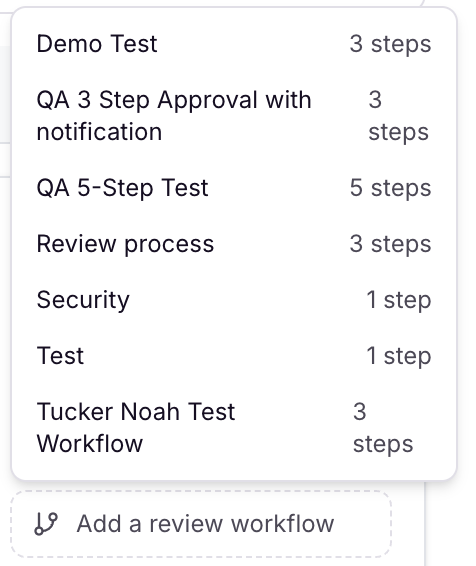
Managing Workflows:
If needed, you can restart the workflow, change it mid-process, go back a step, or remove it entirely by clicking the "..." in the top right corner of the Workflow.
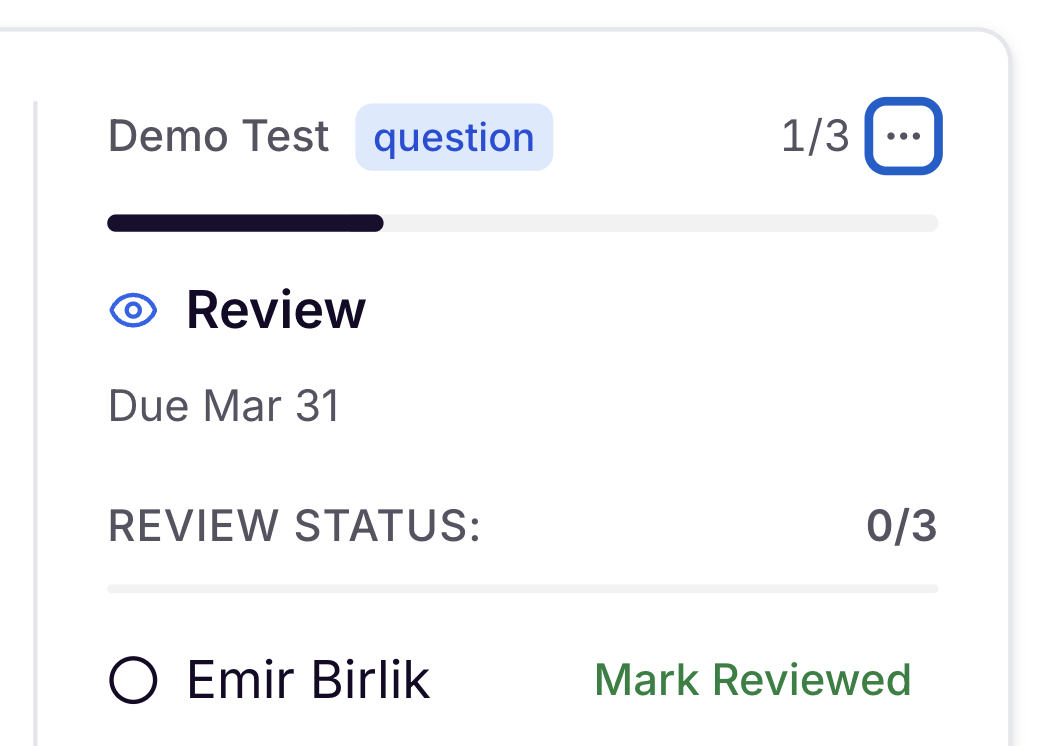
Adding Multiple Assignees to Questions in Iris
The ability to assign multiple users to a single question in Iris enhances collaboration and ensures comprehensive review processes. This guide will help you add multiple assignees to questions within your projects.
Step 1: Selecting the Question
Locate the question you want to assign multiple users to.
Click on the question to open its details.
Step 2: Adding Assignees
In the question details, find the "Assignees" section.
Click "Add Assignees" to open the list of available users.
Select multiple users by checking the boxes next to their names.
Ensure that all selected users are participants in the project.
Step 3: Saving Changes
After selecting the desired assignees, click "Save" to apply the changes.
The question will now be assigned to multiple users, who will all be notified of their assignment.
If multiple users are assigned, the status will appear as "Tentatively Approved" until all assignees have approved. Once the final assignee has approved, the answer will be marked fully "Approved".
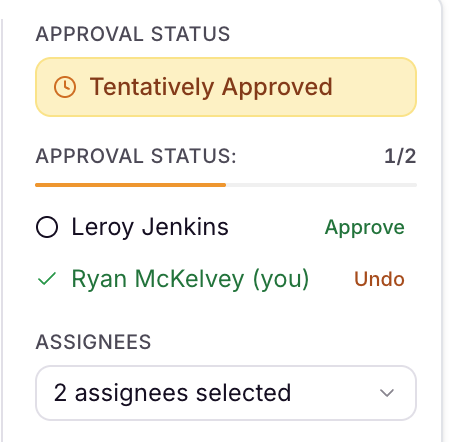
By following these steps, you can efficiently assign multiple users to a question in Iris, promoting teamwork and ensuring that all necessary stakeholders are involved in the review process. For additional support, please reach out to your Iris support team.
Need Help?
We'd love your feedback on the Workflows system. Contact your Customer Success Manager or support@heyiris.ai with questions or suggestions