Proposal Generation
Last updated: June 11, 2026
Overview
Iris’s Proposal Generation feature enables your team to create hyper-personalized sales proposals in a fraction of the time it takes today. Instead of starting from a blank page, Iris assembles a rich context layer from your CRM, call history, deep web research on the prospect, and your company’s Knowledge Map — then guides you through a brief interview to shape the final document.
The result is a polished, on-brand proposal that reflects the unique story of each prospect, ready to download as a Word document.
The Three Context Pillars
Before you answer a single question, Iris automatically assembles context from three sources:
Your Relationship – CRM data, deal notes, contacts, tracked emails, and call transcripts from a connected recorder.
Prospect Intelligence – Deep web research — press releases, news, and the prospect’s own website — run automatically in parallel.
Company Knowledge – Your Knowledge Map: the same source of truth that powers your RFP responses.
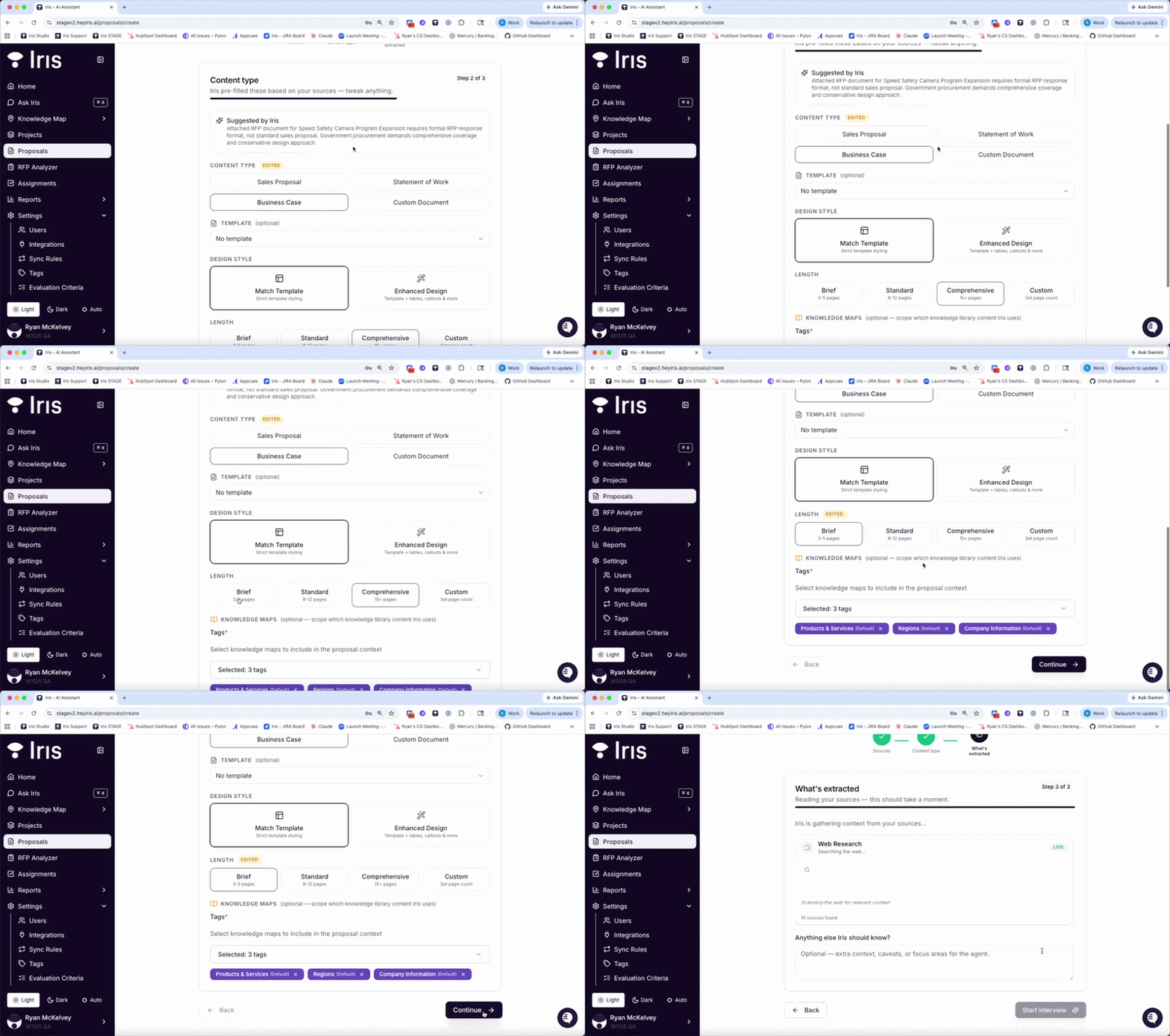
How a Proposal Comes Together
Every proposal flows through five stages:
1. Context Gathering – Iris pulls CRM data, call transcripts, web research, and your Knowledge Map automatically.
2. Guided Interview – A short AI-guided interview shapes the narrative — stakeholders, ROI, goals, competitors.
3. Generation – Iris writes the proposal grounded in your source of truth and refined by the interview.
4. Review and Edit – A full Word-style editor lets you rewrite, assign sections, and collaborate with teammates.
5. Download and Send – Export as Word document and deliver to your prospect.
Step-by-Step Guide
This section walks you through every stage of creating a proposal in Iris, from opening the feature for the first time through to downloading your finished document.
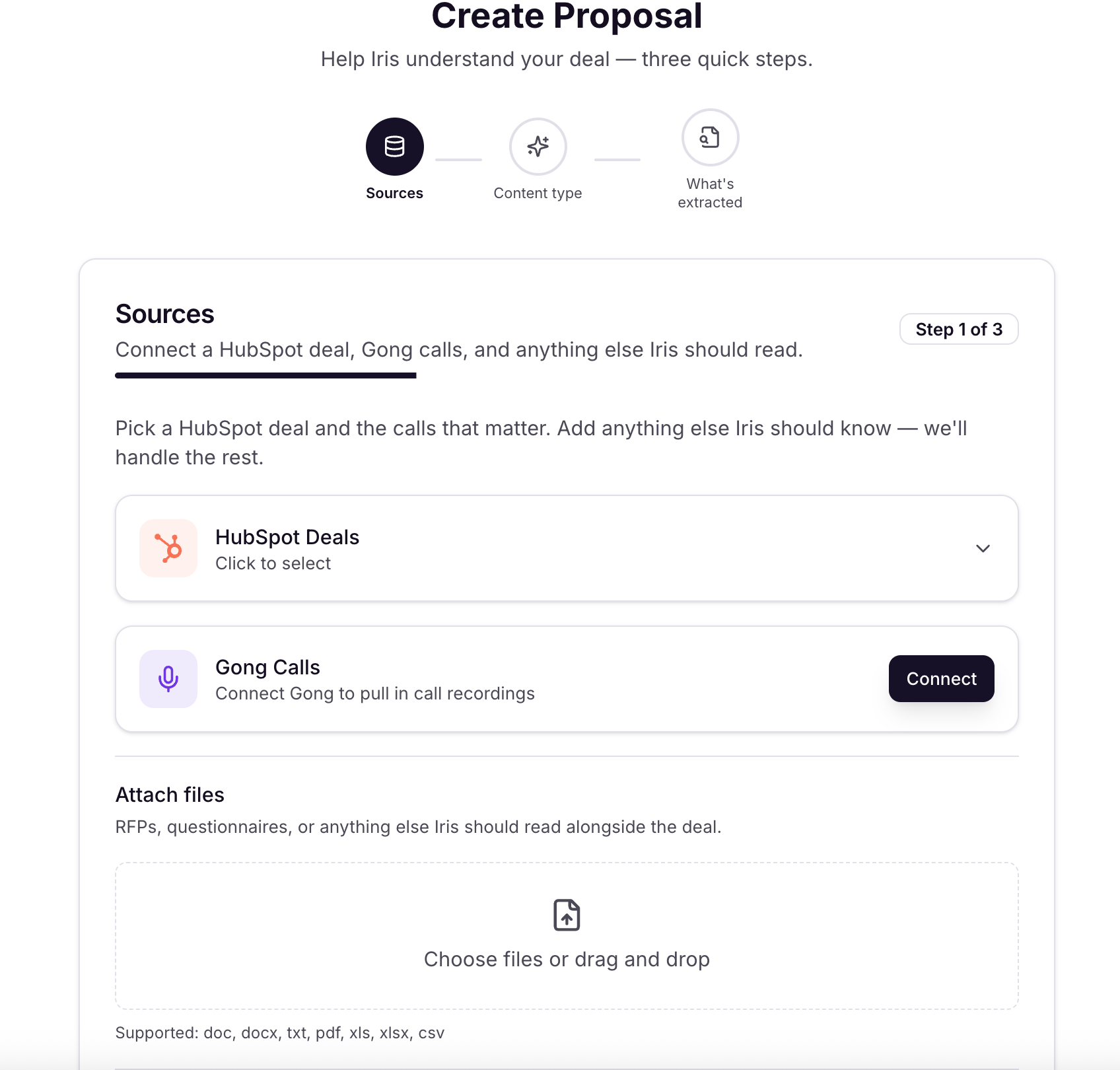
Step 1 — Open Proposal Generation and Select a Prospect/Opportunity
In the Iris sidebar, click Proposals. You’ll land on the Proposal Generation home screen.
Use the search bar or browse your CRM to find the prospect you’re creating the proposal for.
If you have multiple open deals with this prospect, select the specific deal you want to base the proposal on.
If you don't have a connected CRM, you can use a website, RFP materials, or other context notes that can be manually input on the first page.
Click Create Proposal next to the relevant deal record.
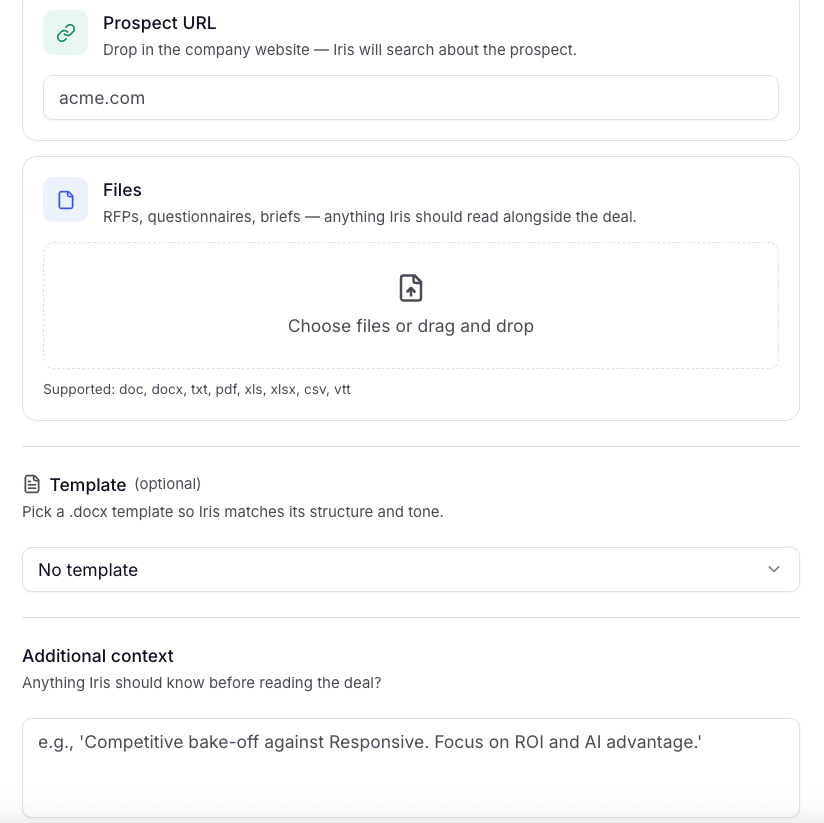
Tip: For best results, ensure your CRM is connected and your Knowledge Map is up to date before generating a proposal. A connected call recording platform (e.g., Gong) will further enrich the output but is not required.
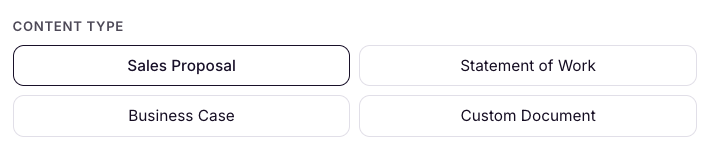
Selecting Content Type
When setting up your proposal, you'll be asked to select which Content Type you are looking to generate. Here is how each option differs:
Sales Proposal
A persuasive document that presents your solution, pricing, and value to win the deal.
When to use: The go-to format for most deals. Best when you're selling a solution with pricing, scope, and value propositions, but haven't yet committed to detailed deliverables or timelines. If you're not sure which format fits, start here — Iris defaults to this when no stronger signal points elsewhere.Statement of Work
A delivery-focused document that locks in deliverables, milestones, timelines, and commercial terms.
When to use: Best for late-stage deals where scope is already agreed and it's time to formalize the engagement. Choose this when the conversation has moved to specific deliverables, acceptance criteria, project milestones, fixed-fee or time-and-materials rates, or an explicit project timeline.Business Case
A justification document that builds the financial case for buying — covering ROI, payback period, and business impact.
When to use: Best when your champion needs to sell the decision internally. Choose this when finance or procurement stakeholders are involved, or when the conversation centers on ROI, payback period, total cost of ownership, or problem/solution framing for a buying committee rather than on your offering's features.Custom Document
A flexible format for anything that isn't a standard proposal, SOW, or business case.
When to use: Choose this when the prospect has asked for something specific — a mutual action plan, a discovery recap, or any other format they've defined. Iris will shape the document around their request instead of a standard structure.
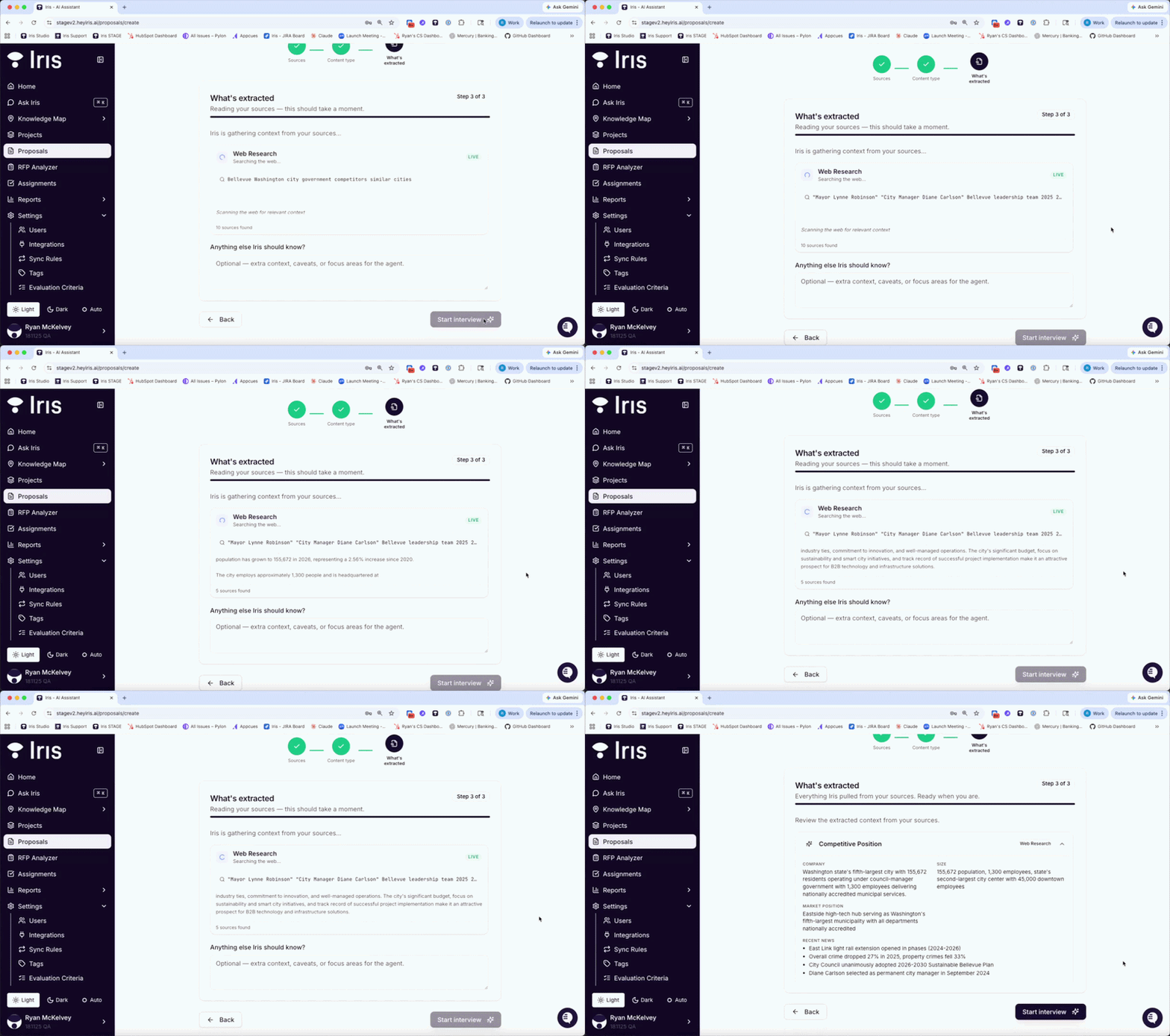
Step 2 — Review the Context Iris Has Gathered
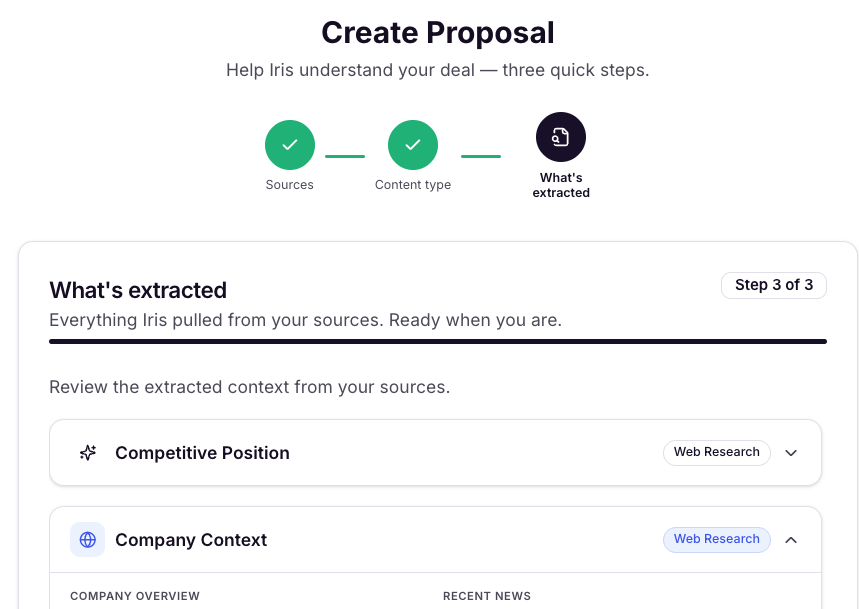
Once you select a deal, Iris immediately begins pulling together context from all three pillars. This typically completes in a couple minutes. You’ll see a summary screen showing:
CRM integration – deal descriptions, contact records, next steps, and tracked email threads
Call intelligence – transcripts and summaries from calls with the prospect
Web research – press releases, company news, and website content about the prospect
Knowledge Map – your company’s capabilities, differentiators, and approved messaging
Context Notes – any other pieces of information you want to note as part of the deal or your relationship (ie "Met them at a conference")
Review the summary for anything that looks incorrect or outdated. You can flag individual data points before proceeding to the interview.
Step 3 — Complete the Guided Interview
The interview is the core of what makes each proposal unique. Iris will ask you a short series of targeted questions — typically 3–5 minutes to complete.
3a — Align Stakeholder Roles
Iris will list the contacts from your CRM who are associated with this deal. For each contact, select their role in reading or evaluating the proposal (e.g., Economic Buyer, Champion, Technical Reviewer). This shapes how the narrative addresses different audiences.
3b — Confirm Key Conversation Highlights
Iris surfaces the most important moments from your call history — pain points raised, commitments made, competitors mentioned. Confirm, edit, or remove each highlight. These become anchor points in the proposal narrative.
3c — Clarify ROI and Value Drivers
Iris will ask you to input or confirm the key business outcomes you’re promising. This might include time saved, cost reduction, revenue impact, or other metrics relevant to this prospect. Be as specific as possible — this is often the most persuasive part of a proposal.
3d — Define the Proposal Goal and Tone
Iris will ask what the primary goal of this proposal is (e.g., moving to a POC, closing a deal, expanding an existing account) and your preferred tone (e.g., formal, consultative, direct). This steers the overall framing and language of the document.
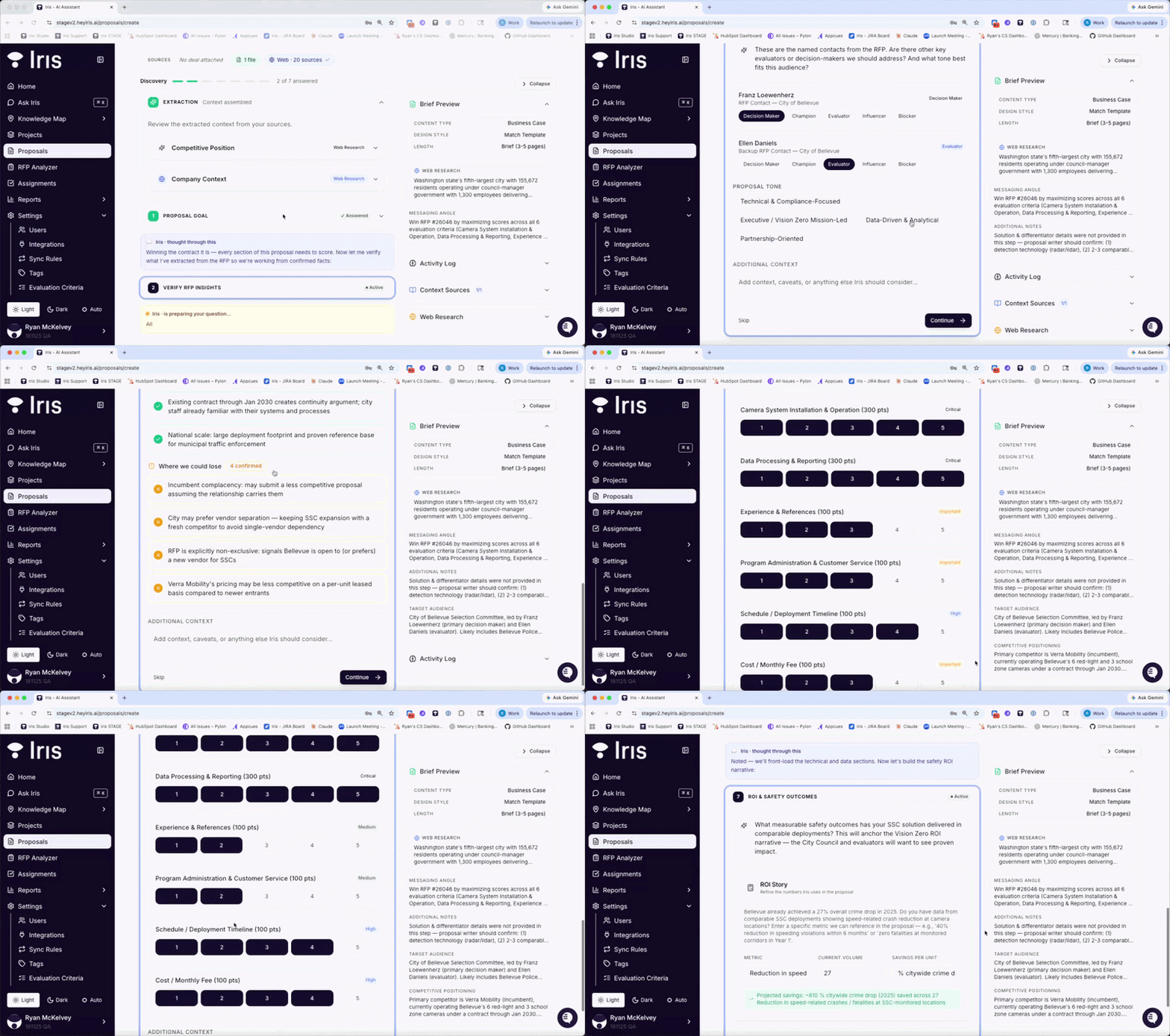
Tip: Don’t rush the ROI section. Proposals that include specific, prospect-relevant numbers consistently outperform those that don’t. Even rough estimates are better than no numbers at all.
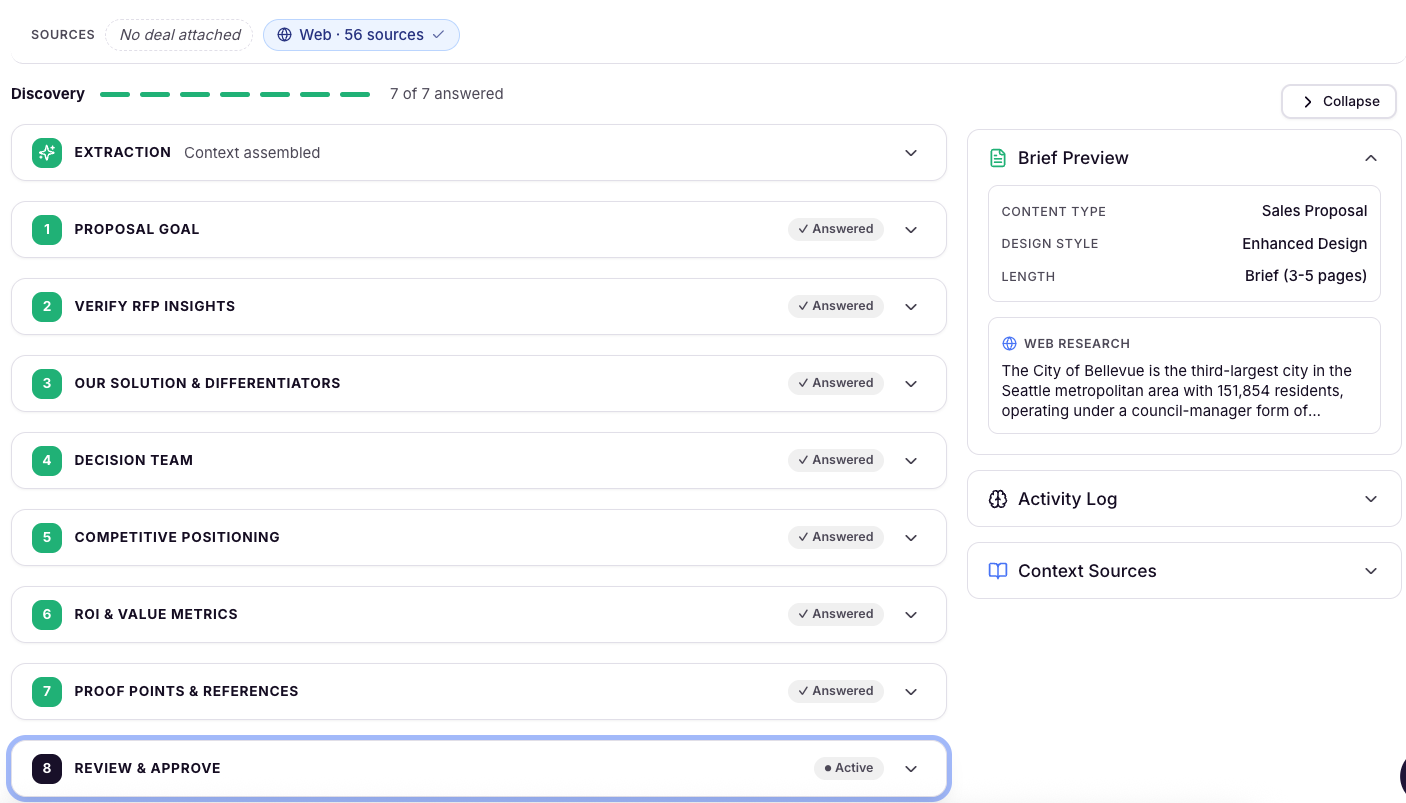
Step 4 — Wait for Iris to Generate the Proposal
Once you complete the interview, click Generate Proposal. Iris will:
Write each section of the proposal grounded in your Knowledge Map.
Weave in the prospect context, call highlights, and ROI inputs from the interview.
Apply your company’s branding and layout from your configured templates.
Generation is near-instant. The editor will open automatically when the proposal is ready.
Note: If you haven't yet uploaded any branded templates, contact your Iris administrator to find out how. Proposals will still generate, but will use a default layout until templates are set up.
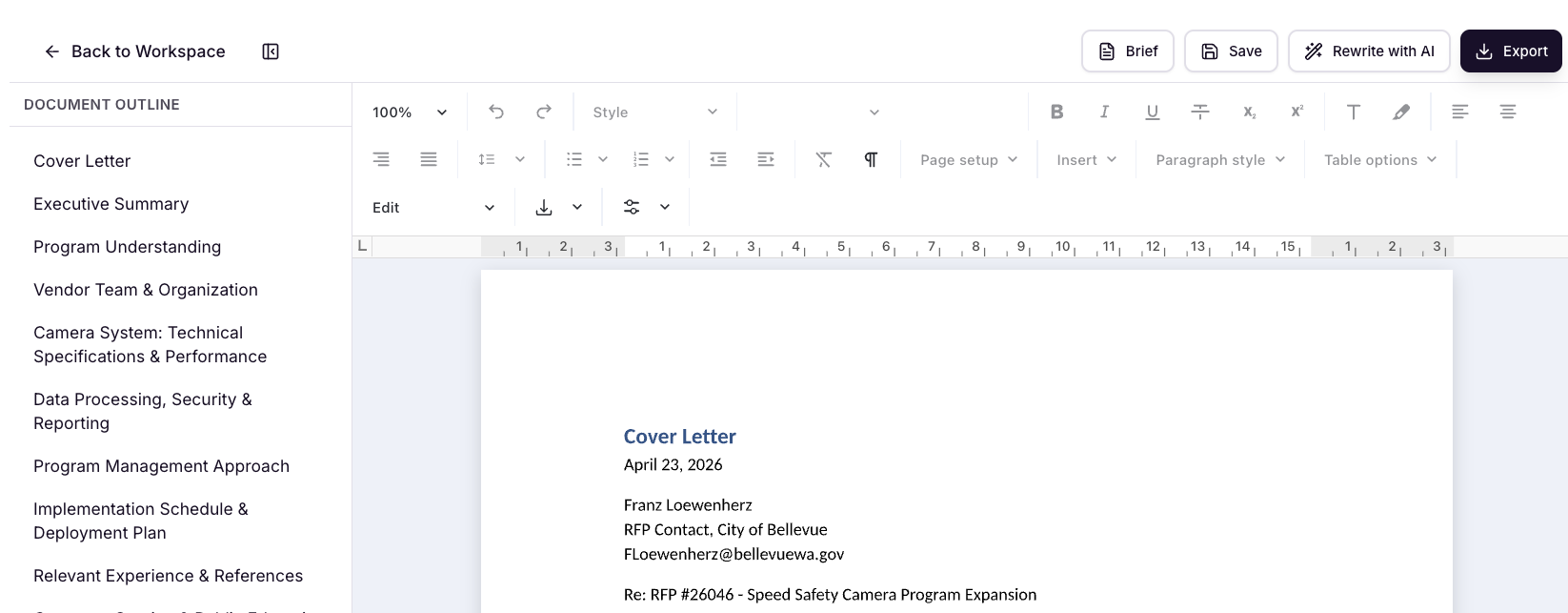
Step 5 — Review and Edit in the Proposal Editor
The proposal opens in a full Word-style editor. The outline panel on the left shows all sections — click any section to jump directly to it. From here you can:
Rewrite a section
Click the Rewrite with AI button on any section to regenerate it with a different tone, style, or focus. You can provide additional instructions (e.g., “make this more concise” or “emphasize the security capabilities”) before rewriting.
Edit directly
Click into any part of the document to type and edit freely, just like a Word document.
Tip: Use the outline panel to quickly audit section coverage before sending. It’s easy to spot a thin section that might benefit from a rewrite or an extra bullet.
Step 6 — Download and Deliver the Proposal
When the proposal is ready to send, click Download in the top-right corner of the editor. Your file will download instantly as a Word doc
Note: The same editor is available in Iris’s Narrative RFP response workflow. Whether it’s a proactive proposal or a formal RFP response, you’ll have access to the same editing and collaboration tools.
Frequently Asked Questions
Do I need Gong connected to use Proposal Generation?
No. Gong (and other future recording integrations) is optional. Iris will still generate a high-quality proposal using your CRM data, web research, and Knowledge Map if call transcripts are not available.
Can I use my own proposal templates?
Yes. Iris applies your configured branding and templates automatically during generation. Contact your Iris administrator to ensure your templates are set up in the platform.
How long does it take to generate a proposal?
Context gathering typically takes under a minute. The guided interview usually takes 3–5 minutes depending on deal complexity. Proposal generation and rendering is near-instant once the interview is complete.
Can I collaborate with teammates on a proposal?
Yes. Inside the editor, you can assign specific sections to teammates for review or rewriting, and create tasks directly within the workflow.
Is this the same editor used for RFP responses?
Yes. The full-featured Word-style editor introduced with Proposal Generation is also available in Iris’s Narrative RFP response workflow.
What export formats are supported?
You can download your proposal as a Word document (.docx), with other supported formats coming soon.
Need help? Contact Iris Support at support@heyiris.ai