RFP Analyzer: Streamlining Your Go/No Go Process
Last updated: August 6, 2026
The RFP Analyzer is designed to help you quickly determine whether an RFP is a good fit for your organization before investing time in a full response. It automatically extracts requirements, evaluates your capabilities, and highlights key information to inform your go/no-go decision.
How It Works
The RFP Analyzer performs two core functions:
Requirement Extraction & Matching: Automatically identifies all requirements in the RFP and compares them against your knowledge map to determine which you meet, partially meet, or don't meet.
Custom Criteria Evaluation: Analyzes the RFP against your pre-defined green flags and red flags to identify deal-breakers or competitive advantages.
Setting Up Your Evaluation Criteria
Before analyzing RFPs, you can configure evaluation criteria that matter to your organization in Settings-->Evaluation Criteria:
Red Flags (Deal Breakers): Requirements that would prevent you from pursuing the opportunity
Green Flags (Competitive Advantages): Requirements where you have unique capabilities
Neutral Criteria: Things that may not influence whether you're able to apply, but that you'd like to know from the outset (non-standard SLAs, billing terms, custom services, forms to fill out, etc)
These criteria are evaluated against the RFP document itself to quickly surface critical decision and execution factors.
Red Flag- Disqualification Weight
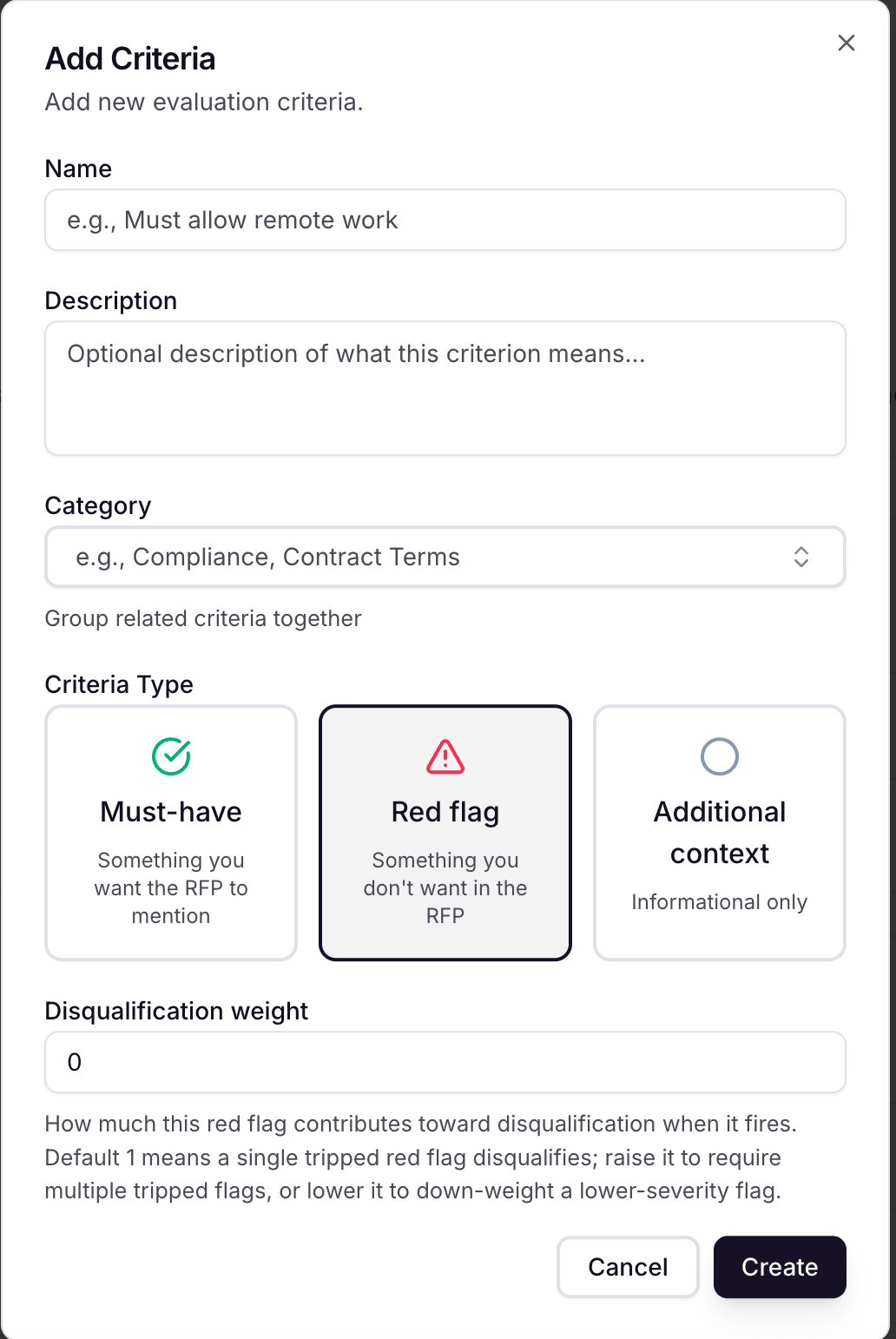
This field controls how heavily a single red flag "counts" toward auto-disqualifying a response, on a points scale.
Default = 1: any time this flag trips, it alone hits the disqualification threshold — one trip = instant disqualification.
Raise it above 1: this flag alone won't disqualify; it needs to combine with other tripped flags to add up to the threshold. Use this for minor/low-severity flags that shouldn't kill a response on their own.
Set to 0: this flag can still trip and show up as a warning, but contributes nothing toward disqualification — it will never cause a disqualification by itself or in combination with others.
So think of it as a point value added when the flag fires, checked against a disqualification threshold — not a probability or severity label.
A partially-present flag contributes half its weight (rounded up), not the full amount. At the default weight of 1, that still rounds up to 1 — same as a full trip — so the partial present discount only kicks in once you raise a flag's weight to 2 or higher
Creating Analyzer Presets
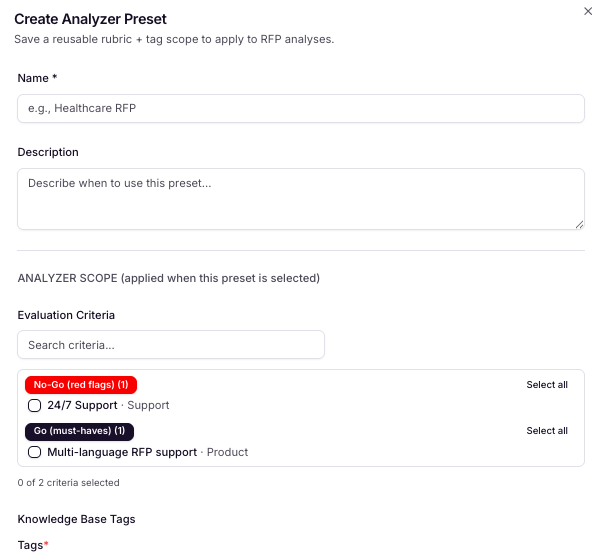
Analyzer Presets let you save custom evaluation rubrics for different RFP types: government bids, commercial RFPs, whatever your team sees regularly. Build and manage your presets in Settings → Analyzer Presets, then select one at upload to apply the right criteria from the start.
Using the RFP Analyzer
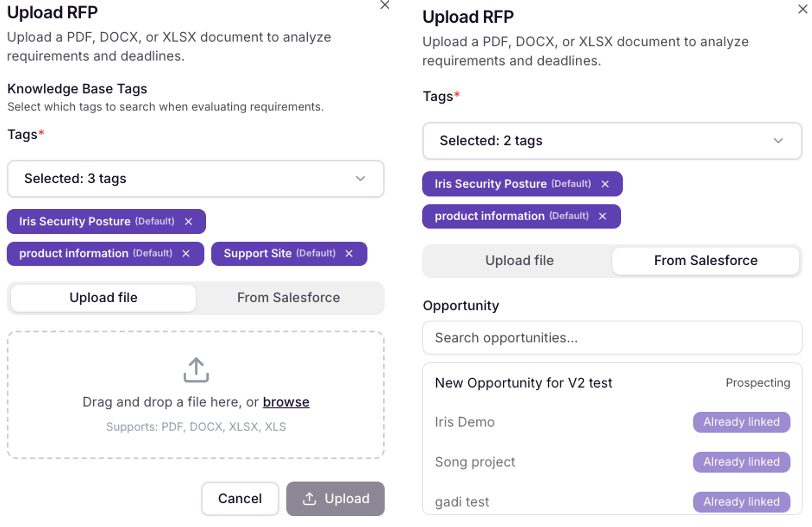
Step 1: Upload Your RFP / Connect to Salesforce Opportunity
Simply upload your RFP document to begin the analysis or link to a Salesforce opportunity to upload your file into the Analyzer.
You can use this sample one:
Step 2: Review the Project Setup
The analyzer automatically extracts:
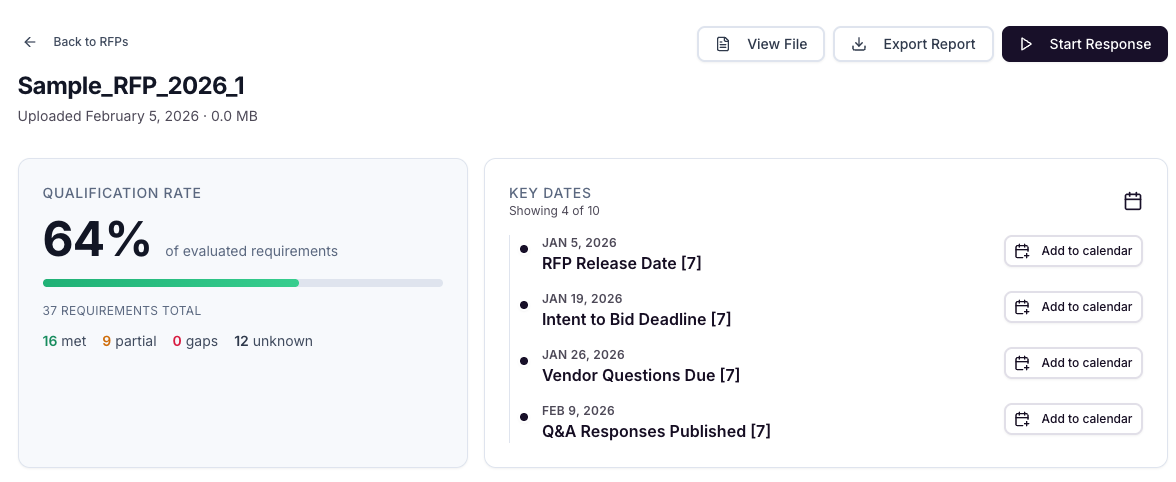
Qualification Rate: a weighted score based on your evaluation criteria and any disqualification rules you've configured.
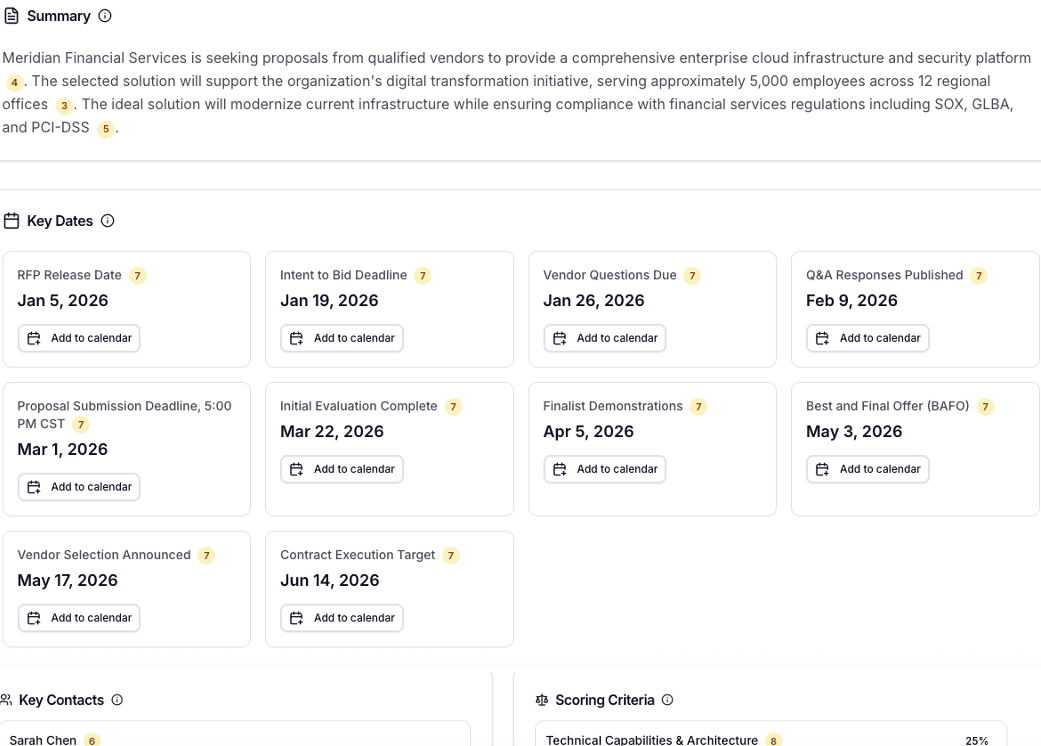
Key dates: All important deadlines in the RFP timeline. Click Add to calendar to create a calendar event.
Summary: A concise overview of the RFP
Requirements: Detailed list of all found requirements
Step 3: Evaluate Requirements
Each requirement is automatically checked against your knowledge map with one of three statuses:
Go: Your knowledge map contains evidence that you fulfill this requirement
Partial: You have some relevant capabilities but may not fully satisfy the requirement
Likely Not: Insufficient information found in your knowledge map
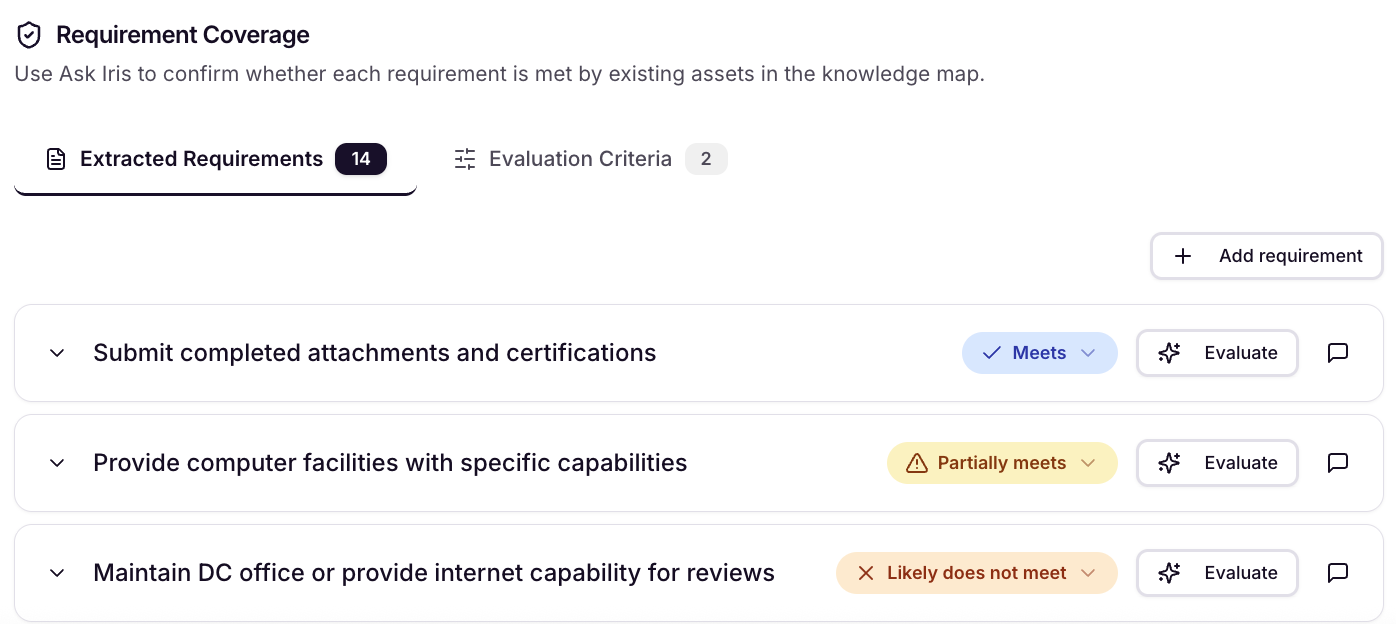
For each requirement, you'll see:
The requirement itself
Your match status
Citations from your knowledge map showing the supporting evidence
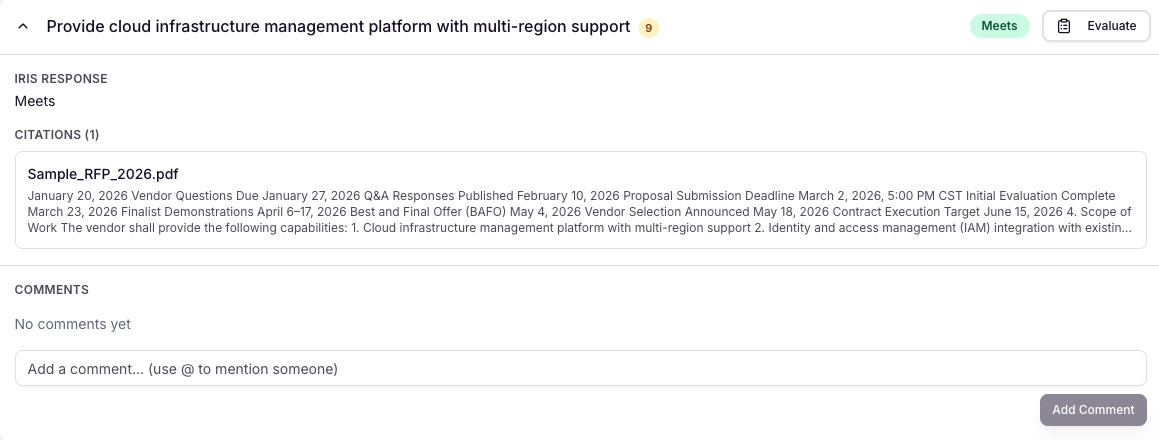
Step 4: Manually Adjust
You can manually override the status. Just click Evaluate to change a status. This is useful when:
You're meeting with your team to discuss capabilities
You plan to support a requirement specifically for this RFP
You have knowledge that isn't yet captured in your knowledge map
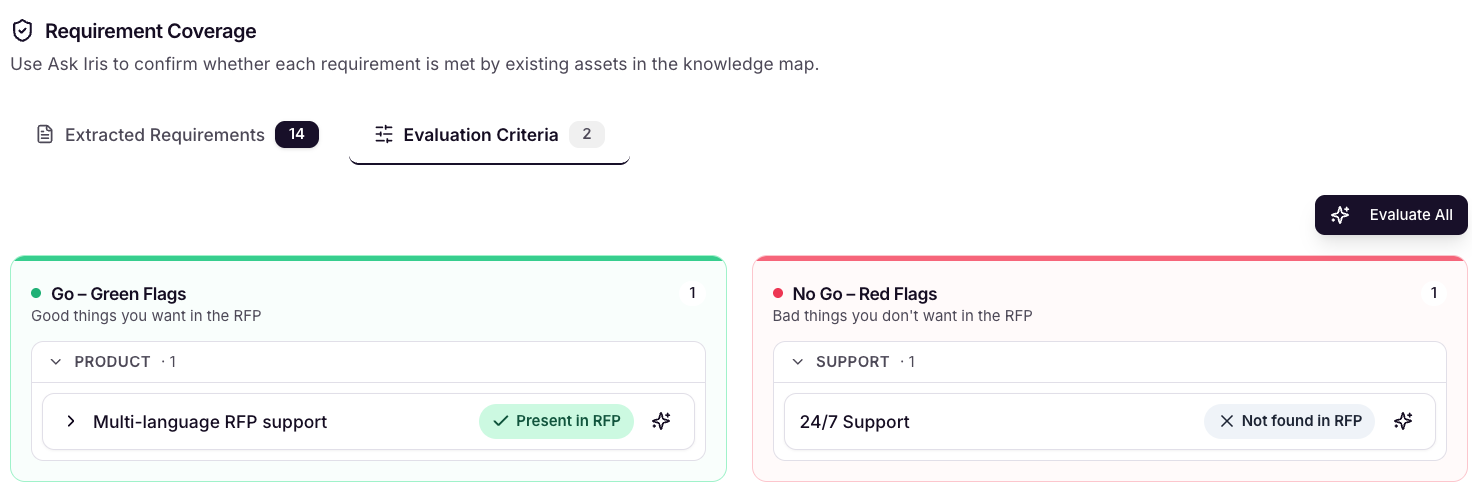
Step 5: Review Custom Criteria Results
Check how the RFP performs against your pre-defined criteria:
See which red flags are present (with page citations)
Identify which green flags apply
Get direct quotes from the RFP document supporting each finding
Example: "Yes, inside the RFP on page 9, it says 'the vendor must provide round-the-clock technical support with clearly defined service level agreements.'"
Step 6: Access Additional Intelligence
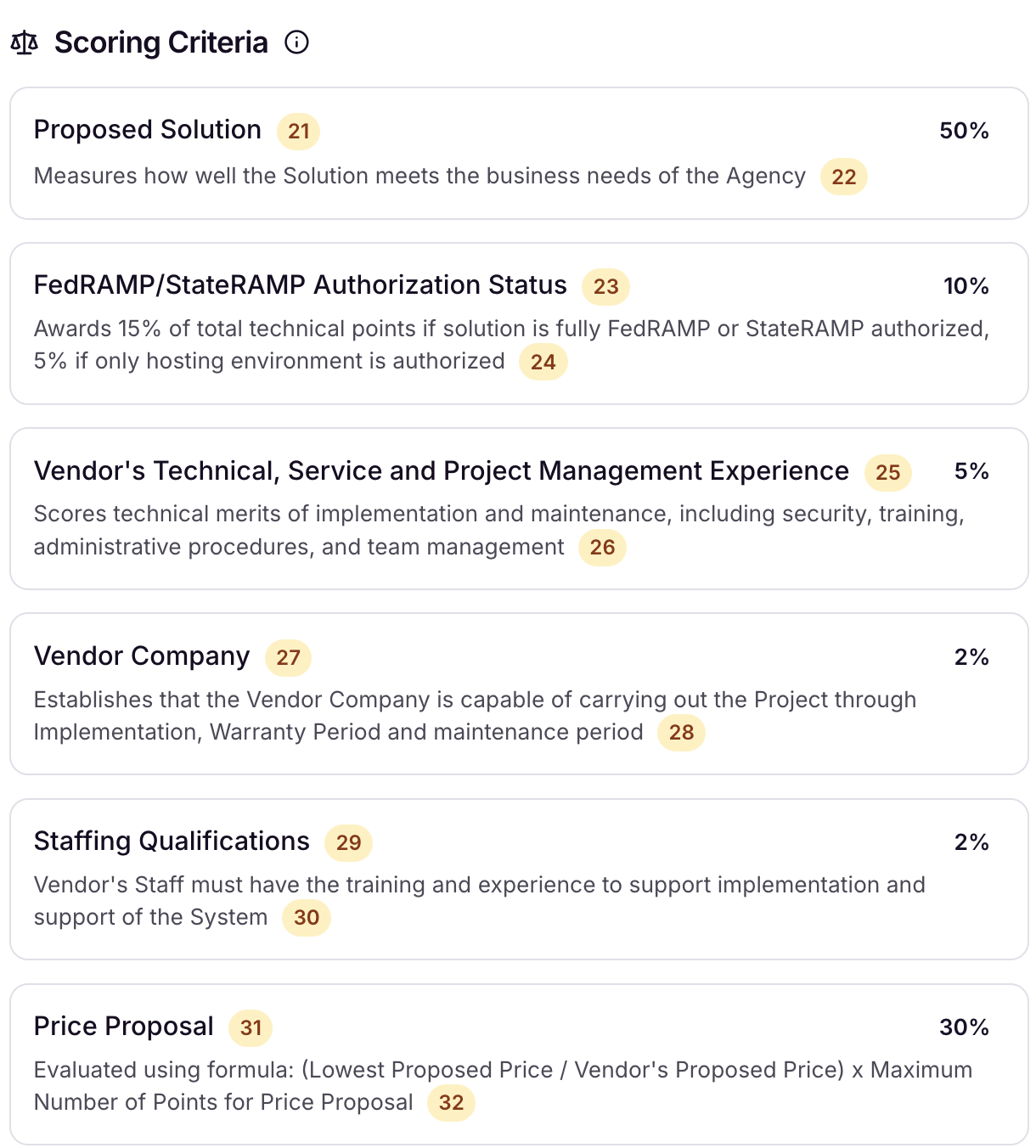
Scoring Criteria: If the RFP includes a rubric for how the winner will be selected, it's extracted here with weighted percentages of each criteria.
Key Contacts: Quickly identify the procurement team and anyone to reach out to with questions.
Key Dates: All important deadlines are listed with the ability to:
Add dates to your calendar
Share with your RFP response team
Track deliverables throughout the RFP process
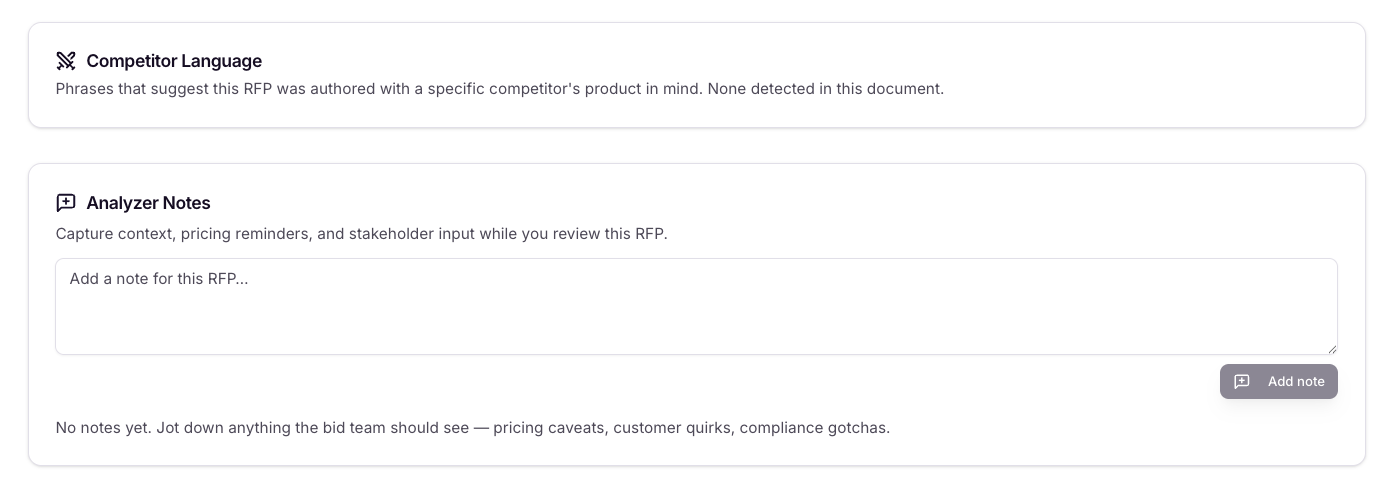
Competitor Language Detection: Iris will detect phrases that suggest an RFP was written with a specific product or vendor in mind
Moving Forward
If You Decide to Pursue the RFP
Click "Start Response" to move the RFP into the existing project workflow, where you can begin generating content to answer the RFP.
If You Decide Not to Pursue
You'll have a clear, documented rationale for your go/no-go decision based on objective criteria.
Benefits
Save Time: Know within minutes whether an RFP is worth pursuing
Data-Driven Decisions: Base your go/no-go on objective requirements matching
Better Win Rates: Focus resources on RFPs where you have the strongest fit
Organized Process: Keep all RFP dates, contacts, and requirements in one place
Exportability: Share analysis across teams or departments for more informed decisions
Multiple Team Members Using the RFP Analyzer?
You can toggle between 'All RFPs' that have been uploaded by the team and specifically the ones you have uploaded under 'My RFPs'. You can also Preview file, Launch into a project, and Delete a file from the Actions items on this page.

Need Help?
We'd love your feedback on the RFP Analyzer. Contact your Customer Success Manager or support@heyiris.ai with questions or suggestions.