Using Iris for Portal-based Questionnaires and RFPs
Last updated: October 7, 2025
Step 1: Install and Sign into the Iris Browser Extension
Install Chrome Extension | Install Edge Extension
Open the Extension
Click Sign In
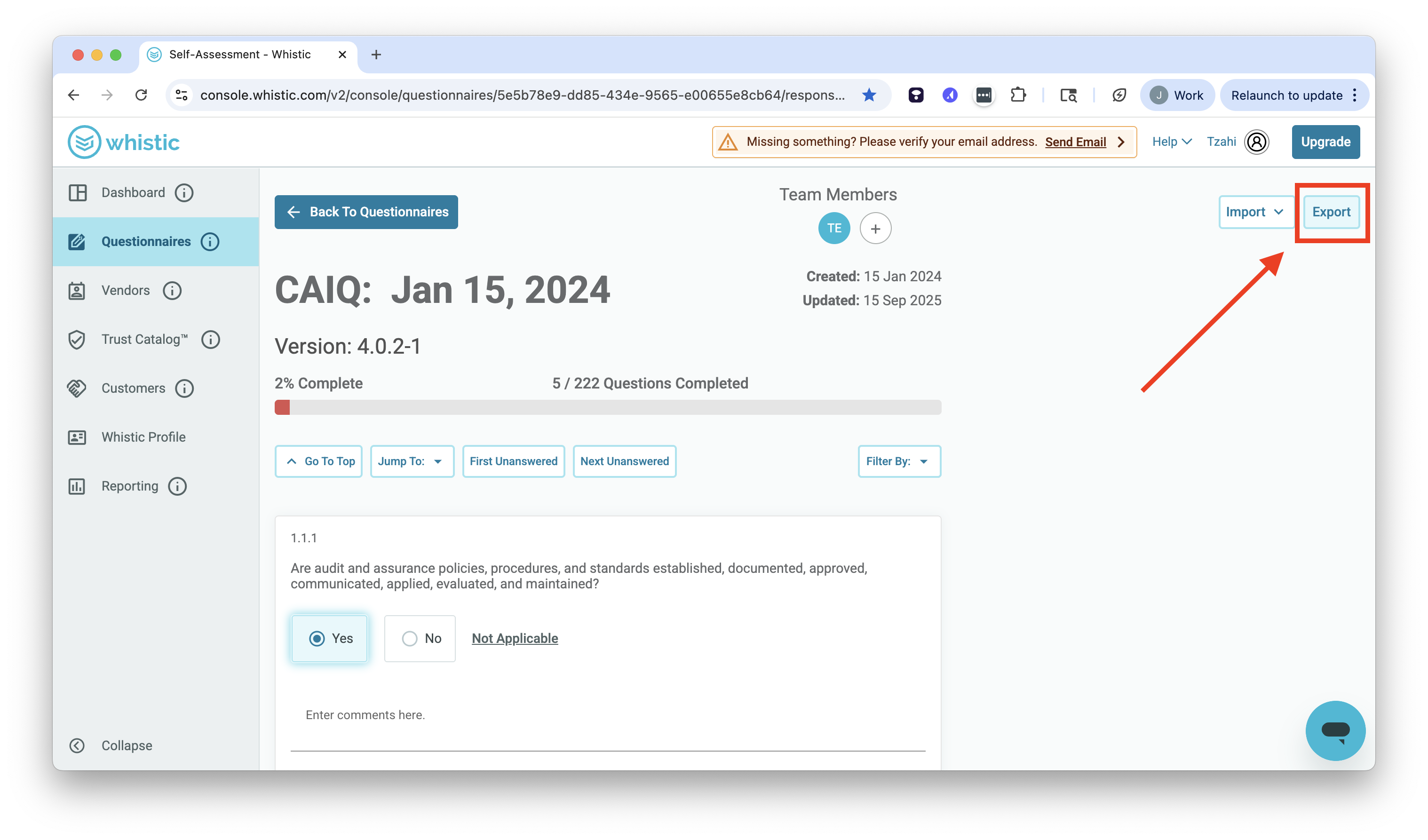
Method A: Look for an Export option within the portal
Many portals let you export the questions into an Excel file. These are usually formatted in such a way that makes them easy to upload into Iris, like any other Excel project.
Copying the answers back into the portal
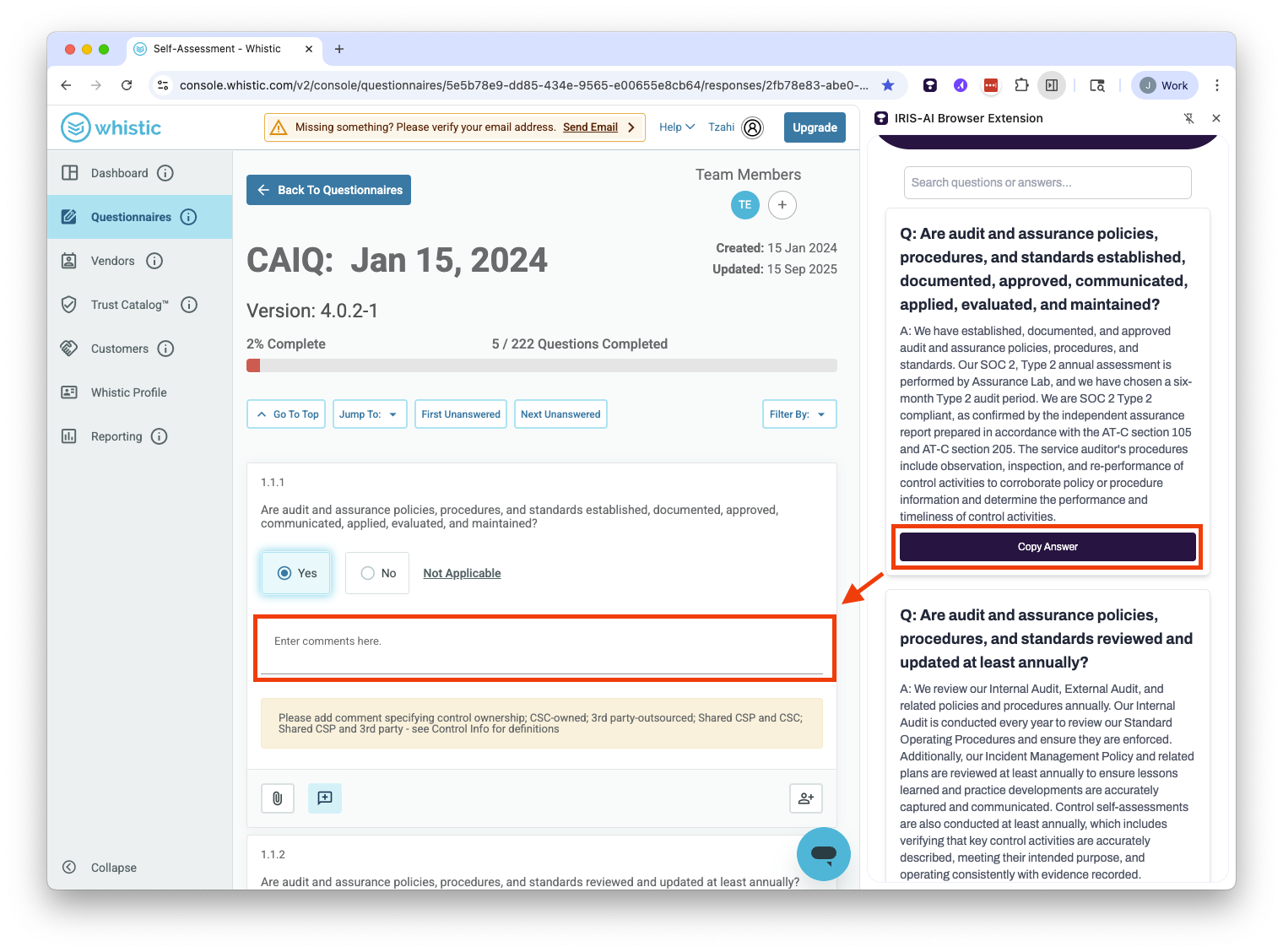
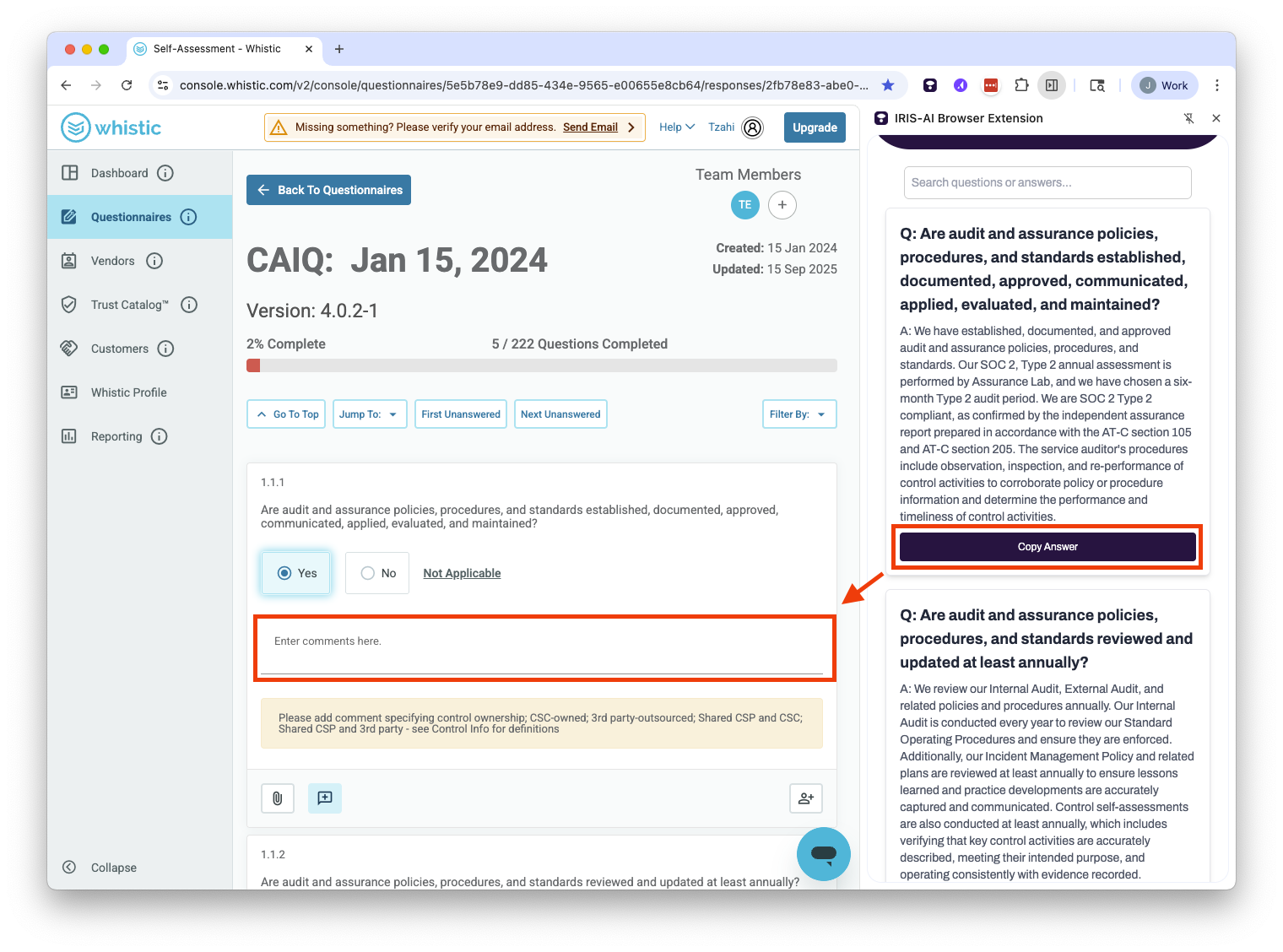
Open the Browser Extension, click Show Projects, click the Name of the project you just created, and use the Copy Answer button to copy the answers back into the portal.
Method B: Extract the Questions out of the portal
If the portal doesn't allow you to export, try extracting the questions out of the portal using the Iris Browser Extension.
HIGHLIGHT THE FIRST QUESTION IN THE PORTAL
(We put this step in all caps because it's so commonly overlooked)
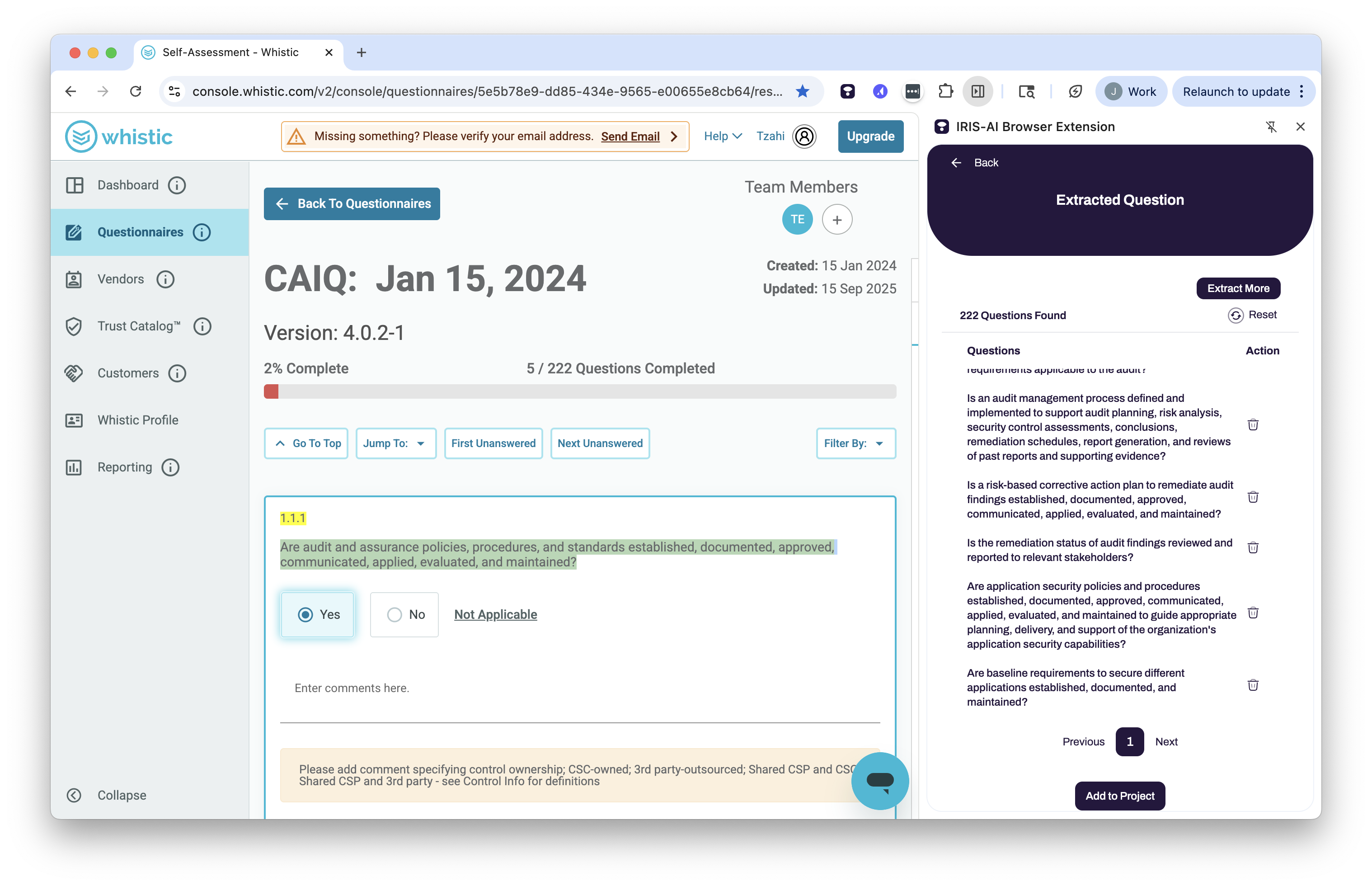
Click Extract Questions within the Iris Browser Extension
Confirm the Questions were extracted properly. Iris might grab some extra/unwanted questions -- delete the extras using the trash can icon.
Long list of questions? You can also bulk delete the extra questions once the project has been created, if it's easier.
Click Add to Project
Choose whether to add to an Existing Project or a New Project
Pro-tip: Use Existing Project when there are multiple tabs or pages within the portal
Enter a Project Title, Due Date, Deal Owner, Assign To, + Any Optional Fields, then Create Project
Voila! Iris will start answering the questions immediately. If you made yourself the reviewer, you'll receive an email when Iris is finished.
Copying the answers back into the portal: Open the Browser Extension, click Show Projects, click the Name of the project you just created, and use the Copy Answer button to copy the answers back into the portal.
Method C: Manually Complete the Portal using Ask Iris
Sometimes a portal won't let you export as an Excel file, nor extract the questions easily. Here's what to do:
🙋Right Click -> Ask Iris
Highlight each question and select Ask Iris.
Use the copy icon to copy the answer into the portal
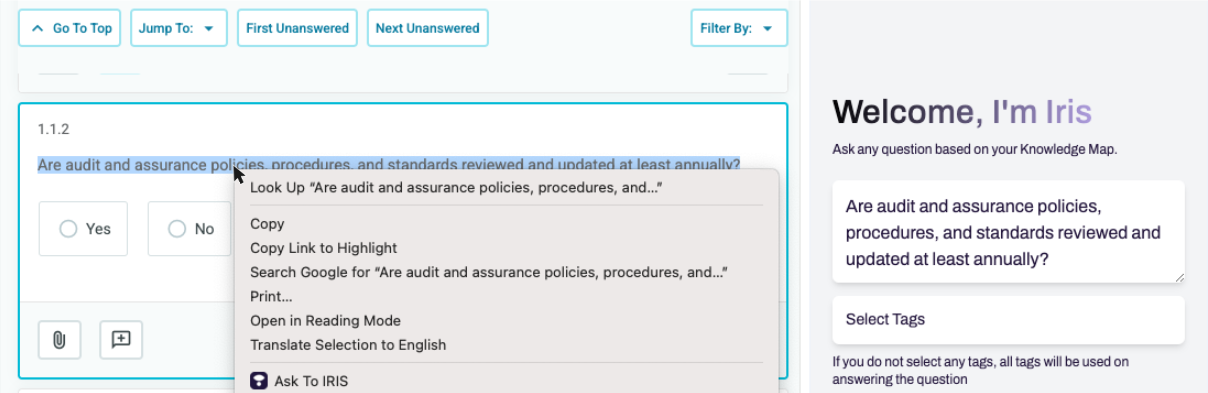
Pro-tip: Some users find it faster to go through the portal, answering the easy ones and only asking Iris the trickier ones.
Frequently Asked Questions (FAQ)
What about child questions (I answer a question, and 5 more appear)?
Assuming the Portal doesn't let you export, the best way to approach this today is by following Step 2C above -- asking the child questions one by one by highlighting, right-clicking, and selecting Ask Iris.
How can I get Iris to format my answers optimally for portals?
We find a lot of Yes / No questions in portals. Oftentimes, shorter and more direct answers are preferable. Here an example of a custom instruction you might use:
You must precisely follow these instructions to generate your response: When a yes/no response addresses the question, start your response with EXACTLY "Yes" or "No" as the first word. Provide ONLY the essential answer using the minimum words possible without elaboration, examples, or explanatory content. Stop immediately when the core information is delivered. Use EXACTLY the fewest words needed to address the question completely. Eliminate ALL transitional phrases, filler language, and supporting details. Present ONLY the direct answer without qualification or expansion. ALWAYS START YOUR RESPONSE WITH YES OR NO IF THE CONTEXT IS RELEVANT.