Project Presets
Last updated: March 24, 2026
Overview
Project Presets allow you to create reusable project templates that standardize how new projects are set up across your organization. Instead of manually configuring tags, instructions, and reviewers every time you create a project, you can save those settings as a preset and apply them in seconds, or set them as your organization's default so they apply automatically.
What Can a Preset Include?
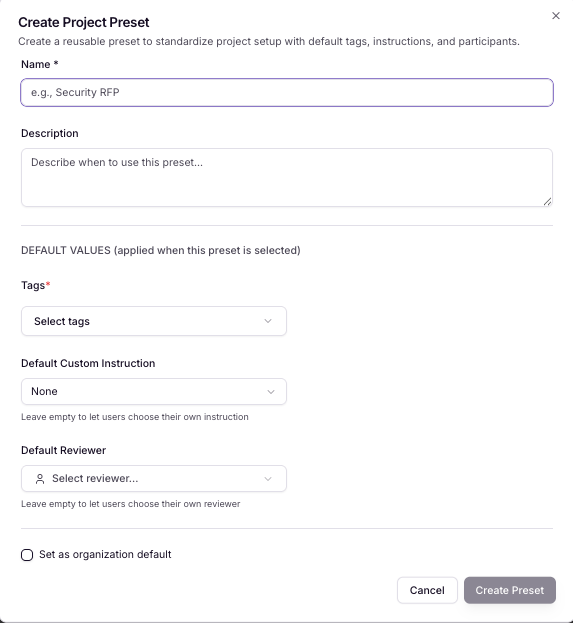
Each preset can be configured with any combination of:
Tags — Automatically label projects to keep your workspace organized and searchable.
Instructions — Pre-fill project instructions so your team always has the right context from the start.
Reviewers — Assign default reviewers so the right stakeholders are looped in automatically.
Setting an Organization Default
You can designate one preset as the organization default. When set, this preset will be applied automatically to every new project created in your organization — no manual selection needed. This is ideal for enforcing consistent standards, such as always assigning a compliance reviewer or tagging projects with a team name.
Individual users can still select a different preset when creating a project, giving teams flexibility while maintaining sensible defaults.
Managing Your Presets
All preset management is done from Settings → Project Presets. From there you can:
Create a new preset
Edit or delete existing presets
Set or change the organization default preset
View all presets available to your organization
How to Create a Preset
Navigate to Settings → Project Presets.
Click Create New Preset.
Give the preset a name and configure the tags, instructions, and reviewers you want included.
Optionally, toggle Set as organization default to make this preset apply to all new projects.
Click Save.
How to Apply a Project Preset
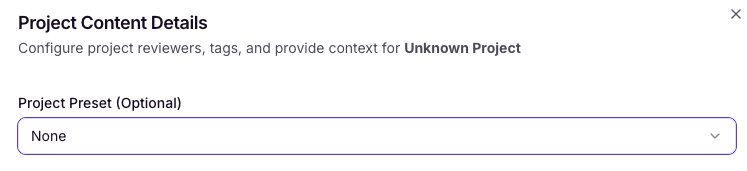
In the Create Project workflow, once you have a Project Preset created, you will see a dropdown on the second page of project setup where you can select your Preset.
Tips & Best Practices
Create role-specific presets for different teams (e.g., an Engineering preset, a Marketing preset) to reduce setup time for each group.
Use the organization default for company-wide policies you want enforced consistently, such as a legal reviewer or compliance tags.
Revisit presets periodically to update instructions or reviewers as your team evolves.
Permissions
Accessing Project Presets, including creating, editing, and setting an organization default, requires admin-level permissions. If you don't see the Project Presets option in Settings, contact your organization administrator.
Need help? Reach out to your Iris Customer Success Manager.