Notion
Last updated: August 26, 2026
Notion Integration with Iris
Overview
Integrating Iris with Notion enables seamless collaboration and document management.
Note: You need the "Can manage connections” permission in order to set up this integration.
Setting Up Notion Integration
Log into Iris: Use your credentials to access your Iris account.
Select Settings from the left-hand menu, then go to the Integrations tab.
Locate the Notion option and select Connect.
Authenticate with Notion:
You will be redirected to the Notion login page.
Enter your account credentials.
Allow Iris the necessary permissions to access your Notion account.
Select the Pages you'd like to be accessible. To keep a page or database automatically up to date instead of importing it manually, set up a sync rule, see our Sync Rules (integrations) article.
Using Notion in Iris
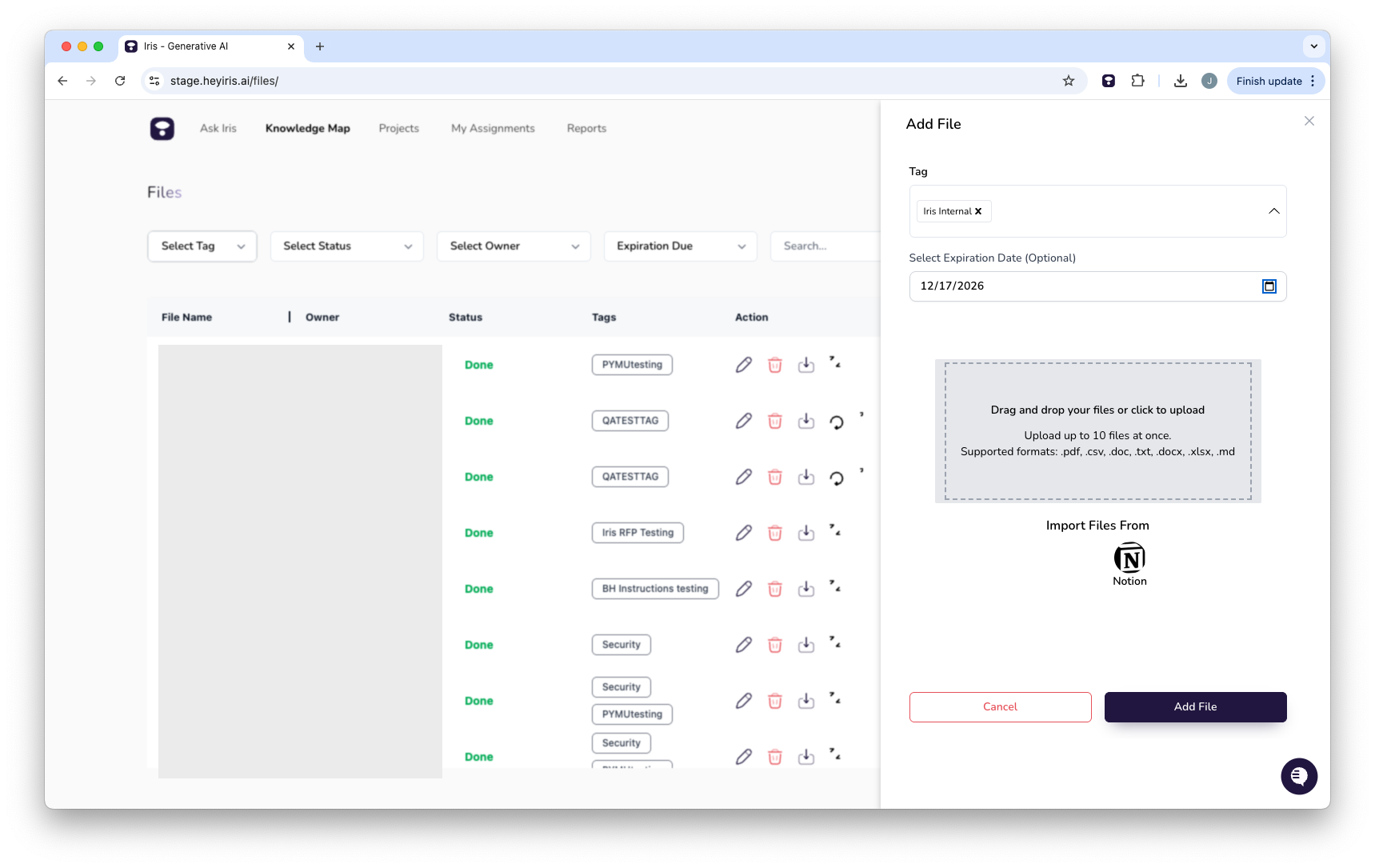
Uploading Documents from Notion
Within your Knowledge Map File Manager, select Add from Integrations.
Select Notion from the dropdown.
Browse your connected folders and select the desired documents (you can upload up to 10 at a time).
Apply relevant tags.
Apply an expiration date (optional)
Hit Submit to bring the file into Iris.
FAQ
Can I connect multiple Notion accounts to Iris?
Currently, Iris supports one Notion account at a time. You can disconnect the integration and reconnect with a different Notion account, if desired.
Are Notion subfolders accessible in Iris?
Yes, all subfolders within a connected folder are accessible unless restricted by permissions.
Does Iris sync changes made in Notion?
Yes! You can set up a recurring sync rule rooted at a Notion page or database, and Iris will pick up new and changed content automatically. More info in our Sync Rules (integrations) article.