Users
Last updated: May 28, 2026
Check out a video showing how to use custom roles in Iris 👇
Users | Roles | Groups
The TLDR:
Users are everyone in your organization with access to Iris
Roles control what permissions your users have
Add Groups of users to projects or assign Groups to questions
Users
Everyone in your organization with access to Iris.
How to Add Users
Without SSO:
Navigate to Settings > Users in the left-hand dashboard.
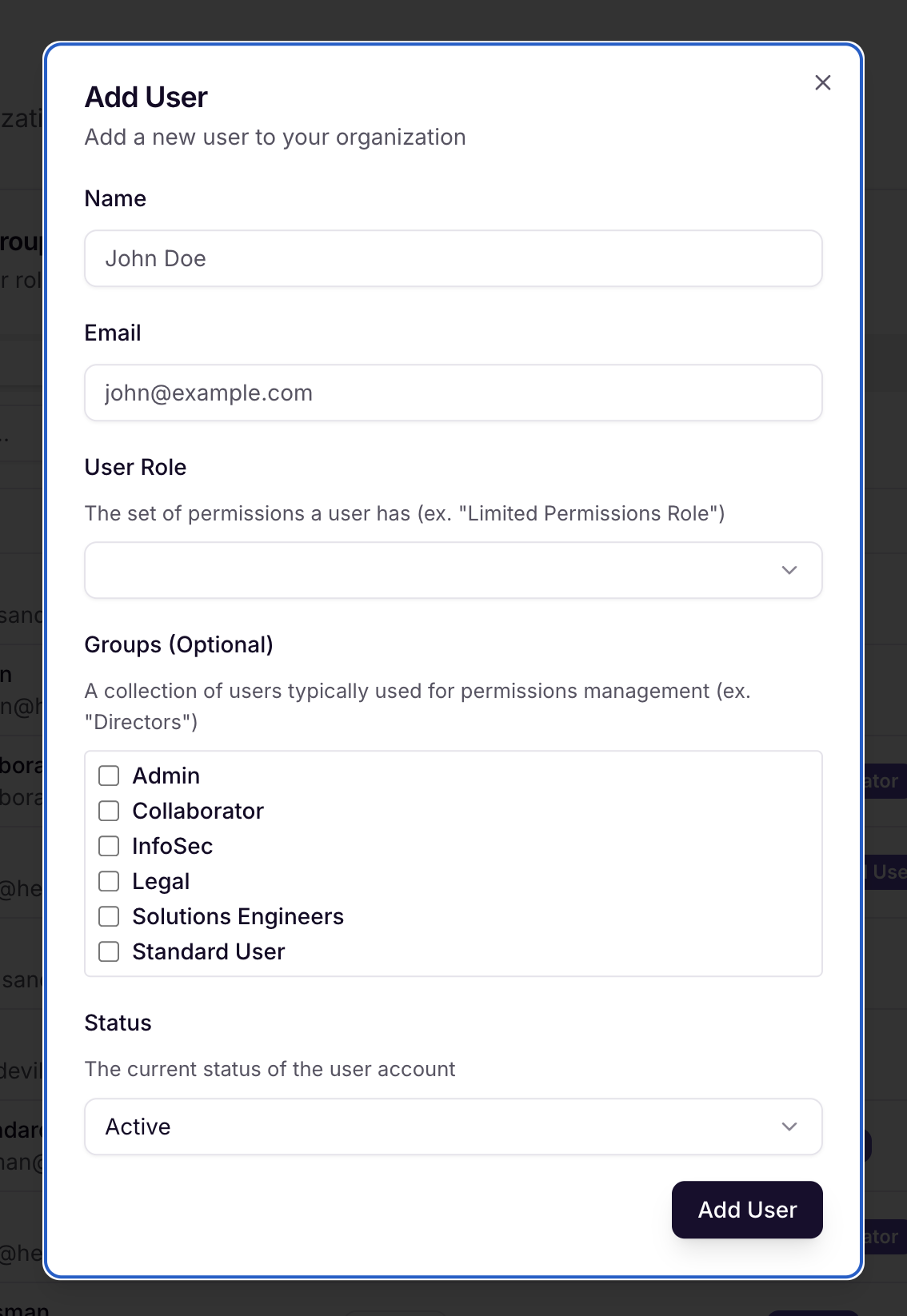
Click Add User.
Enter Name, Email, Role, Groups (optional), and select Add User.
With SSO:
Ask users to visit studio.heyiris.ai and click Sign in with SSO.
By default, new users will come in with the Collaborator role
To change the role they come in with by default:Navigate to Settings > Security in the left-hand dashboard.
Pick a new Default Role For JIT Provisioning
(You will not see this option if you do not have SSO set up)
To change an individual user's role :
Navigate to Settings > Users in the left-hand dashboard
Select ... (Three Dots) next to the User's name
Choose a new role and select Update User
Do you support SCIM?
We do not support SCIM. We plan to down the road
View Users by Role, Status and Group
In the table:
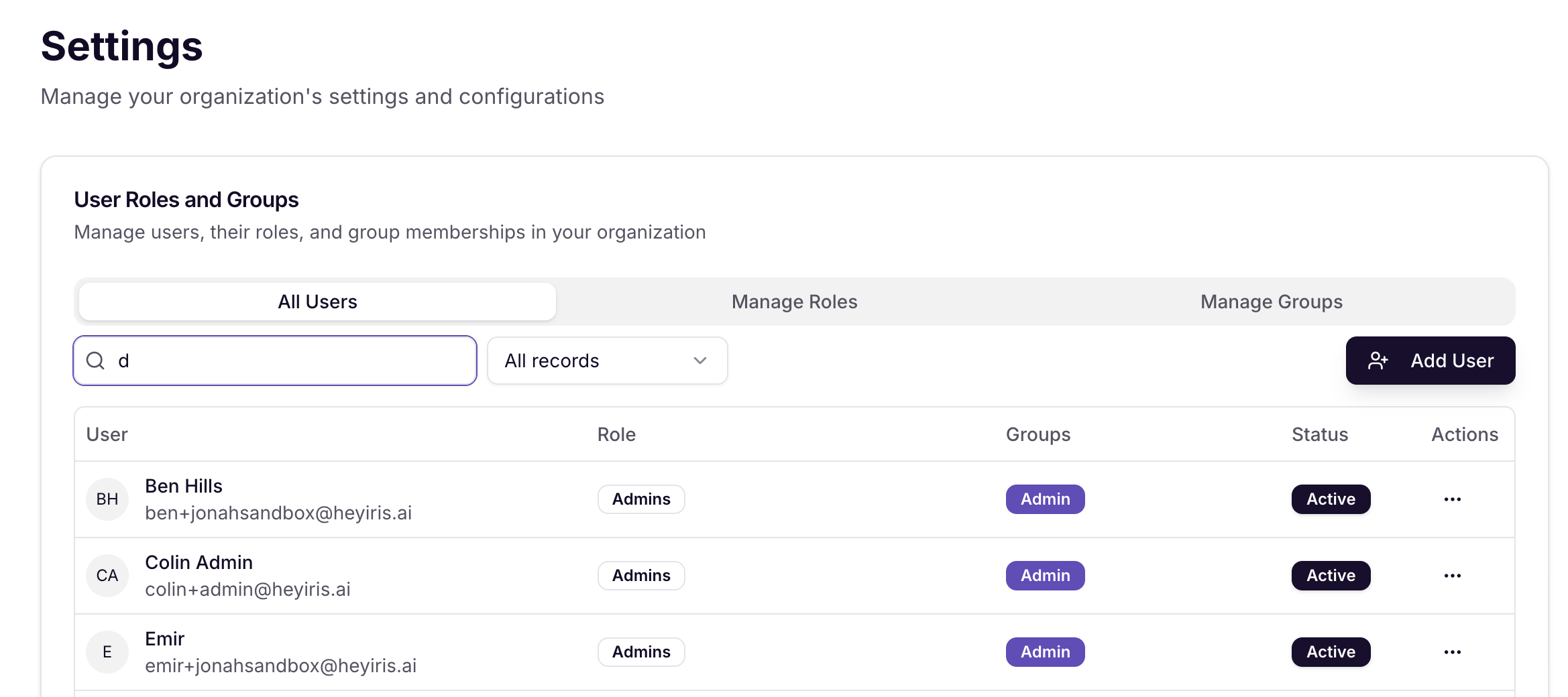
Actions (Three Dots)
Edit lets you do following:
Change User details
Role: a user can only have one Role at a time
Groups: users can be in an unlimited number Groups
Mark Active/Inactive: Inactive users will not be able to log in, but their information is retained for record-keeping purposes
Reset Password: Sends an email to the user to reset their password
Administrators will also get a live pop-up of the temporary password for quick resets
Roles
Roles define the permissions a user has—like editing projects, setting up integrations, downloading files, or viewing reports. Each user can only have one Role.
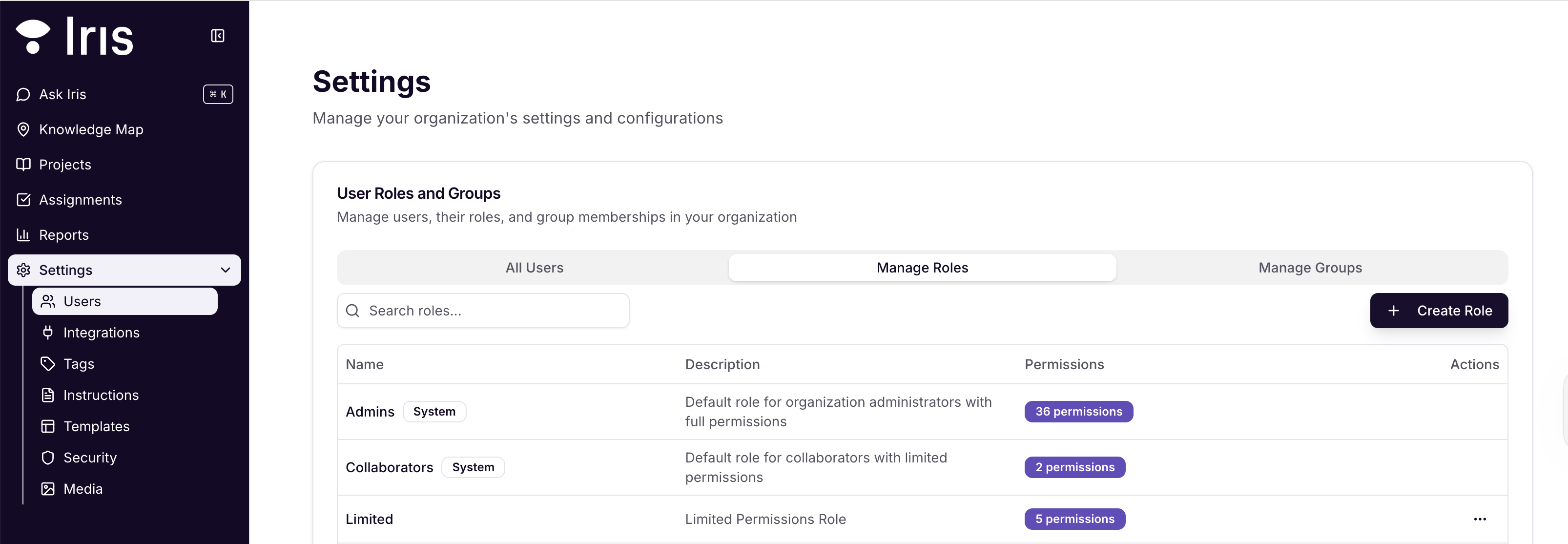
To manage roles, navigate to the Manage Roles tab. From here you can:
View a list of all existing roles
Create new roles by selecting + Create Role
➡ Read more about setting up custom roles and permission sets
Groups
Groups let you assign users to projects in bulk. Users can belong to multiple Groups at once. From within a project, click Manage Participants to add a Group to a project.
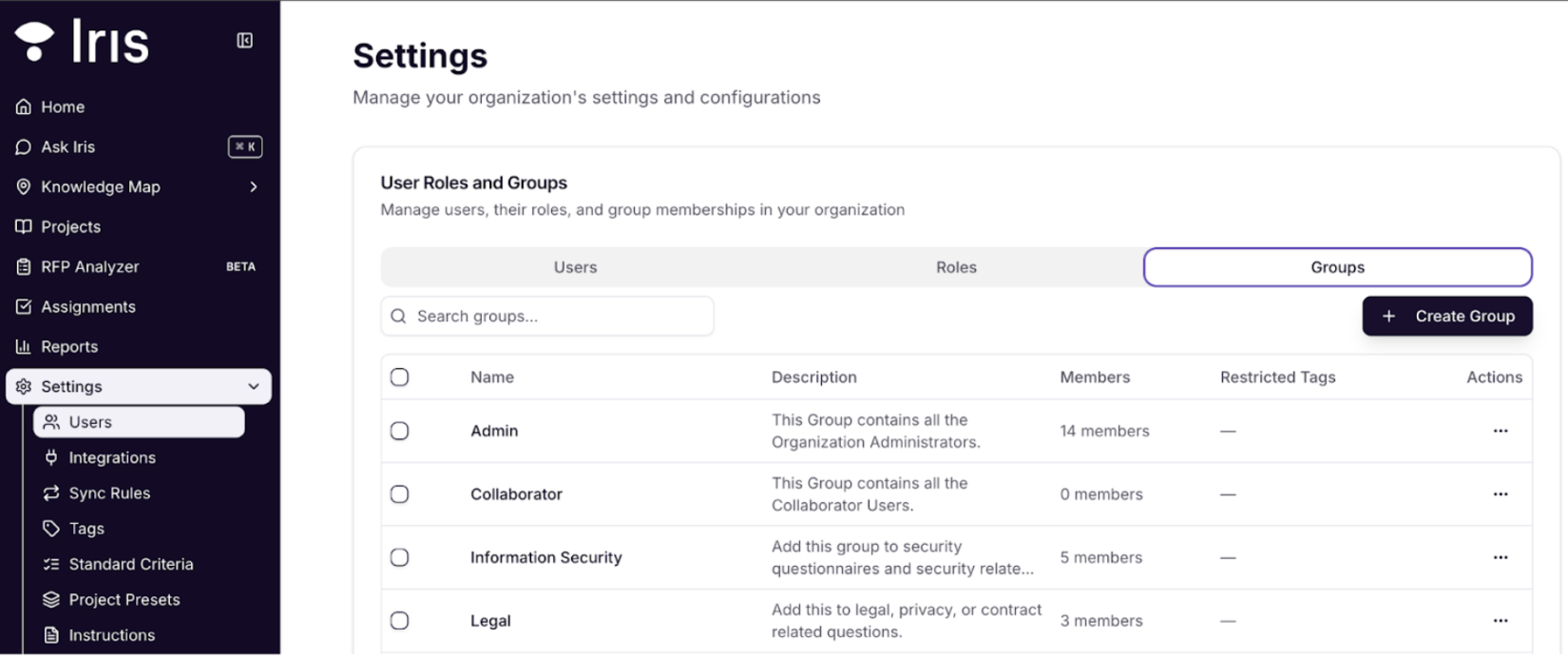
To manage groups, navigate to the Manage Groups tab. From here you can:
Create new groups by selecting + Create Group
View all existing groups
Add or remove users from groups
See how many members are in each group
➡ Read more about Groups and project assignments
Note: Accounts created before April 2025 may see default Groups of Admin, Standard User, and Collaborator. Their names and descriptions can be edited, but they cannot be deleted.