Salesforce
Last updated: September 16, 2026
Using Iris in Salesforce
Start Projects from Salesforce
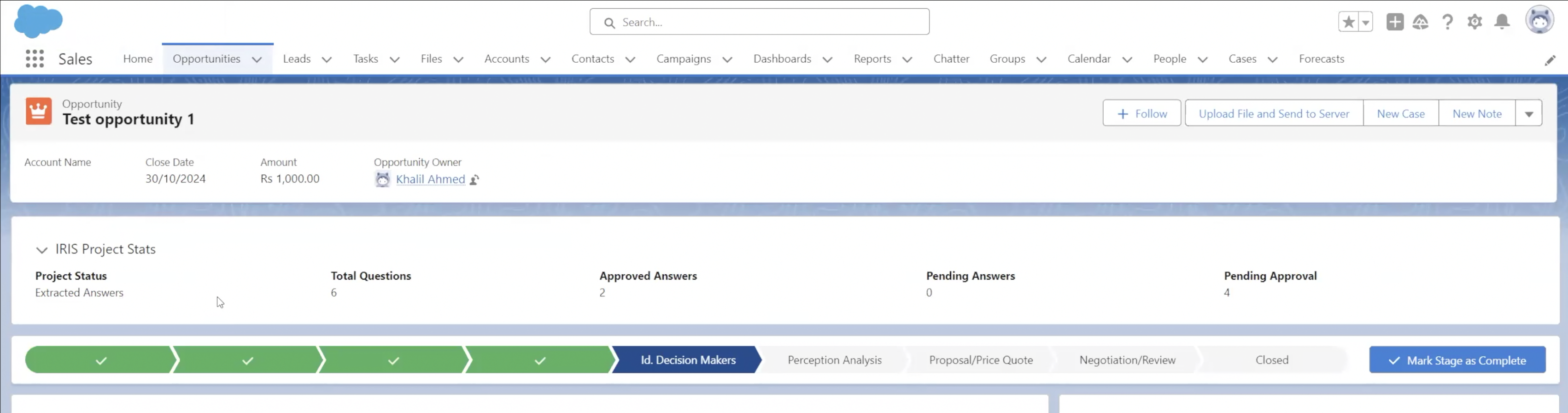
Use the Iris object on the Opportunity page to initiate new projects.
This action automatically generates and populates a project ticket in Iris based on Salesforce Opportunity data.

View the status of a project within Salesforce
Use the Iris object to monitor project status and updates in real-time.
Changes in Iris are immediately reflected in Salesforce.
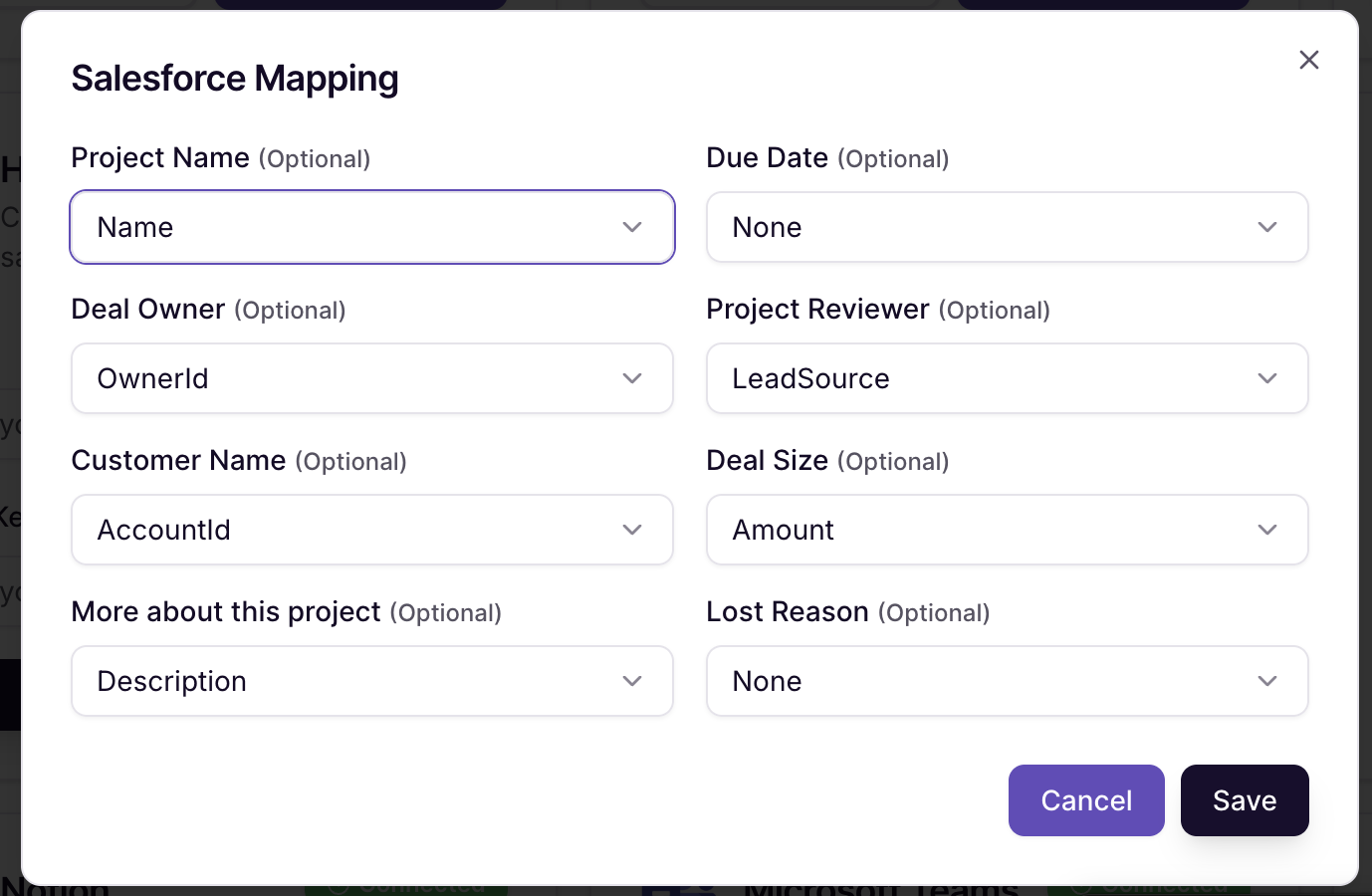
Map fields from Salesforce into your Iris Projects
Want to set it up? Contact your Iris rep or support@heyiris.ai
Connecting Iris to Salesforce
This guide walks you through setting up the Iris integration in your Salesforce org. The setup takes about 15 minutes.
Step 1: Create the Iris Certificate
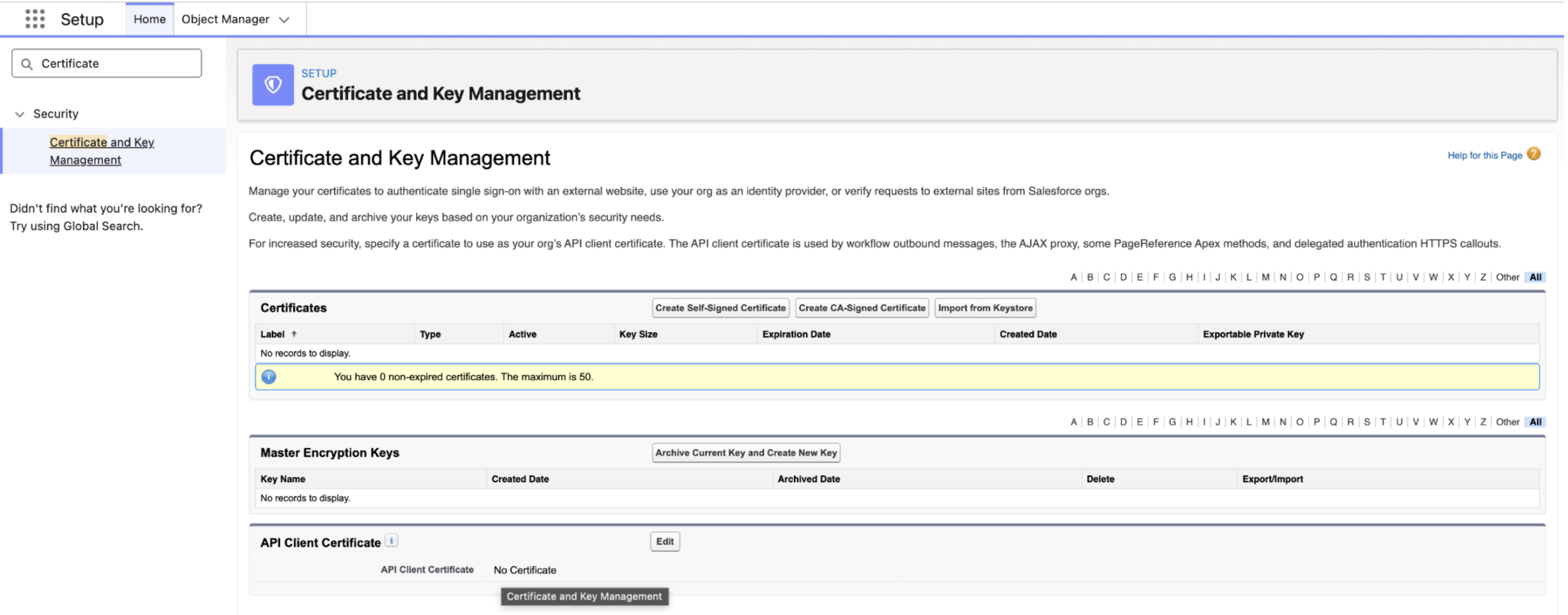
In Salesforce, go to Setup → Certificate and Key Management → Create Self-Signed Certificate.
Set both the Label and Unique Name to IRIS_JWT_CERT. Leave all other settings as they are and click Save.
On the next screen, click Download Certificate. You'll need this file later in Step 6.
Step 2: Install the Iris Package
Open this link: https://login.salesforce.com/packaging/installPackage.apexp?p0=04tgK000000KGWrQAO
Select Install for All Users, acknowledge the installation, then click Install and wait for it to finish.
Step 3: Link Your Certificate to the External Credential
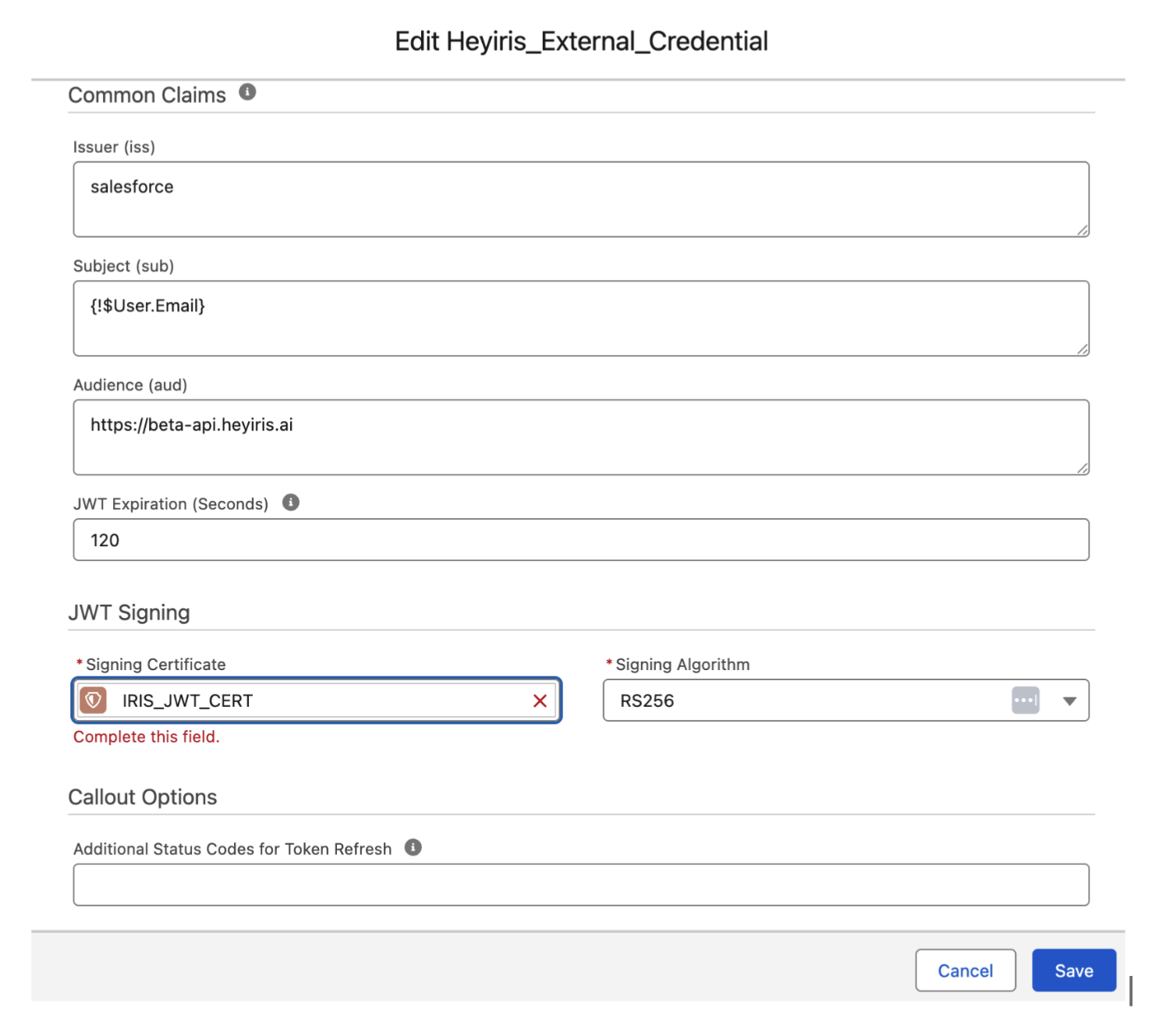
Go to Setup → Security → Named Credentials → External Credentials → Heyiris_External_Credential → Edit.
Under Signing Certificate, select the certificate you created in Step 1 and click Save.
Note: You can ignore the external credential "Heyiris_External_Credential_Stage" and the named credential "IRIS_API_V2_STAGE"
Step 4: Assign the Iris Permission Set
Go to Setup → Users → Users, select the user, then go to Permission Set Assignments → Edit Assignments.
Assign the heyiris_permission_set using your organization's preferred method (such as via User profiles, Permission Set Groups, or direct assignment).
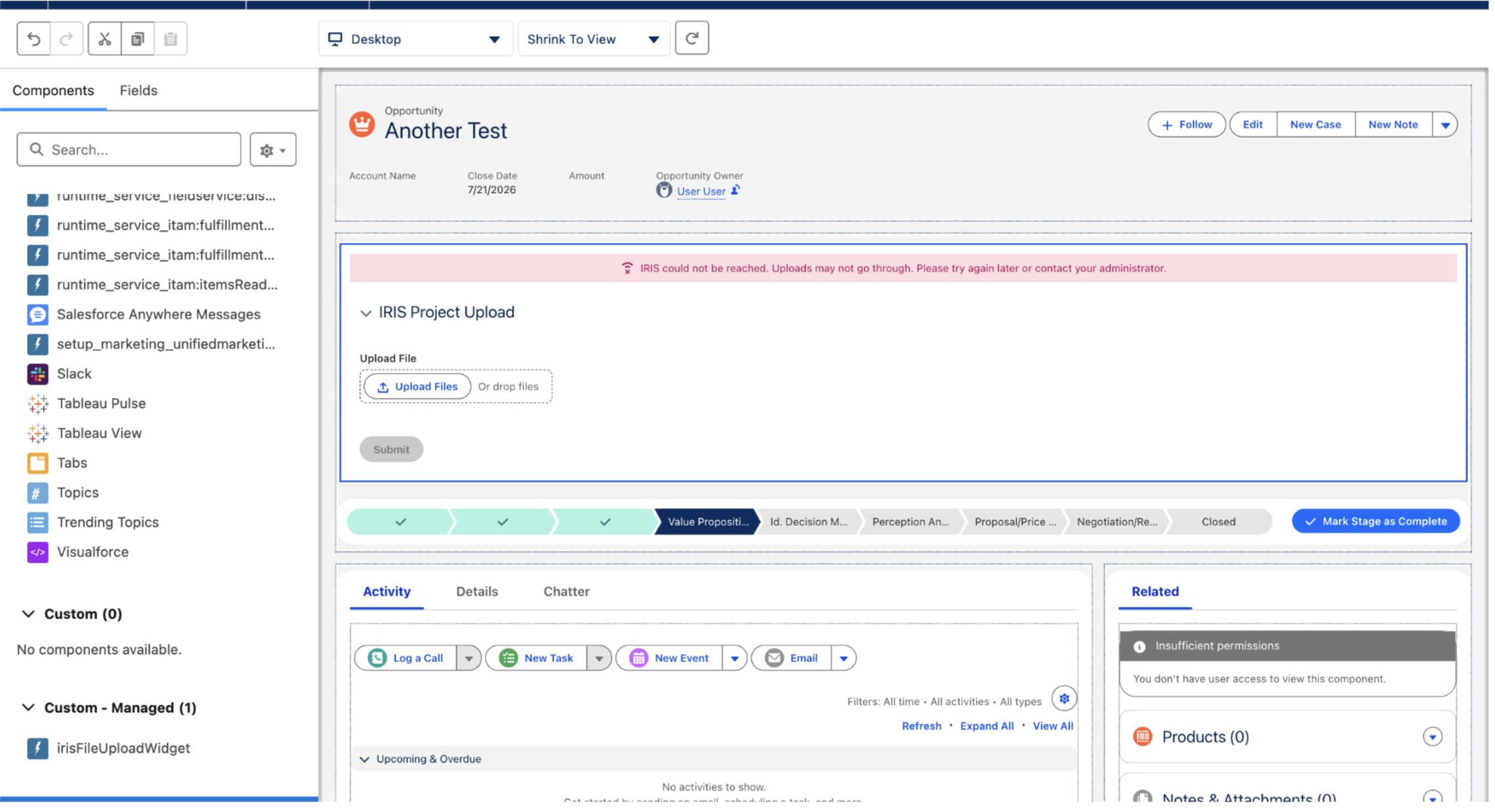
Step 5: Add the Iris Widget to Your Opportunity Page
Open any opportunity, click Setup → Edit Page, and place the IrisFileUploadWidget on the page.
Save and Activate it for your organization.
Step 6: Connect Salesforce in Iris
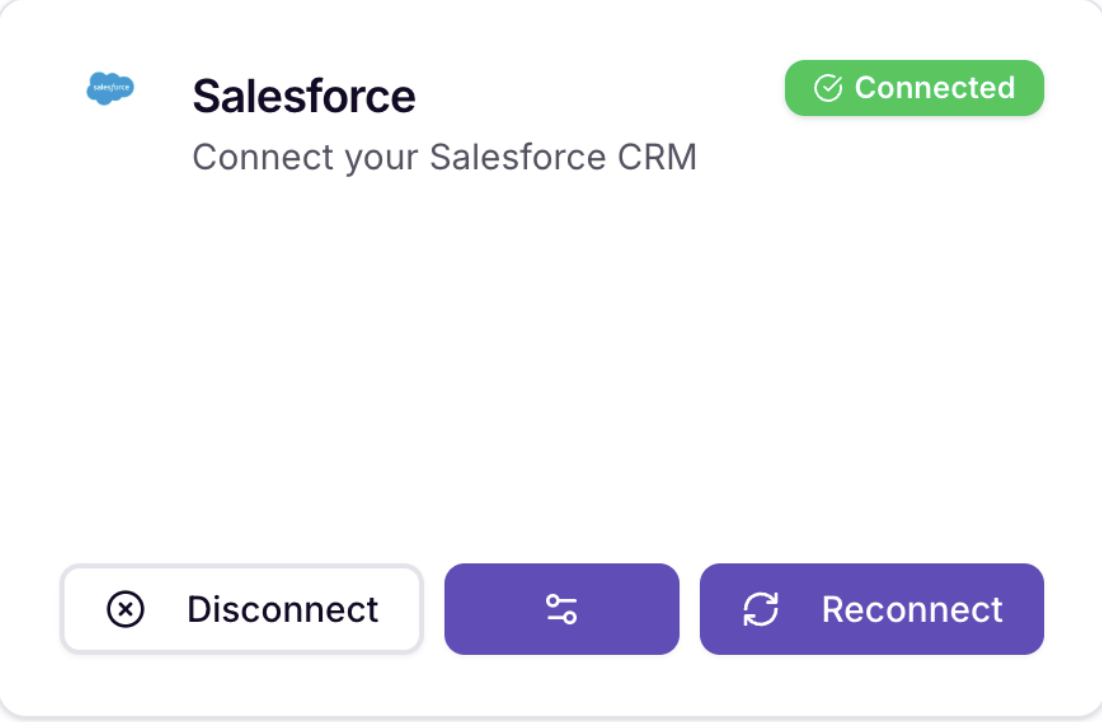
In Iris, go to Settings → Integrations → Salesforce → Connect.
You'll see an OAuth screen — grant Iris the requested permissions.
Click the Configure Salesforce button (the middle button, between "Disconnect" and "Reconnect").
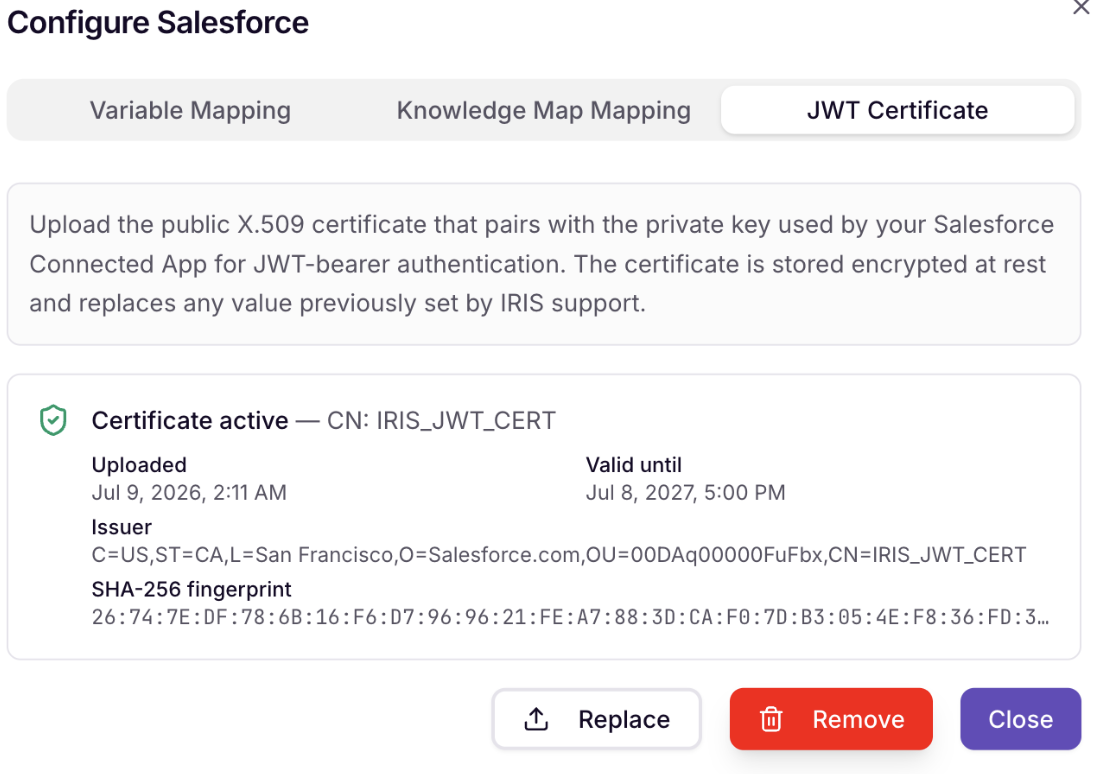
Go to the JWT Certificate tab and upload the certificate you downloaded in Step 1.
Upload Projects Without an Iris Account
Reps don't need to be provisioned as Iris users to submit projects — this works whether you're using the standard Iris widget on the Opportunity page or the Deep API Integration.
Any project created by someone who isn't an Iris user is automatically assigned to a configurable fallback user (e.g., "SE General"). If the submitter is an Iris user, they're set as the creator automatically.
This is useful for teams where reps submit requests but SEs own the review — set the SE as the default reviewer on the project preset, and it won't matter who actually triggers the submission.
Auto-Create Projects via Deep API Integration
For teams with more advanced Salesforce environments, Iris also supports a deeper integration where your Salesforce admin embeds Iris directly into your team's existing Apex screen flows — instead of using the Iris widget.
How it works: Reps don't change their behavior — they keep using the same intake form they already use. When they select a document type (RFP, RFI, or Security Questionnaire) and attach a file, the flow calls Iris's project creation API behind the scenes and creates the project automatically, with no manual widget upload required.
Preset mapping: Instead of Iris auto-classifying the file with an LLM (as in the standard widget), the document type selected in the Salesforce dropdown maps directly to a Project Preset in Iris. Set this up under Settings → Project Presets by matching each preset's "Auto-Processing Document Type" to the corresponding dropdown value.
Variable mapping: Under Settings → Integrations → Salesforce → Configure Salesforce → Variable Mapping, map any Salesforce field to an Iris project field — for example, mapping Opportunity Name to Project Name so projects are named after the deal instead of the uploaded file.
Auto-processing: Once the file lands in Iris via the API, it runs through the same processing engine as the standard widget — auto-annotate for Excel, non-narrative parsing for Word/PDF, go/no-go analysis, and answer generation against your approved knowledge base.
Error handling: If the Iris API returns an error, the rep sees an error screen and can create an internal support case. If no file is attached (e.g., for portal-based questionnaires), the flow skips the Iris callout and continues normally.
Want to set it up? This requires a Salesforce admin to build the Apex callout into your existing flow. Contact your Iris rep or support@heyiris.ai.
Write project stats back to Salesforce
Write-back copies your Iris project statistics into the Iris Project object that ships with the Salesforce package, so your team can build Salesforce reports and dashboards on them. Turning it on writes 26 reportable statistics to the packaged fields.
Before you start: write-back requires Iris Salesforce widget v1.13 or later.
Turn on write-back
Go to Settings → Integrations → Salesforce → Configure.
Open the Project Write-back tab.
Enable Write project stats to Salesforce.
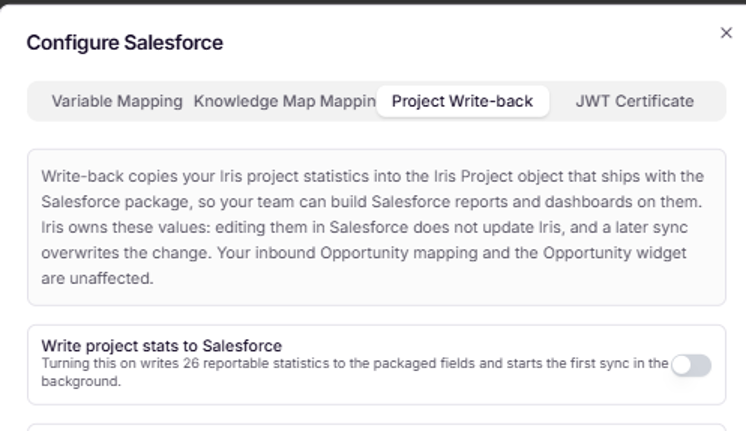
Enabling the toggle kicks off a first sync automatically. This runs in the background, so it may take a few minutes depending on system load.
Confirm the sync
Once the first sync finishes, a Sync status panel appears under the toggle showing tracked projects, failures, pending cleanup, and the time of the last successful sync.
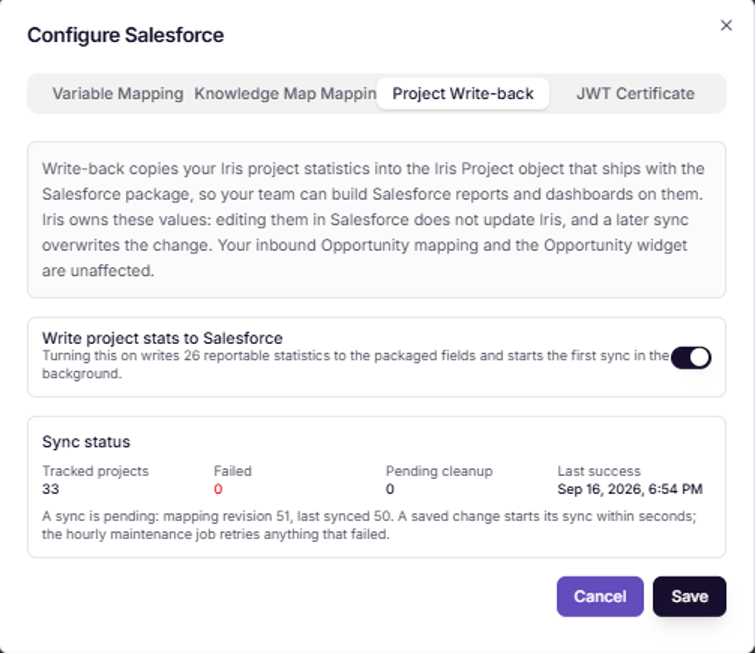
From that point on, everyday actions in Iris such as approving an answer keep those numbers current in Salesforce.
Good to know
Iris owns these values. Editing them in Salesforce does not update Iris, and a later sync overwrites the change. Your inbound Opportunity mapping and the Opportunity widget are unaffected.
Build a report on your Iris data
You can report on these fields directly in Salesforce. For example:
Go to Reports → New Report.
For report type, search for Iris Projects, then click Start Report.
Group rows by Opportunity.
Add the columns Project_Name, Total_Questions, Approved_Questions, Need_Approval, and Active. From the analysis set, add Qualification_Percent and Recommendation.
On Total_Questions and Approved_Questions, open the column menu and choose Summarize → Sum.
Add a filter for Active = True so retired projects drop out.
Click Save & Run.
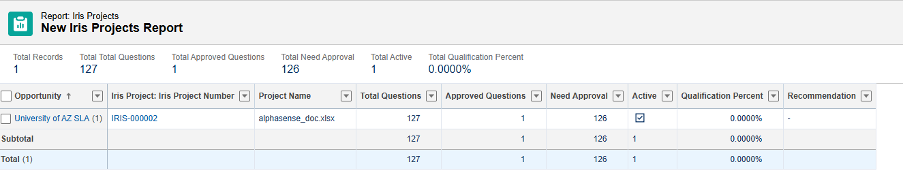
This is just a starting point. Adjust the grouping, columns, and filters to fit how your team tracks proposal work.
Use Salesforce Knowledge Base Articles in the Knowledge Map
You can also pull Salesforce Knowledge Base articles into Iris as a Knowledge Map source.
That's it! Your Salesforce integration is now connected.
Questions or run into any issues? Reach out to your CSM and we'll be happy to help.