Instructions
Last updated: March 25, 2026
Instructions (also known as Custom Instructions) allow you to fine-tune Iris’s response style and format. Whether you’re aiming for a specific tone, length, or structure, Instructions put you in control. This guide will walk you through everything you need to know to get started.
What Are Instructions?
Instructions enable you to provide Iris with guidelines on how to generate and style responses.
Adding and Saving Custom Instructions
When you reach the Project Context & Style Instructions page, type in your Custom Instructions. Some examples:
“Responses should be concise and use a professional tone.”
"This is for a Government Vendor where complex and well-detailed answers are important"
“Use bullet points where possible.”
"Respond with simply yes or no where applicable."
"Begin each answer with 'Acme believes...'"
To save these instructions to use in future projects, select Save as new
Pro-tip: Forgot to save your custom instructions? After the project is created, click Regenerate next to any question(s). You can click Save as new to keep them for future use.
Creating Custom Instructions for your Organization
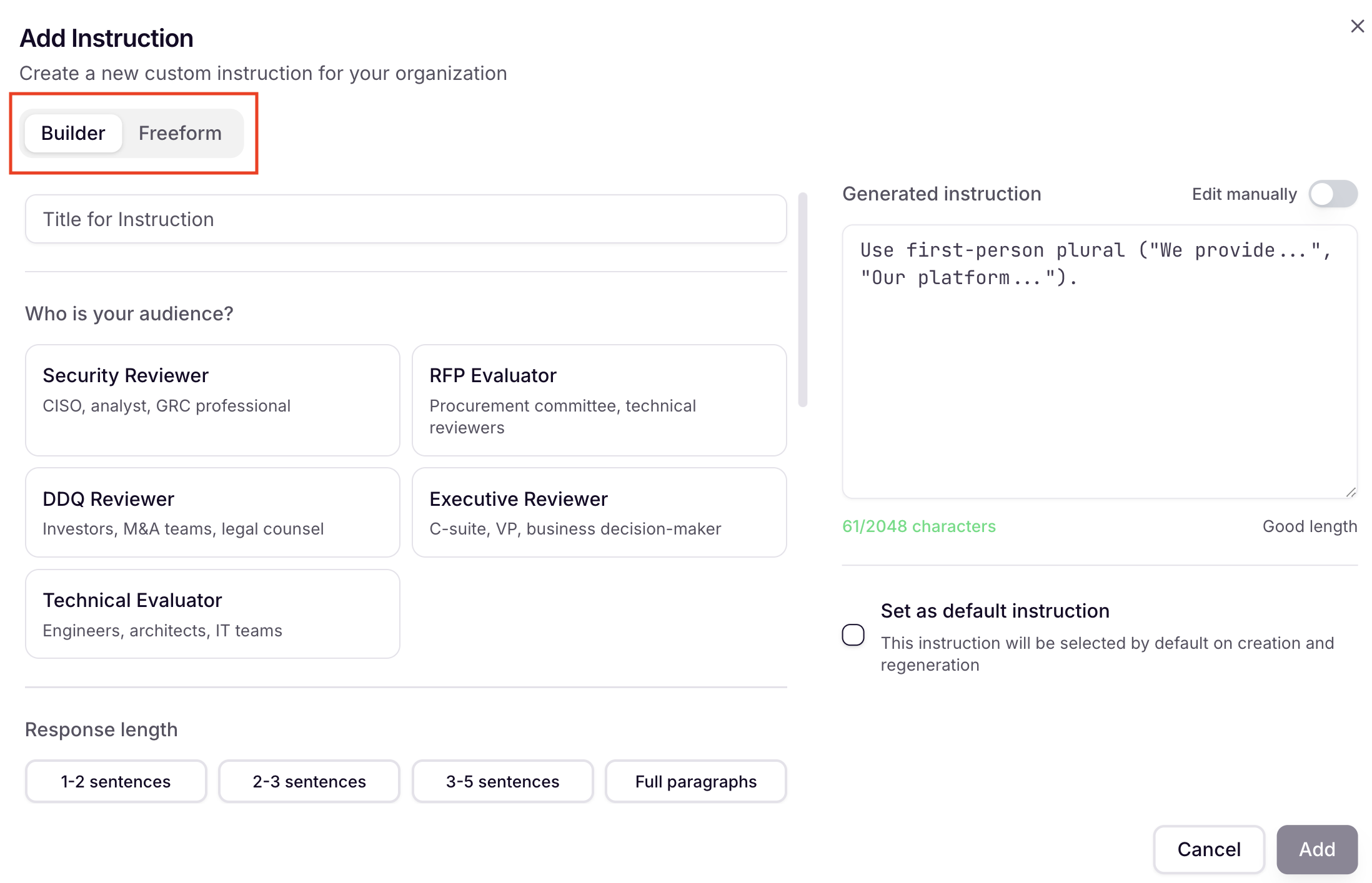
The Custom Instructions Builder lets you create tailored AI response instructions for your organization without writing prompts from scratch. As you fill in the guided form, Iris automatically generates a ready-to-use instruction in real time on the right side of the screen.
Custom instructions control how Iris responds: the tone, depth, audience focus, and writing style of every answer it generates for your project.
Getting Started
To open the Custom Instructions Builder:
Navigate to Settings-->Instructions in the left sidebar.
Click Add New Instruction in the top right of the Custom Instructions Management table.
Select the Builder tab (vs. Freeform, which lets you write a prompt manually).
Configuring Your Instruction
Work through each section of the Builder. The generated instruction on the right updates live as you make selections, but you can still add manual edits as needed.
1. Title
Give your instruction a descriptive name (e.g., "Public Sector", "Executive Responses"). This is for internal reference only and helps your team identify which instruction to apply.
2. Audience
Select who will be reading the AI-generated responses. This is the most impactful setting because it shapes the entire tone, detail level, and framing of the output.
3. Response Length
Choose how long the AI's responses should be:
1–2 sentences — Brief, direct answers
2–3 sentences — Slightly more context
3–5 sentences — Moderate detail
Full paragraphs — Comprehensive responses with full context
4. Company Voice
Enter your company name, then choose the point of view Iris should write in:
We/Our — First-person plural (e.g., "We provide...")
Company Name — Refers to your company by name (e.g., "Iris offers...")
Passive Voice — No first-person references (e.g., "The platform supports...")
5. Industry Context
Tag the industry your audience operates in: Healthcare, Financial Services, Government, or Education. This adds sector-specific framing to the generated instruction.
6. Modifiers
Optional checkboxes to fine-tune behavior:
Mirror source voice — Match the tone of your knowledge base content
Sales positioning — Highlight competitive advantages and business value
No marketing fluff — Strip filler phrases and marketing language
Evidence-linked — Reference specific evidence for every claim
Gap honesty — Acknowledge capability gaps honestly, with remediation timelines
7. Language
Select the output language from the dropdown (e.g., English (US)). Iris will generate all responses in the selected language.
8. Custom Rules
Add any additional one-off instructions that don't fit the other fields. For example: "Always mention our SOC 2 certification when discussing security."
Saving Your Instruction
Before clicking Add, you have two optional settings:
Edit manually — Toggle this on to directly edit the generated instruction text before saving.
Set as default instruction — Check this box to automatically apply this instruction whenever a new response is created or regenerated.
Click Add. A "Custom instruction created successfully" confirmation will appear, and your new instruction will be listed in the Custom Instructions Management table.
Applying Custom Instructions to a Project
Create a project
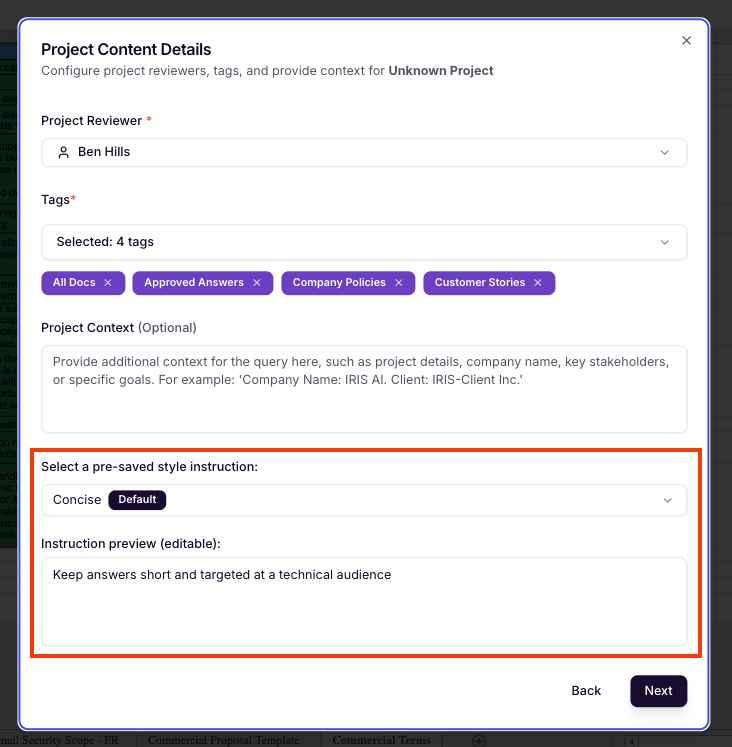
When you reach the Project Context & Style Instructions page, select a Custom Instruction from the dropdown menu
Iris will now use these instructions in the generated responses.
Editing or Deleting a Custom Instruction
Go to Settings > Instructions.
To edit an instruction, select the Actions > Edit button next to its name.
To delete an instruction, select the Actions > Delete
Tips for Writing Effective Manual Custom Instructions
Be specific: Clearly define what you want Iris to do.
Test and iterate: Experiment with different instructions and refine as needed.
Keep instructions focused on format and tone, not content.
FAQs
Q: Can I set a custom instruction to be used by default across my org?
Yes. Select the "Set as default instruction" checkbox when creating or editing an instruction. These instructions will be chosen by default when you create a new project
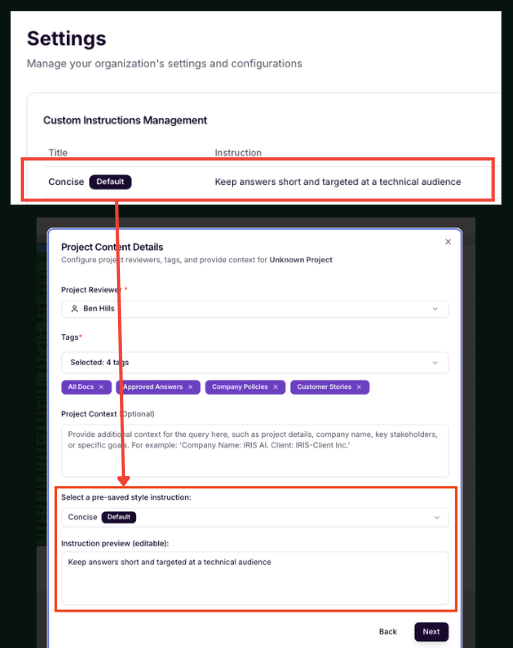
Q: Can I apply multiple Custom Instructions to a single project?
A: No, only one set of Custom Instructions can be applied at a time. However, after a project has been created, you can select questions and regenerate them with a different custom instruction.
Q: Will changes to Custom Instructions affect past responses?
A: No, changes only apply to new responses generated after the update.
With Custom Instructions, you’re in charge of how Iris communicates. Use them to save time, maintain consistency, and get the results you want every time!