Groups in Iris
Last updated: October 29, 2025
Groups
Groups in Iris let you bulk assign users to projects or questions (regardless of their role) - for example, you might have a group for the Sales Team that includes VPs, Directors and Account Executives.
Groups serve two key purposes:
Streamline project assignments - instead of adding individual team members, you can assign questions to an entire department at once. For example, assign all security-related questions to your Security group.
Manage access control - restrict sensitive information to specific groups. Users without the "View All Projects" permission can only see projects assigned to them or their groups, ensuring confidential information stays within the right teams. Users without the "View Projects" permission can only see questions assigned to them or their groups.
Creating a new Group
Navigate to Settings > Users > Manage Groups > + Create Group
Enter a Name and Description, then Create Group
You can select the ... Three Dots next to any group to delete edit details, or assign/remove users at any time.
To assign/remove users to the group, select the ... Three Dots next to any role and then Manage Members
Select the users you want to add or remove and Save Changes
Assigning a Group to a project
Select the Manage Participants at the top of any project page
Add any groups in the bottom and Save Changes.
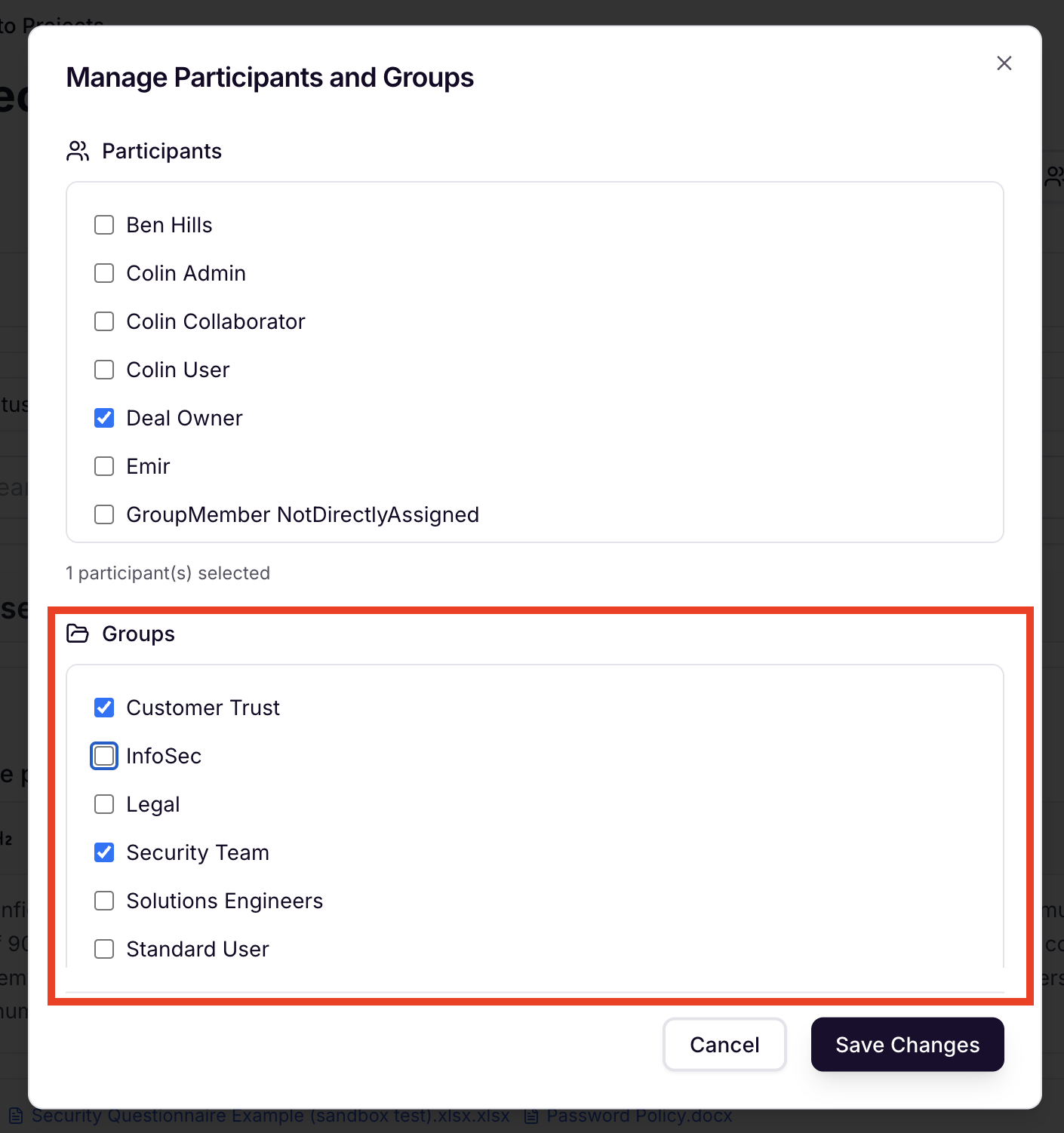
All Users in the group will receive an email that they've been added to a new project. Organizations with the Slack integration set up will receive a Slack notification.
Assign Question(s) to the Group
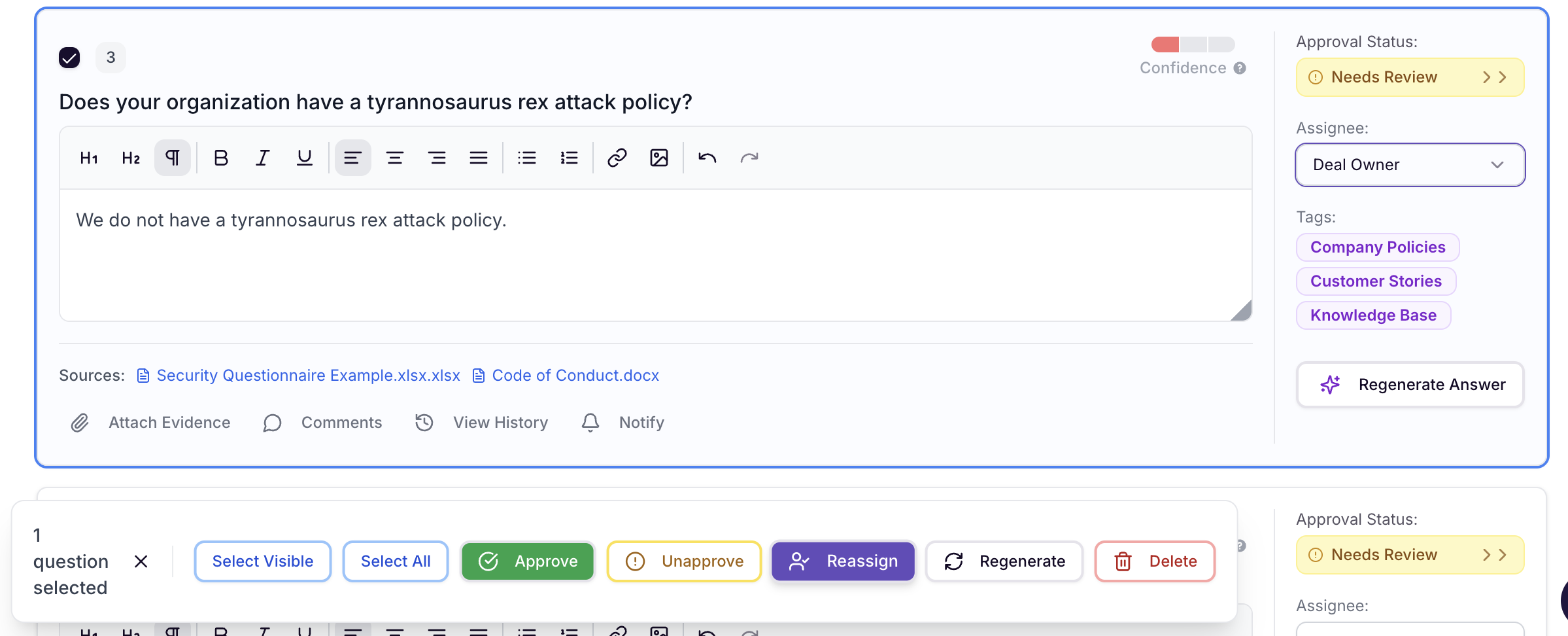
One Question: select the assignee's name and select the group you'd like to assign it to.
Don't see the group as an option? Follow the steps above to add the group to the project first.
Multiple Questions: select Checkbox next to any questions, select additional questions (or select all), then reassign