Web Scraping
Last updated: April 27, 2026
Step-by-Step Instructions
Navigate to Knowledge Map.
Select Files
Select Add Web Content.
In the pop-up window:
Enter the URL of the webpage you want to upload.
Select the relevant Tags to categorize the content.
How much content should we capture:
This page only: Captures just the URL you entered.
Deep Crawl: Follows multiple levels of links. Useful for documentation sites or blog categories. May take longer and capture many pages.
If you want, you can select the option to Set up weekly auto-sync. This will automatically re-crawl the URL every week and keep your knowledge base up to date with any changes made to the page.
Hit Submit.
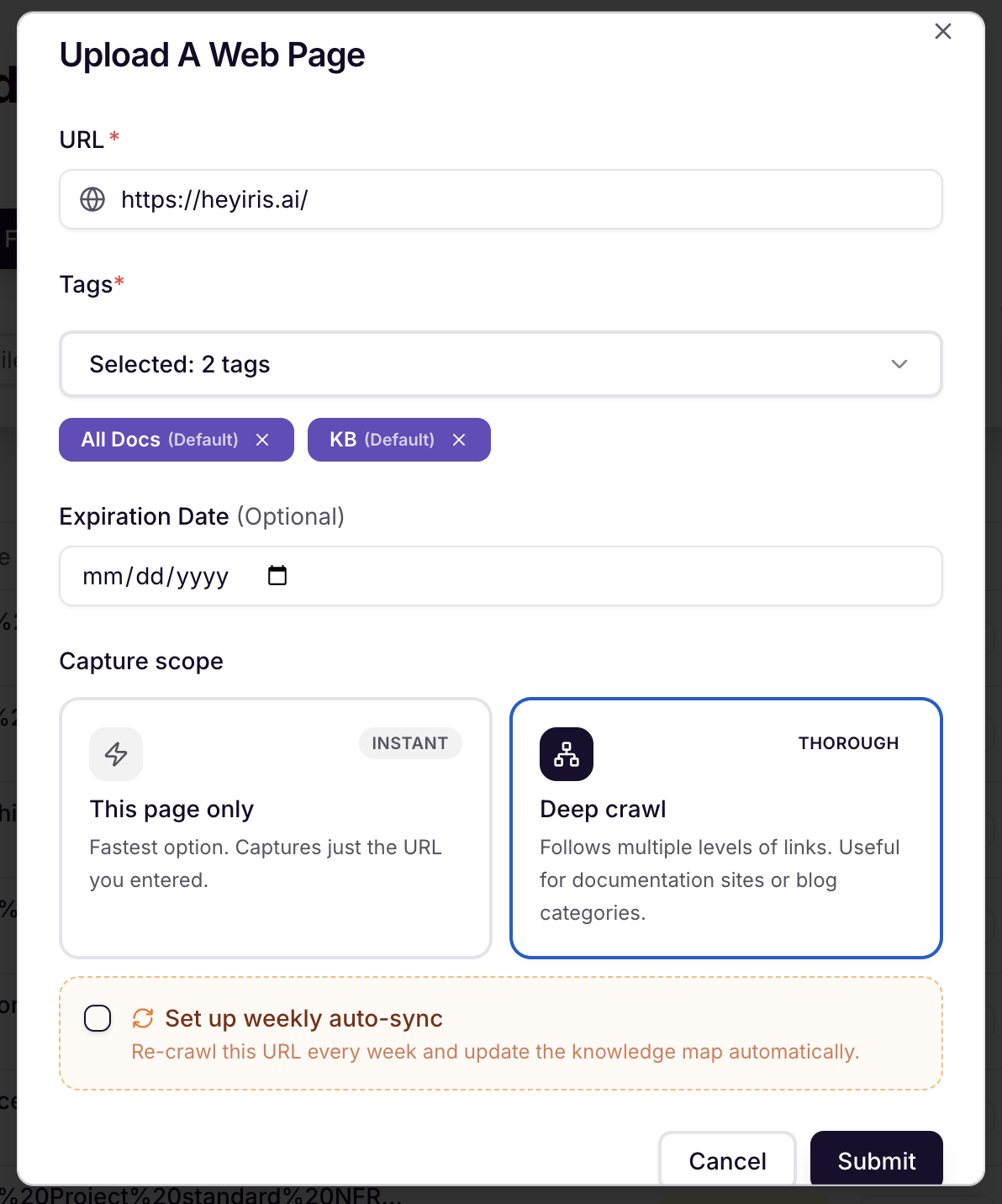
Want Iris to automatically sync these webpages? Check the Set up weekly auto-sync checkbox.
What Happens Next?
Iris Processes the Content:
The system scrapes the provided URL and extracts the page content.
Iris converts the extracted information into an MD file (Markdown format) for better compatibility and readability.
A timestamp is automatically added to track the upload date.
Title Generation:
The title of the document is dynamically generated based on the webpage's metadata or content structure.
Manage An Existing Web-Sync
EdIris will regularly crawl your support sites and add new articles, update existing articles, and delete articles that have been removed
Go to Settings > Sync Rules (or click here)
Select the Web Sync Tab in the top right corner
Here you can:
Add a new Web Sync
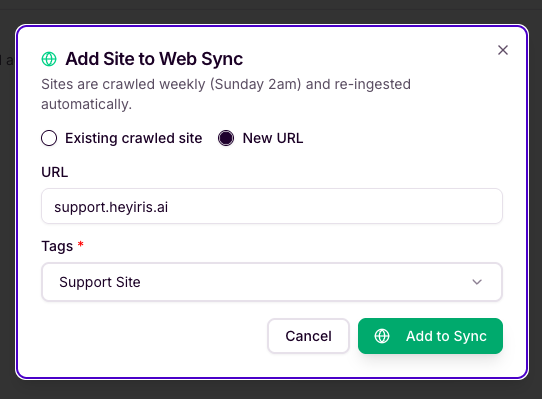
Select + Add Site
Ensure New URL is selected
Enter URL, pick Tags, and select Add to Sync
Edit an existing Web Sync
Click the trash can icon to stop Iris from auto-syncing those websites
Click on the name of the site URL to open that link in a new tab
Refreshing a Web-Sync
Want to replace a webpage with a more current version?
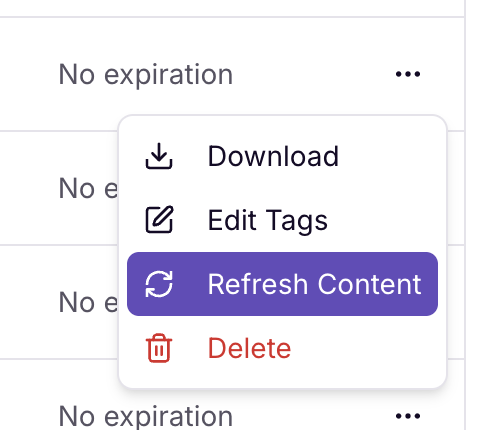
Simply select Actions > Refresh next to any uploaded webpage.