Sync Rules (Integrations)
Last updated: August 28, 2026
Overview
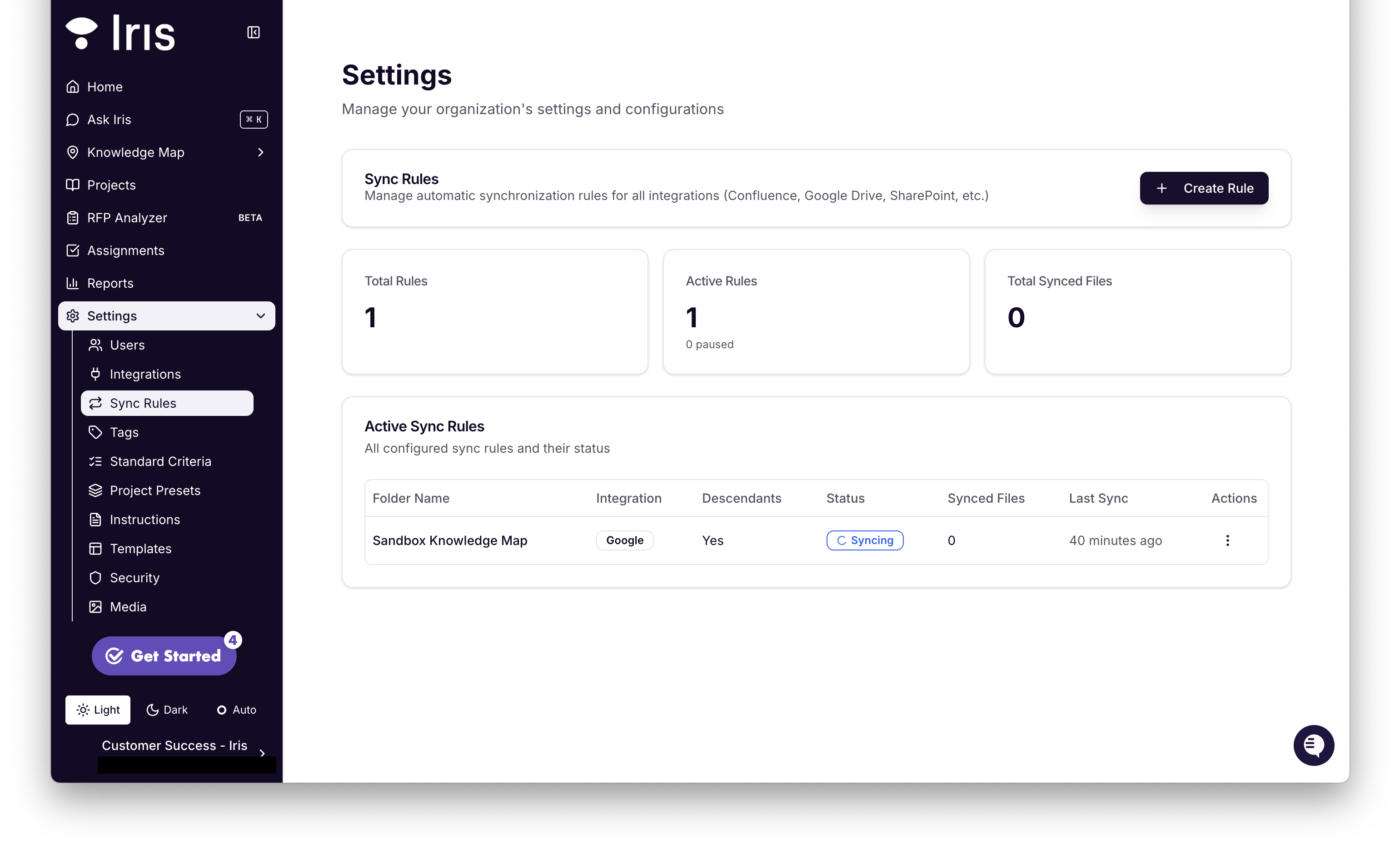
Sync Rules allow you to connect Iris to any folder/file in Google Drive, Sharepoint, Confluence, and Notion automatically importing all content and keeping it continuously updated — including new files, edits, and deletions — so your Knowledge Map always reflects the latest information.
Want to keep your Policies folder in Google Drive current? Simply set a Sync Rule, and Iris will ensure it always captures the most recent updates.
Jump to:
Sync Rules for Vanta
Sync Rules for Notion
What Are Sync Rules?
Sync Rules let you sync folders within your integrations to automatically update Iris with any and all changes. They determine which pages, files, and folders are included in — or excluded from the Iris Knowledge Map.
Sync Rules for Confluence
Once your Confluence integration is connected, you can set Sync Rules to control which spaces and pages are included in Iris's knowledge base.
Setting up a new Sync Rule in Confluence
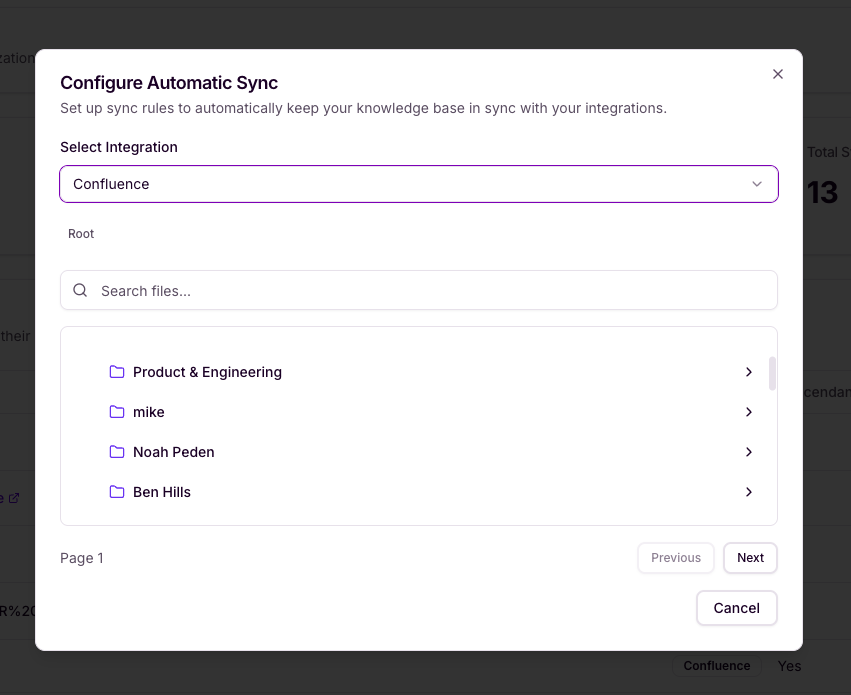
Go to Settings > Integrations > Sync Rules (or click here)
Select +Create Rule
Select integration: Confluence
Navigate to the page you want to set a sync rule for and select Create Sync Rule
Important Notes:
You can only create a sync rule for one page (and all it's subpages) at a time. You cannot create a sync rule for an entire Confluence space
If the Create Sync Rule button is greyed out it likely means that you have multiple pages selected.
If the Create Sync Rule button isn't visible, it likely means you are at the Space level. You'll need to select a specific Page within that Space in order to create a Sync Rule.
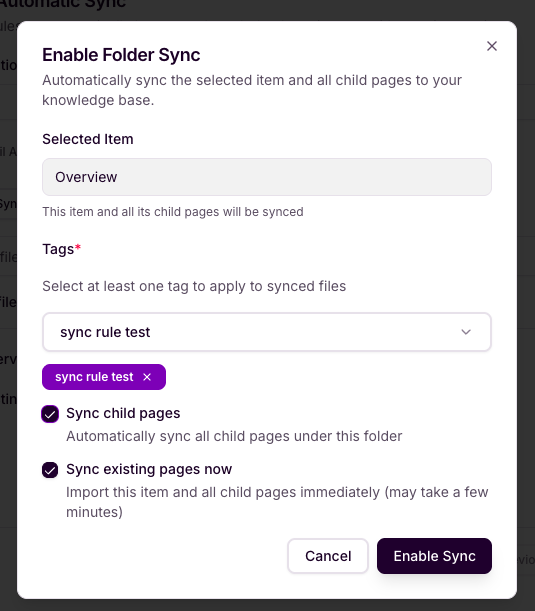
Select a tag or tags
Decide whether to Sync Child pages (if left unchecked, only the selected page will be synced, no sub-pages will be synced alongside it)
Decide whether to Sync existing pages now (if left unchecked, nothing will be synced and only new content added to that page will be brought into the Knowledge Map)
We recommend you turn on Sync existing pages now for the majority of use-cases!
Select Enable Sync to complete
Iris will begin adding all Pages and subpages to the Knowledge and continuous check for changes, additions, and deletions within that Page or subpage.

Click the "..." More actions button next to any sync rule to Pause or Delete
Sync Rules for Google Drive
Google Drive Sync Rules let you specify which folders, file types, and documents are included in Iris's knowledge base. This is especially useful for teams that store a mix of documentation, client files, and personal folders in a single Drive.
Note: Our integration will let you sync in the following files types from Google Drive: .pdf, .docx, .xlsx, .md, .txt, .ppt, .pptx, Google Docs, Google Sheets
Once your Google Drive integration is connected, you can set Sync Rules to control which Drives and Folders are included in Iris's knowledge base.
Setting up a new Sync Rule in Google Drive
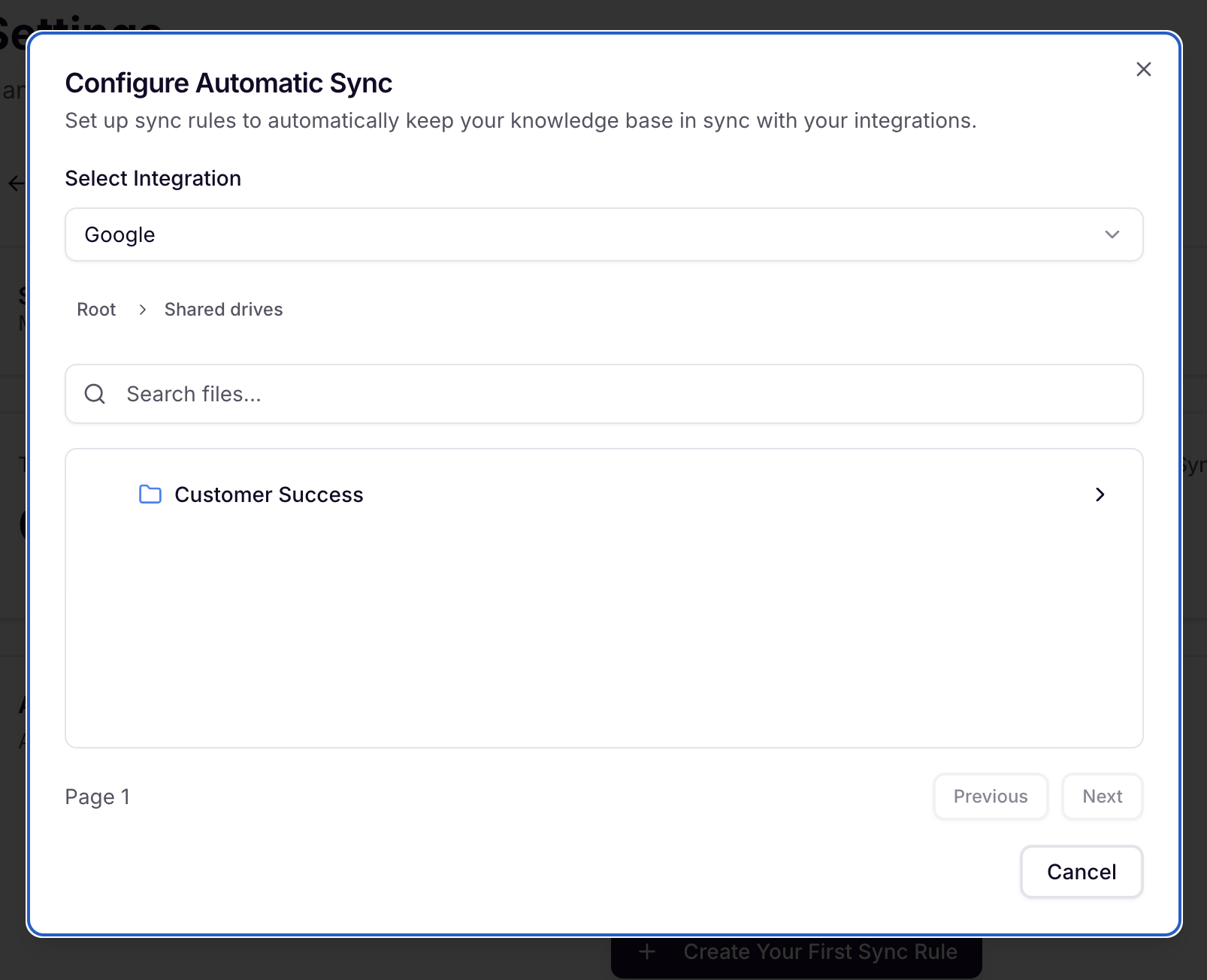
Go to Settings > Integrations > Sync Rules (or click here)
Select +Create Rule
Select integration: Google Drive
Navigate to the page you want to set a sync rule for and select Create Sync Rule
Important Notes:
You cannot make a sync rule for an entire Drive. You can sync an entire folder by clicking into it.
ex. If "Root > [Drive Name] > [Folder Name]" shows at the top, creating a sync rule will pull in all files in [Folder Name].
If the Create Sync Rule button isn't visible, it likely means you are at the Drive level. You'll need to select a specific Page within that Space in order to create a Sync Rule.
If you see Synced Automatically there is a Sync Rule already in place for that Page or Subpage
Select tag(s)
Decide whether to Sync existing pages now (if left unchecked, nothing will be synced and only new content added to that page will be brought into the Knowledge Map
For most use-cases, we recommend checking Sync existing pages now
Select Enable Sync to complete
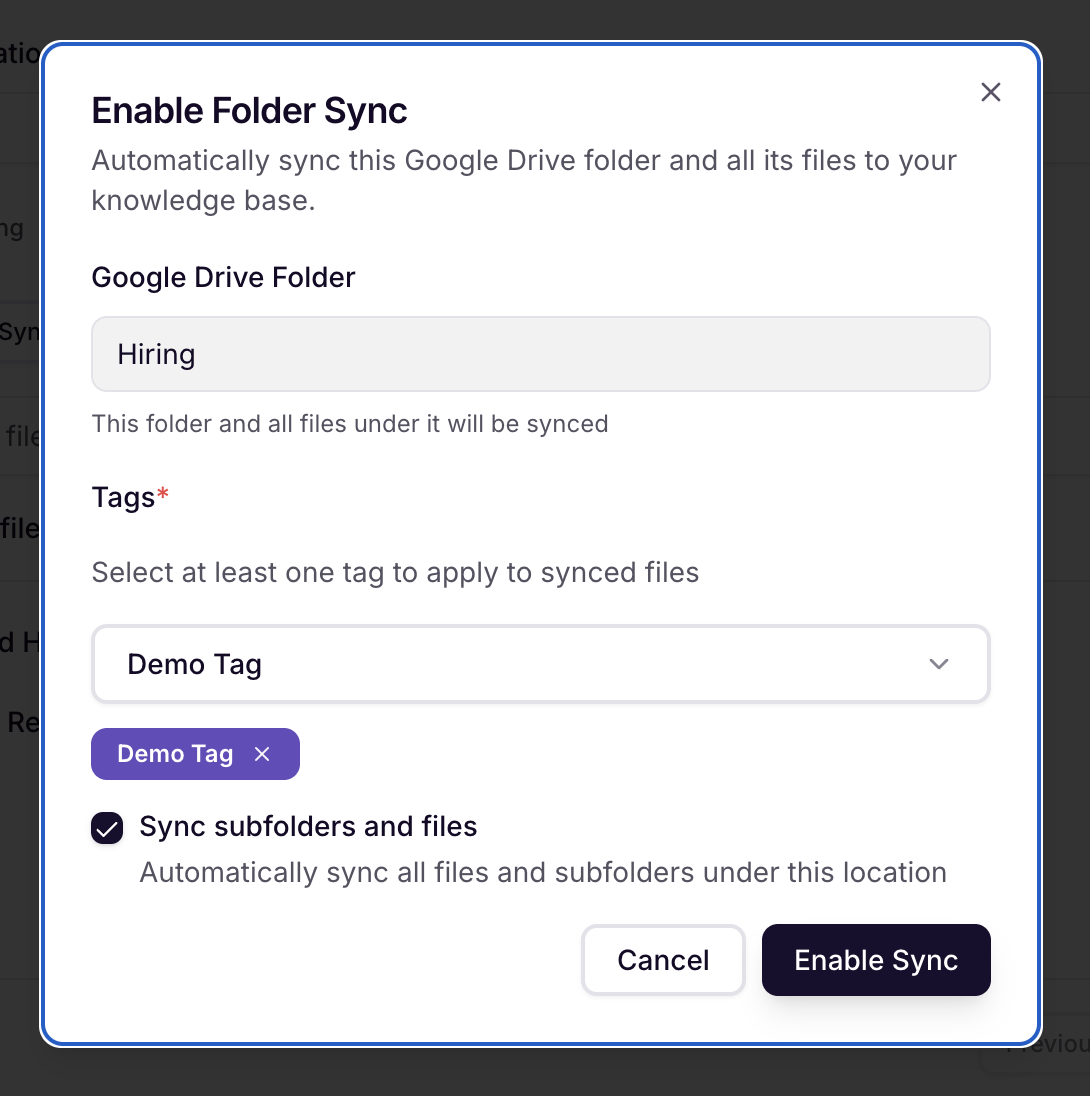
Iris will begin adding all Pages and subpages to the Knowledge and continuous check for changes, additions, and deletions within that Folder or Subfolder.
Click the "..." More actions button next to any sync rule to Pause or Delete
Sync Rules for Sharepoint
Sharepoint Sync Rules let you specify which folders, file types, and documents are included in Iris's knowledge base.
Once your Sharepoint integration is connected, you can set Sync Rules to control which Sharepoint Folders are synced with Iris' Knowledge Map.
Note: The folders available here are determined by the Microsoft account your organization used to connect SharePoint — Iris can only browse and sync folders that account has permission to see. To restrict Iris to specific folders, connect with a service account scoped to just those folders (see the SharePoint article for details).
Setting up a new Sync Rule in Sharepoint
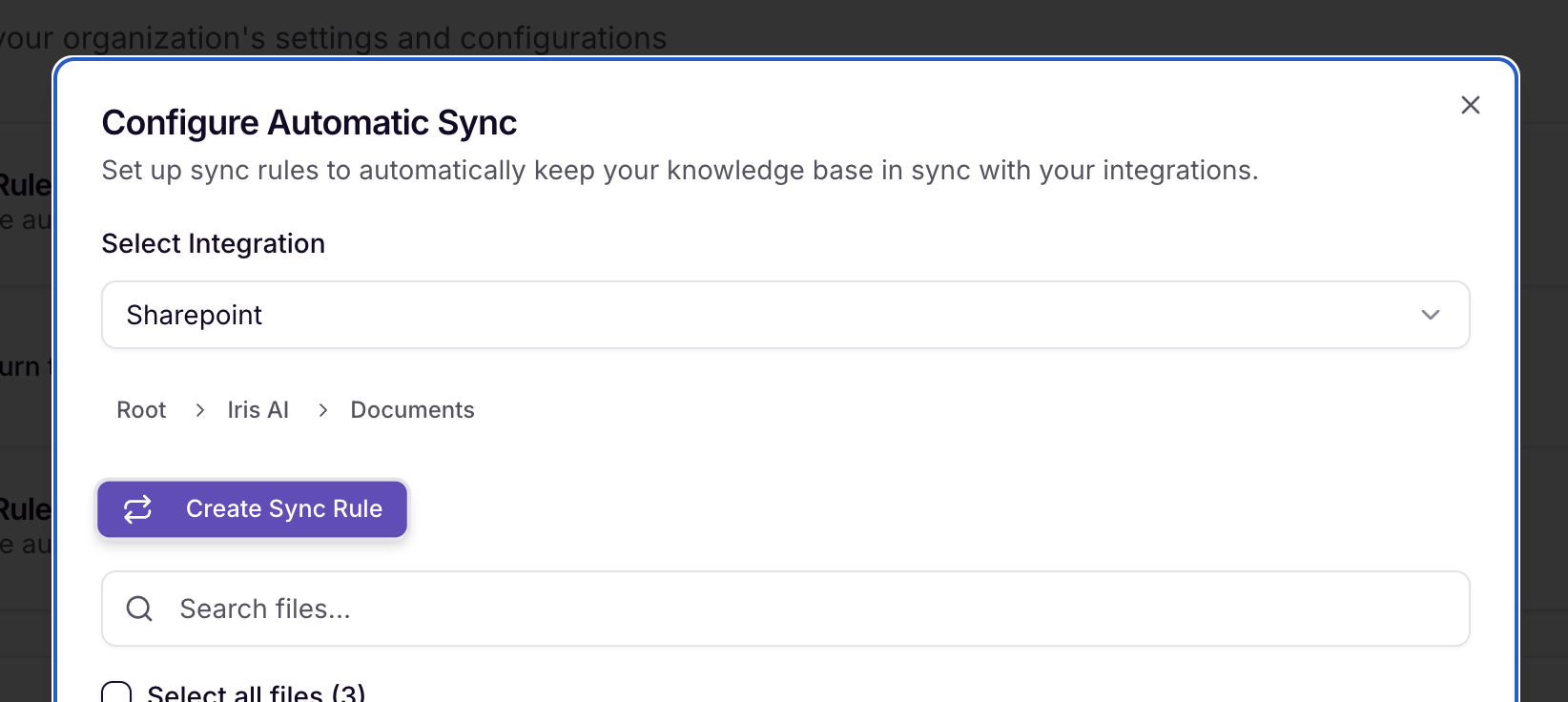
Go to Settings > Integrations > Sync Rules (or click here)
Select +Create Rule
Select integration: Sharepoint
Navigate to the page you want to set a sync rule for and select Create Sync Rule
Important Notes:
You can only create a sync rule for one Folder (and all it's subfolders) at a time. You cannot create a sync rule for an entire Sharepoint Site.
If the Create Sync Rule button is greyed out it likely means that you have multiple pages selected.
If the Create Sync Rule button isn't visible, it likely means you are at the Site level. You'll need to select a specific Folder within that Site in order to create a Sync Rule.
Select a tag or tags
Decide whether to Sync Child pages (if left unchecked, only the selected page will be synced, no sub-pages will be synced alongside it)
Decide whether to Sync existing pages now (if left unchecked, nothing will be synced and only new content added to that page will be brought into the Knowledge Map)
We recommend you turn on Sync existing pages now for the majority of use-cases!
Select Enable Sync to complete
Updating tags on an existing rule: Editing the tags on a SharePoint sync rule now shows a Save & re-sync now option. This re-imports files already synced by that rule so they immediately pick up the new tags, instead of waiting for those files to change at the source. This option is currently available for SharePoint only. For other integrations, already-synced files keep their existing tags until they're updated at the source and re-synced naturally.
Sync Rules for Vanta
Once your Vanta integration is connected, you can sync documents from your Vanta Trust Center automatically.
Setting up a new Sync Rule in Vanta
Go to Settings > Integrations > Sync Rules (or click here)
Browse your Trust Center files. You can filter to see just Trust Center files, or just files already in your Knowledge Map.
Choose what to sync:
Entire Trust Center: automatically ingests any Trust Center file not already in your Knowledge Map. Note: if you've previously deleted a file from your Knowledge Map, this option will not re-import it.
Selected files: choose specific documents to keep in sync.
Select a tag or tags.
Select Enable Sync to complete.
A note on unsupported files: Some files, like image-only PDFs, can't be ingested into the Knowledge Map. If a file you need isn't syncing, contact support@heyiris.ai, we can often help reformat it.
Sync Rules for Notion
Once your Notion integration is connected, you can set Sync Rules to control which pages and databases are included in Iris's knowledge base.
Go to Settings > Integrations > Sync Rules (or click here)
Select + Add sync rule
Select integration: Notion
Navigate to the page or database you want to sync and select Create Sync Rule
Select a tag or tags
Decide whether to Sync child pages or whether to Sync existing pages now
Select Enable Sync to complete
Frequently Asked Questions
What happens if I delete a Sync Rule?
If you delete a rule, Iris will remove the previously synced content from its knowledge base at the next sync. If you delete an exclusion rule, Iris will begin syncing the previously excluded content.
How often does Iris sync content?
For Google Drive, Sharepoint, Confluence, Notion, Vanta - changes, additions, and deletions make their way into the Knowledge Map between 5 minutes and 30 minutes.
For Web Sync- websites will sync every 7 days.
Do I need to set up Sync Rules to pull in Files?
No. You can bring in content from integrations without Sync Rules. That content will be pulled in at a point in time. Updates to that content will need to be done manually if they are not synced.
Can Sync Rules be set per user, or are they organization-wide?
Sync Rules are organization-wide and apply to all users who have access to the the tags you select.
Who can create Sync Rules?
Only Admins can create, edit, or delete Sync Rules.
Need Help?
Email us at support@heyiris.ai
Use the in-app chat icon (bottom-right corner) to start a live conversation