Navigating the Iris Platform
Last updated: May 28, 2026
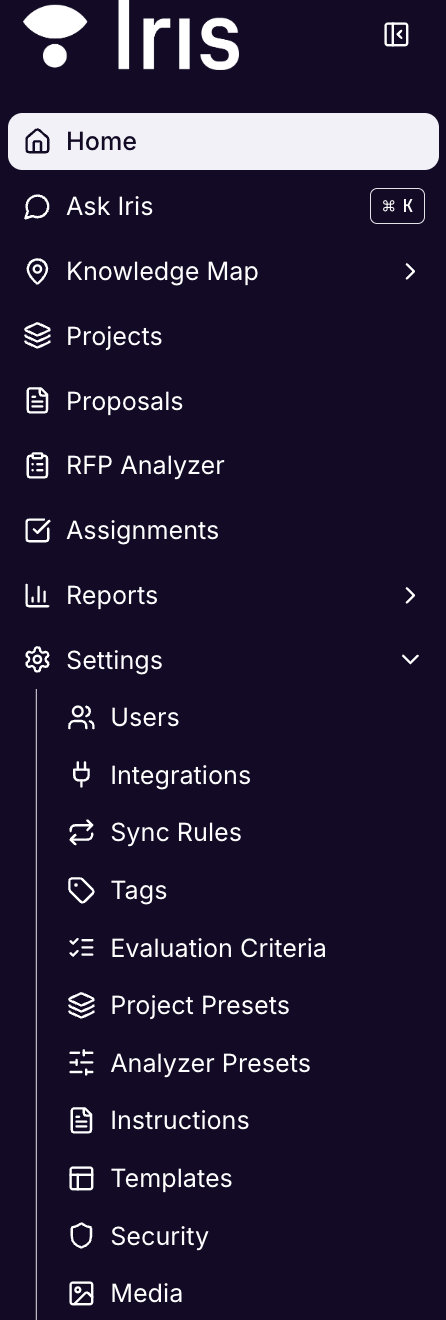
Here are the different pages within the Iris Navigation Bar. Click a page below to learn more:
1. Home
The Iris Home dashboard is your central workspace. It gives you quick access to the platform's core features — from asking AI-powered questions to managing projects and browsing your knowledge base — all from a single, organized view. The dashboard modules can be rearranged to suit your workflow, so you can prioritize the information most relevant to you.
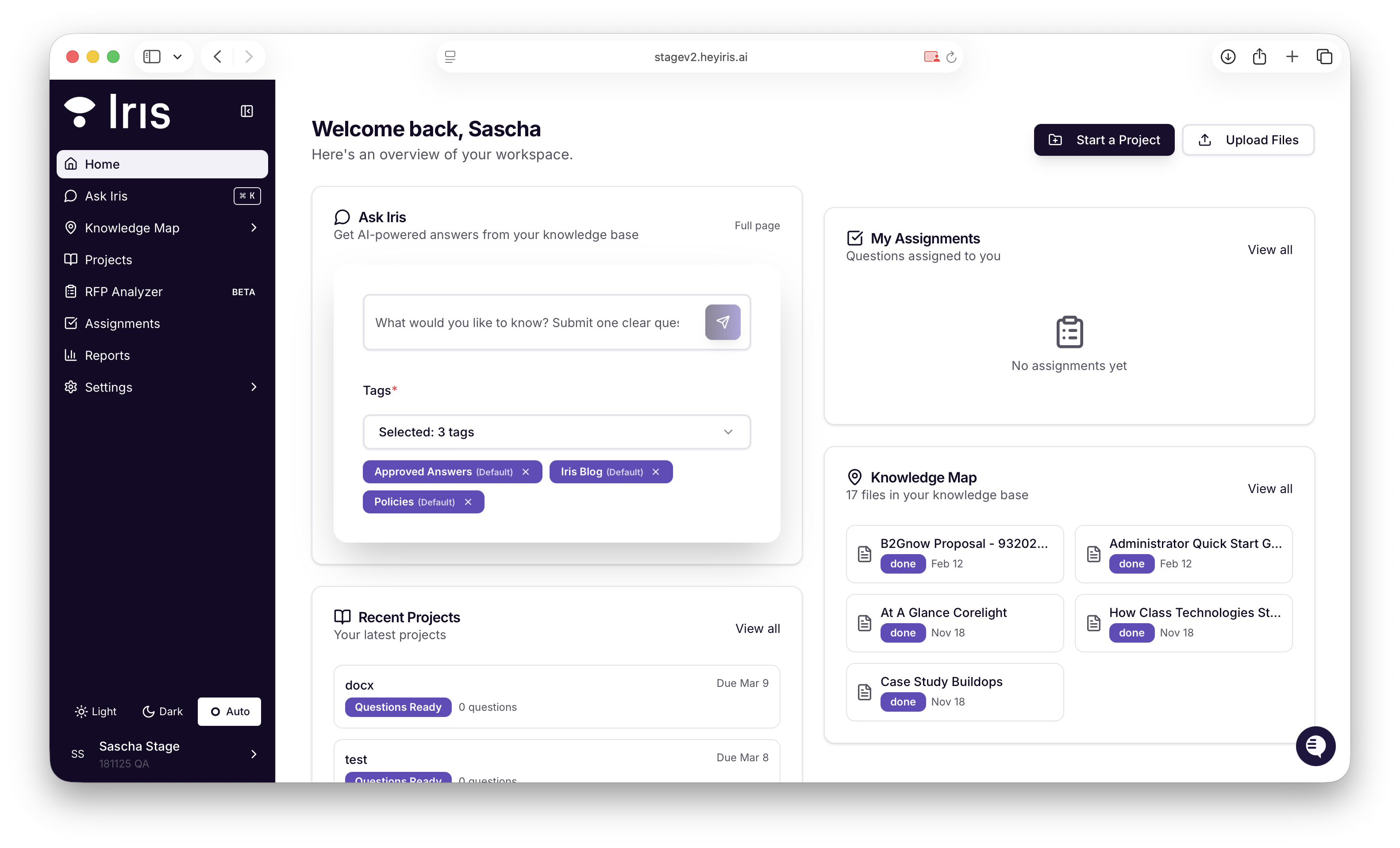
Check out the new Iris homepage.
Ask Iris
The Ask Iris panel lets you query your knowledge base using natural language. Type a clear question into the text field and submit it to receive an AI-generated answer sourced from your uploaded content.
Tags are required to scope your search. By default, three tag categories are pre-selected:
Approved Answers — surfaces verified, curated responses
Iris Blog — pulls from blog content in your knowledge base
Policies — searches policy-related documents
You can add or remove tags using the dropdown to broaden or narrow your results. If you'd like a more focused experience, click Full page in the top-right corner of the panel to open Ask Iris in its own dedicated view.
My Assignments
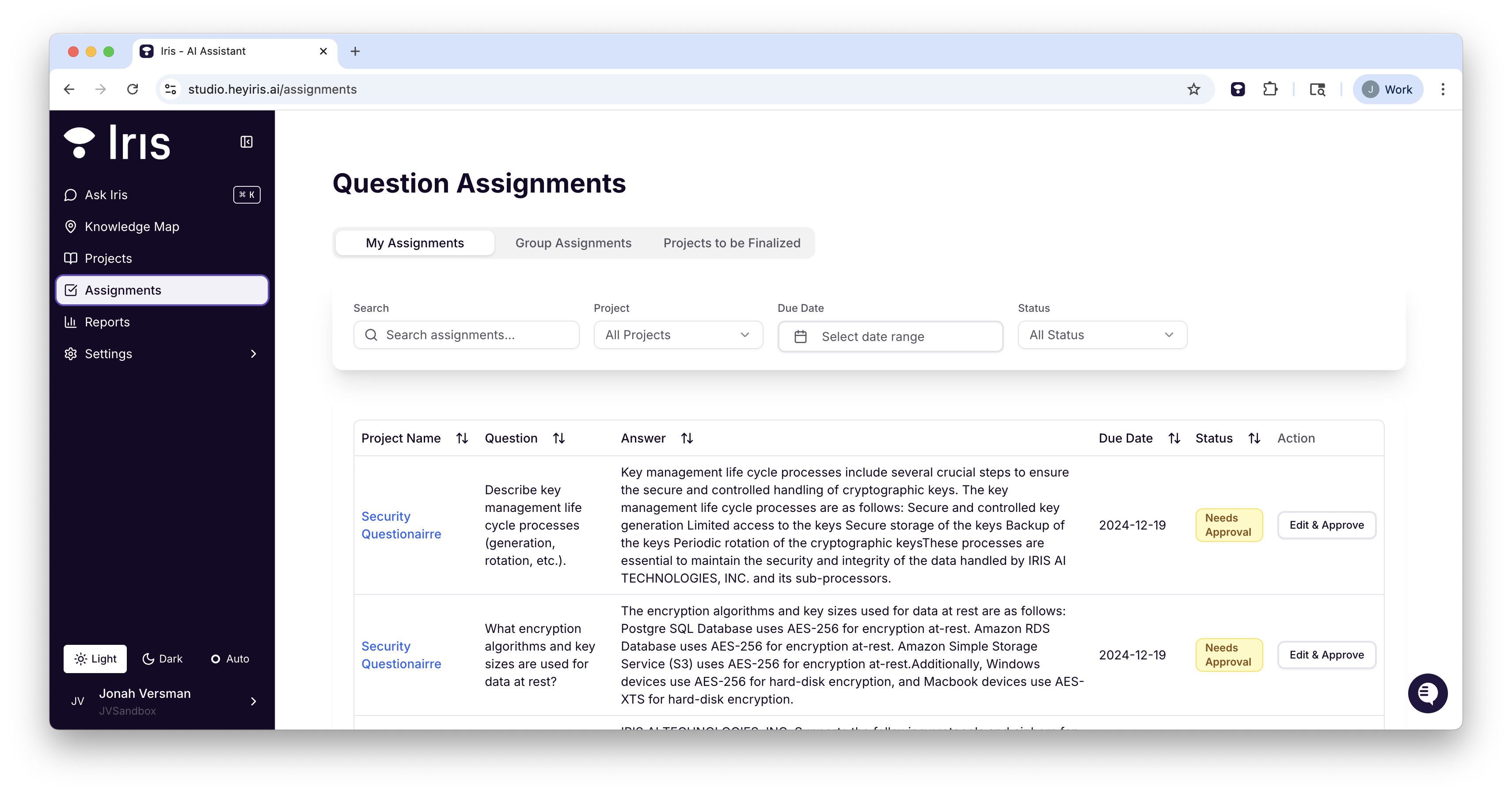
The My Assignments panel displays any questions that have been assigned to you for review or response. When assignments are pending, they will appear here with relevant context. Click View all to see your complete assignments list.
Recent Projects
The Recent Projects section shows your most recently active projects, including their current status (e.g., Questions Ready) and due dates. From here you can jump directly into a project or click View all to browse your full project history.
To kick off new work, use the Start a Project button in the top-right corner of the page.
Knowledge Map
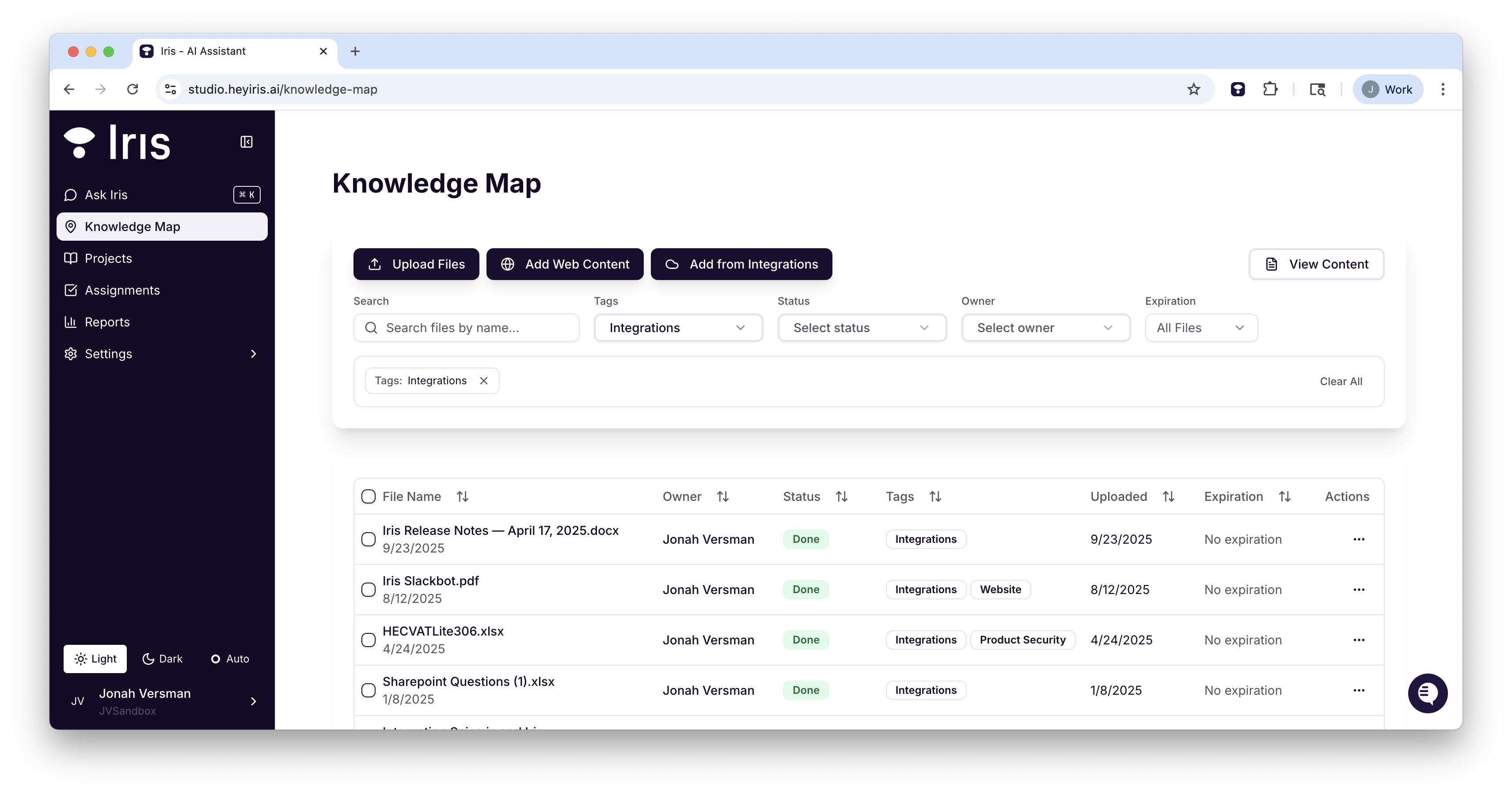
The Knowledge Map panel provides a snapshot of the files currently in your knowledge base. Each file displays its processing status (e.g., done) and the date it was added. Click View all to explore the full Knowledge Map, where you can browse, search, and manage all of your uploaded content.
2. Ask Iris
Type one-off questions to Iris and select your tags
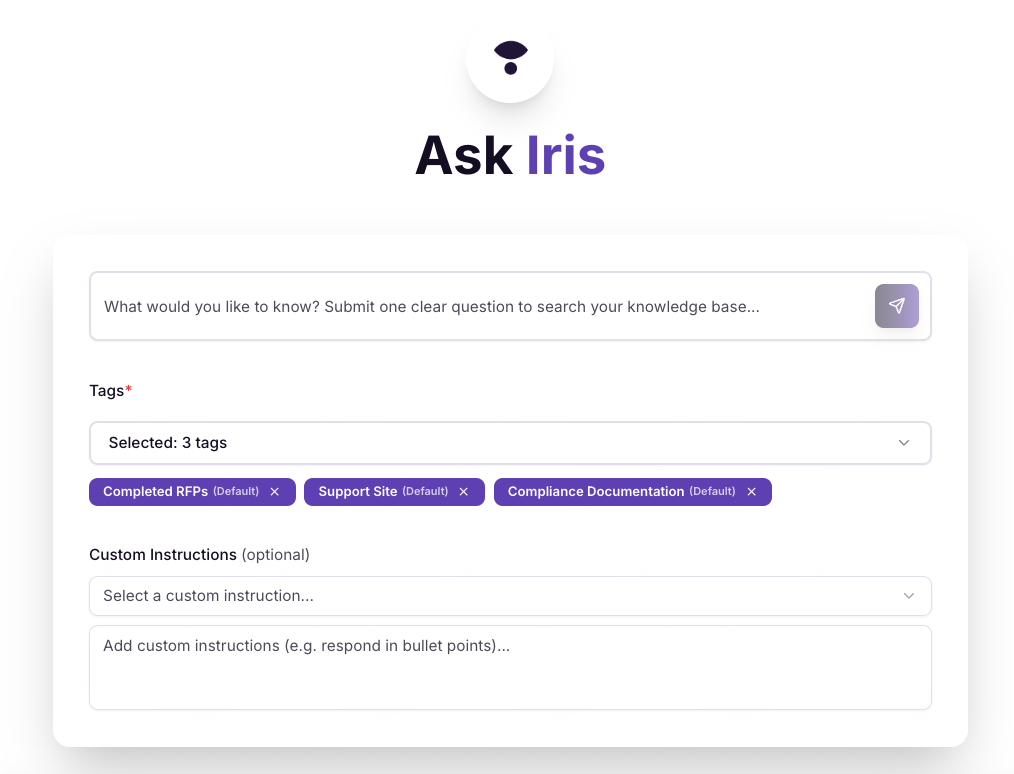
See Ask Iris for more.
3. Knowledge Map
4. Projects
Organize and work on RFPs, questionnaires, and collaborative tasks in one centralized hub.
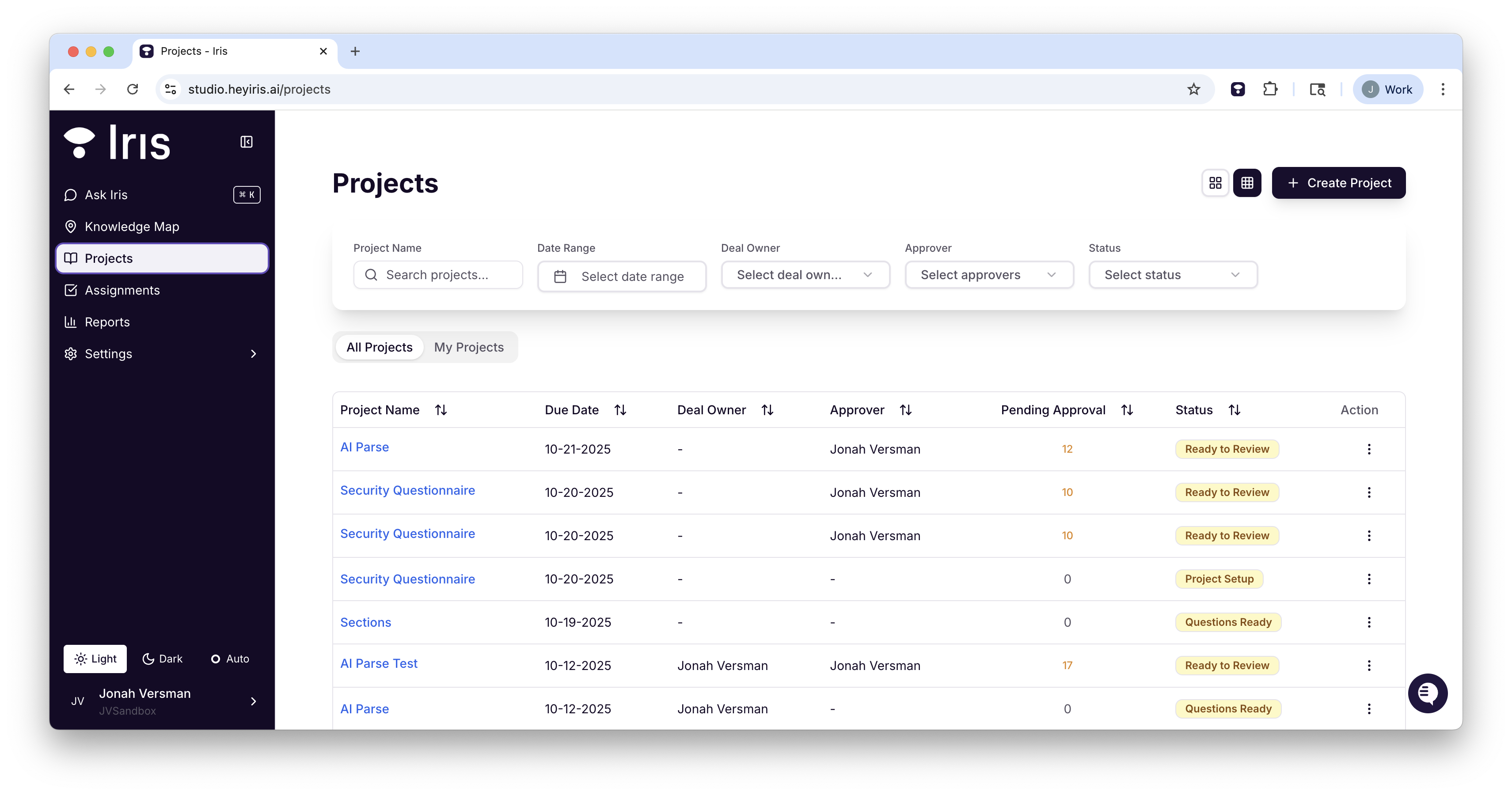
See our Projects Guide for more.
5. Assignments
6. Reports
Keep track of all your organization's projects, analyze project progress, and view project performance with detailed metrics.
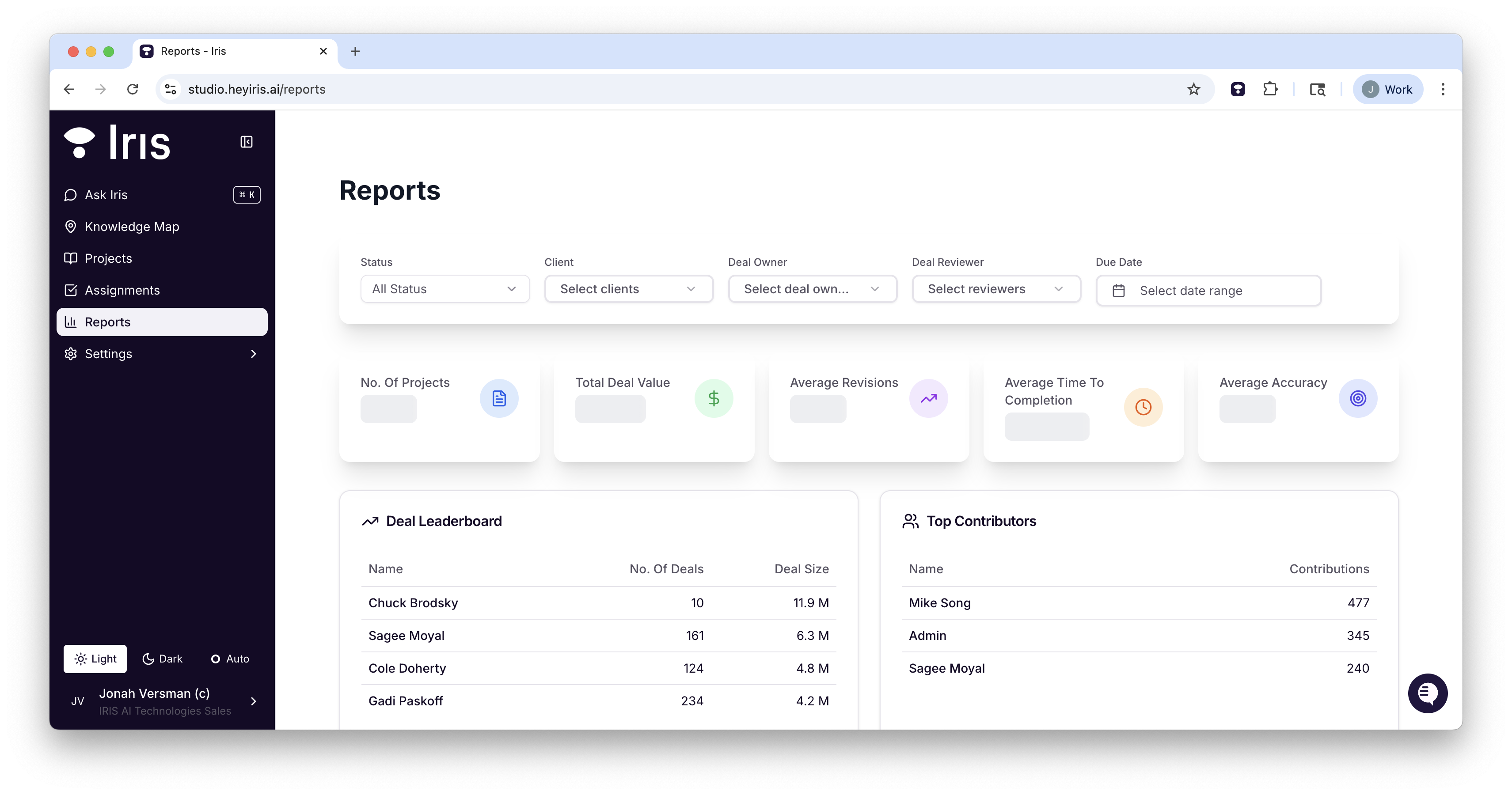
See Reports for more.
7. Settings
Customize your preferences, team settings, and system configurations.
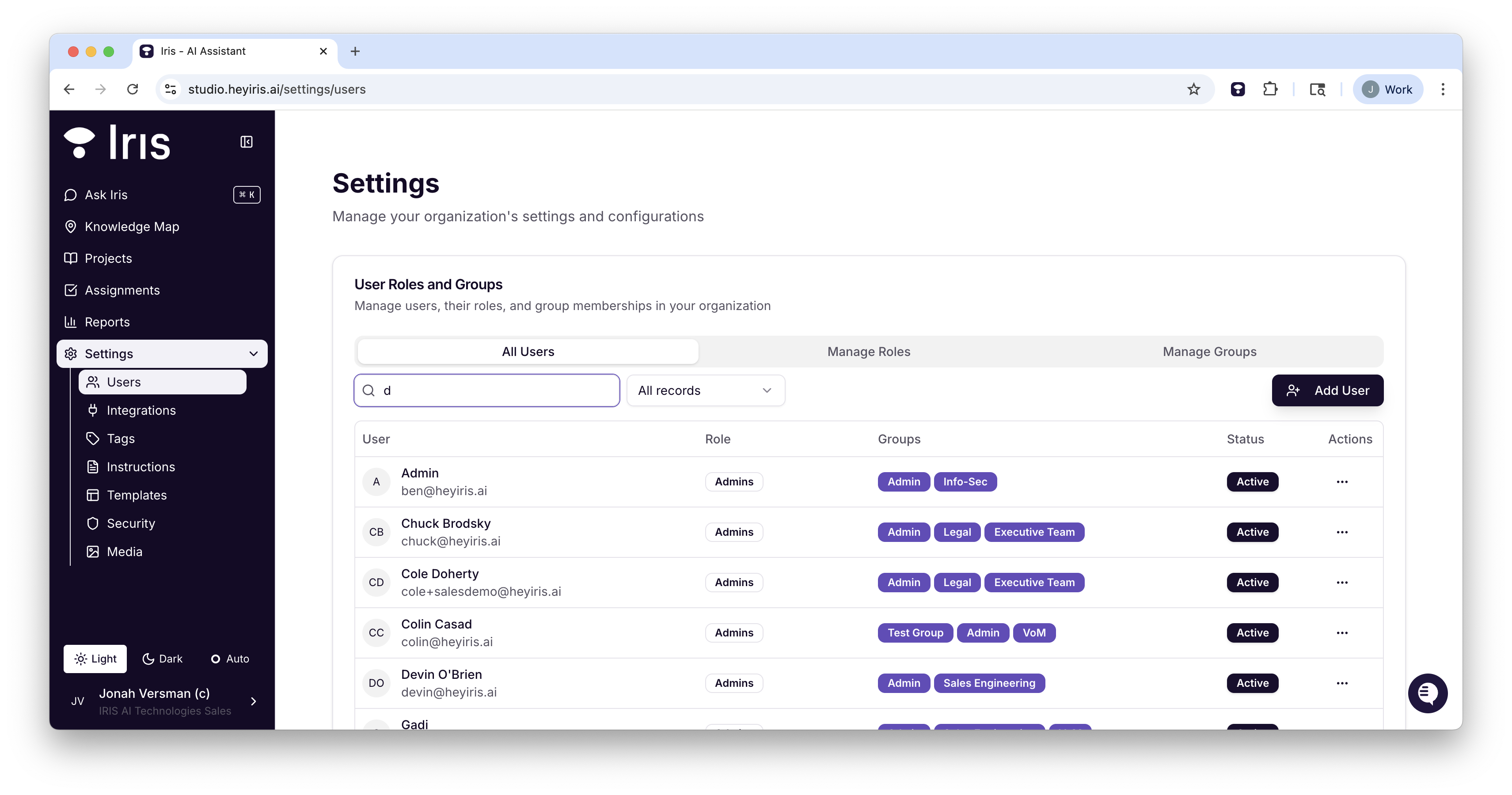
Settings has the following pages:
Users -- Add new users, create custom roles, make custom groups, and adjust user permissions
Integrations -- Configure new Integrations
Sync Rules -- Set up dynamic syncs across supported integrations
Tags -- Create and edit tags
Evaluation Criteria -- Create and evaluate Go/No Go criteria for RFP Analyzer
Project Presets -- Create Project templates for consistency
Analyzer Presets -- Create RFP Analyzer templates to designate tags + criteria for specific types of opportunities
Instructions -- Create and edit custom instructions
Templates -- Upload export templates for .docx files
Security -- Adjust security settings
Media Library -- Repository for images used in answers
See our Settings Guide for more.
8. User Profile
Manage your account settings and preferences
Add a profile picture
Change your password
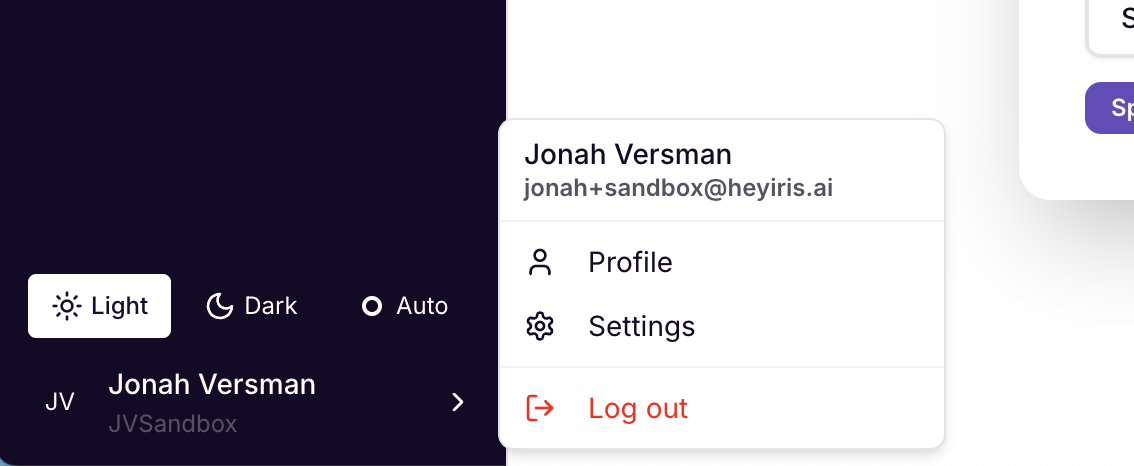
Log out