Administrator Quick Start Guide
Last updated: March 25, 2026
Welcome to Iris, your intelligent platform for efficiently managing RFPs, Security questionnaires, Sales Enablement, and your Knowledge Base.
Before you can start asking questions and working on projects in Iris, you'll need to complete the following configuration steps:
First Time Login
Find an email from no-reply@heyiris.ai:
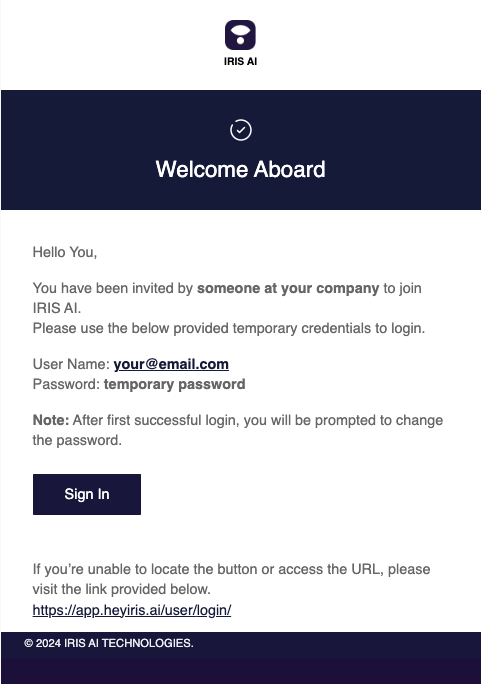
Upon your first login:
Go to studio.heyiris.ai and sign in with the provided email and temporary password
You’ll be prompted to reset your password.
After setting your new password, log in again to access the dashboard.
Didn’t receive an email?
Check your spam folder.
Ask your Iris representative to give you access.
See Logging Into Iris for more
Create your Tags
Before uploading documents to your knowledge map, you'll need to create tags. Tags allow you to isolate data sources based on subject matter, document type, geography, product line, and more.
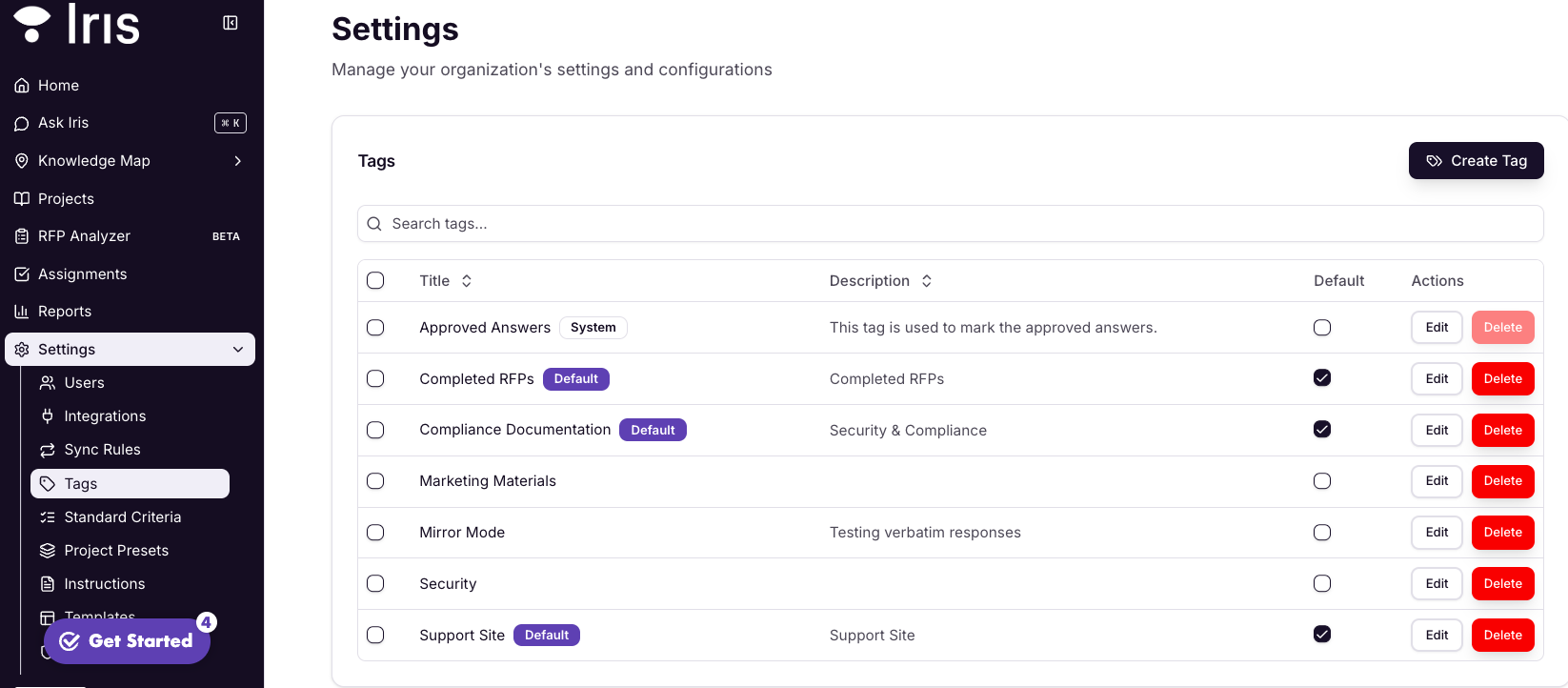
Creating Tags:
Navigate to
Settings > Tagsin the left-hand menu.Click
Create Tag.Enter a name for the tag (e.g., "Security Docs" or "RFP Submissions") and a description.
Click
Create Tagto finalize.
Best Practices:
Tailor tags to organize documents by region, client type, or document category. Assigning accurate tags ensures Iris can deliver context-specific answers when you need them.
See Tags for more
Set up Integrations

Iris supports multiple kinds of integrations for uploading documents, asking Iris questions, and user management.
Learn more about each of our integrations and how to set them up on our Integrations page.
Upload Documents to your Knowledge Map
The knowledge map is a repository of all documents uploaded to Iris, providing a foundational understanding of your organization. Upload recent RFPs, case studies, or other knowledge documents into the Iris knowledge base for analysis and automation.
Unsure what to upload? See Building Your Knowledge Map.
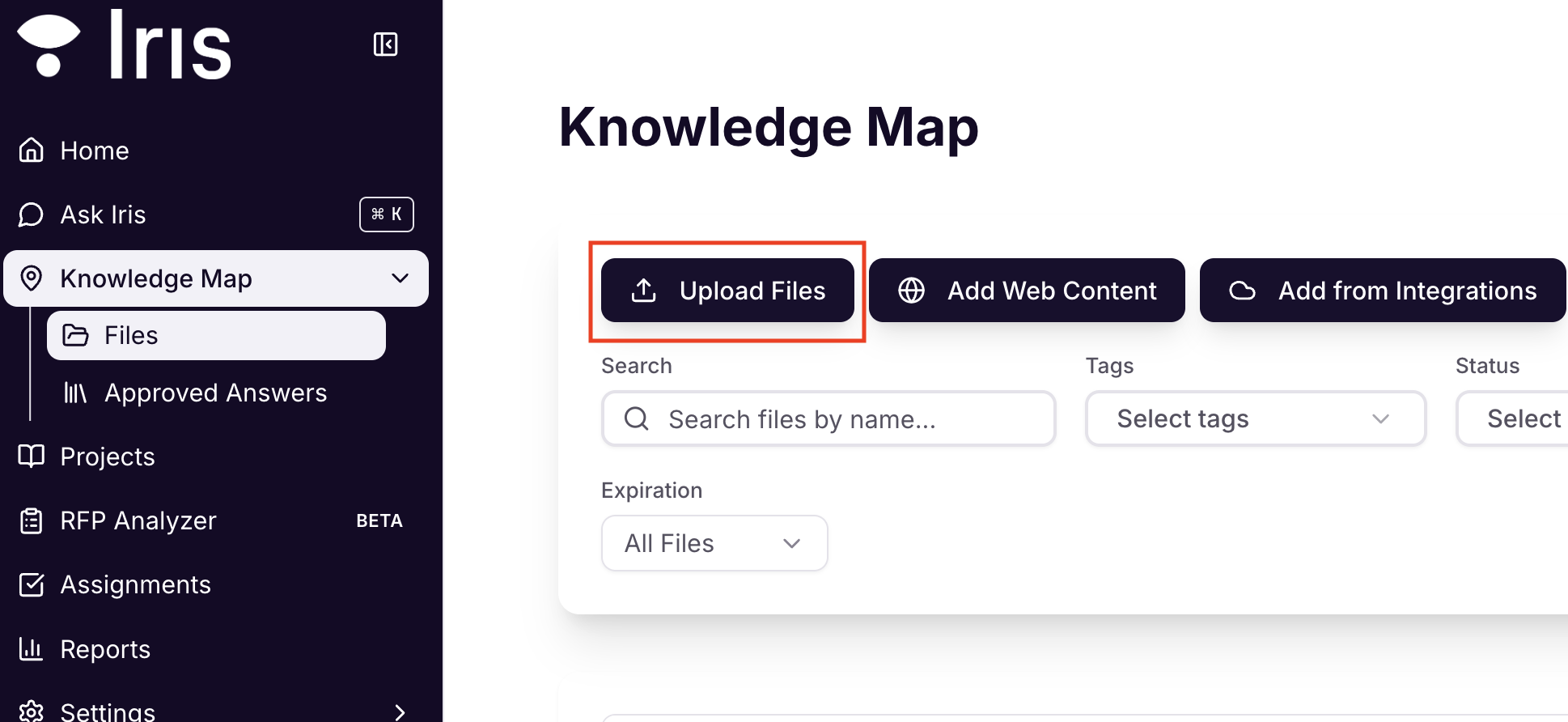
Uploading Documents
Initiating Upload:
Click
Knowledge Map-->Filesin the left-hand menu.Then click
Upload Filesto add files from your computerSelect the tags associated with the documents you’re uploading.
You can also upload documents via integrations, or pull information from a specific webpage or an entire website.
File Type, Number, and Size:
Supported formats include PDFs, Word documents, Excel sheets, CSV, PPT, TXT, and MD files.
You can upload up to 75 megabytes at a time.
If you're trying to upload a document that's not supported, please reach out to support@heyiris.ai
Confirmation:
For large files, "processing" will appear in yellow until the document is fully processed.

A green checkmark indicates a successful upload.
Add Users
Without SSO:
Navigate to
Settings > Usersin the menu on the left.Click
Add User.Enter Name, Email, User Type, Groups (optional) then select
Add User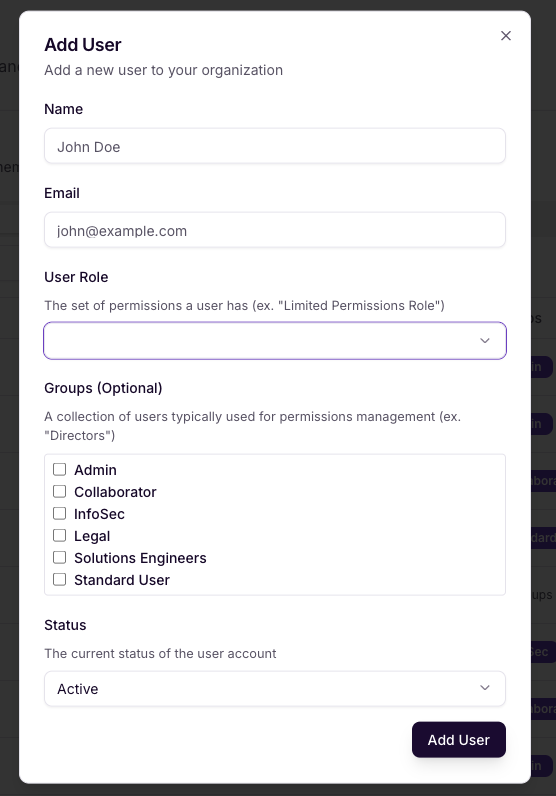
With SSO:
Ask users to visit app.heyiris.ai and click
Sign in with SSO.By default, new users will come in with the Collaborator role (you can edit what role new users get within
Settings > Security.
See Managing Users for more.
Once you've completed these, you are ready to complete your first project in Iris.
Other Important Configuration Steps:
Create Default Custom Instructions
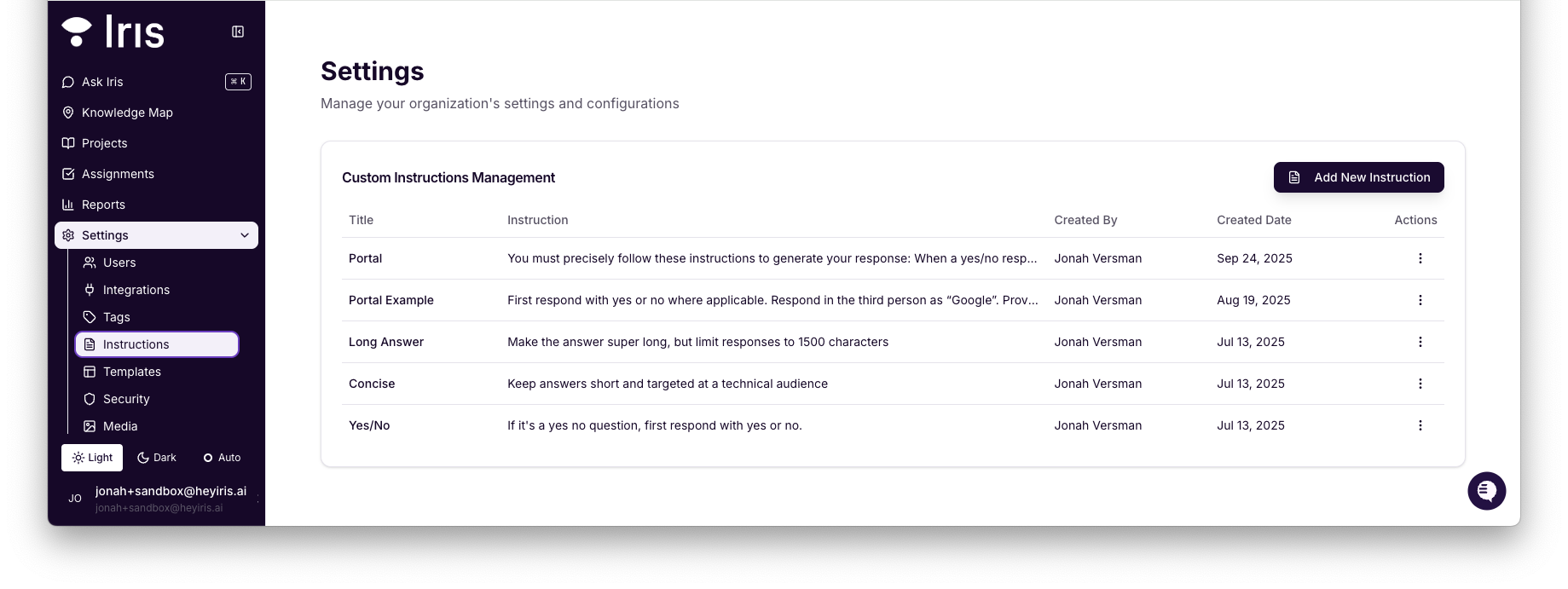
Custom instructions let you tailor Iris-generated responses by specifying Format, Desire, and Audience to match your needs.
You can set Default Custom Instructions for users to pick from when they generate projects.
Navigate to
Settings > Instructionsin the left-hand menu.Select
Add New Instruction.Enter a Title.
Enter the Instruction.
Select
Addto finalize.
See Custom Instructions for more.
Create Groups
Want to assign groups of users to your projects?
Navigate to
Settings > Usersin the dashboard in the left-hand menuSelect
Manage Groupsat the top.Select
Create Group, enter a name and description, thenCreate Groupto finalize.Here are some of the more common groups we see:
RFP Team
SQ Team
Solutions Engineers
Legal Team
To adjust who is in a group, select the
..."More" button next to a group thenManage Members.Check or uncheck the users you want to add/remove from the group
Select
Save Changesto finalize.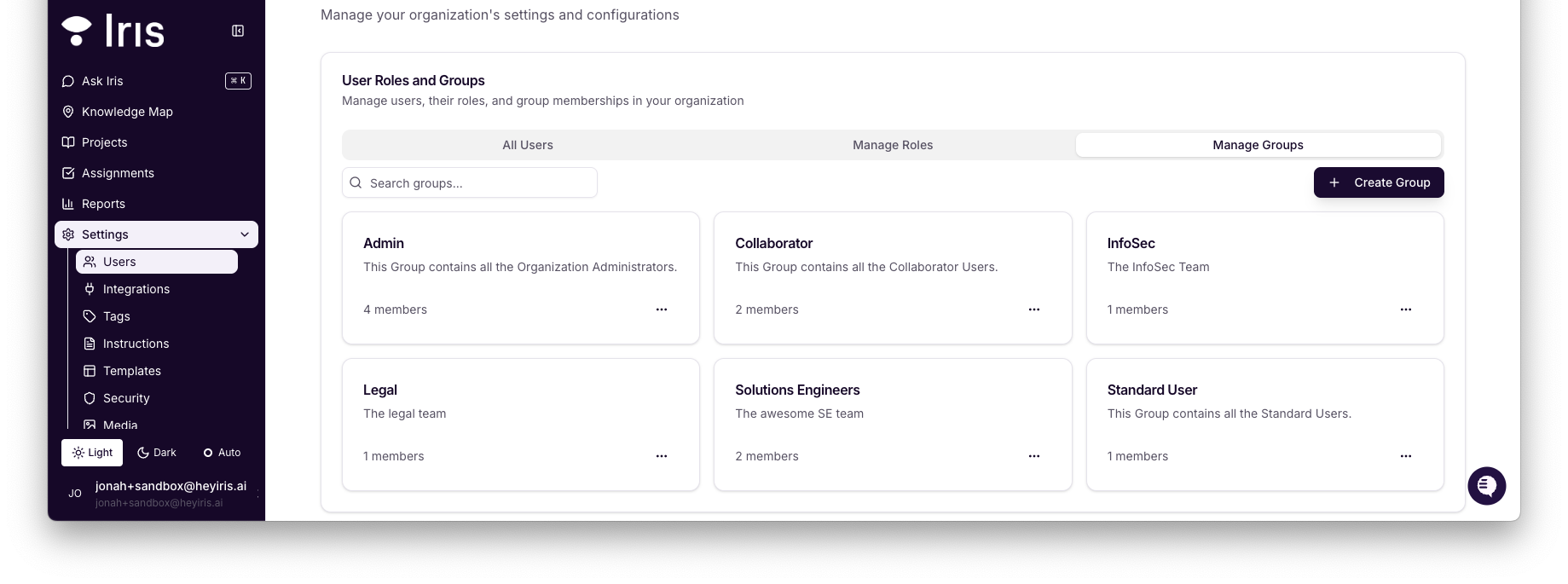
See Roles and User Groups in Iris for more.
Security Settings
Navigate to
Settings > Securityin the dashboard in the dashboard in the left-hand menu to adjust your security settings.
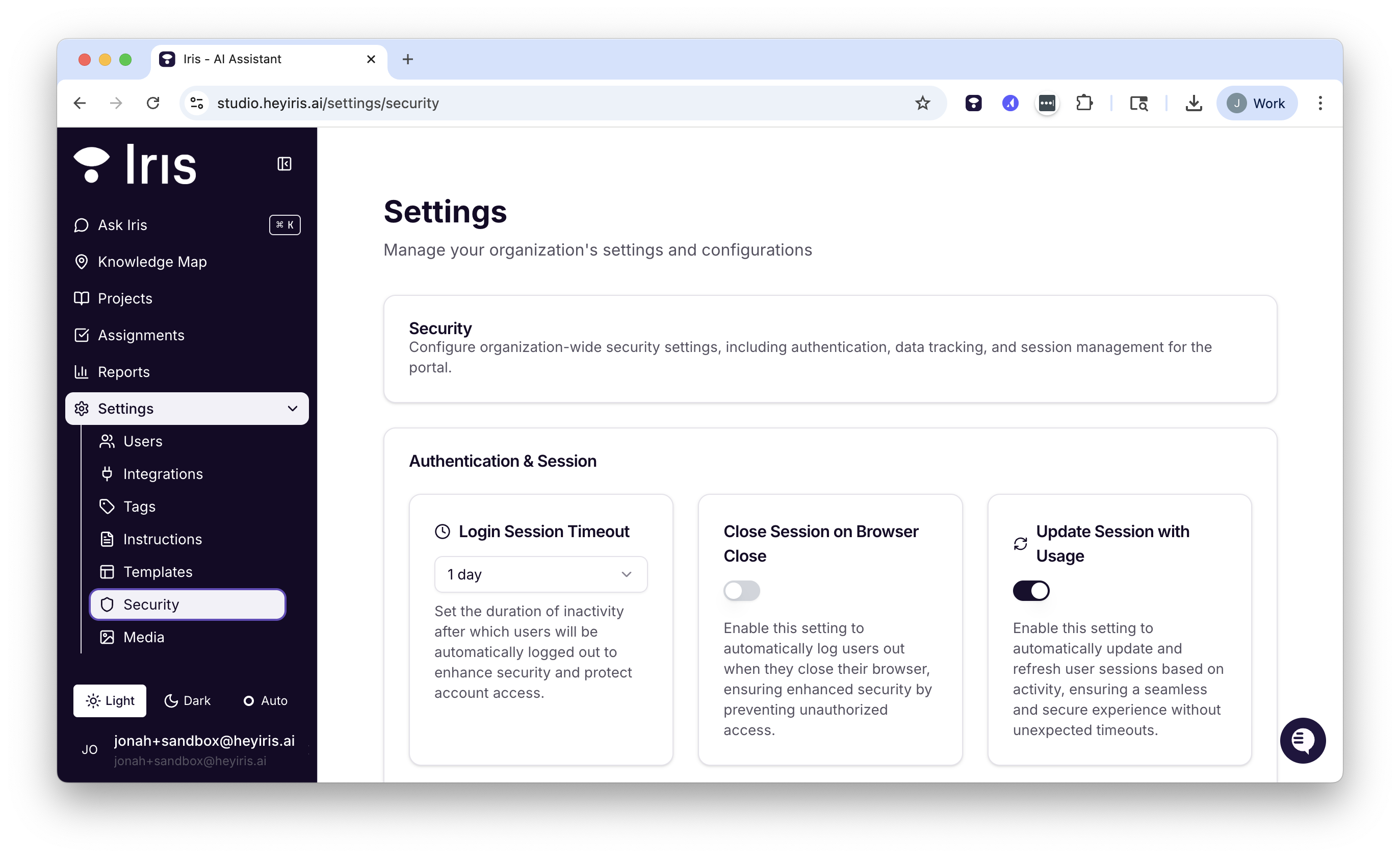
See our Security Settings Guide for more.
Set up Custom Roles